Nutrient Python SDK
Create, edit, and fill PDF forms in Python
- Fill PDF form fields programmatically — text, checkboxes, radio buttons, dropdowns, and list boxes
- Add form fields to existing PDFs with full control over position, size, and styling
- Edit form field properties — set fields to read-only, mark as required, or inspect field hierarchy
- Seven field types supported: text, checkbox, radio button, combo box, list box, push button, and signature
Need pricing or implementation help? Talk to Sales.
PDF FORMS IN PYTHON
from nutrient_sdk import Documentfrom nutrient_sdk import PdfEditorfrom nutrient_sdk import PdfFormFieldTypefrom nutrient_sdk import NutrientException
def main(): try: with Document.open("input_forms.pdf") as document: editor = PdfEditor.edit(document) form_fields = editor.get_form_field_collection()
text_field = form_fields.find_by_full_name("Text1") if text_field is not None: text_field.set_value("John Doe")
checkbox = form_fields.find_by_full_name("Check1") if checkbox is not None: checkbox.set_checked(True)
editor.save_as("output.pdf") editor.close() except NutrientException as e: print(f"Error: {e}")
if __name__ == "__main__": main()from nutrient_sdk import Documentfrom nutrient_sdk import PdfEditorfrom nutrient_sdk import Colorfrom nutrient_sdk import NutrientException
def main(): try: with Document.open("input.pdf") as document: editor = PdfEditor.edit(document) pages = editor.get_page_collection() form_fields = editor.get_form_field_collection()
name_field = form_fields.add_text_field( "userName", pages.get_first(), 50.0, 700.0, 200.0, 20.0 ) name_field.font_size = 12.0 name_field.font_color = Color.from_argb( 255, 0, 0, 0 )
editor.save_as("output.pdf") editor.close() except NutrientException as e: print(f"Error: {e}")
if __name__ == "__main__": main()from nutrient_sdk import Documentfrom nutrient_sdk import PdfEditorfrom nutrient_sdk import NutrientException
def main(): try: with Document.open("input_forms.pdf") as document: editor = PdfEditor.edit(document) form_fields = editor.get_form_field_collection()
field = form_fields.find_by_full_name("Text1") if field is not None: field.set_is_read_only(True) field.set_is_required(True)
editor.save_as("output.pdf") editor.close() except NutrientException as e: print(f"Error: {e}")
if __name__ == "__main__": main() Lufthansa
Disney
Autodesk
UBS
Dropbox
IBM
Lufthansa
Disney
Autodesk
UBS
Dropbox
IBM
USE CASES
When developers reach for this SDK
Fill PDF forms in automated workflows
Customer data, application details, or survey responses arrive as structured data. Fill PDF form fields automatically in a Django view, FastAPI endpoint, or background task.
Generate forms from templates
Add text fields, checkboxes, dropdowns, and signature fields to existing PDFs. Build reusable form templates programmatically.
Validate and lock form fields
Mark fields as required for validation, set fields to read-only after submission, or inspect field properties before processing.
Process form submissions at scale
Iterate through form fields, fill values conditionally based on field type, and batch-process multiple documents in a single script.
PDF form operations in Python
Fill PDF form fields
Fill text fields, check checkboxes, select radio buttons, and choose dropdown and list box items programmatically.
- Set text field values by field name
- Check and uncheck checkboxes
- Select radio button, combo box, and list box items
Add form fields to PDFs
Create form fields on existing PDF pages. Position, size, and style each field with full control.
- Seven field types: text, checkbox, radio, combo, list, button, signature
- Set font size and color on text fields
- Add items to combo boxes and list boxes
Edit form field properties
Inspect and modify form field properties. Set fields to read-only, mark as required, and navigate field hierarchy.
- Set read-only and required flags
- Inspect field type, name, and value
- Navigate parent-child field hierarchy
Field types
ADVANCED CAPABILITIES
Beyond basic form filling
The SDK handles more than simple form filling. Build form processing into automated workflows and deploy anywhere Python runs.
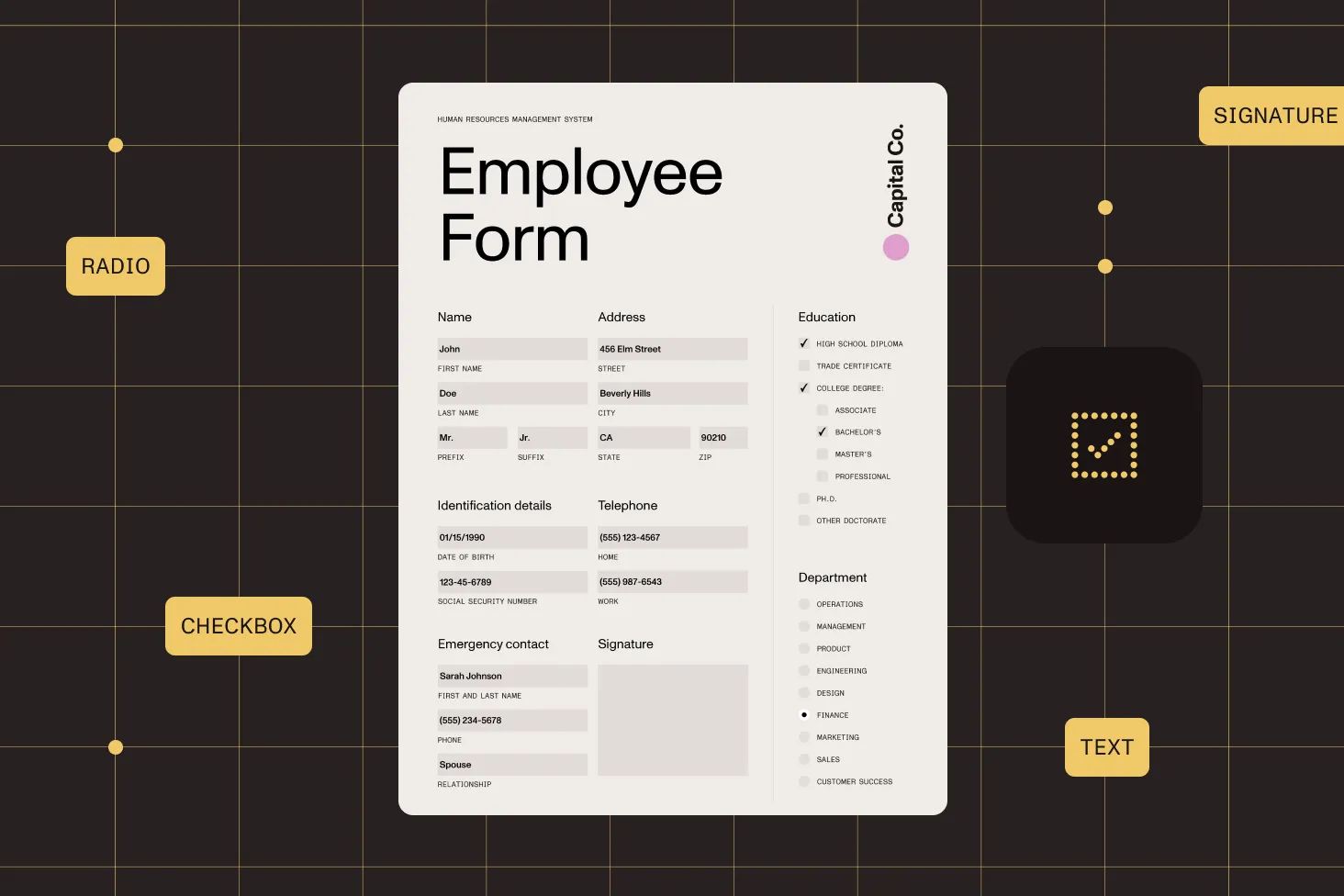
Batch form processing
Iterate through all form fields and fill values conditionally based on field type and read-only state.
Field hierarchy navigation
Access parent-child field relationships using dot notation names and navigate nested field structures.
Server-side processing
No GUI dependencies — create, fill, and edit PDF forms in background jobs, cron tasks, or API handlers.
Cross-platform deployment
Deploy anywhere Python runs — the SDK has no platform-specific system dependencies.
Frequently asked questions
How do I fill a PDF form in Python?
Open the PDF, create an editor, and use the form field collection to find fields by name. Set text values, check checkboxes, select radio buttons, and choose dropdown items. Save the result as a new file. See the fill PDF form guide for a complete example.
How do I fill PDF form fields programmatically in Python?
The SDK provides methods for each field type: set_value() for text fields, set_checked() for checkboxes, set_selected_option() for radio buttons, and set_selected_item() for combo boxes and list boxes. Find fields by name and fill them in any order.
What form field types can I create in Python?
The SDK supports seven field types: text fields (single-line and multiline), checkboxes, radio button groups, combo boxes (dropdowns), list boxes, push buttons with captions, and signature fields. Each field is positioned by page, coordinates, width, and height.
How do I add form fields to an existing PDF?
Open the PDF, create an editor, and use the form field collection to add fields. Each add method takes a field name, page reference, and position coordinates. You can also set font size and font color, as well as add items to combo and list boxes.
Can I make PDF form fields read-only in Python?
Yes. Find the field by name and call set_is_read_only(True) to lock it. You can also mark fields as required with set_is_required(True) for validation purposes. See the editing form fields guide.
How do I fill multiple PDF forms in a batch?
The SDK is a standard Python library, so you can iterate through files in a loop. For each document, open it, fill the form fields, and save. You can also iterate through all fields in a single form and fill them conditionally based on field type.
How do I inspect form field properties before filling?
Use the form field collection to iterate through fields and check properties like field type, name, read-only state, required state, and current value. The SDK supports hierarchical field names using dot notation for nested structures.
How do I handle errors when filling PDF forms?
Wrap your code in a try-except block and catch NutrientException for SDK-specific errors. Use the context manager syntax (with Document.open(...) as document:) to ensure automatic resource cleanup, even when errors occur.
FREE TRIAL
Ready to get started?
Start creating, editing, and filling PDF forms in Python in minutes — no payment information required.
Explore more
Also available for
More Python SDK capabilities