How to generate PDFs in C# with Nutrient .NET SDK

Table of contents

Nutrient .NET SDK (formerly GdPicture.NET) enables you to create PDFs from code, application data, or images. This tutorial builds a fillable form, draws an order table across pages, and converts an image to PDF. Each C# example uses the shared setup below. Linked guides cover HTML and Word-template generation.
A signup form needs interactive fields; an order report needs rows and page breaks; a scanned document starts as an image. The following examples show how to handle each with Nutrient .NET SDK. Choose the approach that matches your input and layout requirements.
Which PDF generation approach fits the job?
| Source | Approach | Where it’s covered |
|---|---|---|
| No source — build from code | NewPDF() + draw APIs | This tutorial |
| Structured data (orders, rows) | Draw APIs in a loop + NewPage() pagination | This tutorial |
| Images (scans, photos) | CreateGdPictureImageFromByteArray + AddImageFromGdPictureImage | This tutorial |
| HTML/CSS | HTML-to-PDF conversion | Invoices, receipts, reports, certificates tutorials |
| Word templates with data | Template-based generation | From a Word template guide |
Setup
Use the .NET 8 SDK for the commands below and a Nutrient .NET SDK license or demo key with PDF processing enabled. The image example also requires the image documents feature. Check the system compatibility guide for supported operating systems and native dependencies.
Create a console project and install the SDK from NuGet:
dotnet new console -n GeneratePdf -f net8.0cd GeneratePdfdotnet add package GdPicture.APIReplace Program.cs with the shared setup below, enter your license key, and append exactly one of the three examples. The examples are alternatives, so run them separately. The downloads guide explains the available packages and evaluation options.
using System;using System.Collections.Generic;using System.IO;using System.Linq;using GdPicture14;
LicenseManager licence = new LicenseManager();licence.RegisterKEY("YOUR_LICENSE_KEY");
string outputDirectory = Path.GetFullPath("output");Directory.CreateDirectory(outputDirectory);
// Stop when an SDK operation reports a failure.static void Check(GdPictureStatus status, string operation){    if (status != GdPictureStatus.OK)    {        throw new InvalidOperationException($"{operation} failed: {status}");    }}
Run the selected example from the project directory:
dotnet runThe PDF is written to the output directory. The image example also requires a source.png file in the project directory. These examples check document creation, drawing, and saving statuses so a failed SDK operation reports an error instead of silently continuing.
Generate a PDF from scratch in C#
Create the document, set the coordinate system, add a page, and then draw. The example below produces a one-page signup form and saves it to disk. The form has a title in a text box, a red rectangle around it, two labels, and two fillable text fields:
using GdPicturePDF gdpicturePDF = new GdPicturePDF();// Create a new PDF document before setting the coordinate system.Check(gdpicturePDF.NewPDF(), "NewPDF");// Set the measurement unit and the origin.gdpicturePDF.SetMeasurementUnit(PdfMeasurementUnit.PdfMeasurementUnitMillimeter);gdpicturePDF.SetOrigin(PdfOrigin.PdfOriginTopLeft);// Add a new A4-sized page to the document.Check(gdpicturePDF.NewPage(PdfPageSizes.PdfPageSizeA4), "NewPage");// Set the fonts to be used in the PDF document.string fontHelvetica = gdpicturePDF.AddStandardFont(PdfStandardFont.PdfStandardFontHelvetica);Check(gdpicturePDF.GetStat(), "Create font or form field");string fontHelveticaBold = gdpicturePDF.AddStandardFont(PdfStandardFont.PdfStandardFontHelveticaBold);Check(gdpicturePDF.GetStat(), "Create font or form field");// Add the title.Check(gdpicturePDF.SetTextSize(30), "SetTextSize");Check(gdpicturePDF.DrawTextBox(fontHelveticaBold, 10, 5, 200, 25, TextAlignment.TextAlignmentCenter, TextAlignment.TextAlignmentCenter, "Dinner Signup Form"), "DrawTextBox");// Draw a red rectangle around the title.Check(gdpicturePDF.SetLineColor(255, 0, 0), "SetLineColor");Check(gdpicturePDF.SetLineWidth(2), "SetLineWidth");Check(gdpicturePDF.DrawRectangle(10, 5, 190, 20, false, true), "DrawRectangle");// Add the form field descriptions.Check(gdpicturePDF.SetTextSize(10), "SetTextSize");Check(gdpicturePDF.DrawText(fontHelvetica, 15, 40, "Name"), "DrawText");Check(gdpicturePDF.DrawText(fontHelvetica, 15, 50, "Dietary requirements"), "DrawText");// Add the form fields.int fieldNameId = gdpicturePDF.AddTextFormField(60, 35, 90, 8, "Name", "Enter your name", false, fontHelvetica, 8, 0, 0, 0);Check(gdpicturePDF.GetStat(), "Create font or form field");Check(gdpicturePDF.SetFormFieldMaxLen(fieldNameId, 50), "SetFormFieldMaxLen");int fieldDietaryRequirementsId = gdpicturePDF.AddTextFormField(60, 45, 90, 30, "Dietary requirements", "Enter your dietary requirements", true, fontHelvetica, 8, 0, 0, 0);Check(gdpicturePDF.GetStat(), "Create font or form field");Check(gdpicturePDF.SetFormFieldMaxLen(fieldDietaryRequirementsId, 500), "SetFormFieldMaxLen");// Save the PDF document.Check(gdpicturePDF.SaveToFile(Path.Combine(outputDirectory, "output.pdf")), "SaveToFile");What to know before adapting this to real documents:
- The coordinate system is explicit.
SetMeasurementUnitpicks the unit (millimeters here), andSetOriginanchors coordinates to a corner (top-left here). In this example,DrawText(font, 15, 40, ...)means 15 mm from the left and 40 mm from the top. Set both afterNewPDF(), which resets these settings. Subsequent draw calls use them. - Fonts are registered, then referenced.
AddStandardFontreturns a font resource name that the draw calls take as their first parameter. Standard PDF fonts need no embedding, and thePdfStandardFontenumeration lists them. - Text comes in two forms.
DrawTextBoxplaces text inside a bounded, aligned box (good for titles and table cells).DrawTextplaces it at a point (good for labels). - Form fields are built in.
AddTextFormFieldproduces fillable fields. The output contains interactive fields that readers with AcroForm support can fill, without a separate forms step. SaveToFilewrites the result. You can instead keep the document in memory to serve it from a web endpoint. The save a file guide covers the stream variants.
The full walkthrough with parameter-by-parameter detail is in the create PDFs from scratch guide.
Generate a PDF from application data in C#
Most generation jobs render collections rather than a fixed layout: order lines, transactions, inventory rows. The same draw APIs handle this with a loop and a y-offset. The loop checks the available space and calls NewPage() when another page is needed. The example below renders a list of order items as a simple table. It has a header row, one line per item, and page breaks based on the available height, with space reserved for the total:
var items = new List<OrderItem>{  new("Standing desk", 2, 499.00m),  new("Monitor arm", 4, 89.50m),  new("USB-C dock", 4, 129.00m),  // ... loaded from a database or API in a real application.};
using GdPicturePDF gdpicturePDF = new GdPicturePDF();Check(gdpicturePDF.NewPDF(), "NewPDF");gdpicturePDF.SetMeasurementUnit(PdfMeasurementUnit.PdfMeasurementUnitMillimeter);gdpicturePDF.SetOrigin(PdfOrigin.PdfOriginTopLeft);Check(gdpicturePDF.NewPage(PdfPageSizes.PdfPageSizeA4), "NewPage");
string font = gdpicturePDF.AddStandardFont(PdfStandardFont.PdfStandardFontHelvetica);Check(gdpicturePDF.GetStat(), "Create font or form field");string fontBold = gdpicturePDF.AddStandardFont(PdfStandardFont.PdfStandardFontHelveticaBold);Check(gdpicturePDF.GetStat(), "Create font or form field");
// Header row.Check(gdpicturePDF.SetTextSize(11), "SetTextSize");Check(gdpicturePDF.DrawText(fontBold, 15, 20, "Item"), "DrawText");Check(gdpicturePDF.DrawText(fontBold, 120, 20, "Qty"), "DrawText");Check(gdpicturePDF.DrawText(fontBold, 150, 20, "Price"), "DrawText");
// Reserve the bottom margin and space for the total on every page.Check(gdpicturePDF.SetTextSize(10), "SetTextSize");float y = 30;const float rowHeight = 6;const float bottomMargin = 15;const float totalSpace = 12;float lastRowY = gdpicturePDF.GetPageHeight() - bottomMargin - totalSpace;Check(gdpicturePDF.GetStat(), "GetPageHeight");
foreach (var item in items){  if (y > lastRowY)  {    Check(gdpicturePDF.NewPage(PdfPageSizes.PdfPageSizeA4), "NewPage");    y = 20;    Check(gdpicturePDF.SetTextSize(10), "SetTextSize");  }
  Check(gdpicturePDF.DrawText(font, 15, y, item.Name), "DrawText");  Check(gdpicturePDF.DrawText(font, 120, y, item.Quantity.ToString()), "DrawText");  Check(gdpicturePDF.DrawText(font, 150, y, item.Price.ToString("C")), "DrawText");
  y += rowHeight;}
// Total line.decimal total = items.Sum(i => i.Quantity * i.Price);Check(gdpicturePDF.SetTextSize(11), "SetTextSize");Check(gdpicturePDF.DrawText(fontBold, 120, y + 6, "Total"), "DrawText");Check(gdpicturePDF.DrawText(fontBold, 150, y + 6, total.ToString("C")), "DrawText");
Check(gdpicturePDF.SaveToFile(Path.Combine(outputDirectory, "order.pdf")), "SaveToFile");
record OrderItem(string Name, int Quantity, decimal Price);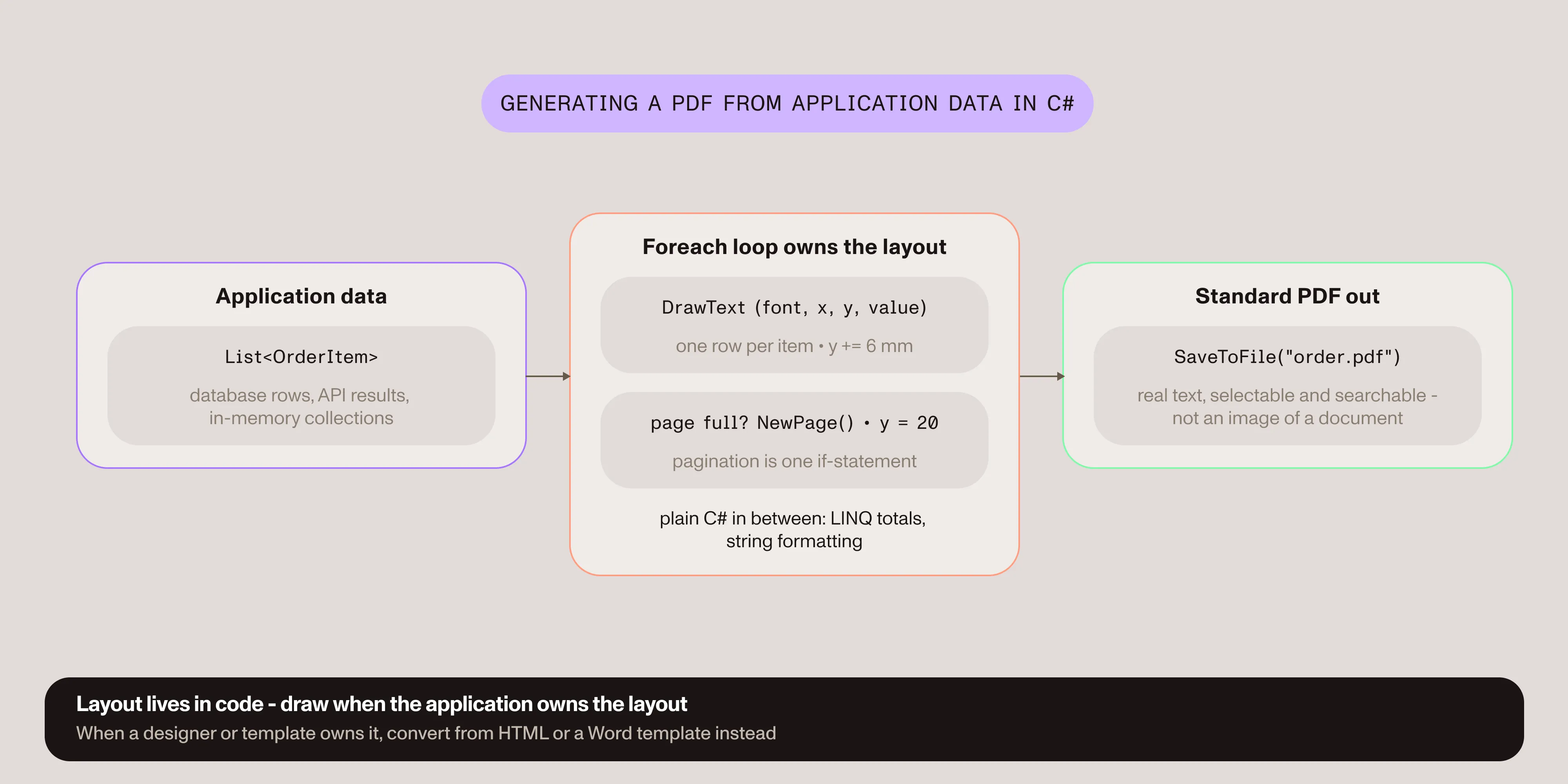
For collections of short, single-line values, the loop tracks the vertical position, adds a page when needed, and resets y to 20. It uses the same drawing calls as the previous section. Language Integrated Query (LINQ) calculates the total, and ToString("C") formats currency using the current culture. When the document’s appearance matters more than how the data is assembled (branded invoices, styled reports), the from-HTML tutorials below are usually the better fit.
Create a PDF from images in C#
Another common generation job is wrapping images (scans, photos, exported charts) into a PDF. Load the image with GdPictureImaging, create a PDF, and add the image to it:
using GdPicturePDF gdpicturePDF = new GdPicturePDF();using GdPictureImaging gdpictureImaging = new GdPictureImaging();// Create a byte array from an image file.byte[] byteArray = File.ReadAllBytes(Path.GetFullPath("source.png"));// Load the source byte array.int imageId = gdpictureImaging.CreateGdPictureImageFromByteArray(byteArray);if (imageId == 0){    throw new InvalidOperationException($"Load image failed: {gdpictureImaging.GetStat()}");}
try{    // Create the output PDF document.    Check(gdpicturePDF.NewPDF(), "NewPDF");    // Add the image to the output PDF document.    gdpicturePDF.AddImageFromGdPictureImage(imageId, false, true);    Check(gdpicturePDF.GetStat(), "AddImageFromGdPictureImage");    // Save the output PDF document.    Check(gdpicturePDF.SaveToFile(Path.Combine(outputDirectory, "output.pdf")), "SaveToFile");}finally{    gdpictureImaging.ReleaseGdPictureImage(imageId);}
Because the source is a byte array, this works the same for images from disk, uploads, database blobs, or HTTP responses. The byte array guide covers the variants.
Generating PDFs from HTML or templates
Data-driven business documents such as invoices, receipts, and reports are usually easier to style as HTML and convert than to draw coordinate by coordinate. That path has its own tutorials, one per document type: invoices, receipts, reports, and certificates. For recurring documents whose layout lives in a Word file, the Word template guide fills placeholders with data instead. Use drawing APIs for precise positioning and interactive fields. Use HTML or Word templates to maintain the layout separately from the C# code.
Try Nutrient .NET SDK for freeConclusion
Generating a PDF in C# from scratch is a linear sequence: NewPDF(), NewPage(), register fonts, draw, SaveToFile(). An explicit coordinate system does the layout work, and the SDK also converts image bytes into PDF pages. The from-scratch example creates text and interactive form fields, while the order example draws text. The image example preserves raster content; making text in those images searchable requires a separate optical character recognition (OCR) step.
To compare libraries rather than learn the workflow, see the C# PDF library comparison. For the standards side of generated documents (PDF/A archival output, accessibility), see the .NET generation guides.
FAQ
Create a GdPicturePDF object; call NewPDF() and NewPage(); register fonts with AddStandardFont; and draw content with DrawTextBox, DrawText, and DrawRectangle. Then write the file with SaveToFile(). The example above, combined with the shared setup, produces a fillable one-page form this way.
SetMeasurementUnit selects the unit (such as millimeters), and SetOrigin anchors the coordinate system to a page corner. Every subsequent draw call positions content relative to that origin in that unit.
Yes. Load the image bytes with CreateGdPictureImageFromByteArray, create a document with NewPDF(), and place the image with AddImageFromGdPictureImage. The byte-array input means uploads, blobs, and files all work the same way.
Generate from code for precise coordinates and interactive form fields. Convert from HTML to reuse styled templates for invoices and reports. Both paths produce standard PDFs.
Yes. AddTextFormField creates interactive AcroForm fields, so the generated document can be filled in PDF readers with AcroForm support. No separate form creation step is required.