HTML to PDF in JavaScript: Six libraries compared (2026)


Table of contents
Nutrient DWS handles rendering, fonts, and CSS for you - start with 50 free credits.
- Nutrient — Best for document workflows needing managed HTML conversion through Processor API or self-hosted conversion through Document Engine, with additional processing operations.
- html2pdf.js — Best for quick client-side exports. Zero server setup, but limited CSS support and image-based output.
- jsPDF — Best for building PDFs programmatically from data. Selectable text and precise layout control; its optional
html()method also supports HTML input. - pdfmake — Best for structured, data-driven documents. Define layouts in JSON; selectable text, no HTML input.
- Puppeteer — Best for Chrome-based server-side rendering with a mature ecosystem. Full CSS3 support, Node.js only.
- Playwright — Best for server-side PDF rendering with headless Chromium, especially if you already use Playwright for testing. Supports complex CSS but requires Node.js infrastructure.
Skip the browser libraries: One API call
If the PDF is generated on a server, Nutrient’s HTML-to-PDF API turns your HTML and CSS into a PDF in one request, with a free tier and no credit card. The Nutrient section below has the Node.js code; the sections in between cover the client-side and open source options.
How to convert HTML to PDF in JavaScript
HTML-to-PDF conversion in JavaScript turns rendered HTML and CSS into a PDF file — either in the browser with a client-side library, on the server with a headless browser, or through a managed API.
To convert HTML to PDF in JavaScript:
- Client-side (no server) — Add html2pdf.js via a content delivery network (CDN), select your HTML element, and call
.from(element).save(). - Server-side (Node.js) — Use Puppeteer or Playwright to launch a headless browser, call
page.setContent(), and usepage.pdf()to generate the file. - Managed API — Send your HTML to Nutrient’s Processor API and receive a PDF in response, with no infrastructure to manage.
The quickest way to get started is html2pdf.js. Add the library via CDN, select your HTML element, and call html2pdf().from(element).save().
// Include via CDN: https://cdnjs.cloudflare.com/ajax/libs/html2pdf.js/0.12.1/html2pdf.bundle.min.jsconst element = document.getElementById('content');html2pdf().from(element).save('document.pdf');This works for simple documents. For client-side conversion with no server, html2pdf.js or pdfmake is the fastest to set up. For complex CSS — including flexbox, grid, and custom fonts — use Puppeteer or Playwright (server-side) or Nutrient (managed API). Document Engine can convert HTML form elements to fillable PDF fields and chain page operations. Feature availability and compliance requirements depend on the selected product, license, and deployment.
Six ways to convert HTML to PDF in JavaScript
There are six main approaches, each with different tradeoffs:
- HTML-to-image libraries (html2pdf.js) — Quick setup, converts HTML to canvas, then to PDF
- Programmatic builders (jsPDF, pdfmake) — Build PDFs from data, selectable text
- Headless Chrome automation (Puppeteer) — High fidelity, full CSS support, Chrome-focused
- Browser automation with PDF export (Playwright) — High-fidelity rendering with headless Chromium; PDF generation isn’t supported in Firefox or WebKit
- Document platforms (Nutrient) — SDKs and APIs with viewing, signing, and more
- Custom solutions — Full control but significant development overhead
This guide covers the first five, comparing capabilities, performance, and ideal use cases.
Open source vs. commercial HTML-to-PDF libraries
Open source libraries (html2pdf.js, pdfmake, Puppeteer, Playwright) are free to use and work well for many use cases. Commercial solutions like Nutrient add features that matter for larger deployments.
| Consideration | Open source | Nutrient |
|---|---|---|
| Cost | Free | Subscription after free tier |
| Support | Community forums | Dedicated support, SLAs |
| CSS support | Varies by library | Check the conversion product and rendering limitations |
| Infrastructure | Self-managed | Managed or self-hosted |
| Security review | Review your deployment | Review the selected product and deployment |
Pick based on your scale, support needs, and required features.
Nutrient
Nutrient is a document processing platform with SDKs for web, iOS, Android, .NET, Java, and Node.js. It handles viewing, annotations, eSignatures, redaction, OCR, and AI-powered extraction in addition to HTML-to-PDF conversion.
Nutrient offers several conversion options:
- Document Engine — Self-hosted server API for HTML and CSS conversion. Converts HTML forms into fillable PDF fields. Chain operations like merging, watermarking, and page manipulation in one call.
curl -X POST http://localhost:5000/api/build \ -H "Authorization: Token token=<API token>" \ -F page.html=@/path/to/page.html \ -F instructions='{ "parts": [{ "html": "page.html" }] }' \ -o result.pdf- Processor API — Cloud-hosted API for serverless workflows. Supports PDF generation, conversion, OCR, and batch processing.
Save this CommonJS example as convert.cjs, install its dependencies with npm install axios form-data, and run it with node convert.cjs.
// Node.js example// This code requires Node.js. Do not run this code directly in a web browser.
const axios = require('axios')const FormData = require('form-data')const fs = require('fs')const { pipeline } = require('node:stream/promises')
const formData = new FormData()formData.append('html', fs.createReadStream('index.html'))
;(async () => {  try {    const response = await axios.post('https://api.nutrient.io/processor/generate_pdf', formData, {      headers: formData.getHeaders({        'Authorization': 'Bearer your_api_key_here'      }),      responseType: "stream",      timeout: 180000    })
    await pipeline(response.data, fs.createWriteStream("result.pdf"))  } catch (e) {    const body = e.response?.data    const details = body && typeof body.on === 'function'      ? await streamToString(body).catch(() => e.message)      : e.message    console.error(`Conversion failed: ${details}`)    process.exitCode = 1  }})()
function streamToString(stream) { const chunks = [] return new Promise((resolve, reject) => { stream.on("data", (chunk) => chunks.push(Buffer.from(chunk))) stream.on("error", (err) => reject(err)) stream.on("end", () => resolve(Buffer.concat(chunks).toString("utf8"))) })}- .NET SDK — Chrome-based rendering for local files and live URLs.
- Mobile SDKs (Android and iOS) — Generate PDFs from HTML on-device.
- No-code (Zapier and Power Automate) — Convert templates and form submissions without code.
Nutrient document workflow features
- Form field conversion — Document Engine converts supported HTML form elements into fillable PDF fields automatically
- Chained operations — Merge, watermark, and manipulate pages in a single API call
- Deployment choices — Use Processor API for hosted HTML conversion or Document Engine for a self-hosted server. Native SDK conversion is platform-specific.
- PDF generation — Choose the product whose generation APIs match your input and deployment requirements
- Enterprise support — Service-level agreements (SLAs), dedicated support, long-term maintenance
- Security review — Evaluate the selected product’s security documentation and add access controls and application logging
html2pdf.js
html2pdf.js is a client-side library suited for prototypes and simple applications. It produces image-based output without text selection and can hit browser memory limits on large documents.
The html2pdf(opens in a new tab) library converts HTML pages to PDFs in the browser. It uses html2canvas(opens in a new tab) and jsPDF(opens in a new tab) under the hood. html2canvas renders an HTML page into a canvas element and turns it into a static image. jsPDF then takes the image and converts it to a PDF file.
See how to convert HTML to PDF using React for using jsPDF in a React app.
Installation options
Install html2pdf.js in one of three ways:
- CDN — Add a
scripttag to your HTML
<script src="https://cdnjs.cloudflare.com/ajax/libs/html2pdf.js/0.12.1/html2pdf.bundle.min.js"></script>- npm —
npm install html2pdf.js - Manual download — Grab the bundle from GitHub(opens in a new tab) and include it with a script tag
<script src="html2pdf.bundle.min.js"></script>Convert HTML to PDF using html2pdf
Define a generatePDF() function to get the HTML element and convert it to PDF. Call this function from a download button:
<!DOCTYPE html><html>10 collapsed lines
<head> <!-- html2pdf CDN link --> <script src="https://cdnjs.cloudflare.com/ajax/libs/html2pdf.js/0.12.1/html2pdf.bundle.min.js"></script> </head> <body> <button id="download-button">Download as PDF</button> <div id="invoice"> <h1>Our Invoice</h1> </div>
<script> const button = document.getElementById("download-button");
function generatePDF() { // Choose the element that your content will be rendered to. const element = document.getElementById("invoice"); // Choose the element and save the PDF for your user. html2pdf().from(element).save(); }
button.addEventListener("click", generatePDF); </script> </body></html>This example renders only the h1 element, but you can render any HTML element, including images and tables.
To test this example locally, run a quick static server with:
npx serve -l 4111 .Then open http://localhost:4111(opens in a new tab) in your browser to interact with the PDF download button.
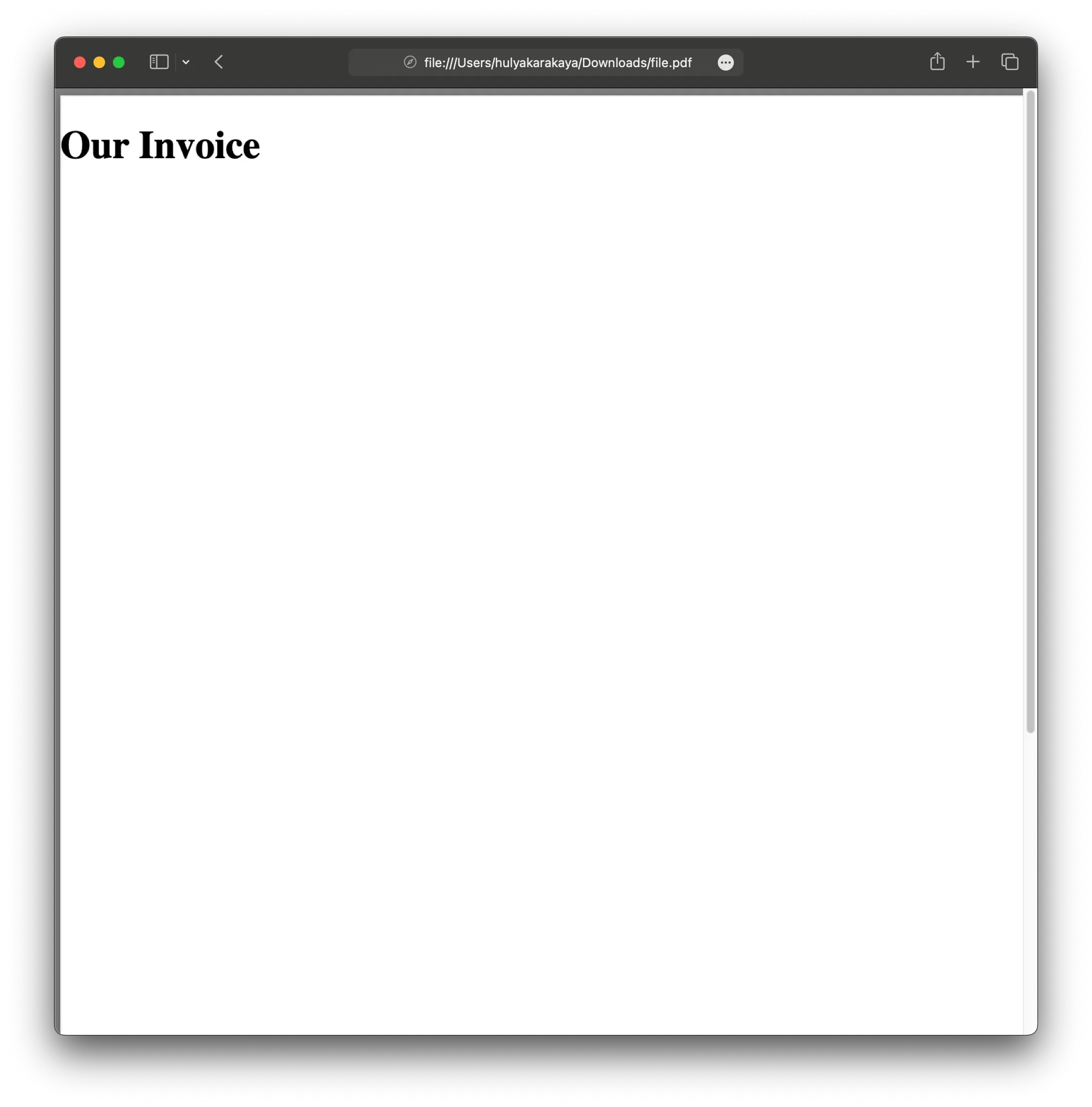
Open PDF in new tab (instead of downloading)
Sometimes you want to display a PDF in a new browser tab rather than trigger a download. Use outputPdf('blob') to get a Blob. Then create a URL:
function openPDFInNewTab() { const element = document.getElementById("invoice"); html2pdf() .from(element) .outputPdf("blob") .then((blob) => { const url = URL.createObjectURL(blob); window.open(url, "_blank"); });}This works well for previews or when users want to review before saving.
Advanced example: Downloading an invoice as a PDF
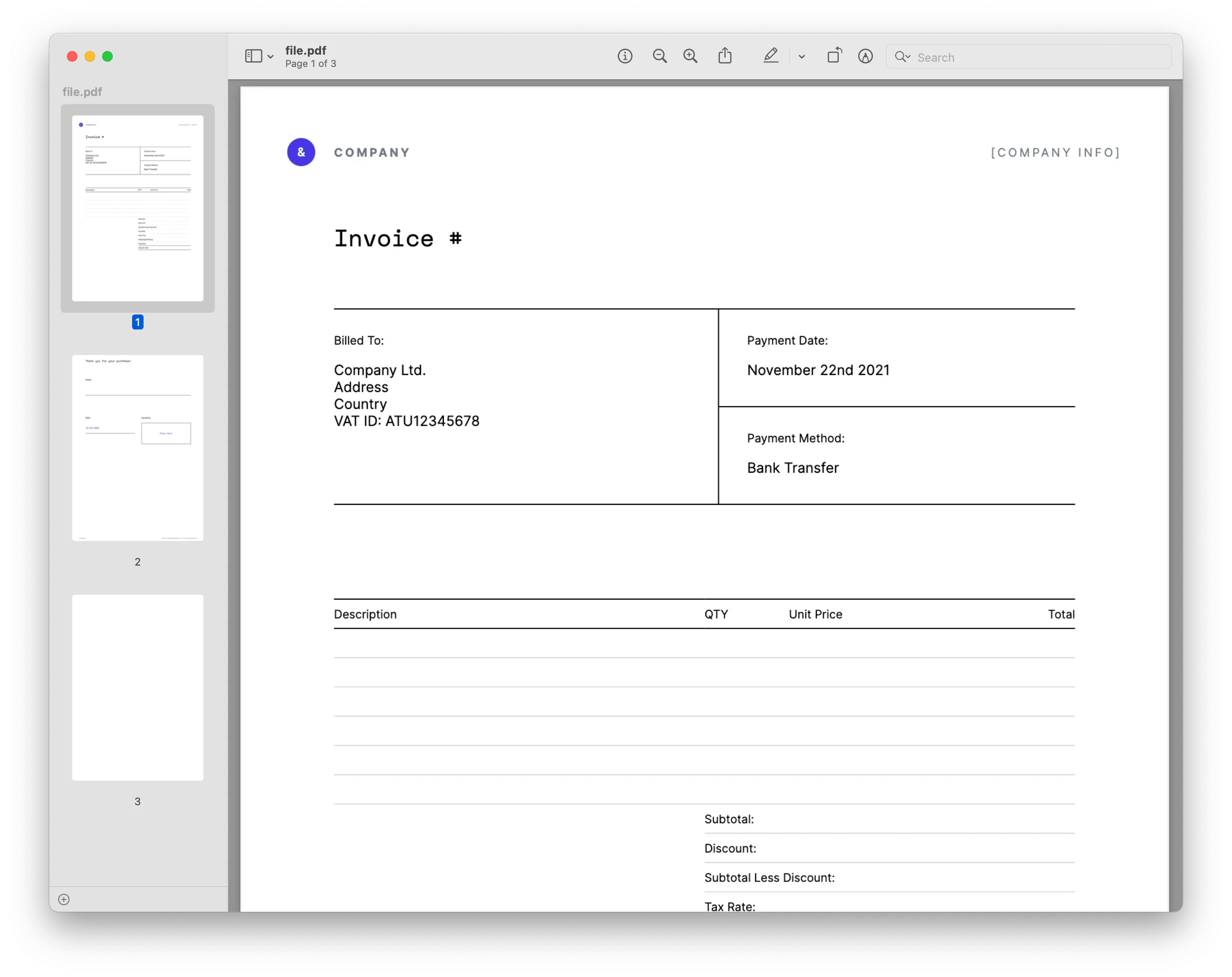
You can use an invoice template like this one(opens in a new tab) as your HTML source. You can also generate the HTML for your own invoice on your backend.
As in the previous example, the generatePDF() function downloads the invoice as a PDF. This time, the invoice template renders to the div element.
The end result will look like what’s shown below.
Common issues with html2pdf.js in production
Typical problems — Image-based output can blur when enlarged, and large canvases can exceed browser limits. Nutrient Processor API or Document Engine offers server-side HTML conversion. Nutrient Web SDK can display and edit the resulting PDF in the browser; it isn’t a drop-in client-side HTML renderer.
jsPDF (standalone)
jsPDF(opens in a new tab) is the underlying library that html2pdf.js uses, but you can use it directly for more control. Its drawing APIs build PDFs from text, images, and shapes. It also exposes an HTML conversion method(opens in a new tab) with optional dependencies; test that path against your HTML and CSS.
Installation
Install jsPDF via npm:
npm install jspdfOr via CDN:
<script src="https://cdnjs.cloudflare.com/ajax/libs/jspdf/4.2.1/jspdf.umd.min.js"></script>Basic example with text and images
This example builds a simple invoice from text, lines, and positioned elements:
const { jsPDF } = window.jspdf;
function generatePDF() {  const doc = new jsPDF();
  // Add text.  doc.setFontSize(22);  doc.text("Invoice", 20, 20);
  doc.setFontSize(12);  doc.text("Date: February 6, 2026", 20, 35);  doc.text("Total: $150.00", 20, 45);
  // Add a line.  doc.setDrawColor(0);  doc.line(20, 50, 190, 50);
  // Add items.  doc.text("Item 1 - Widget", 20, 60);  doc.text("$50.00", 170, 60, { align: "right" });
  doc.text("Item 2 - Gadget", 20, 70);  doc.text("$100.00", 170, 70, { align: "right" });
  doc.save("invoice.pdf");}
When to use jsPDF vs. html2pdf.js
| Use jsPDF when… | Use html2pdf.js when… |
|---|---|
| Building PDFs from data (not HTML) | Converting existing HTML layouts |
| You need precise positioning | Quick prototypes with HTML |
| Adding images, shapes, tables programmatically | CSS styling is important |
| Smaller file sizes matter | Simplicity over control |
pdfmake
pdfmake works well for data-driven documents and reports. It requires manual configuration and doesn’t accept HTML input — you define layouts in JavaScript objects instead.
The pdfmake(opens in a new tab) library generates PDF documents directly in the browser. It uses a layout and style configuration defined in a JSON-like structure within JavaScript. It’s built on pdfkit(opens in a new tab).
Unlike html2pdf.js, which converts HTML to an image first, pdfmake defines document structure in JavaScript, so text stays selectable.
Installation
Add via CDN:
<script src="https://cdnjs.cloudflare.com/ajax/libs/pdfmake/0.2.12/pdfmake.min.js"></script><script src="https://cdnjs.cloudflare.com/ajax/libs/pdfmake/0.2.12/vfs_fonts.min.js"></script>Or, install via npm:
npm install pdfmakeGenerate PDFs from data using pdfmake
Define a generatePDF() function with your PDF content as a JavaScript object. Use pdfmake to create and download the file. The example shows text and a table, but pdfmake also supports lists, images, and advanced styling.
<!DOCTYPE html><html>12 collapsed lines
<head> <script src="https://cdnjs.cloudflare.com/ajax/libs/pdfmake/0.2.12/pdfmake.min.js"></script> <script src="https://cdnjs.cloudflare.com/ajax/libs/pdfmake/0.2.12/vfs_fonts.min.js"></script> </head> <body> <button onclick="generatePDF()">Download Invoice</button>
<!-- Move script here so pdfMake is loaded --> <script> function generatePDF() { const docDefinition = { content: [ { text: "Invoice", style: "header" }, { table: { body: [ ["Item", "Qty", "Price"], ["Product 1", "2", "$10"], ["Product 2", "1", "$20"], ["Total", "", "$40"], ], }, }, ], styles: {3 collapsed lines
header: { fontSize: 18, bold: true }, }, };
pdfMake.createPdf(docDefinition).download("invoice.pdf"); } </script> </body></html>You can test the example by running:
npx serve -l 4111 . 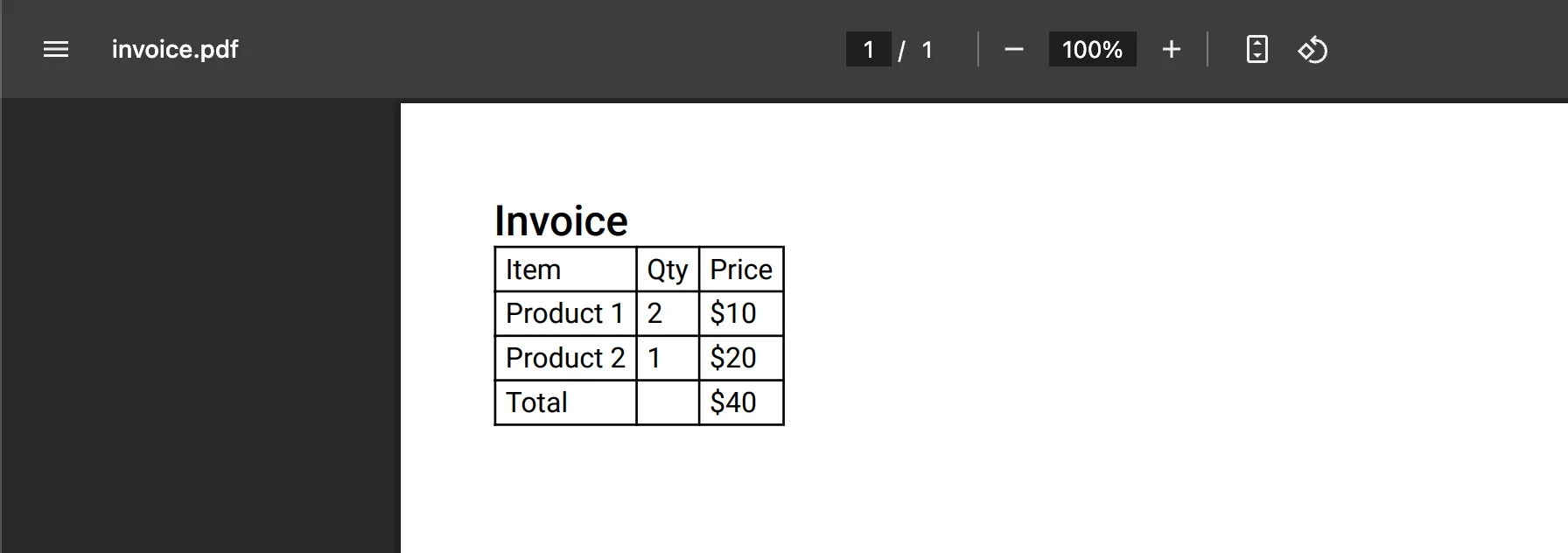
Benefits of using pdfmake
- Selectable text — Unlike
html2pdf.js,pdfmakepreserves text as selectable and copyable. - Custom styling — Define font sizes, colors, and positioning with structured JavaScript.
- Advanced layouts — Supports tables, lists, and multicolumn designs.
Puppeteer
Puppeteer(opens in a new tab) converts HTML to PDF by driving headless Chrome from Node.js. It renders pages with Chrome’s actual engine, so output matches what you see in the browser — including flexbox, grid, and custom fonts. It’s the most widely used server-side option, with a large ecosystem of guides and integrations.
Installation
Install Puppeteer via npm:
npm install puppeteerThe install downloads a compatible Chrome build automatically.
Convert HTML to PDF using Puppeteer
Launch a browser, set the page content (or navigate to a URL with page.goto()), and call page.pdf():
const puppeteer = require("puppeteer");
(async () => {  const browser = await puppeteer.launch();  const page = await browser.newPage();
  // Set HTML directly, or use `page.goto("https://example.com", { waitUntil: "networkidle0" })` for live URLs.  await page.setContent("<h1>Our Invoice</h1>");
  // Generate the PDF with backgrounds preserved.  await page.pdf({    path: "invoice.pdf",    format: "A4",    printBackground: true,  });
  await browser.close();})();
Run node index.js to generate invoice.pdf. For headers, footers, and page numbers, pass displayHeaderFooter: true with headerTemplate/footerTemplate options to page.pdf().
Puppeteer vs. Playwright
Both drive real browsers and produce near-identical PDF output for Chrome rendering. Choose Puppeteer if you’re standardizing on Chrome and want the larger ecosystem; choose Playwright if you also test across Firefox and WebKit or already use it for end-to-end testing. Either way, you own the server infrastructure — browser processes are memory-hungry, so budget for concurrency limits and queue management in production.
Playwright
Playwright provides high-fidelity rendering with full CSS support. It requires server infrastructure and ongoing maintenance.
Playwright(opens in a new tab) automates Chromium, Firefox, and WebKit, but its page.pdf() method only supports headless Chromium. Unlike html2pdf, this PDF conversion runs on your server.
Installation
Create a new project and install Playwright(opens in a new tab):
mkdir playwright-pdf-generation && cd playwright-pdf-generationnpm init --yesnpm install playwrightBefore using Playwright, make sure the required browser binaries are installed by running:
npx playwright installBasic PDF example
Create an index.js file that requires Playwright, launches a browser session, goes to your invoice page, and saves the PDF file:
// Require Playwright.const { chromium } = require("playwright");
(async function () {  try {    // Launch a new browser session.    const browser = await chromium.launch();    // Open a new page.    const page = await browser.newPage();
    // Set the page content.    await page.setContent("<h1>Our Invoice</h1>");
    // Generate a PDF and store it in a file named `invoice.pdf`.    await page.pdf({ path: "invoice.pdf", format: "A4" });
    await browser.close();  } catch (e) {    console.error(e);  }})();
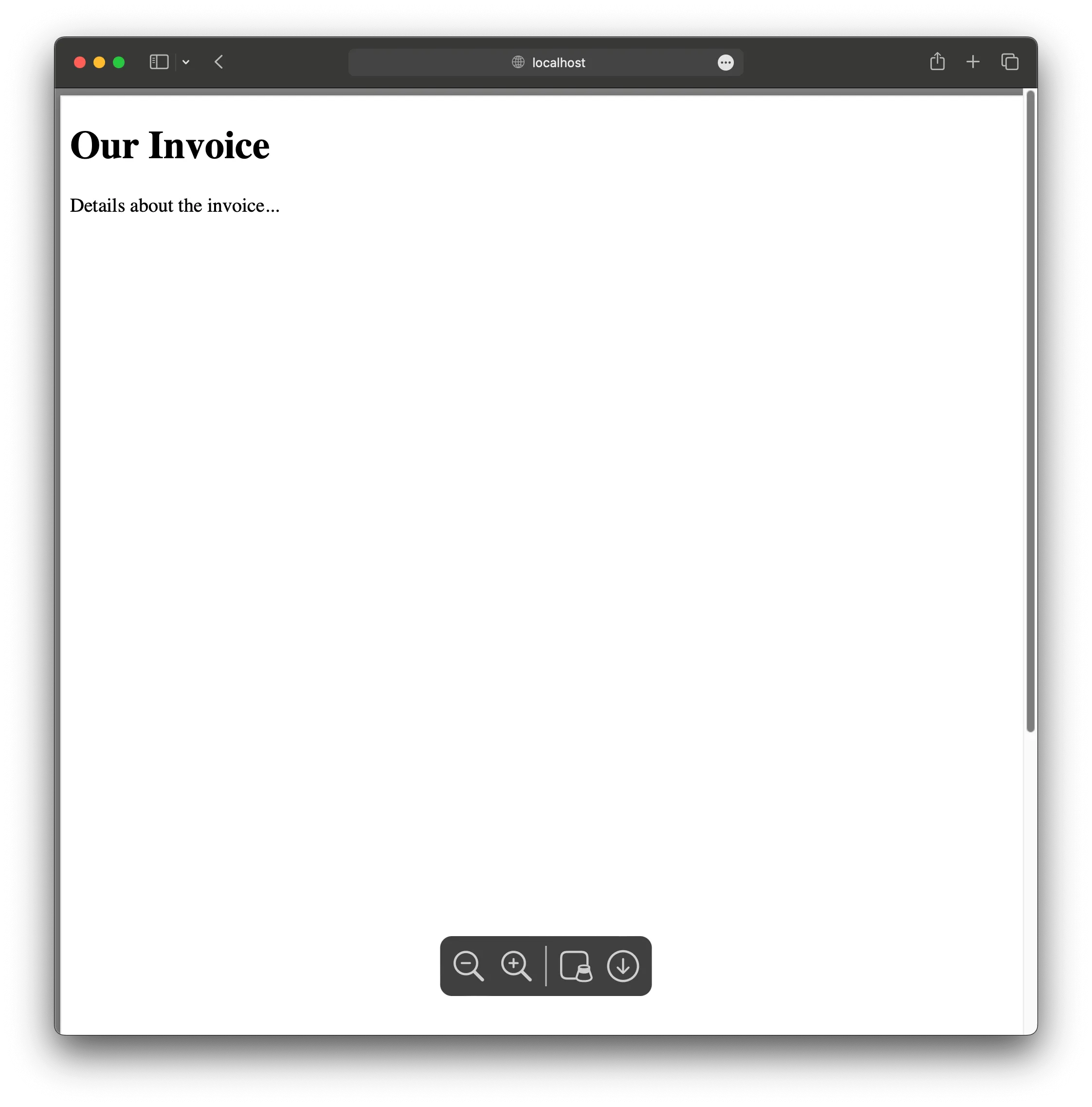
Running node index.js generates invoice.pdf locally. To let users download PDFs, set up a Node server with the http module. The server listens on /generate-pdf, renders the page with Playwright, and returns the PDF to the browser.
To do this, omit the path option in page.pdf() to get a buffer, set the response header to application/pdf, and send the buffer as the response. For all other routes, return a simple HTML page with a link to trigger the PDF download:
const { chromium } = require("playwright");const http = require("http");
// Create an instance of the HTTP server to handle the request.http  .createServer(async (req, res) => {    if (req.url === "/generate-pdf") {      // Making sure to handle a specific endpoint.      const browser = await chromium.launch();      const page = await browser.newPage();
      // Set the content directly or navigate to an existing page.      await page.setContent(`      <!DOCTYPE html>      <html>      <head>        <title>Invoice</title>      </head>      <body>        <h1>Our Invoice</h1>        <p>Details about the invoice...</p>      </body>      </html>    `);
      // By removing the `path` option, you'll receive a `Buffer` from `page.pdf`.      const buffer = await page.pdf({ format: "A4" });
      await browser.close();
      // Set the content type so the browser knows how to handle the response.      res.writeHead(200, { "Content-Type": "application/pdf" });      res.end(buffer);    } else {      // Respond with a simple instruction page.      res.writeHead(200, { "Content-Type": "text/html" });      res.end(        '<h1>Welcome</h1><p>To generate a PDF, go to <a href="/generate-pdf">/generate-pdf</a>.</p>',      );    }  })  .listen(3000, () => {    console.log("Server is running on http://localhost:3000");  });
Open localhost:3000 in your browser to see the instruction page. Navigate to /generate-pdf to open the PDF with the invoice.
Common HTML-to-PDF conversion issues and fixes
- Blurry output — Use high-resolution images and scale properly.
- Limited CSS — Limited styling; avoid modern layout features like flexbox or grid.
- Large files — Optimize HTML and assets.
- Layout complexity — Manual configuration required; break documents into smaller blocks when needed.
- Font issues — Ensure custom fonts are embedded correctly.
- Missing backgrounds — Pass
printBackground: truetopage.pdf(); backgrounds are off by default. - Content not loaded — Use
waitUntil: "networkidle0"when navigating to pages with dynamic content. - Memory in production — Browser instances are heavy; reuse browsers and limit concurrency.
- Complex setup — More involved than client-side tools; requires server infrastructure.
- Slow rendering — Minimize dynamic scripts or unnecessary content before generating PDFs.
- License validation — Confirm valid key and domain configuration.
- Large documents — Check the selected API’s file limits and split oversized inputs when necessary.
- Custom fonts — Upload to Document Engine for consistency.
HTML-to-PDF library comparison
| Feature | html2pdf.js | jsPDF | pdfmake | Puppeteer | Playwright | Nutrient |
|---|---|---|---|---|---|---|
| Ease of use | Very easy | Easy | Moderate | Moderate | Moderate | Easy |
| Installation | Simple (CDN, npm) | Simple (CDN, npm) | Simple (CDN, npm) | npm | npm | SDK/API |
| Runs in browser |  | | |  | | HTML conversion runs server-side |
| Text selection | | | | | | |
| CSS/HTML support | Limited | Via html() plugin | None | Full | Full | Full |
| Customization | Low | High | High | High | High | High |
| PDF quality | Medium (image-based) | High (vector) | High (structured) | Very high (Chrome) | Very high (browser) | Very high (Chrome-based) |
| Node.js support | | | | | | |
| Best for | Quick HTML exports | Data-driven PDFs | JSON-based layouts | Chrome server rendering | Complex CSS layouts | Document-processing workflows |
| Support | Community | Community | Community | Community | Community | Enterprise SLA |
Nutrient SDK includes annotations, form filling, and custom output options.
Start your free trial to test Nutrient’s HTML-to-PDF conversion.
Which HTML-to-PDF JavaScript library should you use?
Choose based on your specific use case:
| Use case | Recommended | Why |
|---|---|---|
| Quick prototype | html2pdf.js | Fastest setup, no server needed |
| Invoices from data | jsPDF or pdfmake | Build PDFs programmatically, selectable text |
| Complex CSS layouts | Puppeteer or Playwright | Browser print rendering; test pagination |
| Production app | Nutrient | Hosted processing and support |
| Fillable forms | Nutrient Document Engine | Documented HTML-to-form-field conversion |
| Mobile apps | Nutrient | iOS/Android SDKs available |
Decision flowchart
- Need fillable PDF forms? → Nutrient
- Running on mobile? → Nutrient (iOS/Android SDKs)
- Need full CSS support? → Puppeteer or Playwright (self-hosted) or Nutrient (managed)
- Building from data, not HTML? → jsPDF or pdfmake
- Simple prototype? → html2pdf.js
Related posts
- How to convert HTML to PDF using React
- How to generate PDFs in React with React to PDF
- How to generate PDF reports from HTML in Node.js
- How to generate PDF reports from HTML in Python
- How to convert HTML to PDF in C# using Nutrient
- Top 10 ways to convert HTML to PDF
- HTML to PDF with Nutrient Document Engine
- HTML-to-PDF API guide
- How to display a PDF in HTML: Six easy ways
- How to convert HTML to PDF using html2pdf.js
FAQ
It depends on your needs. For simple client-side conversion, use html2pdf.js. For structured documents from data, use pdfmake. For full CSS support on a server, use Puppeteer or Playwright. For managed infrastructure with additional features, use Nutrient.
Yes. html2pdf.js and pdfmake both run entirely in the browser. html2pdf.js converts HTML elements directly, while pdfmake generates PDFs from JavaScript objects. Neither requires a backend server.
html2pdf.js creates image-based PDFs, which can look blurry at certain zoom levels. For sharper output, use Playwright or Nutrient, which render actual text and vector graphics instead of images.
html2pdf.js has limited CSS support. For complex CSS layouts, including flexbox and grid, use Puppeteer or Playwright (server-side) or Nutrient. Puppeteer and Playwright use browser rendering; check Nutrient’s selected conversion product and test your CSS and fonts before deployment.
Client-side (html2pdf.js, pdfmake) runs in the browser and needs no server, but it’s limited by browser memory and capabilities. Server-side (Playwright, Nutrient) runs on a server and handles larger documents and complex CSS, but it requires infrastructure.
Most open source libraries don’t support this. Nutrient Document Engine converts HTML form elements into fillable PDF fields, including text inputs, checkboxes, and dropdowns.
Puppeteer, Playwright, and Nutrient’s Processor API all handle server-side conversion — see the Puppeteer, Playwright, and Nutrient sections above for full code examples. For a Node.js-specific walkthrough covering templates, headers, footers, and batching, see how to generate PDF reports from HTML in Node.js.
Add break-before: page or break-after: page CSS rules to the elements where you want breaks. For example, add style="break-before: page" to any div or section that should start on a new page. Note that html2pdf.js has limited support for page break CSS — for reliable page break handling, use Playwright or the documented Nutrient HTML conversion service and verify pagination on your templates.
Nutrient offers a free tier for its Processor API that lets you convert HTML to PDF without managing infrastructure. Open source options like Playwright are also free but require you to host and maintain your own server. html2pdf.js and pdfmake run entirely in the browser at no cost, but have limitations around CSS support and output quality.