How to display a PDF in HTML: Six easy ways (with code)

Table of contents
object, iframe, and embed tags; an object and iframe fallback combo; the Google Docs viewer, and JavaScript PDF viewers like PDF.js and Nutrient Web SDK. Each approach has tradeoffs around browser support, customization, and privacy, which the article covers in detail, alongside best practices for displaying PDFs reliably.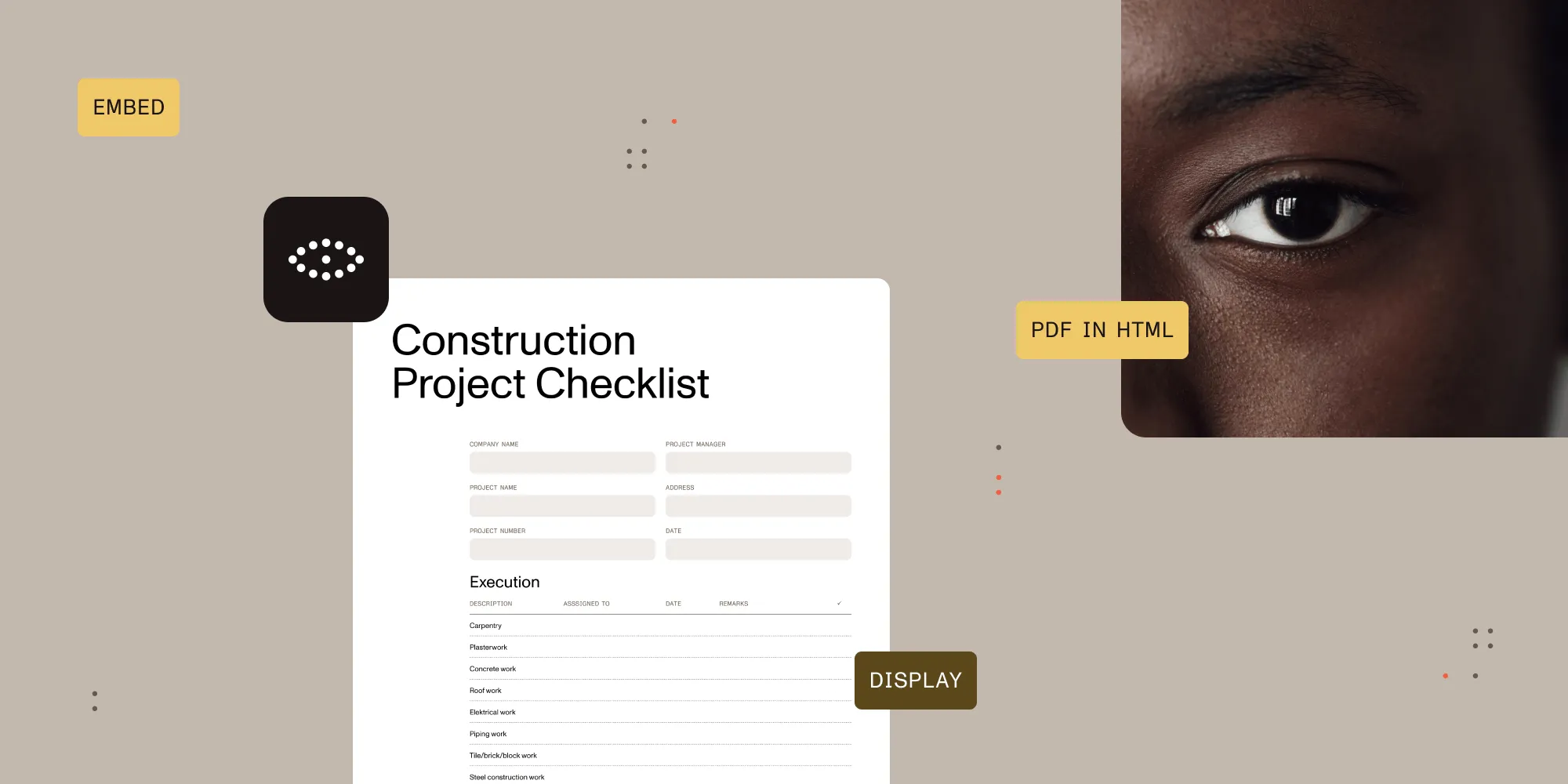
Nutrient Web SDK renders, annotates, and fills forms client side. Try the live demo - no signup required.
Six ways to embed a PDF in HTML, from simplest to most powerful:
<object>tag — Native HTML with a text fallback. No JavaScript needed.<iframe>tag — One line of HTML, widely supported.<embed>tag — Shortest markup, no fallback.<object>+<iframe>fallback — Maximum compatibility without JavaScript.- Google Docs viewer — Works on devices without a native PDF viewer; not for private documents.
- JavaScript PDF viewer — Annotations, forms, digital signatures, and consistent rendering. We recommend Nutrient Web SDK.
Embedding a PDF in HTML keeps viewers on your page and preserves document layout across devices. This post walks through six methods — five that work without JavaScript, plus a JavaScript-based option for when you need annotations, forms, or signatures — with copy‑and‑paste code examples and tradeoffs for each.
How do you display a PDF in HTML?
To display a PDF in HTML, point a native <iframe>, <embed>, or <object> tag at the PDF’s URL and set type="application/pdf". The <iframe> tag is the quickest:
<iframe src="https://example.com/test.pdf" width="100%" height="600px" style="border: none;"></iframe>For the widest browser support, combine <object> with an <iframe> fallback. For annotations, form filling, search, or digital signatures, use a JavaScript PDF viewer like Nutrient Web SDK. The rest of this guide covers all six approaches in detail.
If you prefer video, watch the tutorial below.
Method 1 — Display a PDF in HTML with the object tag
The HTML <object> element taps the browser’s built‑in PDF reader and lets you add a plain text fallback:
<object data="https://example.com/test.pdf#page=2" type="application/pdf" width="100%" height="100%"> <p> Your browser does not support PDFs. <a href="https://example.com/test.pdf">Download the PDF</a>. </p></object>Pros
- No JavaScript or external viewer required.
- Allows a graceful fallback message.
Cons
- Styling is locked to the browser’s PDF plugin.
- Some older browsers ignore PDF parameters like
#page=2.
When to use
- When you need a fallback message and want a clean, no-JavaScript solution.
- For embedding PDFs in pages where you want a basic but reliable native viewer.
- When full compatibility with modern browsers is enough and a custom UI isn’t needed.
Method 2 — Use an iframe as a PDF viewer
The <iframe> tag is a simple way to embed a PDF directly in a webpage. It relies on the browser’s built-in PDF viewer:
<iframe src="https://example.com/test.pdf" width="100%" height="600px" style="border: none;"></iframe>Pros
- Simple and fast to use — Just one line of HTML is needed.
- Widely supported — Works in Chrome, Firefox, Safari, Edge, and most mobile browsers.
- No extra dependencies — No need for plugins or JavaScript libraries.
Cons
- No UI control — You can’t customize the PDF toolbar or features.
- No error fallback — If the PDF fails to load, the frame breaks.
- CORS issues — External PDFs may be blocked without proper headers.
- Not fully accessible — May not work well with screen readers.
When to use
- For basic PDF viewing without interactivity.
- In modern browser environments where PDF support is reliable.
- When speed and simplicity are more important than customization.
If you need better fallback or more control, consider combining <object> with <iframe> (method 4).
Method 3 — Embed a PDF with the embed tag
The <embed> element is another effective way to display a PDF in HTML. It’s easy to implement and is widely supported:
<embed src="https://example.com/test.pdf" type="application/pdf" width="100%" height="500px"/>Pros
- Shortest markup of all native options.
- Supported by most evergreen browsers.
Cons
- No graceful fallback content; nothing renders if the browser lacks PDF support.
- Viewer UI is uncontrolled and inconsistent.
- Some mobile browsers download the PDF instead of displaying it.
When to use
- For quick PDF embedding in environments where browser support is known (e.g. internal tools).
- When minimal code is preferred and fallback isn’t a concern.
- For desktop-first applications where mobile rendering isn’t a priority.
Method 4 — Combine object and iframe for full fallback coverage
To maximize browser compatibility, wrap an <iframe> inside an <object> element. If the browser fails to render the PDF using <object>, it’ll attempt to display it using the <iframe> instead. This ensures graceful fallback without JavaScript:
<object data="https://example.com/test.pdf#page=2" type="application/pdf" width="100%" height="100%"> <iframe src="https://example.com/test.pdf#page=2" width="100%" height="100%" style="border: none;" > <p> Your browser does not support PDF viewing. <a href="https://example.com/test.pdf">Download the PDF</a>. </p> </iframe></object>Pros
- Maximum compatibility — Covers more browsers than using
<iframe>or<object>alone. - No JavaScript required — Works with pure HTML.
- Graceful fallback — Displays a message or link if both viewers fail.
Cons
- Heavier markup — Slightly more complex HTML structure.
- Limited customization — Still relies on browser-native PDF renderers.
- Possible double requests — Some browsers may fetch the PDF twice (once for each tag).
Best for
Use this approach in environments where you can’t control the user’s browser and want the best chance of rendering a PDF cleanly with a basic HTML-only solution.
Method 5 — Use Google Docs viewer
Google Docs viewer renders PDFs on Google’s servers and delivers them in an iframe. This means users don’t need a native PDF viewer — it works on any device with a browser and internet access:
<iframe src="https://docs.google.com/viewer?url=https://example.com/test.pdf&embedded=true" width="100%" height="600px" style="border: none;"></iframe>Replace https://example.com/test.pdf with the publicly accessible URL of your PDF. The file must be reachable by Google’s servers — it can’t be on localhost or a private network.
Pros
- No browser PDF support required — Google renders it server-side.
- Works on mobile devices that don’t have a built-in PDF viewer.
- Simple to implement — no libraries or installation needed.
Cons
- Requires internet access and Google’s availability — not suitable for offline or air-gapped use.
- The PDF URL is sent to Google’s servers — don’t use for sensitive or private documents.
- Google may throttle or temporarily block repeated requests on high-traffic pages.
- No UI customization — you get Google’s viewer chrome.
- Doesn’t work with PDFs behind authentication or on localhost.
- Undocumented endpoint — Google has never formally published the
docs.google.com/viewer?url=…&embedded=truepattern, so it can change or be removed without notice.
When to use
Use this method for publicly accessible PDFs where maximum device compatibility matters and privacy is not a concern — for example, embedding a public whitepaper or brochure on a marketing page.
Do not use Google Docs viewer for confidential documents. The PDF URL is processed by Google’s servers and may be cached or logged.
Problems with native HTML embedding
While native HTML tags are quick and code‑free, they come with notable downsides:
| Limitation | Why it matters |
|---|---|
| Lack of customization | The browser’s built‑in PDF viewer UI can’t be styled, themed, or extended. |
| Inconsistent browser support | Most modern browsers have built-in PDF viewers, but behavior differs — older Android WebViews may not render PDFs inline, and mobile browsers handle gestures, toolbars, and download buttons differently from their desktop counterparts. |
| Limited API parameters | Only a handful of URL fragments (e.g. #page=2) are understood, and support is inconsistent — Safari often ignores them. |
If you’re looking for a complete reference of parameters, check out the Parameters for Opening PDF Files(opens in a new tab) specification published by Adobe in 2007.
Method 6 — Upgrade to a JavaScript PDF viewer for pro features
Need annotations, form filling, search, or redaction? The native tags can’t do any of that — swap them for a JavaScript PDF viewer. We recommend Nutrient Web SDK, a commercial drop-in viewer with consistent cross-browser rendering, a customizable UI, and APIs for annotations, forms, digital signatures, redaction, and real-time collaboration:
<div id="nutrient-viewer" style="width: 100%; height: 600px;"></div><script src="nutrient-viewer.js"></script><script> NutrientViewer.load({ container: document.getElementById("nutrient-viewer"), document: "https://example.com/test.pdf" });</script>That’s the full integration — no viewer files to host, no source forks to maintain, and the same NutrientViewer.load() call works in React, Next.js, Vue, Angular, or plain HTML. For framework-specific examples, see our guide on building a React PDF viewer.
Start a free trial or book a demo to see it in action.
Open source alternative: PDF.js
If you need an open source option and can live without annotations, forms, or digital signatures, PDF.js(opens in a new tab) is Mozilla’s renderer — the same engine that powers Firefox’s built-in viewer:
<iframe src="/pdfjs/web/viewer.html?file=/files/test.pdf" width="100%" height="600px"></iframe>PDF.js is free, but you host and maintain the viewer files yourself, UI customization means forking the viewer’s source, and the bundled viewer only loads same-origin files by default — cross-origin PDFs require CORS headers on the PDF host or a proxy. In React, the react-pdf(opens in a new tab) package wraps PDF.js with a component API but inherits the same constraints.
Pros
- Customizable UI and a documented API for annotations, forms, signatures, and redaction.
- Predictable, consistent rendering across browsers and devices.
- Programmatic control for integrations and automation.
Cons
- Adds kilobytes (or megabytes) to your JavaScript bundle.
- Requires integration effort; commercial options have licensing costs.
When to use
- When you need interactive features like annotations, redaction, or form support.
- For building enterprise apps, document portals, or complex workflows.
- When consistent rendering and control matter more than simplicity.
Best practices for embedding PDFs
A few practical tips for embedding PDFs reliably:
- Use the correct MIME type — Set
type="application/pdf"so the browser knows how to render the file. - Keep file sizes small — Compress images, subset fonts, and strip unused metadata. Aim for under 5 MB.
- Design for mobile — Use responsive containers (
width: 100%, viewport-based heights) and test pinch-zoom behavior. - Provide a download fallback — Always include a download link inside the fallback content so users can grab the file if the viewer fails.
- Test across browsers — Verify rendering in Chrome, Safari (desktop + iOS), Firefox, and an Android WebView before shipping.
Conclusion
With the <object> or <iframe> HTML5 elements, it’s possible to show a PDF in your web app with ease. This is supported in most browsers and requires no JavaScript at all, making it a perfect approach for adding PDF support if no advanced features are necessary.
However, for use cases that require support for every browser, customization, or some of the more advanced PDF features — such as PDF annotations, interactive PDF forms, digital signatures, and more — we recommend you look into commercial alternatives.
Nutrient ships a commercial HTML5 PDF viewer library with a customizable UI and documented APIs for annotations, forms, signatures, and redaction. Start with a free trial, or browse the demos to see what it can do.
FAQ
Use the native object, iframe, or embed tag with type="application/pdf". Copy the code snippets above and replace the src or data URL with your file.
Yes. HTML has three native tags for embedding PDFs — <iframe>, <embed>, and <object> — none of which require JavaScript. Point the tag at your PDF URL and set type="application/pdf". For interactive features like annotations or forms, embed a JavaScript PDF viewer instead.
Upload the PDF to a location your page can reach. Then embed it with an <iframe>, <embed>, or <object> tag pointing to that URL. For a public file with no native viewer on the device, the Google Docs viewer works; for full control over the UI and features, use a JavaScript PDF viewer like Nutrient Web SDK.
A combo of object (primary) and an iframe fallback covers virtually every modern desktop and mobile browser, including Safari on iOS and Chrome on Android.
Append URL fragments like #page=2, #zoom=100, or #toolbar=0 to the PDF URL. Support varies by browser — Chrome and Edge usually honor them, while Safari may ignore some parameters.
Native viewers don’t offer reliable UI control. For consistent branding or to hide the UI, switch to a JavaScript viewer such as Nutrient Web SDK or PDF.js.
Wrap the viewer in a container div with width: 100% and a flexible height set via CSS or viewport units. Then allow overflow scrolling or pinch‑to‑zoom as needed.
Provide a fallback paragraph inside the object or iframe element with a direct download link, so users can still access the document.
Aim for under 5 MB for quick loads on mobile networks. Compress images, subset fonts, and remove unused metadata to shrink the file size.