Comparing the best React PDF viewers for developers

Table of contents

React has become the go-to library for building dynamic, interactive web applications, and developers often need efficient, customizable solutions for displaying PDF documents. Whether you’re building a document management system, an e-commerce site with downloadable reports, or a viewer for scanned content, selecting the right React PDF viewer is crucial for performance and user experience.
Why choosing the right PDF viewer matters
When it comes to React PDF viewers, it’s not just about displaying documents. You need a solution that’s fast, flexible, and easy to integrate into your existing workflow. The best PDF viewers reduce development time, ensure smooth performance, and offer an intuitive user experience.
react-pdf, @react-pdf/renderer, or @react-pdf-viewer?
Three popular packages have confusingly similar names and solve different problems:
react-pdf(by Wojciech Maj) — A viewer. Renders existing PDF files in React by wrapping PDF.js. Covered below.@react-pdf-viewer(by Phuoc Nguyen) — A viewer with a built-in UI and a plugin system, also built on PDF.js. Covered below.@react-pdf/renderer(by Diego Muracciole) — Not a viewer. It generates new PDF files from React components. Refer to the information on generating PDFs in React at the end of this post.
The rule of thumb: To display a PDF a user already has, you need a viewer. To create a PDF from data in your app, you need a generator.
1. Nutrient Web SDK
Nutrient Web SDK is a commercial library for handling PDF documents in React applications. It combines high-performance rendering with advanced features, making it a strong choice for both small projects and large-scale applications.
Key features of Nutrient React PDF viewer
- Fast rendering — Ensures smooth performance, even for large files.
- Customizable UI — Save time with prebuilt, well-documented APIs to match your exact needs.
- Annotation tools — Draw, highlight, comment, and add notes with 17+ prebuilt tools.
- Multiple file types — View PDFs, MS Office documents, and image files client-side.
- Advanced tools — Take advantage of features like editing, digital signatures, form filling, and real-time collaboration.
- Dedicated support — Accelerate deployment with direct assistance from our developers.
Together, these features make Nutrient a strong fit for React developers who want a powerful yet easy-to-use PDF viewer.
Ideal use cases
- Enterprise dashboards — For editing, annotating, and collaborating on PDFs.
- e-Learning platforms — Delivering course materials with interactive features like annotations and quizzes.
- Life sciences — Managing research papers, clinical data, and patient records.
- Legal — Handling contracts, case files, and secure document collaboration.
- Healthcare — Managing medical records, prescriptions, and secure sharing.
- Government — Managing forms, permits, and reports with digital signing.
- Finance — Processing contracts and financial documents with annotation and secure signing.
Getting started with Nutrient
Follow the steps outlined below to integrate Nutrient into your React app.
- To set up your project, create a new React app using Vite:
npm create vite@latest nutrient-react-example -- --template reactcd nutrient-react-example- Add the Nutrient library:
npm i @nutrient-sdk/viewerpnpm add @nutrient-sdk/vieweryarn add @nutrient-sdk/viewer- The Nutrient Web SDK loads its WebAssembly and supporting files from a local path, so you need to copy them to the public folder. Start by installing the required copy plugin:
npm install -D rollup-plugin-copyThen, update your Vite configuration (vite.config.ts) to copy the SDK’s asset files during build:
import { defineConfig } from "vite";import react from "@vitejs/plugin-react";import copy from "rollup-plugin-copy";
export default defineConfig({ plugins: [ copy({ targets: [ { src: "node_modules/@nutrient-sdk/viewer/dist/nutrient-viewer-lib", dest: "public/", }, ], hook: "buildStart", }), react(), ],});- Now that everything is set up, you’ll render a PDF using the Nutrient SDK.
Basic usage in App.tsx:
import { useEffect, useRef } from "react";
function App() {  const containerRef = useRef(null);
  useEffect(() => {    const container = containerRef.current;    let cleanup = () => {};
    (async () => {      const NutrientViewer = (await import("@nutrient-sdk/viewer")).default;
      // Unload any previous instance.      NutrientViewer.unload(container);
      if (container && NutrientViewer) {        NutrientViewer.load({          container,          document: "/example.pdf",          baseUrl: `${window.location.protocol}//${            window.location.host          }/${import.meta.env.PUBLIC_URL ?? ""}`,        });      }
      cleanup = () => {        NutrientViewer.unload(container);      };    })();
    return cleanup;  }, []);
  return <div ref={containerRef} style={{ height: "100vh", width: "100vw" }} />;}
export default App;
You can also render a different file by changing the document path or making it dynamic.
Once everything is configured, start your app:
npm run dev 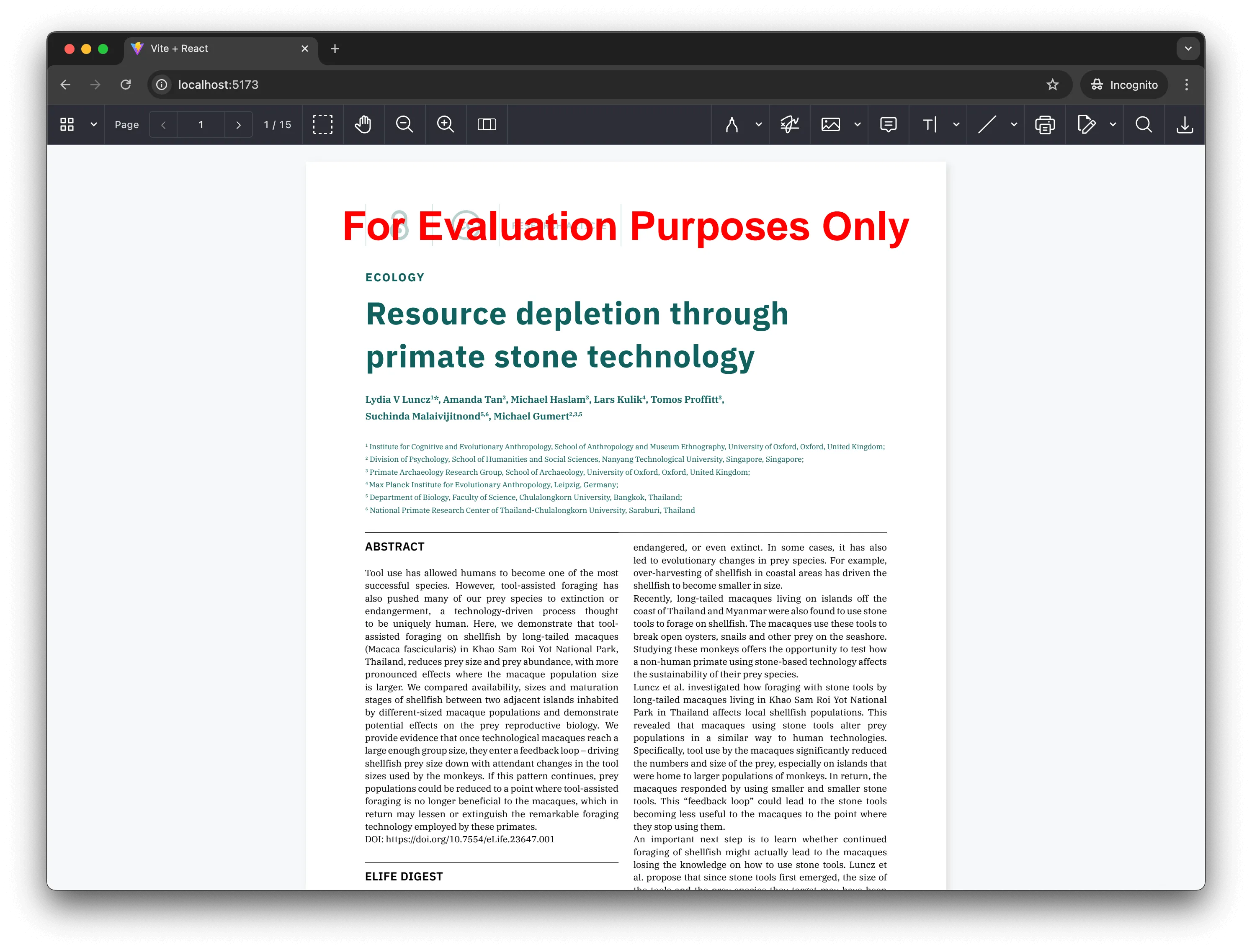
Note that because Nutrient is a commercial product, you’ll see a Nutrient Web SDK evaluation notice on the document. To get a license key, contact Sales.
Related resources:
- How to build a React.js file viewer
- How to add digital signatures to PDFs using React
- How to build a React Word (DOC and DOCX) viewer
- React PDF annotations — A complete overview
- How to display a PDF in React
2. @react-pdf-viewer
@react-pdf-viewer(opens in a new tab) is a dedicated React PDF viewer built on PDF.js. Unlike the lower-level react-pdf, it ships with a complete viewer UI — toolbar, sidebar, search, zoom, and print — plus a plugin architecture so you include only the features you need.
Key features of @react-pdf-viewer
- Built-in UI — Toolbar, thumbnails, bookmarks, and search out of the box.
- Plugin system — Add features (default layout, search, zoom, page navigation) individually to keep the bundle small.
- Customizable — Theming and render props for custom toolbars and layouts.
Ideal use cases
- Apps that need a full viewer UI quickly — Without building toolbars and navigation from scratch.
- Document-heavy dashboards — Where search and thumbnails matter.
Getting started with @react-pdf-viewer
- Install the core viewer, the default layout plugin, and PDF.js:
npm install @react-pdf-viewer/core @react-pdf-viewer/default-layout pdfjs-dist- Render the viewer. Recent versions (4.0+) use a
Providerto connect the viewer to a PDF.js instance and its worker:
import { Viewer, Provider, type PdfJsApiProvider } from "@react-pdf-viewer/core";import { defaultLayoutPlugin } from "@react-pdf-viewer/default-layout";import * as PdfJs from "pdfjs-dist";
import "@react-pdf-viewer/core/lib/styles/index.css";import "@react-pdf-viewer/default-layout/lib/styles/index.css";
const apiProvider = PdfJs as unknown as PdfJsApiProvider;
export default function App() {  const defaultLayoutPluginInstance = defaultLayoutPlugin();
  return (    <Provider pdfApiProvider={apiProvider} workerUrl="/pdf.worker.min.mjs">      <div style={{ height: "100vh" }}>        <Viewer          fileUrl="/example.pdf"          plugins={[defaultLayoutPluginInstance]}        />      </div>    </Provider>  );}
@react-pdf-viewer gives you more UI than react-pdf for free, but advanced needs — saving annotations into the PDF, forms, signatures, and redaction — still fall outside what a PDF.js wrapper provides.
3. react-pdf
react-pdf(opens in a new tab) (by Wojciech Maj) is a lightweight library for rendering existing PDF documents in React. It wraps PDF.js and exposes simple <Document> and <Page> components, making it a good fit when you want to display PDFs with minimal setup. Note that this is the viewer react-pdf — not @react-pdf/renderer, which generates PDFs.
Key features of react-pdf
- Minimal setup — React-PDF offers a clean and easy-to-use API, allowing for quick integration.
- PDF viewing — View PDF documents with navigation controls such as zoom, page navigation, and more.
- Cross-platform compatibility — Works across different devices and screen sizes, ensuring broad compatibility.
Ideal use cases
- Basic applications — Perfect for apps that require simple PDF viewing features.
- Rapid prototyping — Great for quickly adding PDF viewing capabilities to projects with minimal setup.
Getting started with react-pdf
- Install React-PDF:
npm install react-pdf- Import and use the library:
import { Document, Page } from "react-pdf";
const App = () => (  <div>    <Document file="/path/to/document.pdf">      <Page pageNumber={1} />    </Document>  </div>);
export default App;
For a detailed guide on creating a PDF viewer with React-PDF, check out React PDF viewer using React-PDF.
4. PDF.js in React
PDF.js(opens in a new tab), developed by Mozilla, is a popular open source library for rendering PDF documents. It’s highly customizable, making it ideal for React applications that require full control over the PDF viewing experience.
Key features of PDF.js
- Open source — Free, with extensive community support.
- High-quality rendering — Accurate and detailed PDF rendering.
- Customizable — Developers can tweak the functionality and design.
Ideal use cases
- Custom solutions — Perfect for tailored PDF viewers.
- Developer-driven apps — Great for developers who prefer working with open source tools.
Getting started with PDF.js
- Install PDF.js:
npm install pdfjs-dist- Create a
useEffecthook to load and render a PDF page in your React component:
"use client";import { useEffect, useRef } from "react";
export default function App() {  const canvasRef = useRef(null);  const renderTaskRef = useRef(null); // Ref to store the current render task.
  useEffect(() => {    let isCancelled = false;
    (async function () {      // Import pdfjs-dist dynamically for client-side rendering.      const pdfJS = await import("pdfjs-dist");
      // Set up the worker.      pdfJS.GlobalWorkerOptions.workerSrc =        window.location.origin + "/pdf.worker.min.mjs";
      // Load the PDF document.      const pdf = await pdfJS.getDocument("example.pdf").promise;
      // Get the first page.      const page = await pdf.getPage(1);      const viewport = page.getViewport({ scale: 1.5 });
      // Prepare the canvas.      const canvas = canvasRef.current;      const canvasContext = canvas.getContext("2d");      canvas.height = viewport.height;      canvas.width = viewport.width;
      // Ensure no other render tasks are running.      if (renderTaskRef.current) {        await renderTaskRef.current.promise;      }
      // Render the page into the canvas.      const renderContext = { canvasContext, viewport };      const renderTask = page.render(renderContext);
      // Store the render task.      renderTaskRef.current = renderTask;
      // Wait for rendering to finish.      try {        await renderTask.promise;      } catch (error) {        if (error.name === "RenderingCancelledException") {          console.log("Rendering cancelled.");        } else {          console.error("Render error:", error);        }      }
      if (!isCancelled) {        console.log("Rendering completed");      }    })();
    // Cleanup function to cancel the render task if the component unmounts.    return () => {      isCancelled = true;      if (renderTaskRef.current) {        renderTaskRef.current.cancel();      }    };  }, []);
  return <canvas ref={canvasRef} style={{ height: "100vh" }} />;}
As you can see, you can only display the first page of your document by default. If you need additional functionality — such as page navigation, search, or annotations — you’ll need to implement it yourself. PDF.js offers a straightforward way to render PDFs in React, with customizable features and support for large documents, making it a great choice for web applications.
For a more detailed guide on integrating PDF.js with React, check out our How to build a React.js PDF viewer with PDF.js blog post.
5. EmbedPDF
EmbedPDF(opens in a new tab) is a newer open source, framework-agnostic PDF viewer with a dedicated React package. It runs on a PDFium (WebAssembly) engine rather than PDF.js, and ships both a drop-in viewer and headless components for custom UIs. It includes annotations, search, and redaction.
Key features of EmbedPDF
- Drop-in or headless — Use the prebuilt
PDFViewer, or compose headless plugins for full UI control. - PDFium engine — WebAssembly rendering instead of PDF.js.
- Annotations and redaction — Built in, which is unusual for an open source viewer.
Ideal use cases
- Custom viewers — When you want an open source base with full control over the UI.
- Framework flexibility — A shared core across React and other frameworks.
Getting started with EmbedPDF
- Install the React viewer:
npm install @embedpdf/react-pdf-viewer- Render the drop-in viewer inside a container with a defined height:
import { PDFViewer } from "@embedpdf/react-pdf-viewer";
export default function App() {  return (    <div style={{ height: "100vh" }}>      <PDFViewer        config={{ src: "/example.pdf", theme: { preference: "light" } }}      />    </div>  );}
EmbedPDF narrows the gap between open source viewers and commercial SDKs, but production features like reliable save-to-PDF annotations, form filling, digital signatures, Office rendering, and dedicated support remain Nutrient’s domain.
Comparison
The following table compares the main React PDF viewers.
| Feature | Nutrient | @react-pdf-viewer | react-pdf | PDF.js | EmbedPDF |
|---|---|---|---|---|---|
| Type | Commercial SDK | Open source | Open source | Open source | Open source |
| Rendering engine | Hybrid (client + server) | PDF.js | PDF.js | PDF.js | PDFium (WASM) |
| Built-in viewer UI | Yes | Yes (plugins) | No (render only) | No | Yes |
| Annotations | 17+ types, save to PDF | Via plugins (limited) | No | Limited (5 types) | Yes (incl. redaction) |
| Form filling | Yes | No | No | Limited | No |
| Digital signatures | Yes | No | No | No | No |
| Office files (Word/Excel/PPT) | Yes | No | No | No | No |
| Large-file performance | Strong (hybrid) | Depends on PDF.js | Depends on PDF.js | Client-side only | Depends on PDFium |
| Dedicated support | Yes (service-level agreement) | Community | Community | Community | Community |
Read on for a more in-depth comparison of how these React PDF viewers measure up against one another.
1. Nutrient React PDF viewer vs. react-pdf
- Performance
Nutrient offers faster and more responsive rendering than react-pdf, making it the preferred choice for handling large or complex PDF files efficiently.
- Integration
react-pdf provides a straightforward API for rendering PDFs in React applications, but it requires additional setup for advanced features, such as a customizable UI and complex interactions. Nutrient React PDF viewer simplifies this process with a more streamlined integration approach, making it faster and easier for developers to get started.
- Features
Nutrient React PDF viewer offers an array of advanced features, including real-time annotation syncing, multiple viewing modes, and comprehensive CSS customization. It also supports hybrid rendering for optimal performance across different devices and environments. In comparison, react-pdf provides basic functionality, requiring more manual configuration for complex features like annotations or specialized UI components.
2. Nutrient React PDF viewer vs. PDF.js
- Performance
Nutrient Web SDK utilizes hybrid rendering for both client and server-side, ensuring smooth viewing of large files (500 MB+) on low-powered devices with real-time annotation syncing. In contrast, PDF.js relies on client-side rendering, which depends on the browser’s capabilities, making it less efficient for large files or complex documents.
- Features
Nutrient Web SDK offers a fully customizable, production-ready viewer with a configurable ViewState, extensive CSS customization, and built-in features like multiple viewing modes and annotations. PDF.js provides basic rendering and a simple viewer but requires significant manual customization to enable advanced features like UI components or annotations.
- Integration
Nutrient Web SDK is easy to integrate with existing applications, offering out-of-the-box functionality without the need for low-level rendering tasks. Meanwhile, PDF.js requires more setup and manual configuration to implement a fully functional viewer, especially for advanced features or customizations.
Generating PDFs in React
If you landed here looking for @react-pdf/renderer(opens in a new tab) (often searched as just “react pdf”), note that it does the opposite of the viewers above: Instead of displaying an existing file, it creates PDFs from React components, which is useful for invoices, reports, and tickets.
import {  Document,  Page,  Text,  View,  StyleSheet,  PDFDownloadLink,} from "@react-pdf/renderer";
const styles = StyleSheet.create({  page: { padding: 30 },  section: { marginBottom: 10 },});
const Invoice = () => (  <Document>    <Page size="A4" style={styles.page}>      <View style={styles.section}>        <Text>Invoice #1024</Text>      </View>    </Page>  </Document>);
export default function App() {  return (    <PDFDownloadLink document={<Invoice />} fileName="invoice.pdf">      {({ loading }) => (loading ? "Generating…" : "Download invoice")}    </PDFDownloadLink>  );}
To view the PDFs you generate, pair it with one of the viewers above — or use Nutrient when you also need annotation, signing, or editing on top of viewing.
Try Nutrient React PDF viewer today!
Ready to get started? Explore a demo to see how the Nutrient React PDF viewer works in action.
For a more detailed implementation guide, check out our getting started guide and start integrating Nutrient into your project today.
Conclusion
Selecting the right PDF viewer for your React application depends on your requirements. For advanced features and the least integration work, Nutrient React PDF viewer is the strongest choice. If your needs are simpler, react-pdf and @react-pdf-viewer cover straightforward viewing, PDF.js suits developers who want full manual control, and EmbedPDF is a capable open source option. And if you need to create PDFs rather than view them, reach for @react-pdf/renderer.
FAQ
For complex projects requiring advanced features like annotations, bookmarks, and high-performance rendering, Nutrient React PDF viewer is the top choice. It offers extensive customization and easy integration.
Yes, React-PDF is ideal for applications needing simple PDF viewing capabilities. It’s lightweight and easy to integrate, making it perfect for basic use cases.
Yes, PDF.js is a powerful tool for developers who want full control over the PDF viewing experience. However, it requires manual implementation for features like navigation and annotations.
Nutrient React PDF viewer stands out with built-in annotation tools, enabling highlights, comments, shapes, and more.
- Nutrient React PDF viewer — High-performance rendering, even for large files.
- React-PDF — Moderate performance for smaller documents.
- PDF.js — High performance but depends on manual setup for optimization.
react-pdf (by Wojciech Maj) and @react-pdf-viewer (by Phuoc Nguyen) are both viewers that display existing PDFs in React, built on PDF.js. @react-pdf/renderer is different — it generates new PDF files from React components and isn’t a viewer. If you want to show a PDF, use a viewer; if you want to build one, use the renderer.
Related reading
- Top five JavaScript PDF viewers — Comparison of the best JavaScript PDF viewer libraries
- PDF.js vs. Nutrient — In-depth comparison for enterprise web apps
- Open source vs. proprietary PDF SDKs — How open source libraries compare to commercial solutions
See all product comparisons on the SDK comparison page.