React PDF annotations: Add highlights, comments, and markup to PDFs

Table of contents

React PDF annotations are added in two ways: through the viewer’s built-in toolbar, or programmatically by creating annotation objects and calling instance.create(). This tutorial sets up Nutrient Web SDK in a Vite React project, mounts a PDF, creates text and ink annotations from code, exports the annotations as XML Forms Data Format (XFDF), and sets the author name. The PDF specification defines the annotation types covered here, from text markup to stamps and measurements.
In this post, we’ll cover different types of PDF annotations and their potential use cases, and we’ll also show you how to implement PDF annotations in your applications using Nutrient’s React PDF annotation library with the React API.
What are PDF annotations?
PDF annotations are objects — like text, graphics, highlights, text boxes, etc. — that you can add to a PDF document without changing the content. They’re useful for reviewing documents, collaborating with others, and implementing interactive features such as forms.
Normally, to annotate a document, you’d open a PDF in a third-party PDF editor and select an annotation tool.

But in place of an app, you can annotate PDF documents using frontend React code.
This means everything is run on the client side and not on an external server. This is useful in situations where user privacy is important, since the server isn’t processing any sensitive data.
Types of PDF annotations in React
The PDF specification supports many types of annotations. They come in two categories:
- Markup annotations — These are used to mark up the content of a PDF file. They’re typically used during a review process to allow your users to collaborate, emphasize parts of the text, and take notes.
- Non-markup annotations — These are used for non-markup purposes such as adding multimedia or fillable form fields to an existing PDF.
The following sections will provide a quick overview of the various types of PDF annotations.
Text markup
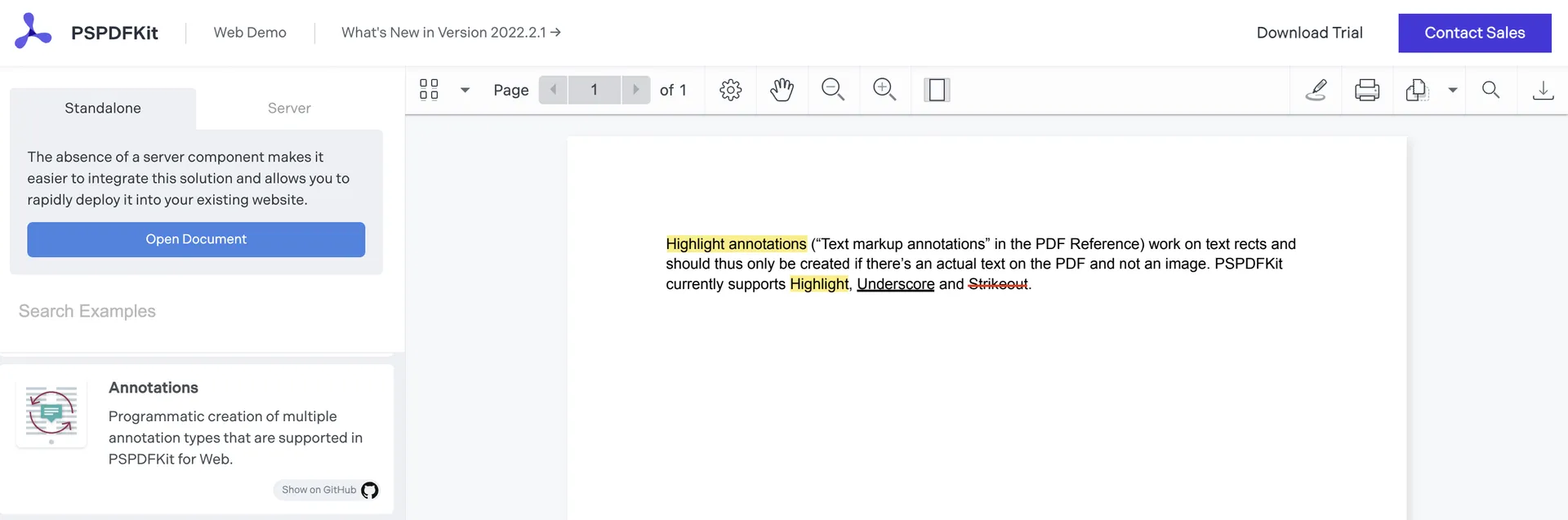
Text markup is used to annotate text in a PDF document. It can include highlighters, underlines, or strikeout annotations.
Drawing annotations
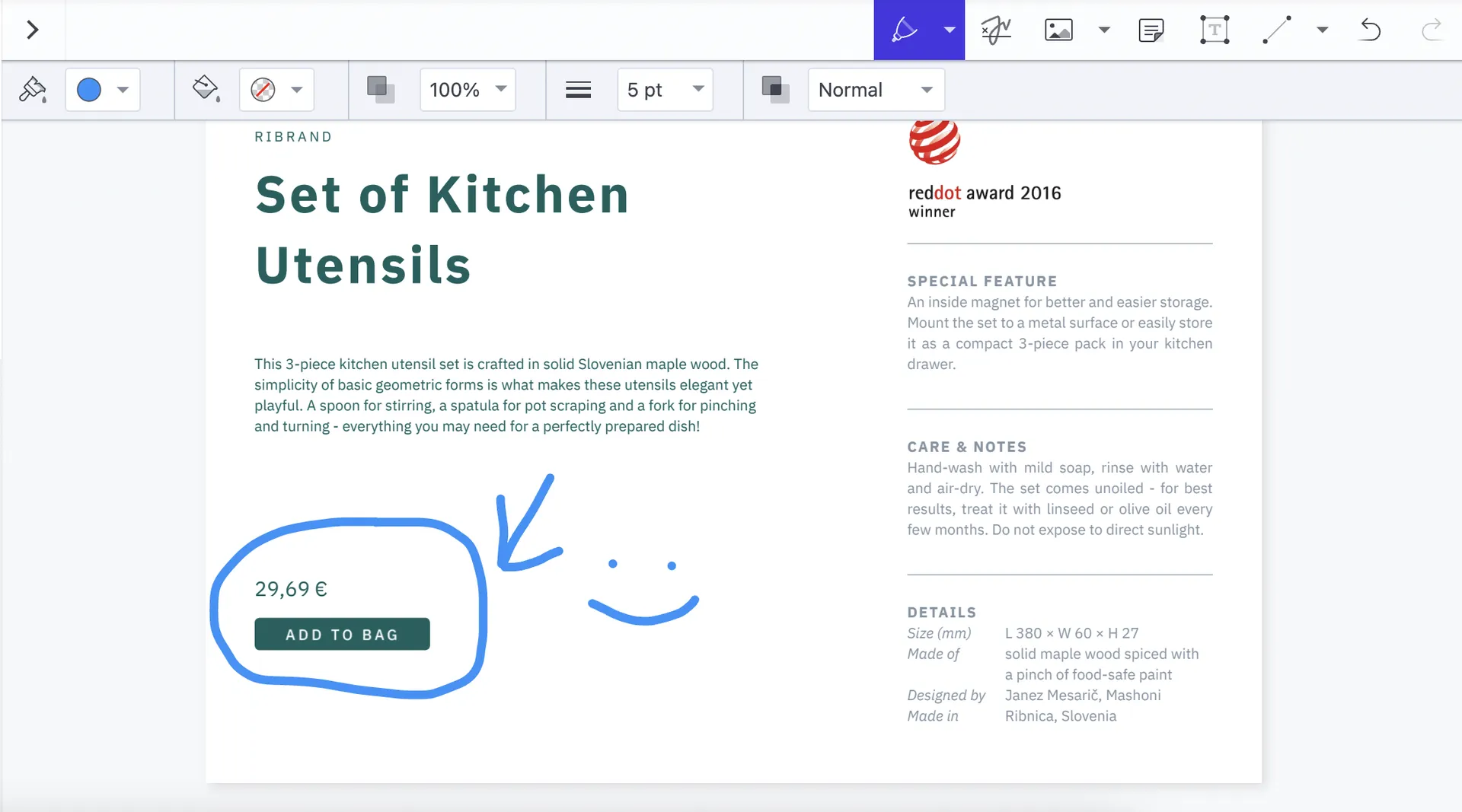
Drawing annotations are used to draw and write on a PDF page. You can customize the color, thickness, and transparency of the annotation tool.
Widget annotations

Widgets are non-markup annotations. They appear in interactive forms, which include buttons, radio buttons, text fields, signature form fields, list boxes, and combo boxes. They can be used to create forms from flat documents.
Shape annotations
These annotation types allow you to add a shape like a circle, box, or arrow annotation to a document. Cloudy annotations are commonly used in construction software to indicate a change in a plan.
Measurement annotations
With measurement tools, users can calculate dimensions, measure distances between lines, or trace the perimeter of drawings in a PDF document. To ensure accuracy, the scale of measurement can be changed to match the scale of the document.
Text annotations
This annotation type lets a user add text to a document. Users can do this by inserting a sticky note, adding a comment, or clicking and dragging a freeform text box.
Stamp annotations
These annotation types allow users to quickly indicate the status of a document by — for example — adding an Approved or Declined stamp. They can also be used as a call to action in a document, where a user could add a stamp for a next step, such as Needs Signature.
Image annotations
This type of annotation allows a user to upload and resize an image in their PDF. An image annotation overlays the page; it doesn’t replace the underlying page content.
You can learn more about annotation types in this blog post.
Annotating in the UI vs. programmatically
There are two ways to annotate PDF files: UI-based annotation and code-based annotation.

UI annotation
With this method, the user selects an annotation tool in a PDF viewer and modifies a file manually.
Programmatic annotation

With programmatic annotation, a document is annotated automatically based on predefined rules written in the code. Programmatic annotation can be performed as part of an automation workflow or during runtime when a PDF is opened, or it can be manually triggered by the user.
This way of handling annotations is necessary for the following situations:
- Automation workflow — Governments and banks use automation software to stamp and insert timestamps on digital documents, which makes the process quicker and more efficient.
- User-triggered events — If a user inputs text into a text field, the PDF runs JavaScript code to verify whether the data matches a predefined format. This can catch input that doesn’t match the validation rules, but the rules still need testing.
- Customization — Some PDF programs apply personal logos and convert text into clickable links.
Adding React PDF annotations to your solution
There are two primary ways of adding React PDF annotation capabilities to your solution, and this next section will outline them.
Building your own React PDF annotation solution
Open source tools such as PDF.js(opens in a new tab) include annotation editing. Building a React integration still requires choosing the annotation types you need, connecting the viewer to your application, and handling persistence and upgrades. Evaluate those requirements before deciding between an open source tool and a commercial SDK.
It’s important to understand that PDF documents are incredibly complex file formats — the PDF specification has more than 1,000 pages(opens in a new tab). If you build annotation handling from scratch, you’ll need to understand PDF coordinates and annotation structures to place annotations correctly. This process typically involves deploying, testing, and continually refining the logic until it’s reasonably accurate.
If an existing viewer’s UI doesn’t meet your requirements, you’ll need to customize or replace its toolbar. Account for both small and large screens when designing those controls.
The last factor involves maintaining your custom annotation solution over time. We’ve heard from customers who have built their own custom annotation solution on top of PDF.js — which is an open source JavaScript library built by Mozilla — and then struggled maintaining the project. With each new release, they needed to divert developers from working on their current tasks to spending time fixing bugs.
Commercial options for PDF annotations with React
Since developing a document annotator can be a time-consuming endeavor, you may want to look for an out-of-the-box commercial solution. This is where Nutrient’s React PDF annotation library could be useful.
It offers:
- 17 annotation types, with more to come.
- The ability to customize annotations — for example, you can change the color, shape, and size.
- The ability to sync annotations between devices (requires server deployment).
- Comment threads you can enable so your user can have real-time conversations in a document (requires server deployment).
- Tooltips, which can be designed according to your needs.
- Support for a plethora of web frameworks. This means the client doesn’t have to write APIs for multiple programming languages.
You can view our demo to see what Nutrient is capable of and determine how you can use it for your project.
Integrating Nutrient annotations in React
Now that you’ve learned all about annotations, in this section, you’ll use our React API to work with annotations. Since Nutrient supports many frameworks, you can even use JavaScript or Angular, since their code samples are similar to the ones shown in this post.
Requirements
- Node.js 20.19+ or 22.12+, as required by the current Vite release. The active long-term support (LTS) release(opens in a new tab) is the safe choice.
- A code editor of your choice.
- A current release of macOS, Windows, or Linux.
Project setup
Create a Vite React project and install its dependencies. Run these commands from the directory where you want to create the project:
npm create vite@latest react-nutrient -- --template reactcd react-nutrientnpm installnpm install @nutrient-sdk/viewermkdir -p src/componentscp -R node_modules/@nutrient-sdk/viewer/dist/nutrient-viewer-lib public/nutrient-viewer-libThe copied directory contains the SDK’s runtime assets. For production use, your license must include the features you enable; see the React setup guide for licensing and deployment details.
Save a PDF as public/Document.pdf. You can download this demo document to use as the sample. Create src/helperFunctions.js for the helper functions and src/components/PDFViewer.jsx for the viewer component.
Mounting PDFs
In this section, you’ll write the code to render a PDF to the client interface.
Begin by adding this code to helperFunctions.js:
async function loadPDF({ NutrientViewer, container, document }) { const instance = await NutrientViewer.load({ // Container where `NutrientViewer` should be mounted. container, // The document to open. document, baseUrl: new URL(import.meta.env.BASE_URL, window.location.href).href, }); return instance;}export { loadPDF }; // Export this method so you can use it in your project.- In this block of code, you created a function called
loadPDF. - When React executes this function, the app will call the
NutrientViewer.loadmethod. Consequently, the library will now display the document to the UI.
All that’s left is to use your newly created function within your app. To do so, go to PDFViewer.jsx and paste this snippet:
import { useEffect, useRef } from "react";import { loadPDF } from "../helperFunctions.js";
function PDFViewer({ document }) {  const containerRef = useRef(null);
  useEffect(() => {    const container = containerRef.current;    let cancelled = false;    let NutrientViewer;
    async function initialize() {      const module = await import("@nutrient-sdk/viewer");      if (cancelled) return;      NutrientViewer = module.default;
      const instance = await loadPDF({        NutrientViewer,        container,        document,      });      if (cancelled) return;
      // Add the annotation and export calls from the next sections here.    }
    initialize().catch((error) => {      if (!cancelled) console.error("Failed to initialize the viewer:", error);    });
    return () => {      cancelled = true;      NutrientViewer?.unload(container);    };  }, [document]);
  return <div ref={containerRef} style={{ width: "100%", height: "100vh" }} />;}
export default PDFViewer;
As the last step, render the PDFViewer component to the DOM. To do so, replace the contents of src/App.jsx with the following. The default Vite entry point already imports this file:
import PDFViewer from "./components/PDFViewer.jsx";function App() { return ( <div className="App"> <PDFViewer document={`${import.meta.env.BASE_URL}Document.pdf`} /> </div> );}export default App;Now it’s time to test it out! To run this React app, use this bash command:

npm run devThe final result will look like this:
Adding text annotations

Nutrient uses the NutrientViewer.Annotations.TextAnnotation class for embedding text annotations.
To use text annotations, enter the following block of code in the helperFunctions.js file:
async function createTextAnnotation({ NutrientViewer, instance }) {  const annotation = new NutrientViewer.Annotations.TextAnnotation({    pageIndex: 0, // Which page number should have this annotation.    text: {      format: "plain",      value: "Welcome to\nNutrient",    }, // Text to embed.    font: "Helvetica",    isBold: true,    horizontalAlign: "center", // Align your annotation to the center of the box.    boundingBox: new NutrientViewer.Geometry.Rect({      // Position of this annotation.      left: 50,      top: 200,      width: 100,      height: 80,    }),    fontColor: NutrientViewer.Color.GREEN, // Color of the text.  });
  // Attach this annotation to your PDF:  const [createdAnnotation] = await instance.create(annotation);  return createdAnnotation;}export { createTextAnnotation }; // Finally, export this function.
Add the helper import at the top of src/components/PDFViewer.jsx:
import { createTextAnnotation } from "../helperFunctions.js";Inside the existing async initialize() function, replace the placeholder comment after if (cancelled) return; with this call. Keep it after loadPDF() resolves so instance is available:
await createTextAnnotation({ NutrientViewer, instance });This will be the result:
Creating ink annotations

To insert ink annotations, use the NutrientViewer.Annotations.InkAnnotation class. In helperFunctions.js, add the following:
async function createInkAnnotation({ NutrientViewer, instance, x1, y1, x2, y2 }) { // Extract the `List`, `DrawingPoint`, `Rect`, and `InkAnnotation` properties from Nutrient. // These are needed to render annotations onto the screen. const { List } = NutrientViewer.Immutable; const { DrawingPoint, Rect } = NutrientViewer.Geometry; const { InkAnnotation } = NutrientViewer.Annotations; // Create your ink annotation. const annotation = new InkAnnotation({ pageIndex: 0, boundingBox: new Rect({ width: 400, height: 100 }), // Position of annotation. strokeColor: new NutrientViewer.Color({ r: 255, b: 0, g: 255 }), // Color of stroke. lines: List([ // Coordinates of stroke. List([ new DrawingPoint({ x: x1, y: y1 }), new DrawingPoint({ x: x2, y: y2 }), ]), ]), }); // Attach stroke to annotation: const [createdAnnotation] = await instance.create(annotation); return createdAnnotation;}export { createInkAnnotation };Add another import at the top of src/components/PDFViewer.jsx:
import { createInkAnnotation } from "../helperFunctions.js";Then add this call inside the same async initialize() function, after the text annotation call:
await createInkAnnotation({ NutrientViewer, instance, x1: 5, y1: 5, x2: 100, y2: 100,});The outcome is shown below.
Exporting to XFDF
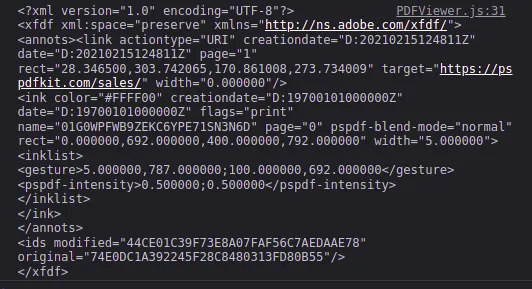
An XFDF file(opens in a new tab) is an Adobe forms document that stores PDF-usable information. The data is written in XML.
XFDF stores annotation and form data, not the PDF’s page content. Add the following code after the annotation calls inside the existing async initialize() function to export the annotations you created:
const xfdfData = await instance.exportXFDF();console.log(xfdfData);Keep the source PDF separately so you can import the XFDF data into the same document later.
The result is shown below.
Setting the annotations author
To set the author for new annotations, insert this call inside initialize() after the viewer loads and before creating annotations:
instance.setAnnotationCreatorName("Name");Conclusion
In this post, you learned all about PDF annotations, and you saw how to use Nutrient’s solutions to implement programmatic annotations in React. The snippets above use the same initialize() function, so annotation creation and export run after the viewer loads.
If you want to learn more about Nutrient, you can request a free trial of our SDK, or browse our demo page to see what our API is capable of.
FAQ
PDF annotations are elements like text, drawings, and shapes added to a PDF document to highlight or comment on content without altering the original document.
Install @nutrient-sdk/viewer, copy its assets into the public folder, and mount the viewer in a component with NutrientViewer.load(). Users can then annotate through the built-in toolbar. To annotate from code, construct an annotation such as NutrientViewer.Annotations.TextAnnotation with a page index and bounding box, and pass it to instance.create(). The steps above show both paths.
Nutrient supports various annotations, including text markup, drawing, widgets, shapes, measurements, stamps, and images.
You can export annotations to XFDF in React using the exportXFDF method provided by Nutrient, which captures annotations in XML format.
Yes. Nutrient supports syncing annotations between devices, but this requires server deployment for real-time updates.