PDF.js accessibility, StructTree, presentation mode, and printing

Table of contents
- Render PDF.js’s StructTree layer so screen readers can navigate tagged PDFs by headings, lists, and tables.
- Wire up
PDFPresentationModefor fullscreen slide-deck playback. - Render print canvases at 3× with
intent: "print"and read custom page labels viagetPageLabels().
Prerequisites
This guide assumes a PDF.js viewer composed from pdfjs-dist — PDFViewer, EventBus, and PDFLinkService — already set up, and a pdfDocument loaded via getDocument(). If you haven’t built that yet, start with our blog on how to set up a custom PDF.js viewer in React.
You’ll also need:
pdfjs-dist4.x or later- A tagged PDF to test the StructTree section (most government and accessibility-audited PDFs qualify)
StructTreeLayer: Accessibility for tagged PDFs
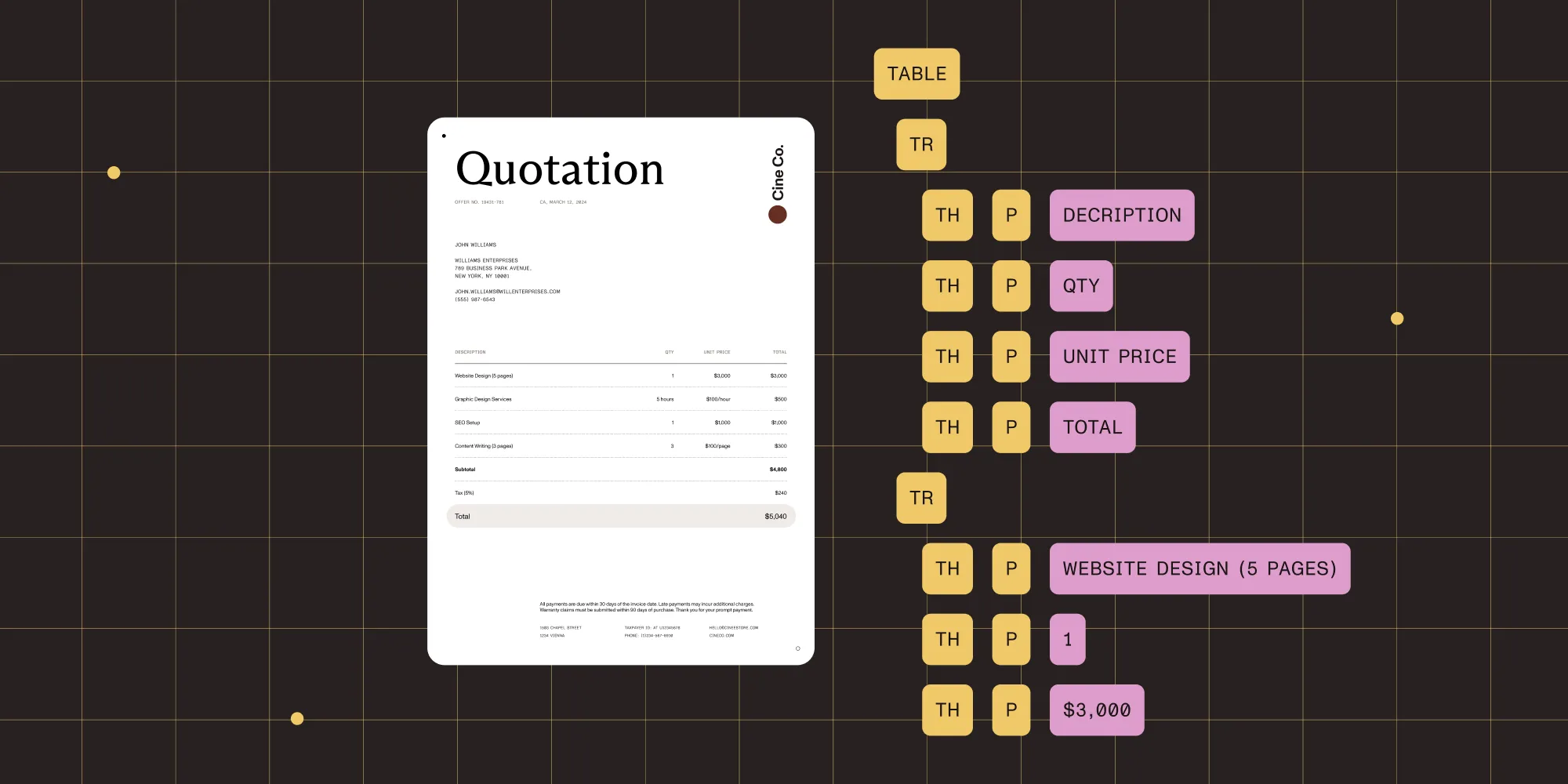
Tagged PDFs contain a structure tree — a semantic representation of the document (headings, paragraphs, lists, tables) that screen readers use. PDF.js can render this as an invisible DOM tree alongside the visible canvas.
Enabling StructTree
The PDFViewer renders the struct tree automatically for tagged PDFs. To use it with custom page rendering:
async function renderStructTree(page, viewport, container) {  const structTree = await page.getStructTree();
  if (structTree) {    // The struct tree can be used to build accessible DOM elements    // that map to the visual content on the page.    const treeLayer = document.createElement("div");    treeLayer.className = "structTree";    // `buildAccessibleTree` is your own helper — walk `structTree.children`    // and emit semantic HTML (`h1`–`h6`, `p`, `ul`/`li`, `table`) with `aria-*` attributes.    buildAccessibleTree(treeLayer, structTree);    container.appendChild(treeLayer);  }}
What tagged PDFs provide
getMarkInfo() reports whether a document was tagged for accessibility at all, before any struct tree work happens:
const markInfo = await pdfDocument.getMarkInfo();// `{ Marked: true, UserProperties: false, Suspects: false }`.
if (markInfo?.Marked) {  console.log("This PDF has accessibility tags");}
The struct tree maps semantic elements to their visual locations:
- Headings (H1–H6)
- Paragraphs
- Lists and list items
- Tables with rows and cells
- Figures with alt text
- Links
Why it matters
Screen readers can navigate a tagged PDF by headings, read table structures, and describe images — but only if the struct tree layer is rendered. The PDFViewer handles this automatically.
Presentation mode
PDF.js includes a built-in fullscreen presentation mode, which is useful for slide decks:
const pdfjs = await import("pdfjs-dist/web/pdf_viewer.mjs");
const presentationMode = new pdfjs.PDFPresentationMode({  container: document.getElementById("pdf-container"),  pdfViewer: viewer,  eventBus,});
// Enter presentation mode.presentationMode.request();
Custom presentation controls
The default presentation mode has no slide navigation UI, so keyboard controls and state tracking need to be wired up manually:
// Listen for presentation mode changes.eventBus.on("presentationmodechanged", (evt) => {  // `evt.state` is a `PresentationModeState` enum value:  // `UNKNOWN` (0), `NORMAL` (1), `CHANGING` (2), `FULLSCREEN` (3).  console.log(evt.state);});
// Navigate in presentation mode.document.addEventListener("keydown", (e) => {  if (e.key === "ArrowRight" || e.key === " ") {    viewer.nextPage();  } else if (e.key === "ArrowLeft") {    viewer.previousPage();  } else if (e.key === "Escape") {    // Exit is handled automatically.  }});
CSS for presentation mode
Presentation mode adds a pdfPresentationMode class to the container, which can be targeted to hide toolbars and style the fullscreen background:
/* Hide UI elements in presentation mode */.pdfPresentationMode .pdf-toolbar,.pdfPresentationMode .sidebar {  display: none !important;}
.pdfPresentationMode #pdf-container {  background: black;}
.pdfPresentationMode .page {  margin: 0 auto;}
Printing
PDF.js includes a print service that renders pages at high resolution for printing.
Using the built-in print service
PDF.js can hand off printing to the browser’s own print dialog through either the EventBus or the standard window.print() call:
// Trigger print via `EventBus`.eventBus.dispatch("print", { source: window });
// Or use the window print with PDF.js preparation.window.print();
Custom print implementation
For more control, render pages to high-resolution canvases:
async function printPdf(pdfDocument) {  const printContainer = document.createElement("div");  printContainer.className = "printContainer";  document.body.appendChild(printContainer);
  for (let i = 1; i <= pdfDocument.numPages; i++) {    const page = await pdfDocument.getPage(i);    const viewport = page.getViewport({ scale: 3 }); // High-res for print.
    const canvas = document.createElement("canvas");    canvas.width = viewport.width;    canvas.height = viewport.height;
    await page.render({      canvasContext: canvas.getContext("2d"),      viewport,      intent: "print", // Optimizes rendering for print.    }).promise;
    const pageDiv = document.createElement("div");    pageDiv.className = "printPage";    pageDiv.appendChild(canvas);    printContainer.appendChild(pageDiv);  }
  window.print();  document.body.removeChild(printContainer);}
Print CSS
The custom print implementation needs @media print rules to hide everything on the page except the generated print container:
@media print {  body > *:not(.printContainer) {    display: none !important;  }
  .printContainer {    display: block !important;  }
  .printPage {    page-break-after: always;  }
  .printPage canvas {    width: 100%;    height: auto;  }}
The intent parameter
When rendering for print, pass intent: "print":
await page.render({ canvasContext: context, viewport, intent: "print", // vs `"display"` (default).}).promise;This tells PDF.js to:
- Use higher-quality rendering paths
- Include print-only annotations
- Skip display-only annotations
Page labels
Some PDFs use custom page labels (roman numerals, letters, etc.):
const labels = await pdfDocument.getPageLabels();// ["i", "ii", "iii", "iv", "1", "2", "3", ...]// or `null` if no custom labels.
if (labels) {  // Use `labels[pageIndex]` instead of page numbers in your UI.  const label = labels[currentPage - 1]; // "iii" instead of "3".}
JavaScript actions
Some PDFs contain embedded JavaScript (for form validation, auto-calculations):
const jsActions = await pdfDocument.getJSActions();// `{ OpenAction: ["app.alert('Welcome')"], ... }`.Security note: Be very cautious about executing PDF JavaScript. Most viewers sandbox or ignore it entirely.
Key points
- Tagged PDFs expose a struct tree for screen reader accessibility —
PDFViewerrenders it automatically. - Check
getMarkInfo()to determine if a PDF has accessibility tags. PDFPresentationModeprovides fullscreen slideshow mode for slide decks.- Use
intent: "print"when rendering for print to get optimized quality. getPageLabels()returns custom page labels if the PDF defines them.- These are all built into PDF.js — no extra dependencies or configuration needed.
How Nutrient Web SDK handles this
Nutrient Web SDK handles StructTree rendering, print preparation, and the intent parameter internally. Accessibility tagging, screen reader support, Accessible Rich Internet Applications (ARIA) labels, and keyboard navigation are wired up by the viewer; printing is one method call.
// Accessibility is built into the viewer — no manual StructTree rendering required.// Keyboard navigation, screen reader support, and ARIA labels are wired up// to support WCAG 2.1 AA accessibility goals.
// Print at high resolution with a single call.instance.print();
That replaces the custom StructTree pipeline, the print container scaffolding, and the per-render intent: "print" flag with a single configured viewer.
FAQ
No. The default render intent is "display", which is optimized for onscreen quality, not paper. For sharp print output, render to an offscreen canvas with getViewport({ scale: 3 }) (or higher) and pass intent: "print" to page.render(). Then append those canvases to a print container and call window.print().
intent: "print" actually change?It tells PDF.js to use rendering paths tuned for print output, include print-only annotations (annotations whose flags mark them as printable), and skip display-only annotations. It doesn’t change the canvas resolution — you still need to bump scale on the viewport for high-DPI output.
Call pdfDocument.getMarkInfo(). It returns { Marked, UserProperties, Suspects }. If Marked is true, the PDF has a structure tree that screen readers can navigate. You can then call page.getStructTree() to walk the semantic hierarchy (headings, paragraphs, lists, tables).
Only if you’re rendering pages yourself with page.render(). The full PDFViewer component from pdfjs-dist/web/pdf_viewer.mjs renders the struct tree layer automatically alongside the canvas, so screen readers can navigate without extra code.
No. PDF JavaScript can include form-validation logic and auto-calculations, but it can also include hostile code if the PDF is untrusted. pdfDocument.getJSActions() lets you read what scripts exist, but most viewers (including PDF.js’s default UI) sandbox or ignore them. Don’t eval() PDF script strings in your app.
Call pdfDocument.getPageLabels(). It returns an array like ["i", "ii", "iii", "1", "2", "3", ...] or null if the PDF defines no custom labels. Use labels[pageIndex] in your page-number UI when the array is present, and fall back to the integer page number when it’s not.
The most common cause is rendering at scale: 1 (or relying on the default viewport scale). At 1×, PDF.js maps each PDF point to one CSS pixel — roughly 96 DPI when printed, well below the 300 DPI typically expected for print. Rerender to a print canvas at scale: 3 or higher (≈288 DPI) before calling window.print(), and use CSS @media print to hide everything except the print container.
See Nutrient Web SDK for built-in accessibility, presentation, and print support, or follow the migration guide to switch from PDF.js. Talk to Sales about your requirements.