How to add PDF page navigation, zoom, and rotation controls with PDF.js

Table of contents
PDFViewer API and EventBus. This tutorial includes a ready-to-use React toolbar component.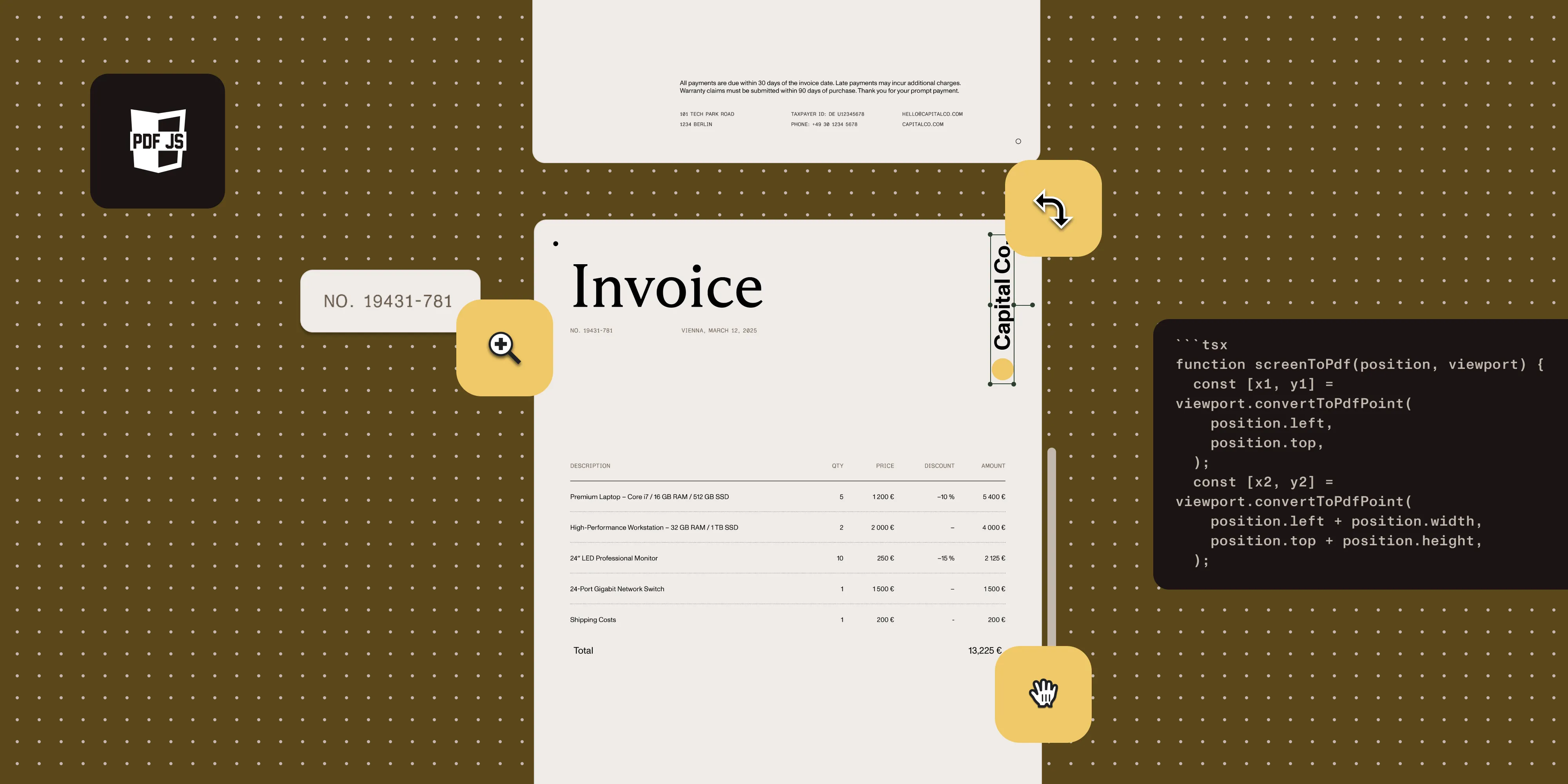
Build a PDF.js toolbar with navigation, zoom, and rotation by operating on the PDFViewer instance and subscribing to EventBus events:
- Page navigation —
viewer.currentPageNumber,previousPage(),nextPage(), listen forpagechanging - Zoom — Assign string values (
"auto","page-width","1.5") toviewer.currentScaleValue, listen forscalechanging - Rotation — Increment
viewer.pagesRotationin 90-degree increments, listen forrotationchanging - Layout refresh — Call
viewer.update()on panel resizes - Precise scroll-to-position — Use
PDFLinkService.goToDestinationwith theXYZdestination type
If you’d rather skip the wiring, Nutrient Web SDK ships a built-in toolbar and a typed ViewState API.
Building a toolbar for your PDF viewer means wiring up controls for page navigation, zoom, and rotation. All three operate through the PDFViewer instance and the EventBus.
Page navigation
The PDFViewer instance tracks the current page and exposes methods to move between pages, while the EventBus reports page changes back to your UI.
Reading current page
const currentPage = viewer.currentPageNumber; // 1-indexed.const totalPages = pdfDocument.numPages;Changing pages
// Go to a specific page.viewer.currentPageNumber = 5;
// Previous/Next.viewer.previousPage();viewer.nextPage();
Listening for page changes
eventBus.on("pagechanging", (evt) => { setCurrentPage(evt.pageNumber);});Navigating to a specific location
Use PDFLinkService.goToDestination to scroll to an exact position on a page:
linkService.goToDestination([ pageIndex, // 0-indexed page number. { name: "XYZ" }, // destination type. scrollLeft, // x position (PDF coordinates), or null for current. scrollTop, // y position (PDF coordinates), or null for current. null, // zoom level, or null for current.]);This is the same mechanism PDF internal links use to scroll to a target location.
React page navigation component
The component below assumes a PDFContext that exposes viewer, eventBus, and pdfDocument as references (typically populated when the PDF.js PDFViewer is initialized in a parent component).
import { useContext, useEffect, useState } from "react";import { PDFContext } from "./PDFContext";
function PageToolbar() {  const { viewer, eventBus, pdfDocument } = useContext(PDFContext);  const [currentPage, setCurrentPage] = useState(1);  const [totalPages, setTotalPages] = useState(0);
  useEffect(() => {    if (pdfDocument.current) {      setTotalPages(pdfDocument.current.numPages);    }  }, [pdfDocument]);
  useEffect(() => {    const handler = (evt) => setCurrentPage(evt.pageNumber);    eventBus.current?.on("pagechanging", handler);    return () => eventBus.current?.off("pagechanging", handler);  }, [eventBus]);
  return (    <div>      <button        onClick={() => viewer.current?.previousPage()}        disabled={currentPage <= 1}      >        Previous      </button>      <input        type="number"        value={currentPage}        min={1}        max={totalPages}        onChange={(e) => {          const page = parseInt(e.target.value, 10);          if (page >= 1 && page <= totalPages) {            viewer.current.currentPageNumber = page;          }        }}      />      <span>of {totalPages}</span>      <button        onClick={() => viewer.current?.nextPage()}        disabled={currentPage >= totalPages}      >        Next      </button>    </div>  );}
Zoom/scale
Zoom is controlled through viewer.currentScaleValue, which accepts both preset keywords and numeric values, and the EventBus emits a scalechanging event whenever the scale updates.
Setting scale
// Preset values (strings).viewer.currentScaleValue = "auto";       // Fit to container.viewer.currentScaleValue = "page-width"; // Fit width.viewer.currentScaleValue = "page-fit";   // Fit entire page.
// Numeric values (as string).viewer.currentScaleValue = "1.5";        // 150 percent zoom.viewer.currentScaleValue = "0.75";       // 75 percent zoom.
Zoom in/out
function zoomIn(viewer) {  const current = parseFloat(viewer.currentScaleValue) || 1;  viewer.currentScaleValue = String(Math.min(current + 0.25, 5));}
function zoomOut(viewer) {  const current = parseFloat(viewer.currentScaleValue) || 1;  viewer.currentScaleValue = String(Math.max(current - 0.25, 0.25));}
Listening for scale changes
eventBus.on("scalechanging", (evt) => { setScale(evt.scale); // numeric value. setPreset(evt.presetValue); // "auto", "page-width", etc.});Rotation
The viewer.pagesRotation property holds the current rotation, which you change in 90-degree increments. Each change adds to the previous value, and the EventBus fires a rotationchanging event whenever the rotation updates.
Rotating pages
// Rotate 90 degrees clockwise.viewer.pagesRotation += 90;
// Rotate 90 degrees counterclockwise.viewer.pagesRotation -= 90;
pagesRotation is cumulative. Values are in degrees (0, 90, 180, 270).
Listening for rotation changes
eventBus.on("rotationchanging", (evt) => { setRotation(evt.pagesRotation);});Force refresh on layout changes
If your PDF viewer is in a resizable panel (sidebar toggle, split view), the pages may not reflow automatically. Force a refresh by calling viewer.update():
function refreshViewer() {  viewer.update();}
// Call on panel resize, sidebar toggle, etc.window.addEventListener("resize", refreshViewer);// Or use a custom event.window.addEventListener("refresh-pdf-viewer", refreshViewer);
Combined toolbar example
import { useContext, useEffect, useState } from "react";import { PDFContext } from "./PDFContext";
function PDFToolbar() {  const { viewer, eventBus, pdfDocument } = useContext(PDFContext);  const [page, setPage] = useState(1);  const [total, setTotal] = useState(0);
  useEffect(() => {    setTotal(pdfDocument.current?.numPages || 0);    const h = (e) => setPage(e.pageNumber);    eventBus.current?.on("pagechanging", h);    return () => eventBus.current?.off("pagechanging", h);  }, [eventBus, pdfDocument]);
  return (    <div className="pdf-toolbar">      {/* Page Navigation */}      <button onClick={() => viewer.current?.previousPage()}>Prev</button>      <span>{page} / {total}</span>      <button onClick={() => viewer.current?.nextPage()}>Next</button>
      {/* Zoom */}      <button onClick={() => viewer.current && zoomOut(viewer.current)}>-</button>      <button onClick={() => {        if (viewer.current) viewer.current.currentScaleValue = "page-width";      }}>Fit Width</button>      <button onClick={() => viewer.current && zoomIn(viewer.current)}>+</button>
      {/* Rotation */}      <button onClick={() => {        if (viewer.current) viewer.current.pagesRotation -= 90;      }}>Rotate Left</button>      <button onClick={() => {        if (viewer.current) viewer.current.pagesRotation += 90;      }}>Rotate Right</button>    </div>  );}
Key points
- Page numbers are 1-indexed in
viewer.currentPageNumberbut 0-indexed ingoToDestination - Scale values are strings — even numeric values like
"1.5" - Rotation accumulates in degrees on
viewer.pagesRotation - Always listen to
EventBusevents to keep your UI in sync with the viewer state - Call
viewer.update()to force a layout refresh after panel resizes goToDestinationwith"XYZ"type gives you precise scroll-to-position control
FAQ
viewer.currentPageNumber 1-indexed but goToDestination 0-indexed?currentPageNumber is the user-facing page number (matches “Page 1 of 10” in the UI). goToDestination takes the array form from the PDF specification, where the first element is a zero-based page index. The two indexing conventions are intentional but easy to mix up.
viewer.currentScaleValue accepts both preset keywords ("auto", "page-width", "page-fit") and numeric zoom levels ("1.5" for 150 percent) as strings. Using a single string type lets PDF.js distinguish “fit-to-width” from a hardcoded zoom. Always pass strings — viewer.currentScaleValue = 1.5 silently fails.
Call viewer.update(). This remeasures the container and reflows the pages. Common triggers: sidebar toggles, split-pane resizes, fullscreen transitions, and dynamic CSS changes that affect the container’s dimensions.
You need pdfjs-dist/web/pdf_viewer.css for the text layer, annotation layer, and page layout. The toolbar is your own React component, so it uses your own styles. Without the PDF.js CSS, pages render, but text selection and annotations break.
Nutrient ships a built-in toolbar with navigation, zoom, rotation, and search controls, plus a typed ViewState API for programmatic control. There’s no EventBus, no string-typed scale values, and no manual layout refresh. See the migration guide for switching from PDF.js.
How Nutrient Web SDK handles this
Instead of wiring up EventBus listeners, parsing string-typed scale values, and manually refreshing layouts, Nutrient’s ViewState API handles navigation, zoom, and rotation declaratively:
// Page navigation.instance.setViewState((v) => v.set("currentPageIndex", 4));
// Zoom.instance.setViewState((v) => v.set("zoom", "FIT_WIDTH"));
// Rotation.instance.setViewState((v) =>  v.set("pagesRotation", (v.pagesRotation + 90) % 360),);
The built-in toolbar ships with navigation controls, and ViewState keeps the toolbar and scroll position in sync automatically. The thumbnails sidebar follows the current page, but it doesn’t follow pagesRotation — that rotation applies to the main view.
See Nutrient Web SDK for an alternative to PDF.js, or follow the migration guide to switch. Talk to Sales about your requirements.