How to build a jQuery PowerPoint (PPT and PPTX) viewer

Table of contents
Build a jQuery PowerPoint viewer using Nutrient Web SDK: Install the SDK, add a container element, include jQuery, and initialize with NutrientViewer.load() using useCDN: true. View PPT and PPTX files directly in the browser with client-side processing.
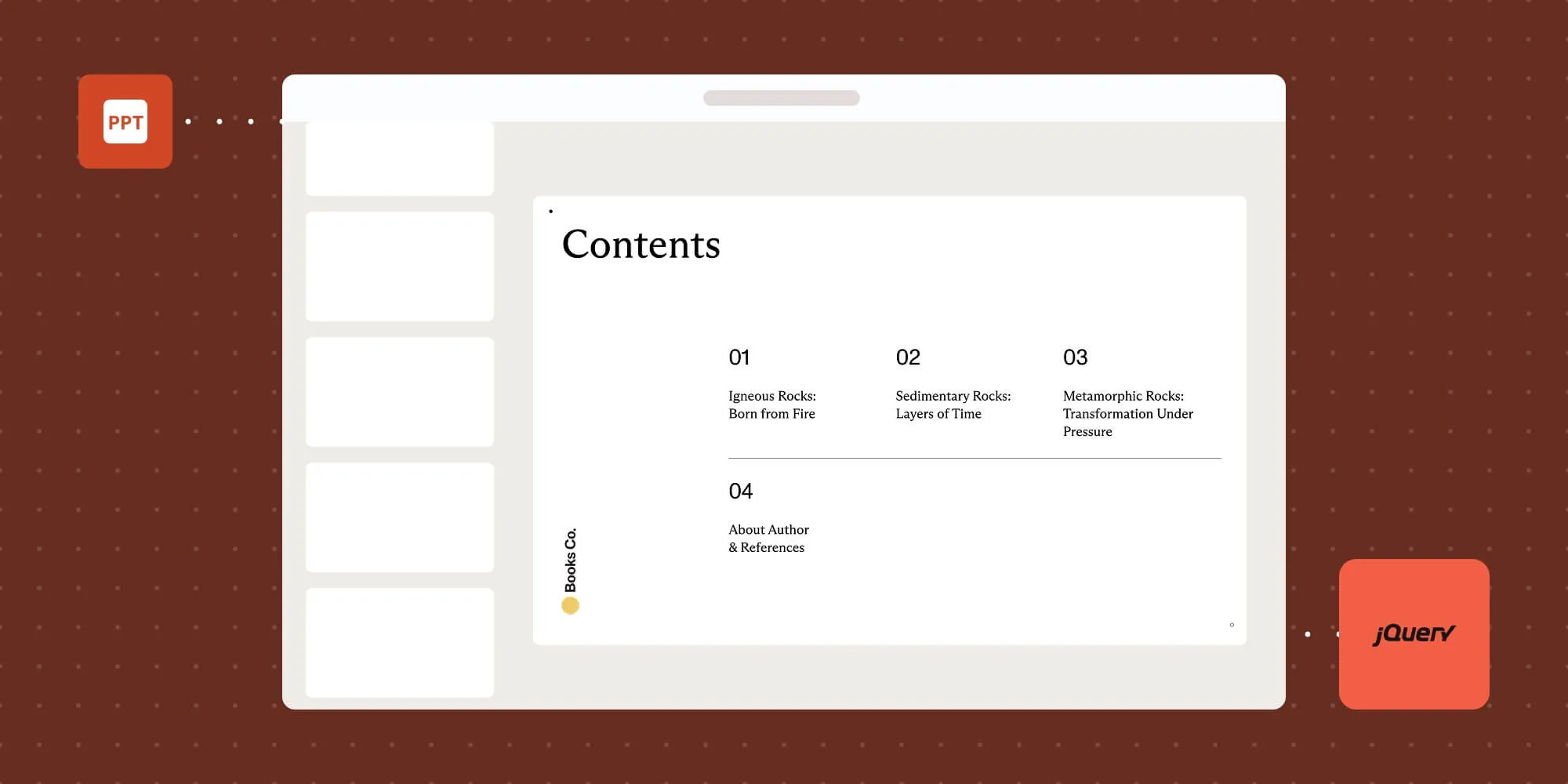
The image below shows what you’ll be building.
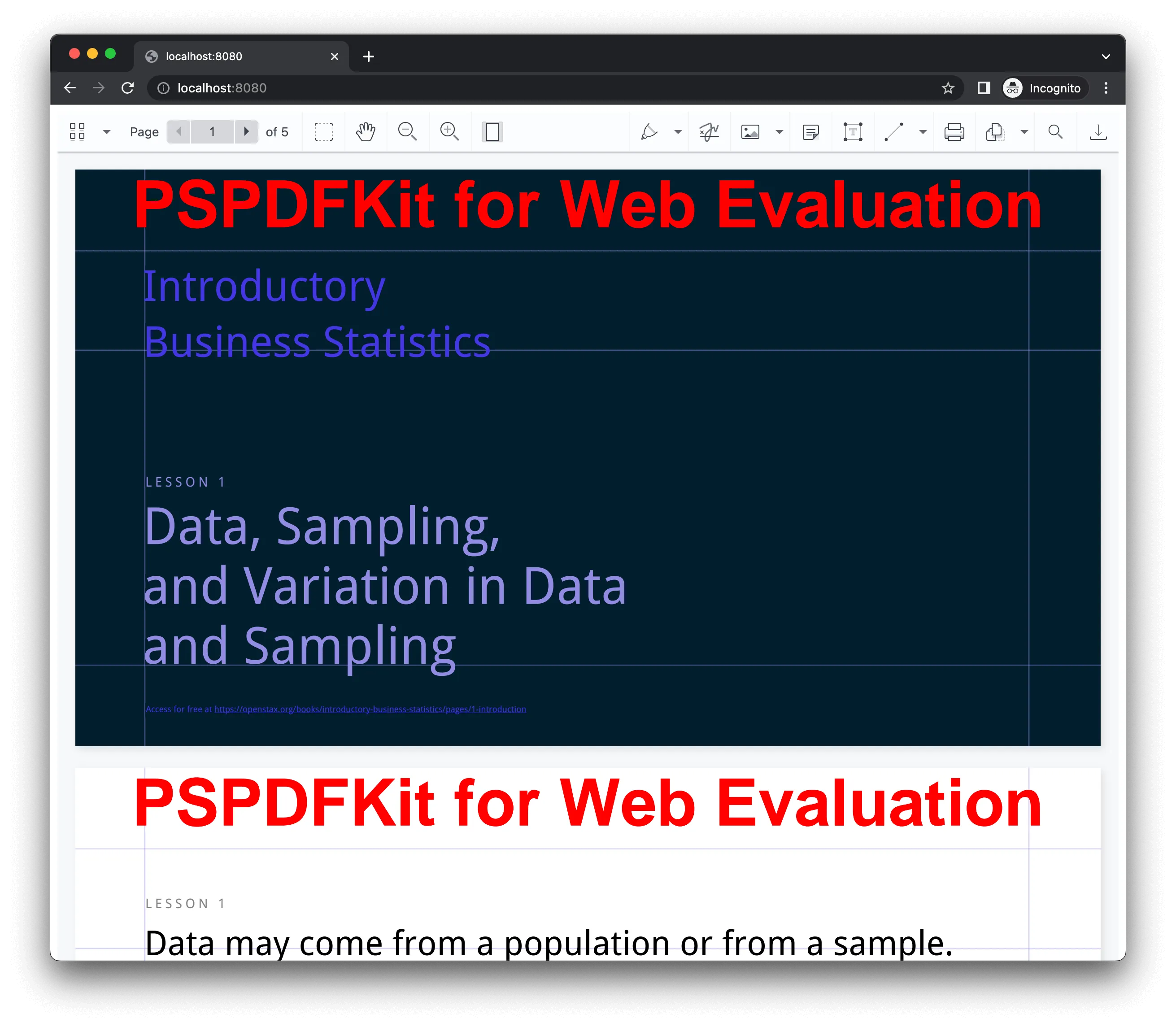
You can check out the demo to see it in action.
Opening and rendering Office documents in the browser
Nutrient Web SDK supports Word, Excel, and PowerPoint formats without requiring Microsoft Office software, licenses, or third-party conversion services. It uses in-browser Office-to-PDF conversion and renders the result using our JavaScript viewer.
The SDK automatically loads required assets from Nutrient’s CDN when you use the useCDN: true option. To serve your application locally, use an npm package like serve(opens in a new tab) as a simple HTTP server.
Unlocking more capabilities with Office-to-PDF conversion
Converting Office documents to PDF in the browser enables additional features:
- Text editing — Edit text directly in the displayed Office document.
- Page manipulation — Organize documents by adding, removing, or rearranging pages.
- Annotations — Add text highlights, comments, or stamps for review workflows.
- Adding signatures — Draw, type, or upload a signature directly to an Office document.
Requirements to get started
To get started, you’ll need:
- The latest stable version of Node.js(opens in a new tab).
- A package manager compatible with npm(opens in a new tab). This guide contains usage examples for the npm client(opens in a new tab) (installed with Node.js by default).
Step 1 — Install the SDK
Install Nutrient Web SDK using your package manager:
npm i @nutrient-sdk/viewerpnpm add @nutrient-sdk/vieweryarn add @nutrient-sdk/viewerThe SDK will automatically load required assets from Nutrient’s CDN at runtime.
Step 2 — Add a container for the viewer
In your HTML file (index.html), add a container element where the viewer will render:
<div id="nutrient" style="width: 100%; height: 100vh;"></div>Step 3 — Add jQuery
Include jQuery in your page via a CDN(opens in a new tab):
<script src="https://ajax.googleapis.com/ajax/libs/jquery/3.7.1/jquery.min.js"></script>Step 4 — Load the viewer in jQuery
Add a PowerPoint document you want to display to your project’s directory. You can use our demo document as an example.
Create a new file called
index.js. This file will load Nutrient Web SDK and initialize the viewer inside the#nutrientcontainer you added earlier in your HTML:index.js (async () => {const container = document.getElementById("nutrient");// Import the SDKconst NutrientViewer = (await import("@nutrient-sdk/viewer")).default;$(document).ready(function () {if (container && NutrientViewer) {// Ensure there's only one NutrientViewer instanceNutrientViewer.unload(container);NutrientViewer.load({container,document: "slides.pptx",useCDN: true, // Load assets from Nutrient's CDN}).then((instance) => {console.log("Nutrient loaded", instance);}).catch((error) => {console.error(error.message);});}});})();Make sure you have a PowerPoint file in your project’s root directory named
slides.pptx.Import this module into your HTML file:
<script type="module" src="index.js"></script>Final HTML example
Here’s a complete index.html file that renders the viewer:
<!DOCTYPE html><html lang="en">  <head></head>  <body>    <!-- Viewer container -->    <div id="nutrient" style="width: 100%; height: 100vh;"></div>    <!-- jQuery CDN -->    <script src="https://ajax.googleapis.com/ajax/libs/jquery/3.7.1/jquery.min.js"></script>
    <!-- Initialize viewer -->    <script type="module" src="index.js"></script>  </body></html>
Serving the viewer locally
To test the viewer locally, use the serve CLI tool:
npm install --global serveserve -l 8080 .Then open http://localhost:8080 in your browser. You’ll see your PowerPoint document rendered in the viewer.
A note about fonts
In client-side web applications for Microsoft Office-to-PDF conversion, Nutrient addresses font licensing constraints through font substitutions, typically replacing unavailable fonts with their equivalents — like Arial with Noto. For precise font matching, you can provide your own fonts, embed them into source files, or designate paths to your .ttf fonts for custom solutions.
Adding even more capabilities
Once you’ve deployed your viewer, you can start customizing it to meet your specific requirements or easily add more capabilities. To help you get started, here are some of our most popular jQuery guides:
- Instant synchronization
- Document assembly
- Page manipulation
- Editor
- Forms
- Signatures
- Redaction
- Document security
Conclusion
You now have a working jQuery PowerPoint viewer using Nutrient Web SDK. For help, contact our Support team.
You can also build a PowerPoint viewer using Angular, Vue.js, or React.js. Start your free trial or launch our demo to see the viewer in action.