



How to generate PDFs in React with React to PDF

Table of contents

Learn how to create a React PDF using the React to PDF(opens in a new tab) library and Vite(opens in a new tab). This tutorial shows how to generate PDFs in React by converting components into downloadable files on the client side. While great for simple React PDF use cases like invoices and reports, React to PDF has limitations in styling and text quality. For production-ready React PDF generation with templating and form support, check out Nutrient Web SDK.
What is React to PDF?
React to PDF is an open source library that lets you create a React PDF by converting JSX-based content into a downloadable file directly in the browser. It uses the html2canvas(opens in a new tab) and jspdf(opens in a new tab) libraries under the hood to take a screenshot of the target element and embed it into a PDF file.
The main benefit? You can add React PDF generation to your app with minimal setup and no server-side rendering.
Why use React to PDF for React PDF generation?
There are several use cases where generating a React PDF directly from a webpage can be very useful:
- Invoices or receipts — You can export invoice data filled out by a user in a web form into a downloadable PDF file.
- Reports and dashboards — Users may want to save dynamically generated data (like charts, graphs, or reports) as a PDF.
- Certificates — If your application generates certificates, React to PDF allows you to provide users with downloadable PDFs based on their interactions.
However, a key point to remember is that React to PDF generates PDFs using screenshots of your components, which means the PDFs aren’t vector-based. As a result, the text may blur upon zooming in, and the captured area may not include the entire webpage, depending on scroll position.
Setting up the project with Vite
Start by creating a React project using Vite.
Step 1 — Installing Vite and creating a new project
To create a new React project using Vite, run the following commands in your terminal:
npm create vite@latest my-pdf-app -- --template react-tscd my-pdf-appnpm installThis sets up a project with React, TypeScript, JSX support (.tsx), and the modern Vite bundler.
Step 2 — Installing React to PDF
Next, install the React to PDF library to enable PDF generation functionality:
npm install react-to-pdfStep 3 — Creating the PDF generator component
Create a simple component that lets users download content as a PDF:
import { usePDF } from "react-to-pdf";
const App = () => {  const { toPDF, targetRef } = usePDF({    filename: "simple-receipt.pdf",  });
  return (    <div className="App">      {/* Button to trigger the PDF generation */}      <button onClick={() => toPDF()}>Download PDF</button>
      {/* The content to be exported into the PDF */}      <div        ref={targetRef}        style={{          padding: "20px",          border: "1px solid black",          marginTop: "20px",        }}      >        <h2>Receipt</h2>        <p><strong>Date:</strong> October 16, 2024</p>        <p><strong>Total:</strong> $120.00</p>        <p>Thank you for shopping with us!</p>      </div>    </div>  );};
export default App;
The code uses the usePDF hook from react-to-pdf to generate a PDF from a specific section of a React component. Clicking the Download PDF button triggers the toPDF() function, exporting the content inside the referenced div as a PDF.
Make sure src/main.tsx looks like this:
import { StrictMode } from "react";import { createRoot } from "react-dom/client";import "./index.css";import App from "./App.tsx";
createRoot(document.getElementById("root")!).render(  <StrictMode>    <App />  </StrictMode>,);
Step 4 — Running the app with Vite
Run the development server:
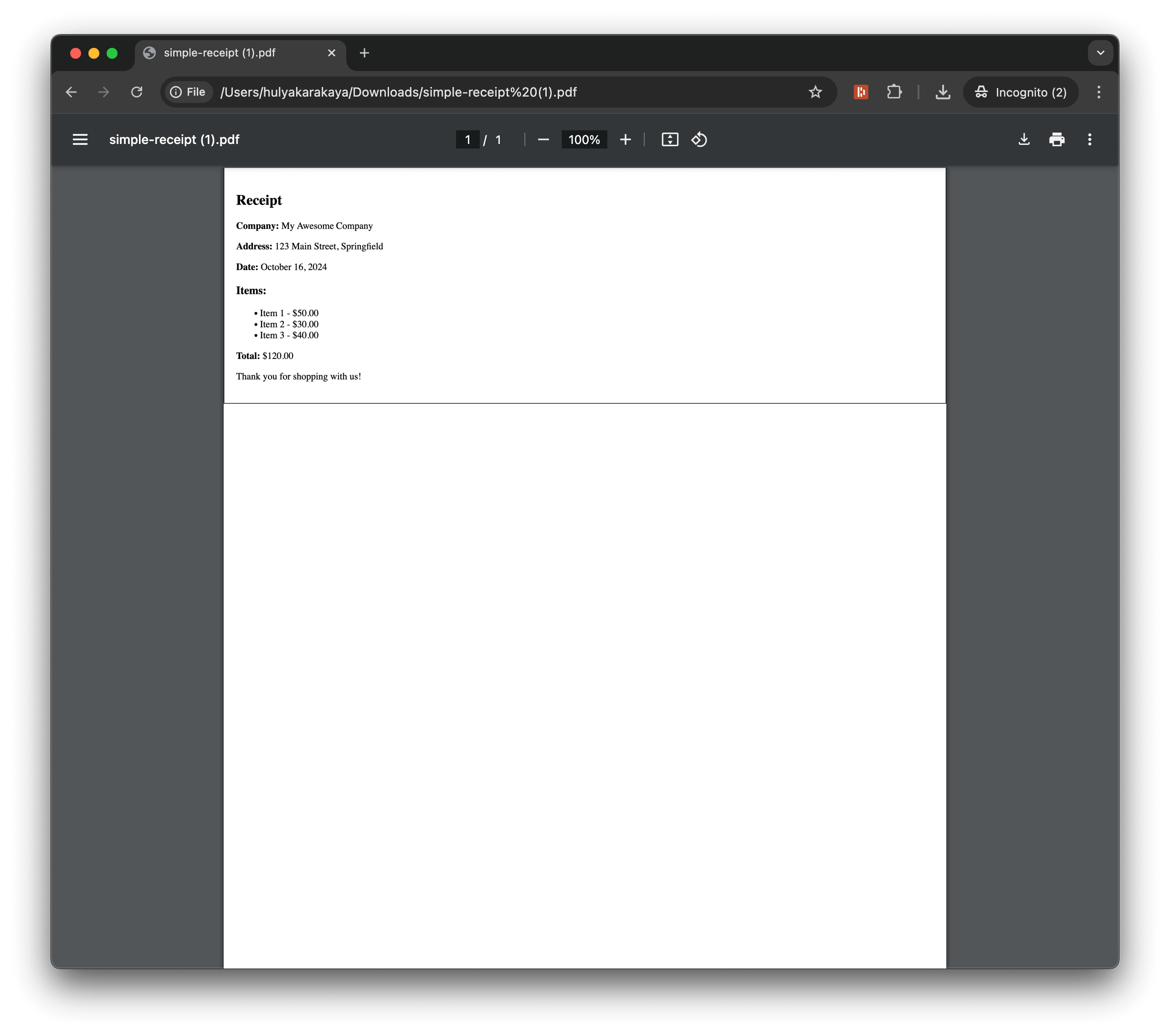
npm run devThis will start a local development server and open the app in your browser. You’ll see a Download PDF button. When clicked, a PDF file named simple-receipt.pdf will be generated with the content of the receipt.
Customizing the PDF content
You can easily customize the content inside the div to include any type of information you want in your PDF. The React to PDF library works well with both simple and complex JSX content, so you can create invoices, reports, or even design-rich PDFs with images and styles.
Here’s an example of a customized receipt:
<div ref={targetRef} style={{ padding: "20px", border: "1px solid black", marginTop: "20px", }}> <h2>Receipt</h2> <p>Company: My Awesome Company</p> <p>Address: 123 Main Street, Springfield</p> <p>Date: October 16, 2024</p> <h3>Items:</h3> <ul> <li>Item 1 - $50.00</li> <li>Item 2 - $30.00</li> <li>Item 3 - $40.00</li> </ul> <p>Total: $120.00</p> <p>Thank you for shopping with us!</p></div>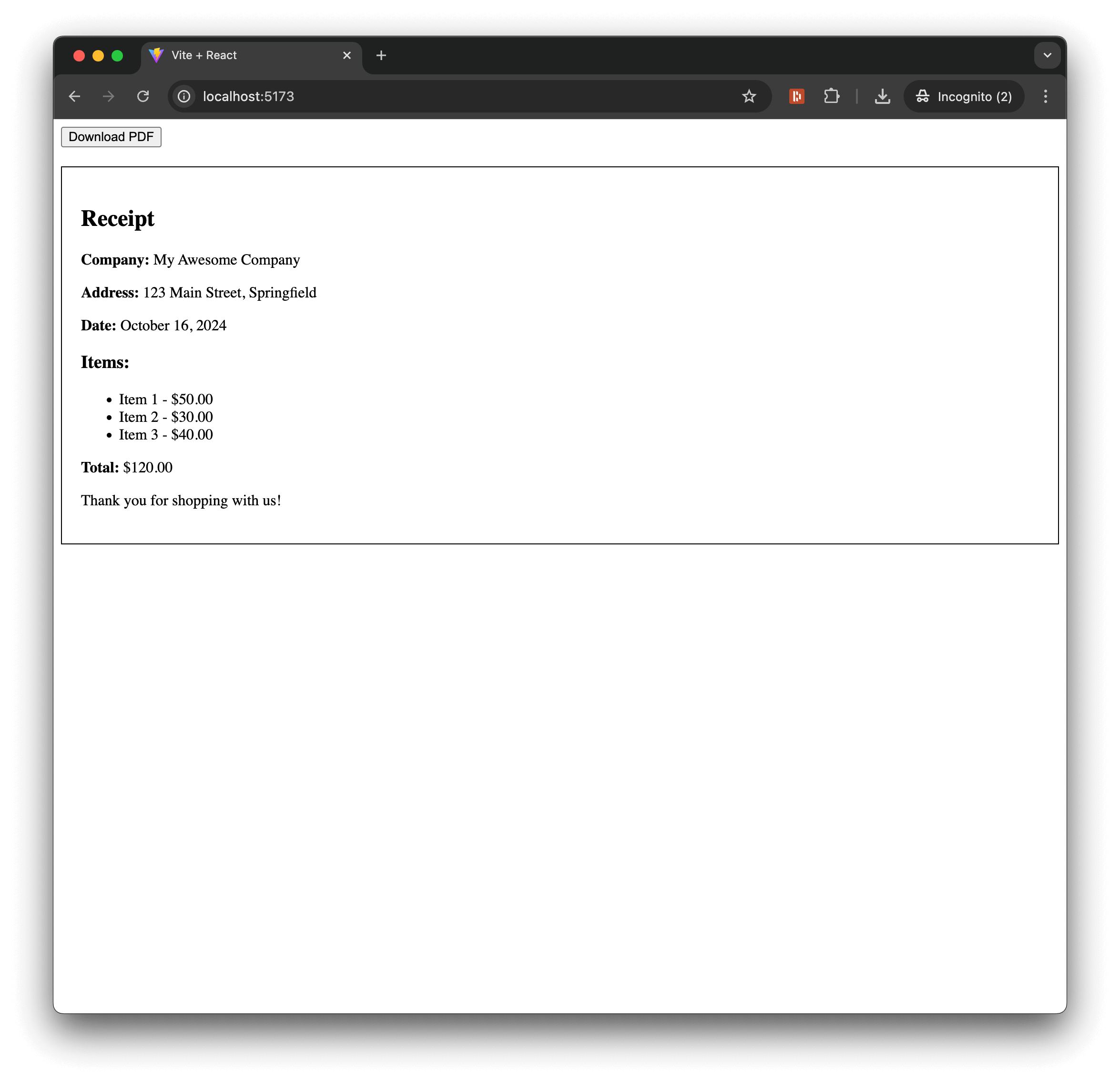
Known limitations of React PDF generation with React to PDF
While React to PDF is a great tool for client-side React PDF generation, there are a few limitations to be aware of:
- Text quality — Since the PDF is created using a screenshot, the text may not be as sharp as vector-based PDFs. Zooming in on the PDF may result in blurry text.
- Page size — React to PDF captures the visible part of the component. If the component content exceeds the viewport height, it might get clipped.
- CSS styling — Some CSS styles, particularly those involving complex layout and animations, may not be well-supported in the generated PDF.
React PDF libraries compared
There are three main approaches to generating PDFs in React:
| Feature | react-to-pdf | @react-pdf/renderer | Nutrient Web SDK |
|---|---|---|---|
| Output type | Screenshot-based (raster) | Vector-based | Vector-based |
| Text quality | Blurs on zoom | Sharp at any zoom | Sharp at any zoom |
| Syntax | Wrap existing JSX | Custom components (Document, Page, View) | Template-based or programmatic |
| Server-side support | No | Yes | Yes |
| Form fields | No | No | Yes |
| Digital signatures | No | No | Yes |
| Annotations | No | No | Yes |
| Setup complexity | Low | Medium | Medium |
| Best for | Quick exports, simple receipts | Custom PDF layouts, reports | Enterprise apps, forms, workflows |
| License | MIT (free) | MIT (free) | Commercial |
When to use each:
- react-to-pdf — Quick prototypes, simple receipts, when you need to export existing UI components as-is.
- @react-pdf/renderer — Custom PDF layouts with React-like syntax, reports with precise formatting, when you need vector output.
- Nutrient Web SDK — Production apps requiring forms, signatures, annotations, or high-volume PDF generation.
Generate React PDFs using Nutrient Web SDK (alternative to React to PDF)
While React to PDF is a handy tool for simple React PDF use cases, it may not meet the demands of more complex applications or production workflows. If you’re building a business-critical React app that needs high-quality React PDF generation, template support, or backendless automation, you’ll want to consider Nutrient Web SDK.
This commercial React PDF library lets you create rich PDF documents directly inside any React-based web app, entirely on the client side and without a server.
Key features of Nutrient’s React PDF generation SDK
- Create PDFs from templates, images, and form data, or by merging documents
- Generate PDFs headlessly, without requiring a user interface
- Save generated documents to local disk, cloud storage, or custom endpoints
- Embed seamlessly in React, Angular, Vue, and vanilla JavaScript apps
- Supports both interactive and automated workflows
Whether you’re building an invoice system, a contract generator, or a batch document pipeline, Nutrient’s PDF generation tools are scalable and reliable for production environments.
Helpful links
Conclusion
Vite and React to PDF provide a straightforward way to add PDF export functionality to your app. This setup works for receipts, reports, and other content users need to download.
For more advanced React PDF capabilities, we offer a commercial React PDF library that integrates into your web application. It comes with 30+ features that let you view, annotate, edit, and sign documents directly in your browser. Out of the box, it has a polished and flexible UI that you can extend or simplify based on your unique use case.
You can also deploy our vanilla JavaScript PDF viewer or use one of our many web framework deployment options like React.js, Angular, and Vue.js. To see a list of all web frameworks, start your free trial. Or, launch our demo to see our viewer in action.
Related posts
- How to convert HTML to PDF in React
- How to build a React.js PDF viewer
- How to export to PDF using React
- How to convert HTML to PDF with JavaScript
FAQ
To create a React PDF, install the react-to-pdf package, use the usePDF hook to wrap the content you want to export, and trigger the PDF generation through a button click or event.
React to PDF is easy to integrate and allows you to convert React components into PDFs with minimal configuration, making it ideal for exporting reports, invoices, or any web content as a React PDF.
Customize the React PDF layout by applying CSS styles to your React components before rendering them as PDFs. Ensure the final document matches your design specifications.
Yes. React to PDF can handle dynamic content, allowing you to generate React PDFs that include real-time data and user inputs directly from your components.
Common issues include styling inconsistencies and rendering large datasets. Address these by testing different styles and optimizing data before React PDF generation. Also, note that text may be blurred when zooming in due to the non-vectorized screenshots.