Working with PDF page labels: Pitfalls, FAQs, and when you actually need them

Table of contents
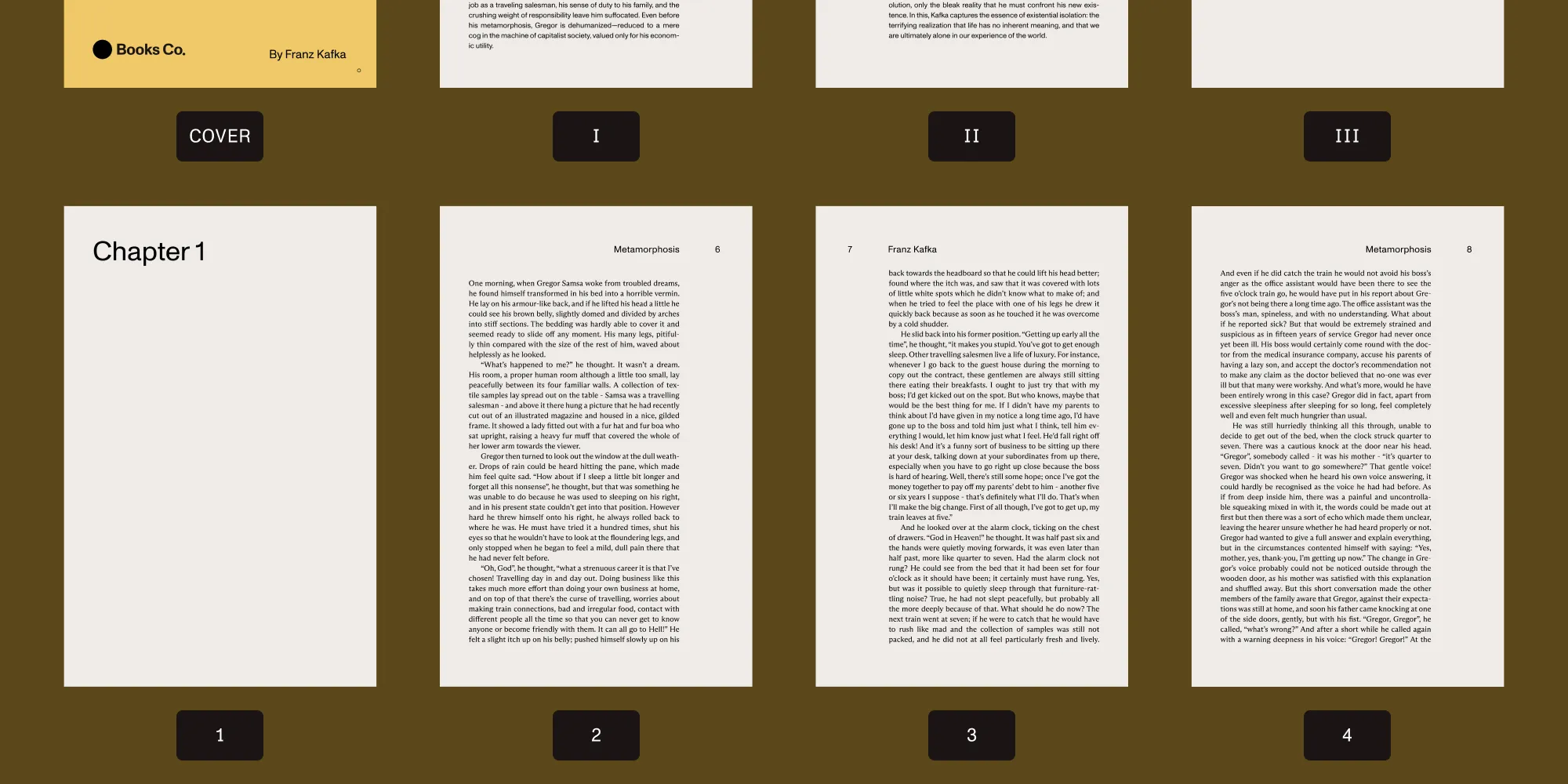
A PDF page label is the human-readable identifier a viewer displays in its toolbar, table of contents, and thumbnail strip — independent of the page’s position in the file. Most of us never think twice about them. They’re one of those quiet little features that work so well, you only notice them when something goes wrong: the page number in the toolbar doesn’t match what’s printed on the page, or a “go to page” jump lands somewhere unexpected. But if you’re building anything that reads, displays, or edits PDFs, page labels are something you’ll eventually run into.
This post will walk through what page labels actually are, how the PDF specification models them, the gotchas to watch out for, and which Nutrient product to reach for depending on what you’re trying to do.
What page labels actually are
Think of a page label as a page’s display name — what shows up in the viewer’s toolbar, table of contents, and thumbnails. It rides alongside the page but isn’t tied to its physical position in the file, which is what your code actually touches.
Internally, the PDF stores labels as a series of ranges. Each range carries its own numbering style (Arabic, Roman, or letters), an optional prefix, and an optional starting number. For a complete breakdown of each component and the five numbering styles the PDF specification supports, see our PDF page labels guide.
If a file ships without any label data, the viewer just counts 1, 2, 3, and so on. As soon as ranges are defined, the viewer follows them. A textbook with four pages of front matter, six pages of body content, and a two-page appendix could end up displaying i, ii, iii, iv, 1, 2, 3, 4, 5, 6, A-1, A-2.
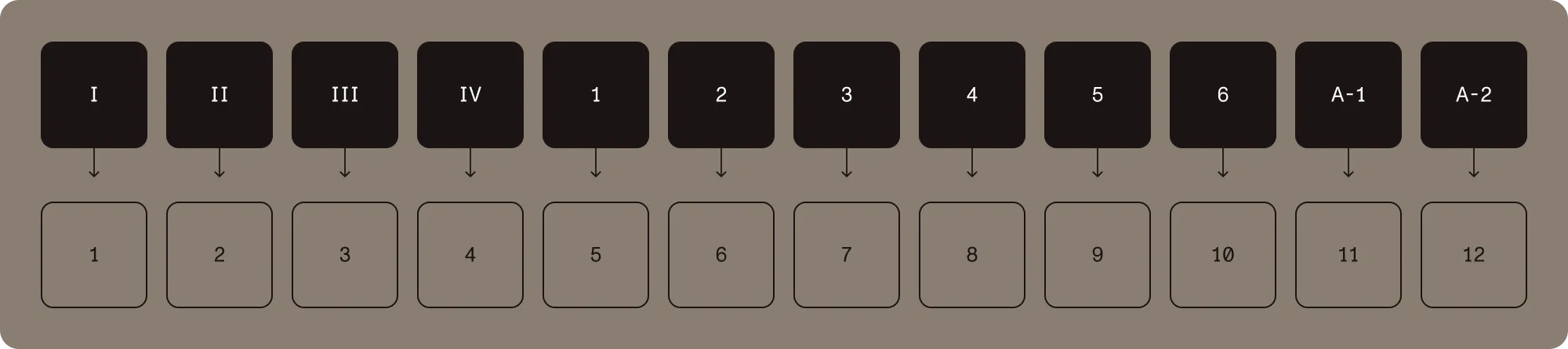
The user sees the labels. Your code, in most cases, still uses page indices. It’s a useful split: page labels are presentation, page indices are addressing.
What page labels aren’t
Page labels are easy to confuse with a few other things, so it’s worth being explicit. They’re not the page index, the page number drawn on the page, or the bookmark hierarchy:
- The page index is what your library hands you — a zero- or one-based number that identifies where the page sits in the file. Every PDF API addresses pages this way under the hood.
- Printed page numbers are part of the page content, drawn as text at render time. A PDF can show
42on the page without having any page labels set, and vice versa. - Bookmarks (the outline tree) are a separate navigation structure. They can target pages, but they don’t define what a page is called.
In real-world PDFs, the page label, the page index, and the printed page number often disagree. A scanned book might have a page label of 1 for what is actually the seventh page in the file, with the printed number 1 baked into the scanned image. All three can drift apart, and accessibility checkers sometimes flag the inconsistency.
Why page labels matter
Most documents are fine with the default numbering, and you don’t need to think about page labels at all. But there are a handful of cases where they really earn their keep:
- When front matter shouldn’t consume the page count. Books, reports, and academic papers often use Roman numerals for the table of contents, preface, and acknowledgments so that “page 1” is actually the first page of body content.
- When sections need their own numbering. Reference manuals and technical specs commonly use prefixed labels like
A-1,B-1,B-2for chapters or appendices, so a cross-reference like “see page B-12” stays stable even when other sections grow. - When print and digital page numbering have to match. When users read both a printed copy and a PDF in parallel, page labels let the digital viewer mirror what’s on paper, including any unnumbered front matter.
- When legal or regulated documents need traceable references. Filings, contracts, and discovery materials often use Bates numbering or fixed labels so that page citations remain valid across edits and reissues.
- When merging documents needs predictable navigation. When several files are merged into one PDF, the resulting document usually needs reset or sectioned numbering rather than one continuous count.
Without page labels, none of this is impossible — you can always burn numbers into the page content — but it ties the numbering to the rendered text, makes editing harder, and breaks “go to page” navigation in your viewer.
Common pitfalls
Page labels look simple until they don’t. Here are the patterns that tend to trip teams up.
Duplicate labels
There’s nothing in the PDF specification that prevents two pages from having the same label. A document with two ranges, both starting at 1 with style D, will produce two pages labeled 1, two labeled 2, and so on. Viewers handle it, but “go to page” features may jump to the first match, and search results can be ambiguous.
Confusing labels with indices in code
Most APIs accept page indices, not labels. Calling goToPage("iii") on a library that expects an integer is a common mistake. The same applies to structural operations like deleting or duplicating pages — those work on page indices as defined by the API, never on labels. Some libraries provide a separate label-aware lookup, and others don’t. When you do need to resolve a label to an index, walk the label ranges yourself, or use the SDK helper if one exists.
Forgetting to clear previous ranges
A lot of APIs append a new range rather than replacing the existing ones. If a document already has a range starting at index 0, adding another range at index 0 can leave you with two ranges that disagree about the same pages. Most libraries provide a delete-all or replace operation — make use of it before bulk edits.
Navigation widgets that don’t support labels
Some PDF viewers display page labels but only accept page indices in the “go to page” input. Others accept both. If your application exposes navigation, decide upfront which behavior you want, and make sure the input field’s placeholder reflects it.
OCR and scanned documents
A scanned PDF rarely has meaningful page labels — the original print numbering is part of the image, not the structure. If your pipeline runs OCR, page labels won’t be created automatically. They’re a separate metadata edit.
Sharing and printing
Whether a page label is visible after a PDF is exported, printed, or shared depends entirely on the consuming software. Most desktop viewers respect labels, but some web viewers, mobile apps, and print drivers don’t. If labels are critical to the reader’s experience, it’s worth also showing the number in the page content itself.
How Nutrient handles page labels
Each Nutrient product handles page labels a little differently, depending on whether the focus is viewing, editing, or server-side processing — a viewer reads the label dictionary and renders it, while a server-side API mutates it. For the full reference, including the numbering systems the PDF specification supports and per-product code samples for Web, Document Engine, iOS, Android, .NET, and MAUI, see our PDF page labels guide.
FAQ: PDF page labels
Most viewers display the label alongside the physical page number in the file when a label is set, so users can disambiguate. The format varies by viewer, but the parenthetical is almost always that physical page number — typically one-based and counted from the start of the file — not a second label or an API-level index.
It depends on the API. If a label is part of a range covering several pages, deleting it usually means splitting the range or shrinking it. Nutrient .NET SDK exposes range-level operations directly. Nutrient Web SDK operates per page and lets the underlying engine reconcile ranges for you.
Only barely. Page labels are stored as a small block of metadata inside the PDF. Even a document with hundreds of ranges adds only a few kilobytes.
Page labels are metadata for navigation. They don’t change the page text, the tag tree, or how a screen reader reads content. They do affect what assistive technology announces when a user navigates to a page, so meaningful labels improve the experience for everyone. See accessibility support for the JavaScript PDF viewer for how Nutrient Web SDK handles related accessibility concerns.
Yes, in well-behaved converters. PDF/A and PDF/UA don’t restrict page label dictionaries, and standard conversion tools carry them through. Nutrient preserves the page label dictionary through PDF/A conversion. If you’re seeing labels disappear after conversion, the converter — not the specification — is the culprit.
Get started with PDF page labels
Page labels are one of those features that sit somewhere between “nice to have” and “absolutely essential,” depending on what you’re building. For a single-section document, the default numbering is plenty. But for anything with front matter, appendices, or merged sections — or any kind of document that needs print and digital numbering to line up — they’re the right tool for the job.
Building a web viewer or generating PDFs on the server? Start with Nutrient Web SDK or Document Engine. Working in a mobile or .NET app? Jump straight to the iOS, Android, .NET, or MAUI guide for your platform. And if you have a more specific question, reach out to our team.