react-pdf thumbnails and page navigation

Table of contents
react-pdf — using the Thumbnail component for page previews, adding click-to-navigate behavior, and optimizing rendering performance for large documents.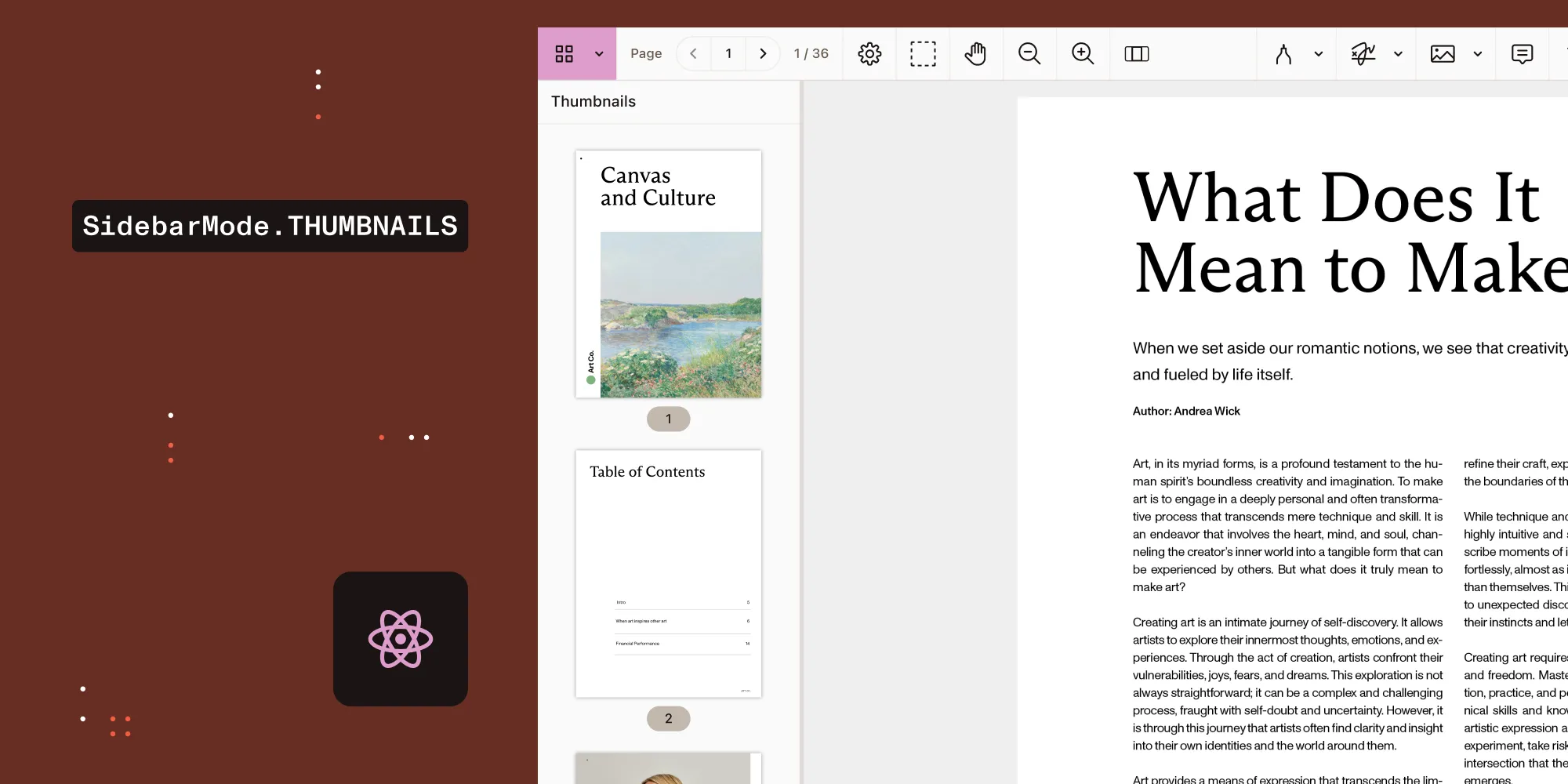
react-pdf ships a dedicated Thumbnail component for rendering page previews. It’s lighter than Page (no text layer, no annotation layer) and exposes an onItemClick callback for click-to-navigate. The full sidebar pattern has four parts:
- Wrap everything in
<Document>— bothThumbnailandPageneed to live inside it. - Render one
Thumbnailper page withpageNumber,width, and anonItemClickhandler that sets your active page state. - Render the active page with
<Page pageNumber={currentPage} />in the main area. - Cap
devicePixelRatio={1}on thumbnails so a 100-page document doesn’t allocate 100× retina-resolution canvases.
If you’d rather not build this, Nutrient Web SDK has a built-in thumbnail sidebar (SidebarMode.THUMBNAILS) with lazy loading, scroll sync, and page labels. For page reordering, rotation, and deletion, switch to Document Editor mode (InteractionMode.DOCUMENT_EDITOR).
react-pdf provides a dedicated Thumbnail component for rendering small page previews. Combined with page navigation state, you can build a full sidebar-based PDF viewer.
The Thumbnail component
Thumbnail renders a simplified version of a page — no text layer, no annotation layer, just the visual content:
import { useState } from "react";import { Document, Page, Thumbnail } from "react-pdf";
function PDFWithThumbnails({ file }) {  const [numPages, setNumPages] = useState(null);  const [currentPage, setCurrentPage] = useState(1);
  return (    <Document      file={file}      onLoadSuccess={({ numPages }) => setNumPages(numPages)}    >      <div style={{ display: "flex" }}>        <aside className="thumbnail-sidebar">          {numPages &&            Array.from({ length: numPages }, (_, i) => (              <Thumbnail                key={`thumb-${i + 1}`}                pageNumber={i + 1}                width={150}                onItemClick={({ pageNumber }) => setCurrentPage(pageNumber)}                className={currentPage === i + 1 ? "active" : ""}              />            ))}        </aside>        <main>          <Page pageNumber={currentPage} />        </main>      </div>    </Document>  );}
Thumbnail props
Thumbnail shares most props with Page, except it does not support:
customTextRendererrenderAnnotationLayer/renderForms/renderTextLayer- Text layer callbacks (
onGetTextSuccess,onRenderTextLayerSuccess, etc.) - Annotation layer callbacks (
onGetAnnotationsSuccess,onRenderAnnotationLayerSuccess, etc.)
Supported Thumbnail props
| Prop | Type | Description |
|---|---|---|
pageNumber | number | Page to thumbnail (1-indexed) |
pageIndex | number | Page to thumbnail (0-indexed) |
width | number | Thumbnail width in pixels |
height | number | Thumbnail height (ignored if width is set) |
scale | number | Scale factor |
rotate | number | Rotation (0, 90, 180, 270) |
className | string/string[] | CSS class(es) |
canvasBackground | string | Canvas background color |
canvasRef | ref | Ref to the canvas element |
inputRef | ref | Ref to the root div |
devicePixelRatio | number | Pixel ratio override |
renderMode | string | "canvas", "custom", or "none" |
onItemClick | function | Click handler ({ dest, pageIndex, pageNumber }) |
onLoadSuccess | function | Page data loaded |
onLoadError | function | Page load failed |
onRenderSuccess | function | Canvas rendered |
onRenderError | function | Canvas render failed |
Thumbnail click handling
Thumbnail has a built-in onItemClick prop:
<Thumbnail pageNumber={3} onItemClick={({ pageNumber, pageIndex }) => { setCurrentPage(pageNumber); // 1-indexed. }}/>Styling thumbnails
These styles cover the sidebar layout, thumbnail hover and active states, and the page-number label:
.thumbnail-sidebar {  width: 180px;  height: 100vh;  overflow-y: auto;  background: #2a2a2e;  padding: 8px;  display: flex;  flex-direction: column;  align-items: center;  gap: 8px;}
.react-pdf__Thumbnail {  cursor: pointer;  border: 2px solid transparent;  border-radius: 4px;  transition: border-color 0.15s;}
.react-pdf__Thumbnail:hover {  border-color: rgba(255, 255, 255, 0.3);}
.react-pdf__Thumbnail.active {  border-color: #4A90D9;}
/* Add page number labels */.thumbnail-wrapper {  text-align: center;}
.thumbnail-label {  color: #999;  font-size: 12px;  margin-top: 2px;}
Thumbnail with page labels
Wrap each Thumbnail in a small component that renders the page number underneath it:
function LabeledThumbnail({ pageNumber, isActive, onClick }) { return ( <div className="thumbnail-wrapper"> <Thumbnail pageNumber={pageNumber} width={140} onItemClick={onClick} className={isActive ? "active" : ""} /> <span className="thumbnail-label">{pageNumber}</span> </div> );}Page navigation
This section covers two navigation patterns: paginated controls for jumping between individual pages, and continuous scroll for rendering every page in one scrollable container.
Simple page controls
Wire up a previous/next button pair with a page-number input:
function PageNav({ currentPage, numPages, onPageChange }) { return ( <div className="page-nav"> <button disabled={currentPage <= 1} onClick={() => onPageChange(currentPage - 1)} > Previous </button> <input type="number" min={1} max={numPages} value={currentPage} onChange={(e) => { const page = parseInt(e.target.value, 10); if (page >= 1 && page <= numPages) onPageChange(page); }} /> <span>/ {numPages}</span> <button disabled={currentPage >= numPages} onClick={() => onPageChange(currentPage + 1)} > Next </button> </div> );}Continuous scroll (all pages)
Render every page in a scrollable container instead of paginating:
function ContinuousScroll() {  const [numPages, setNumPages] = useState(null);
  return (    <Document      file={file}      onLoadSuccess={({ numPages }) => setNumPages(numPages)}    >      <div className="scroll-container">        {numPages &&          Array.from({ length: numPages }, (_, i) => (            <Page              key={`page-${i + 1}`}              pageNumber={i + 1}              width={800}            />          ))}      </div>    </Document>  );}
Performance: Thumbnail resolution
For thumbnails, cap the device pixel ratio to reduce memory usage:
<Thumbnail pageNumber={1} width={150} devicePixelRatio={1} // Render at 1×, not 2×/3×./>This is especially important when rendering many thumbnails for a large document.
Key points
Thumbnailis a dedicated component — lighter thanPage(no text/annotation layers).- Use
widthto control thumbnail size (height scales proportionally). onItemClickprovidespageNumberfor navigation.- Cap
devicePixelRatioon thumbnails for better performance. - For large documents, consider only rendering visible thumbnails (virtualization).
Thumbnailmust be inside aDocumentcomponent.
FAQ
Thumbnail instead of just rendering a small Page?Thumbnail skips the text layer, annotation layer, and form rendering — it only paints the canvas. PDF.js’s text layer creates one <span> per text item, so skipping it on a text-heavy 100-page document typically saves thousands of DOM nodes and several megabytes of memory. If you render Page at a small width, you still pay for layers nobody can see.
devicePixelRatio on thumbnails?By default react-pdf paints the canvas at the device’s pixel ratio (typically 2× on retina laptops, 3× on phones). For a 150-pixel-wide thumbnail of a US Letter page at 3×, that’s a ~450×583 canvas — about 1 MB of backing store per page (width × height × 4 bytes for RGBA). A 100-page document allocates ~105 MB just for thumbnail pixels. Setting devicePixelRatio={1} brings each thumbnail down to ~117 KB and the document total to roughly 12 MB.
react-pdf doesn’t include built-in virtualization. Wrap the thumbnail list in react-window or react-virtuoso and only render the slice in view. Each Thumbnail will still trigger its own canvas render, but you’ll have at most ~20 active at a time instead of all numPages.
onItemClick called instead of just onClick?react-pdf reuses the same callback signature for Thumbnail, Outline, and Link annotations — all three pass { dest, pageIndex, pageNumber }. Using onItemClick makes the contract consistent across click sources, so a single navigation handler can drive every clickable surface in the viewer.
PDF documents can carry custom page labels (e.g. Roman numerals for a table of contents, then Arabic numerals for chapters). react-pdf doesn’t expose these through Thumbnail’s callbacks. To get them, call pdfDocument.getPageLabels() on the loaded PDFDocumentProxy and map page index to label in your sidebar component.
Nutrient ships a thumbnail sidebar as a viewer mode — SidebarMode.THUMBNAILS — with lazy loading, scroll sync, and page labels. For page reordering, rotation, and deletion, switch to Document Editor mode (InteractionMode.DOCUMENT_EDITOR), which uses toolbar buttons for those operations. There’s no Thumbnail rendering loop, no manual click wiring, and no virtualization layer. See the migration guide for switching from react-pdf.
How Nutrient Web SDK handles this
All the custom thumbnail rendering, DPI capping, and page navigation logic above is built into Nutrient Web SDK:
// Built-in thumbnail sidebar with lazy loading — one line.instance.setViewState((v) =>  v.set("sidebarMode", NutrientViewer.SidebarMode.THUMBNAILS),);
// Page navigation.instance.setViewState((v) => v.set("currentPageIndex", 4));
Nutrient’s thumbnail sidebar handles lazy loading, scroll sync, active-page highlighting, and page labels — no manual <Thumbnail> rendering or devicePixelRatio tuning. For page reordering, rotation, and deletion, switch to Document Editor mode.
See Nutrient Web SDK for a built-in thumbnail sidebar, or follow the migration guide to switch from react-pdf. Talk to Sales about your requirements.