Nutrient .NET SDK
Redact sensitive data from PDFs in C#
- Search for text by exact match or regex and redact all occurrences in one pass
- AI-powered smart redaction auto-detects credit cards, emails, phone numbers, SSNs, and more
- Redact precise areas by page coordinates for headers, stamps, or signatures
- Redaction is permanent — content is removed from the PDF, not just hidden
Part of Nutrient’s cross-platform PDF redaction SDK. Need pricing or implementation help? Talk to Sales.
PDF REDACTION IN C#
using GdPicturePDF gdpicturePDF = new GdPicturePDF();gdpicturePDF.LoadFromFile(@"C:\temp\source.pdf");
// Search for text and mark matches for redaction.int occurrences = 0;gdpicturePDF.SearchAndAddRedactionRegions( "Sensitive Information", true, 0, 0, 0, 255, ref occurrences);
// Apply redaction permanently.if (occurrences > 0){ gdpicturePDF.ApplyRedaction();}
gdpicturePDF.SaveToFile(@"C:\temp\output.pdf");using GdPicturePDF gdpicturePDF = new GdPicturePDF();gdpicturePDF.LoadFromFile(@"C:\temp\source.pdf");
// Auto-detect and redact sensitive data.var options = new GdPicturePDF.SmartRedactionOptions(){ ResourcePath = @"C:\GdPicture.NET 14\Redist\OCR", RedactCreditCardNumbers = true, RedactEmailAddresses = true, RedactPhoneNumbers = true, RedactSocialSecurityNumbers = true, RedactPostalAddresses = true,};gdpicturePDF.SmartRedaction(options);
gdpicturePDF.SaveToFile(@"C:\temp\output.pdf");using GdPicturePDF gdpicturePDF = new GdPicturePDF();gdpicturePDF.LoadFromFile(@"C:\temp\source.pdf");
// Redact specific areas by coordinates (in points).gdpicturePDF.SelectPage(1);gdpicturePDF.AddRedactionRegion(120, 300, 140, 20);
gdpicturePDF.SelectPage(2);gdpicturePDF.AddRedactionRegion(100, 280, 70, 15);
// Apply redaction permanently.gdpicturePDF.ApplyRedaction();
gdpicturePDF.SaveToFile(@"C:\temp\output.pdf"); Lufthansa
Disney
Autodesk
UBS
Dropbox
IBM
Lufthansa
Disney
Autodesk
UBS
Dropbox
IBM
USE CASES
When developers reach for this SDK
Remove PII before sharing documents
Contracts, applications, and reports contain names, addresses, and account numbers. Search for specific text patterns or let smart redaction auto-detect them before a document leaves your system.
Auto-detect sensitive data with AI
Smart redaction uses AI and document understanding to identify credit card numbers, emails, phone numbers, SSNs, IBANs, and more — without writing regex or specifying what to look for.
Redact specific areas on a page
When you know exactly where sensitive content is — a header, stamp, or signature block — redact by page coordinates. Specify the rectangle in points, centimeters, or other units.
Meet GDPR, HIPAA, and compliance requirements
Redaction permanently removes content from a PDF — it’s not hidden behind a black box. The data is gone from the file, which is what regulators require.
PDF redaction capabilities for .NET
Search and redact
Find text by exact match or regular expression and redact all occurrences. Configure case sensitivity and the color of the redacted area (RGBA).
- Plain text or regex pattern matching
- Case-sensitive or case-insensitive search
- Configurable RGBA color for redacted areas
Smart redaction
AI-powered detection of sensitive information. Automatically identifies and redacts 9+ data types without writing patterns or specifying locations.
- Credit cards, emails, phone numbers, SSNs
- IBANs, VAT IDs, VINs, postal addresses, URIs
- Immediate redaction or mark-only mode for review
Redact by coordinates
Specify rectangular areas on specific pages to redact. Set the coordinate system origin and measurement unit to match your workflow.
- Define regions by page, position, width, and height
- Configurable coordinate origin (top-left, bottom-left)
- Units: points, centimeters, or other measurement units
OCR and redaction for scanned PDFs
Scanned documents don’t have searchable text. Run OCR on each page first to make the content searchable, and then apply text-based or smart redaction.
- Run OCR per page before redaction
- Then search and redact or use smart redaction
- Handles scanned contracts, invoices, and forms
Smart redaction detects
ADVANCED CAPABILITIES
How redaction works under the hood
Redaction in the SDK is a two-step process: First, mark regions for redaction (by text search, AI detection, or coordinates). Then, apply redaction to permanently remove the content. This separation lets you review what will be removed before committing. All operations are available in both C# and VB.NET.
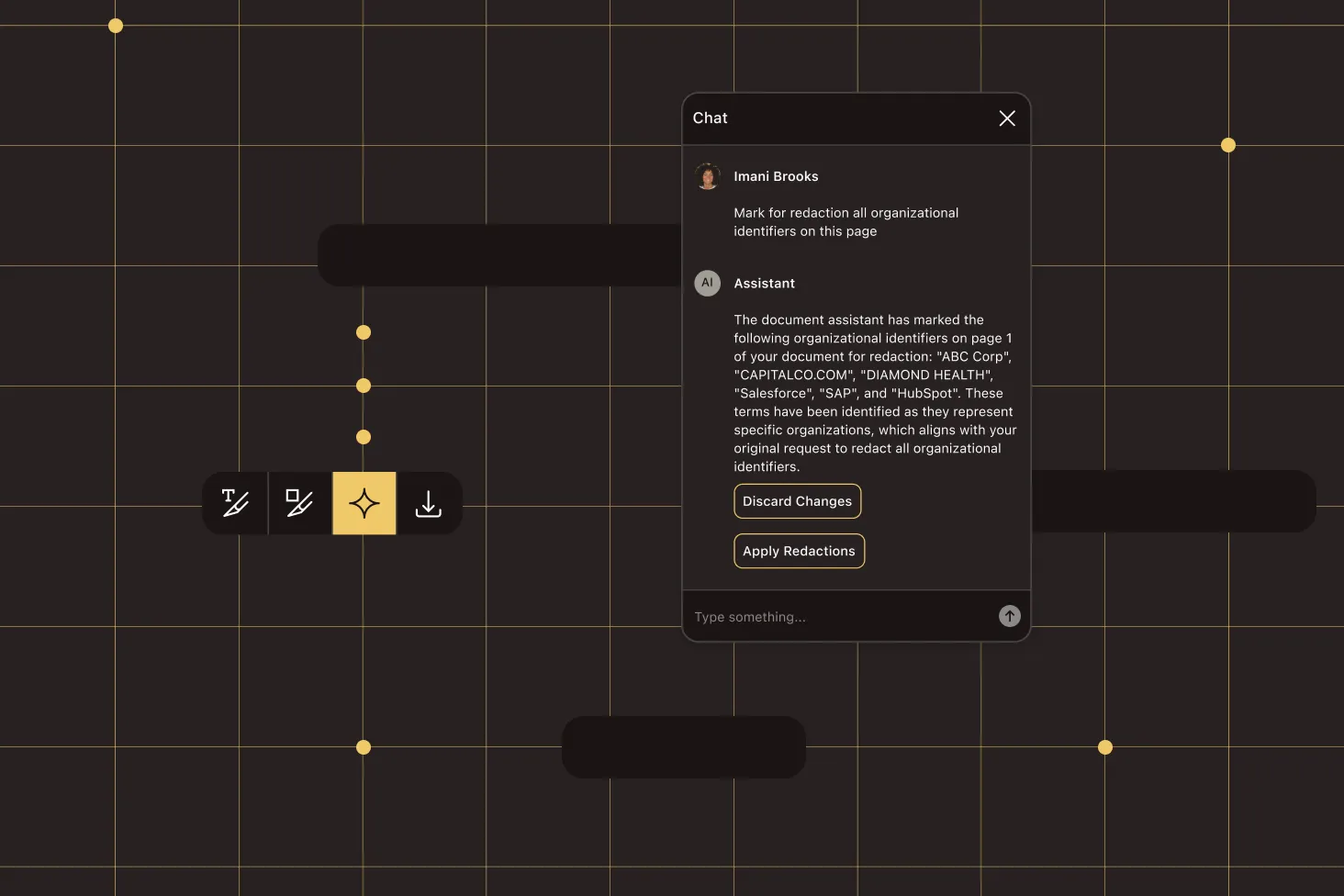
Two-step mark-then-apply workflow
Mark regions for redaction first, then apply. This lets you review, validate, or programmatically adjust the marked regions before permanently removing content.
Smart redaction review mode
Set the immediate flag to false and smart redaction marks sensitive data without removing it. Inspect the marks, adjust as needed, and then apply redaction.
Regex pattern matching
Search-and-redact supports regular expressions for matching patterns like dates, account numbers, or custom identifiers — not just exact text.
VB.NET support
All redaction operations are available in VB.NET with the same API. The guides include complete code examples in both C# and VB.NET.
Frequently asked questions
How do I redact text from a PDF in C#?
Load the PDF, search for the text you want to remove (by exact match or regex), and the SDK marks all occurrences. Then apply redaction to permanently remove the matched content. The two-step process lets you verify what will be removed before committing. See the search and redact guide.
What’s smart redaction?
Smart redaction uses AI and document understanding to automatically detect sensitive data in a PDF — credit card numbers, email addresses, phone numbers, Social Security numbers, IBANs, VAT IDs, VINs, postal addresses, and URIs. You choose which data types to detect, and the SDK finds and removes them. See the smart redaction guide.
Is the redaction permanent?
Yes. Once you apply redaction, the content is permanently removed from the PDF. It’s not hidden behind a black rectangle — the underlying text, images, or data are deleted from the file. This meets the requirements of regulations like GDPR and HIPAA that require actual data removal.
How do I redact a specific area on a PDF page?
Select the page, specify the rectangular region by coordinates (position, width, height), and apply redaction. You can configure the coordinate system origin (top-left or bottom-left) and the measurement unit (points, centimeters, etc.). See the redact by coordinates guide.
Can I redact scanned PDFs?
Yes, but scanned PDFs don’t have searchable text. Run OCR on each page first to make the content searchable. Then use search-and-redact or smart redaction. The SDK includes OCR capabilities for this workflow. See the search and redact guide for a complete OCR and redaction example.
Can I review what will be redacted before applying?
Yes. Redaction is a two-step process: First you mark regions, then you apply. For smart redaction, set the immediate flag to false — the SDK marks sensitive data without removing it. You can then review, adjust, or remove marks before applying redaction permanently.
Does the SDK support regex for redaction?
Yes. The search-and-redact feature accepts regular expressions, so you can match patterns like dates, account numbers, or custom identifiers — not just exact text strings. Case-sensitive and case-insensitive modes are both supported.
Can I use the redaction SDK with VB.NET?
Yes. All redaction operations are available in VB.NET with the same API. The redaction guides include complete code examples in both C# and VB.NET.
FREE TRIAL
Ready to get started?
Start redacting sensitive data from PDFs in C# in minutes — no payment information required.