Introducing spreadsheet editing in Document Authoring SDK

Table of contents
Nutrient Document Authoring SDK opens, edits, and exports DOCX and XLSX files in the browser. Try the live demo, no signup required.
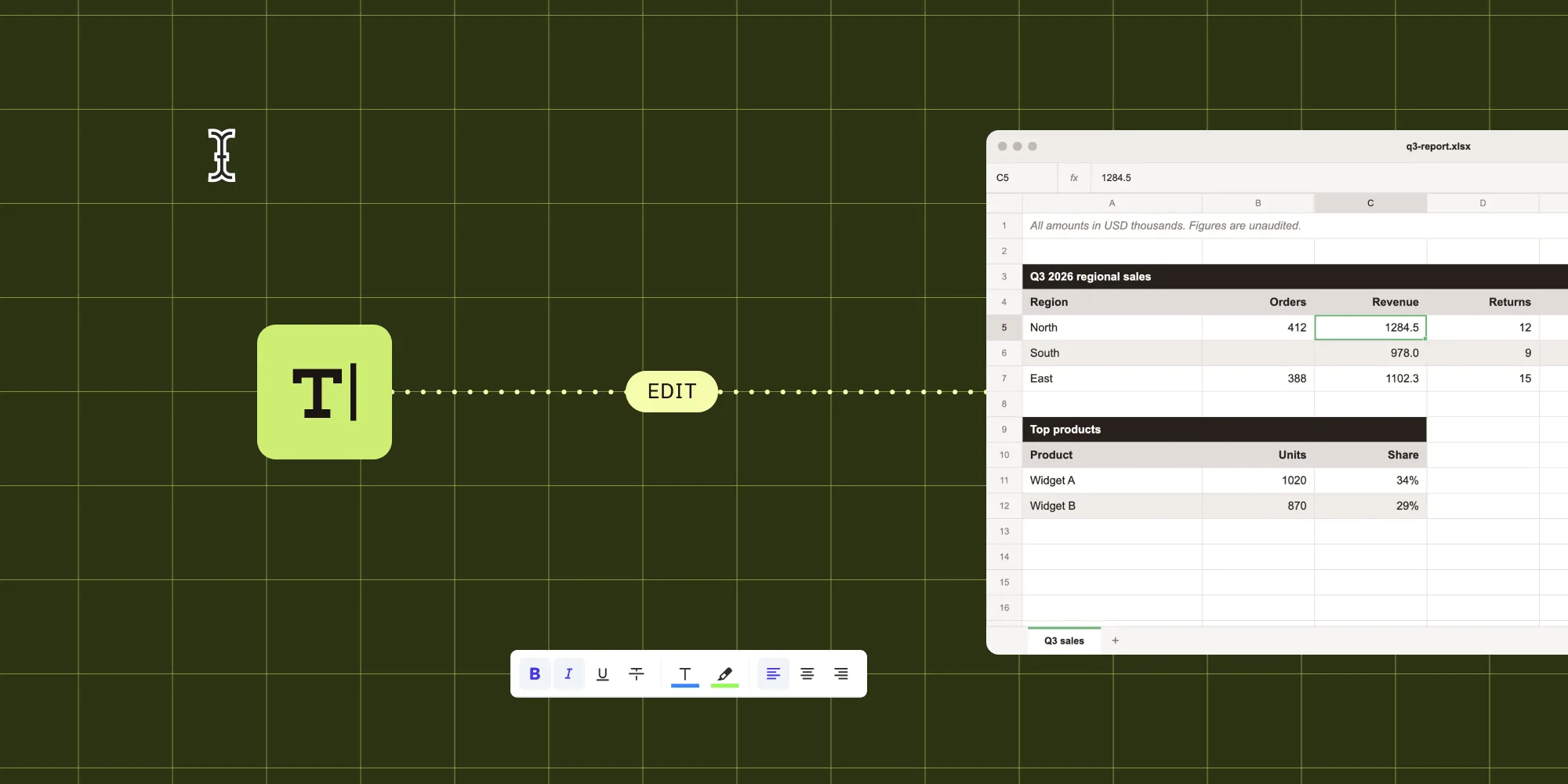
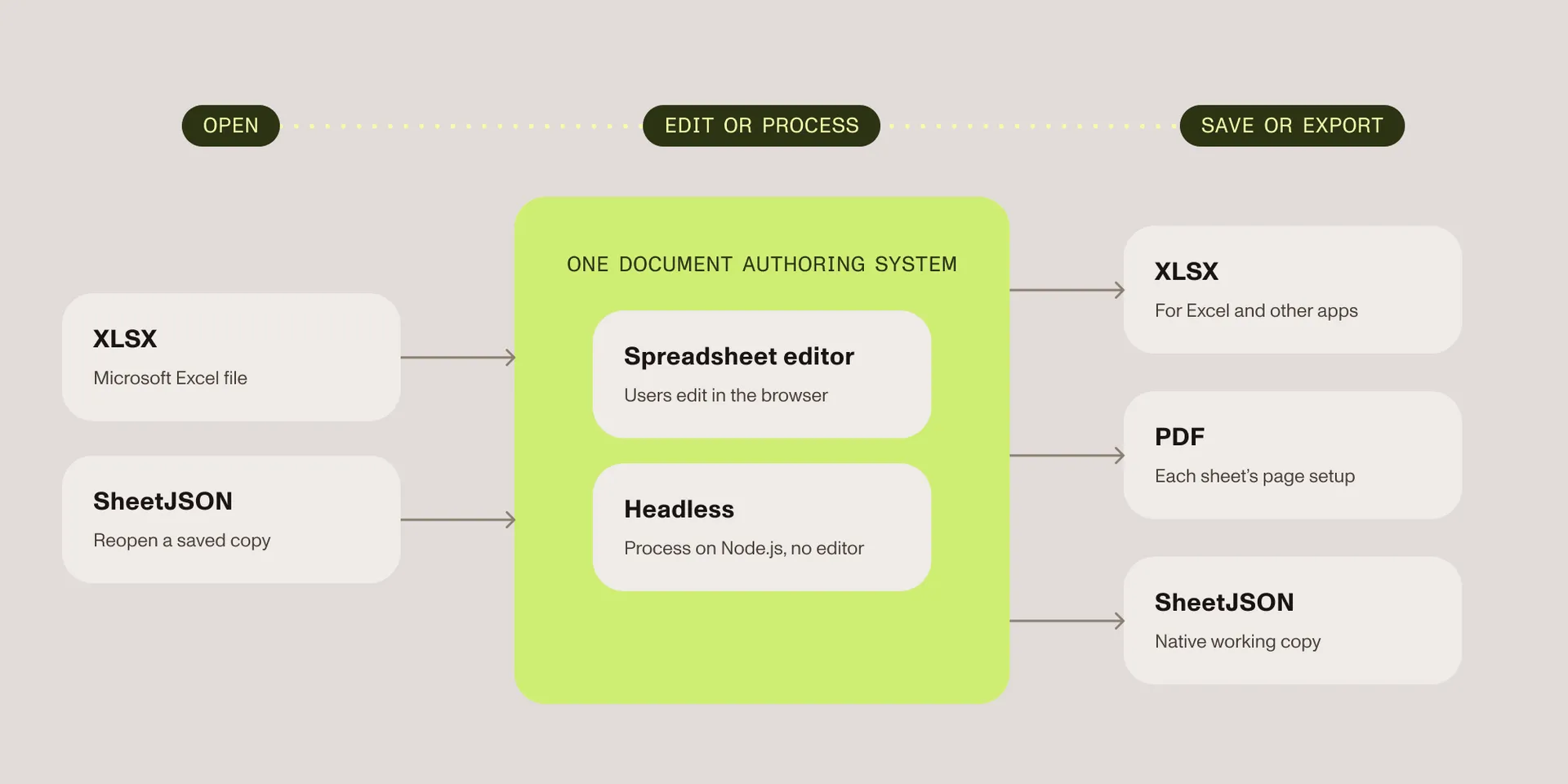
- Nutrient Document Authoring SDK now edits spreadsheets. A new spreadsheet editor opens XLSX files in the browser, where users edit cells, formulas, formatting, and sheets in a grid.
- Your app saves the result as SheetJSON, the native spreadsheet format, or exports it to XLSX or PDF. The PDF follows each sheet’s page setup.
- Documents and spreadsheets share one system, so a single upload box can open DOCX and XLSX files in the matching editor.
- The same API runs headless on Node.js to store uploads as SheetJSON or export them to PDF.
- Spreadsheet Editing is a separately licensed component. XLSX import and export also need the XLSX Support component.
Contracts come with pricing schedules, and reports come with the numbers behind them. Until now, editing documents and spreadsheets in one app meant a second vendor, a second rendering engine, and a second integration to maintain.
Nutrient Document Authoring SDK now includes a spreadsheet editor alongside the document editor. It opens XLSX files, lets users edit them in a grid, and saves or exports the result, in the browser or headless on Node.js.
What’s new: A spreadsheet editor in Document Authoring
A spreadsheet editor SDK is a component developers embed in a web app so users can open, edit, and save spreadsheet files without leaving it. Document Authoring builds its spreadsheet support on three objects:
- System — One
DocAuthSystemhandles documents and spreadsheets, and it loads the engine and fonts once. An app that already uses Document Authoring for documents reuses that system. - Spreadsheet — A
DocAuthSpreadsheetrepresents an open spreadsheet. Your code uses it to save or export. - Spreadsheet editor — A
DocAuthSpreadsheetEditordisplays a spreadsheet in a page element and lets users edit it. It runs in the browser.
In Document Authoring, a spreadsheet is the complete file, and a sheet is one tab in it.
What users can do in the editor
The editor ships with its own UI, so there’s no toolbar to build.
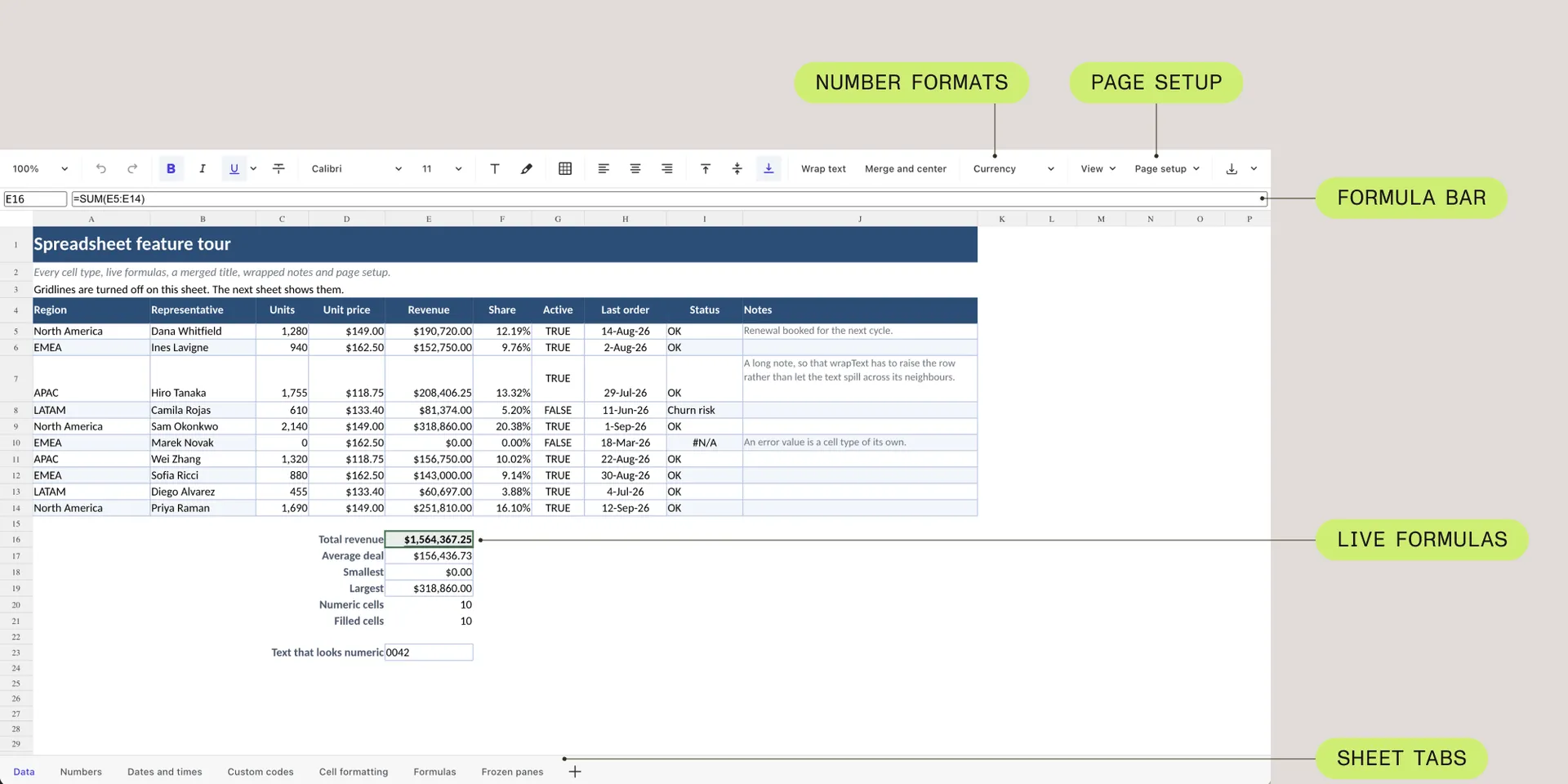
- Grid and navigation — A formula bar, sheet tabs, context menus, zoom, and standard spreadsheet keyboard shortcuts.
- Formatting — Fonts, colors, borders, alignment, text wrapping, merged cells, and number formats such as currency, percentages, dates, and times.
- Structure — Insert and delete rows and columns; add, rename, and delete sheets; freeze rows and columns; and toggle gridlines.
- Copy and paste — Within the editor, and between the editor and other apps.
- Page setup and download — Paper size, orientation, scaling, margins, and headings for each sheet, plus a download menu for PDF and XLSX.
The spreadsheet feature tour(opens in a new tab) in the live demo opens a sample file with every cell type, live formulas, a merged title, and page setup, so you can try all of this without writing code.
Formulas: What calculates and what’s kept
Document Authoring calculates six functions: SUM, AVERAGE, MIN, MAX, COUNT, and COUNTA. Formulas can combine them with cell and range references, references to other sheets, arithmetic and comparison operators, and the & operator for joining text.
When a user changes a cell, every dependent formula across all sheets recalculates, and the edit and the recalculation count as one undo step. While a user types a formula, the editor suggests matching functions and shows their arguments. Inserting or deleting rows and columns, or renaming a sheet, updates references so formulas keep pointing at the same cells.
Formulas that use other functions, such as VLOOKUP or IF, keep their formula text and the result stored in the file. They don’t recalculate when their inputs change, and Document Authoring writes them back to XLSX with their stored results. The formulas guide covers the details, including error values and how the editor reads typed input.
Formats in and out
Spreadsheets come in as XLSX or SheetJSON and go out as XLSX, PDF, or SheetJSON.
| Format | Open | Save or export |
|---|---|---|
| XLSX (Microsoft Excel) | Yes | Yes |
| SheetJSON | Yes | Yes |
| No | Yes |
SheetJSON is Document Authoring’s native spreadsheet format and the spreadsheet counterpart of DocJSON. Saving a spreadsheet as SheetJSON and loading it again keeps everything Document Authoring supports, which makes it the right working copy to store in your backend. Export to XLSX when another app needs the file.
XLSX export writes a new file from the spreadsheet model instead of copying the original, so content Document Authoring doesn’t support, such as charts, images, and conditional formatting, is left out. PDF export uses each sheet’s page setup, including paper size, orientation, scale, fit to page, margins, centering, and row and column headings. It exports every visible sheet or a single sheet.
Document Authoring doesn’t open XLS, XLSM, XLTX, CSV, or ODS files.
Add the spreadsheet editor to a page
The spreadsheet editor uses the same package and system as the document editor. If Document Authoring isn’t installed in your app yet, begin with the getting started guide.
Add an empty element with a non-static position and a defined width and height. The editor fills it:
<div id="editor" style="position: relative; width: 100%; height: 600px;"></div>Then create a system and a spreadsheet editor:
import DocAuth from '@nutrient-sdk/document-authoring';
const system = await DocAuth.createDocAuthSystem();
const editor = await system.createSpreadsheetEditor(document.getElementById('editor'), {  spreadsheet: await system.createSpreadsheetFromPlaintext('Hello, world!'),});
To open an XLSX file the user picks, import it and show it in the editor:
const fileInput = document.querySelector('input[type="file"]');
fileInput.addEventListener('change', async () => {  const file = fileInput.files?.[0];  if (!file) {    return;  }
  const spreadsheet = await system.importSpreadsheet(file, { fileName: file.name });  editor.setCurrentSpreadsheet(spreadsheet);});
To export the sheet the user is viewing as a PDF, pass its index to export():
const pdf = await editor.currentSpreadsheet().export({ format: 'pdf', sheet: editor.activeSheet(),});export() returns an ArrayBuffer. The save and export guide shows how to download it as a file and how to store a spreadsheet as SheetJSON.
One upload box for documents and spreadsheets
When one file picker accepts both documents and spreadsheets, check the file kind first, and then open the matching editor:
const target = document.getElementById('editor');const kind = await system.detectFileKind(file);
if (kind === 'spreadsheet') {  const spreadsheet = await system.importSpreadsheet(file, { fileName: file.name });  await system.createSpreadsheetEditor(target, { spreadsheet });} else {  const importedDocument = await system.import(file, { fileName: file.name });  await system.createEditor(target, { document: importedDocument });}
detectFileKind() returns 'spreadsheet' for XLSX and SheetJSON files, and also for XLSM and XLTX files, which importSpreadsheet() rejects with an error. Other files return 'document'. The import and load guide covers this pattern, along with import progress and cancellation.
Opening both kinds of file needs both sets of components in your license: Word Processing and DOCX Support for documents, and Spreadsheet Editing and XLSX Support for spreadsheets.
Spreadsheets on the server with Node.js
The Node.js entry point imports, saves, and exports spreadsheets without a browser or an editor. This script converts an XLSX file to a PDF:
import { createDocAuthSystem } from '@nutrient-sdk/document-authoring/node';import { readFile, writeFile } from 'node:fs/promises';
const system = await createDocAuthSystem();
try {  const spreadsheet = await system.importSpreadsheet(await readFile(new URL('./input.xlsx', import.meta.url)), {    format: 'xlsx',  });
  const pdf = await spreadsheet.export({ format: 'pdf' });  await writeFile(new URL('./output.pdf', import.meta.url), new Uint8Array(pdf));} finally {  system.destroy();}
The same calls store an uploaded XLSX file as SheetJSON, so your backend can keep the working copy and export XLSX or PDF from it later. The Node.js spreadsheet guide has both examples.
If the job is converting Office files to PDF in bulk, with no editing involved, Nutrient Node.js SDK also converts Excel files to PDF. Document Authoring fits when users edit the spreadsheet in your app and your server exports it later from the same model.
Large files
Opening a large XLSX file reports progress by phase (reading, indexing, and loading), so your app can show progress instead of a spinner. Users can cancel an import, and a canceled import never returns a partial spreadsheet. Saving to SheetJSON works for spreadsheets of any size. The large sheet demo(opens in a new tab) shows progress reporting on a big file.
Limitations in this release
This first release covers editing, saving, and exporting spreadsheets. It has these limits:
- Only the six functions listed above recalculate. Other formulas keep their stored results.
- XLSX export leaves out charts, images, and conditional formatting.
- The editor reads typed numbers, dates, and times using US English conventions.
- The spreadsheet editor doesn’t emit change events, so autosave runs on a timer or when the user leaves the view.
- AI editing and tracked changes work with documents, not spreadsheets.
Licensing and availability
Spreadsheet Editing is a separately licensed component of Nutrient Document Authoring SDK. Your license needs the Spreadsheet Editing component, and XLSX import and export also need the XLSX Support component. Apps that also edit documents need the Word Processing and DOCX Support components. Production use on Node.js is a licensed feature too. Contact Sales to add these components to your license.
The free trial includes spreadsheet editing and needs no license key. In the trial, the editor and every PDF and XLSX export carry an evaluation watermark, and the editor freezes after an hour until the page is reloaded.
Try it
- Open the spreadsheet feature tour(opens in a new tab) in the live demo. No signup is required.
- Follow the spreadsheet getting started guide to add the editor to a page.
- Browse the spreadsheet guides, from import and export to SheetJSON.
FAQ
Yes. The spreadsheet editor opens XLSX files in the browser, where users edit cells, formulas, formatting, and sheets in a grid. Your app saves the result as SheetJSON, the native spreadsheet format, or exports it to XLSX or PDF. Spreadsheet Editing is a separately licensed component, and XLSX import and export also need the XLSX Support component.
SUM, AVERAGE, MIN, MAX, COUNT, and COUNTA recalculate whenever an input changes, including references to other sheets. Formulas that use other functions, such as VLOOKUP or IF, keep their formula text and the result stored in the file but don’t recalculate. References update when users insert or delete rows and columns or rename a sheet.
It imports XLSX and SheetJSON, and it exports XLSX, PDF, and SheetJSON. It doesn’t open XLS, XLSM, XLTX, CSV, or ODS files. XLSX export writes a new file from the spreadsheet model, so content it doesn’t support, such as charts, images, and conditional formatting, is left out.
Yes. The Node.js entry point imports XLSX files and exports them to PDF or SheetJSON without a browser, using each sheet’s page setup for the PDF. Document Authoring for Node.js is a licensed feature. For bulk Office-to-PDF conversion without editing, Nutrient Node.js SDK also converts Excel files to PDF.
Nutrient Web SDK, with the Office Files component, opens XLSX files for viewing and annotation alongside PDFs. Document Authoring’s spreadsheet editor edits the spreadsheet itself, including its cells, formulas, and sheets, and saves it back to XLSX or SheetJSON.