EasyOCR vs. Tesseract: Choosing an OCR engine in Python

Table of contents
Structured output with per-field confidence scores through the Nutrient Data Extraction API.
EasyOCR and Tesseract both perform optical character recognition (OCR), but they differ in deployment and output. EasyOCR combines text detection and recognition in a Python API, with CUDA or Metal Performance Shaders (MPS) support on compatible hardware. Tesseract runs on the CPU and can produce searchable PDFs through pytesseract; EasyOCR needs another library for PDF output. Test recognition quality and speed on representative images. Nutrient’s OCR API is an option for PDF input and searchable PDF output without maintaining the OCR engine.
For a Python document workflow, the decision starts with the incoming files and the required output. A receipt photo, a dense scanned page, and a searchable PDF archive place different demands on the pipeline. This comparison covers installation, recognition options, hardware, and PDF output, with EasyOCR examples and links to the Tesseract Python guide.
What is EasyOCR?
EasyOCR is a ready-to-use OCR library from Jaided AI covering more than 80 languages. It bundles text detection and recognition into a single readtext() call that returns bounding boxes, recognized strings, and confidence scores together.
EasyOCR uses PyTorch for detection and recognition. Its default detector is CRAFT, followed by a separate text recognizer. Missing model weights download when a Reader is initialized, unless automatic downloads are disabled. There’s no separate OCR executable to install, but the Python dependencies must be compatible.
Installing EasyOCR
Use a virtual environment and install the packaged release discussed here:
python -m pip install easyocr==1.7.2That command also installs PyTorch: torch and torchvision are hard requirements, alongside OpenCV, SciPy, and scikit-image. That’s the practical cost. The dependency tree is large, and container images grow accordingly. Downloading and loading model weights adds startup time; reusing the Reader avoids repeating model initialization.
The latest packaged release checked on 23 October 2026 is EasyOCR 1.7.2, released on 24 September 2024. Check PyPI(opens in a new tab) for updates before deployment. Pin compatible versions of torch and torchvision after testing them in the target environment; EasyOCR’s version pin alone doesn’t lock its dependencies. On Windows, the project recommends installing PyTorch and torchvision first for the intended CPU or CUDA configuration.
Tesseract needs both a Python wrapper and an executable. pip install pytesseract is small, but the Tesseract binary itself is a system package:
# Debian/Ubuntu.sudo apt-get install tesseract-ocrInstall the required Tesseract language data as well; additional languages may be separate system packages. For EasyOCR, check model-cache access, dependency compatibility, and memory use. For Tesseract, verify that the executable is on PATH and the required traineddata files are available.
Reading text with EasyOCR
A Reader loads the models, so it should be constructed once and reused rather than created per image:
import easyocr
reader = easyocr.Reader(["en"], gpu=False)results = reader.readtext("receipt.png")
for bbox, text, confidence in results:    print(f"{confidence:.3f}  {text}")
With the default output settings, each result contains a bounding box, recognized text, and a confidence score. The box uses four corner points. A detected region can contain multiple words, so its score isn’t necessarily a per-word confidence.
Output options
detail=0 returns strings only, and paragraph=True merges nearby detections into blocks instead of returning them line by line:
lines = reader.readtext("document.png", detail=0)blocks = reader.readtext("document.png", paragraph=True)output_format accepts "dict" or "json" for alternative result representations. With paragraph=True, the default output contains boxes and combined text without the individual recognition scores. See the EasyOCR implementation(opens in a new tab) for the output shapes.
Constraining and rotating
allowlist restricts recognition to a character set, which can help with numeric fields. Include every valid character, such as a minus sign if negative amounts are possible. rotation_info rotates detected text boxes and keeps the highest-confidence recognition result:
amounts = reader.readtext("invoice.png", allowlist="0123456789.,")rotated = reader.readtext("scan.png", rotation_info=[90, 180, 270])The differences that matter
Accuracy on difficult images
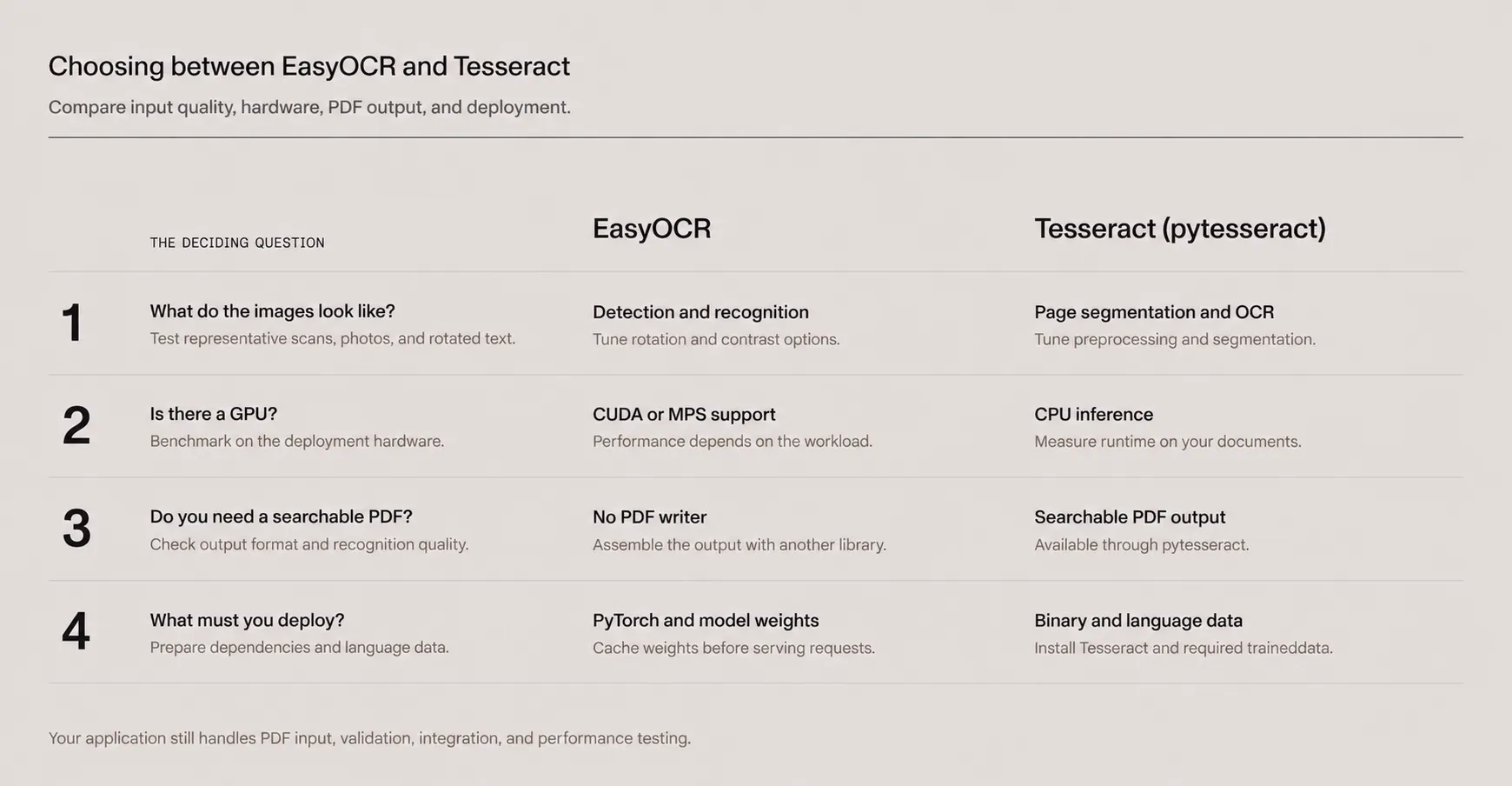
EasyOCR’s detector can locate text in scene images, but detection doesn’t guarantee correct recognition of rotated, curved, or faint text. Its recognition options(opens in a new tab) include box rotation and contrast adjustment. Test those settings before assuming preprocessing is unnecessary.
Tesseract also performs image processing internally(opens in a new tab), including binarization. External deskewing, resizing, or thresholding can help when that processing isn’t enough. Its page segmentation mode should match the layout.
Compare the engines on representative images with known text. Measure character or word errors, and inspect fields where mistakes would matter downstream. Neither engine wins on every input type.
Speed and hardware
EasyOCR can select CUDA or MPS when supported by the installed PyTorch build and hardware. gpu=False selects the CPU. GPU support doesn’t guarantee a fixed speed advantage: image resolution, batch size, model loading, and the number of detected regions affect runtime.
Tesseract’s standard OCR inference runs on the CPU. Benchmark both engines on the deployment target, measuring cold-start time separately from repeated calls. For EasyOCR, reuse the Reader so model loading isn’t repeated for every image.
Languages
EasyOCR covers more than 80 languages, while Tesseract provides language models for more than 100 languages through its traineddata files. Language coverage says nothing about handwriting accuracy. See handwriting recognition with OCR and vision language models for that separate evaluation. Verify the specific script rather than trusting either number, particularly for right-to-left and Indic scripts.
PDF output
Tesseract can emit a searchable PDF (an image with an invisible text layer) through pytesseract.image_to_pdf_or_hocr(image, extension="pdf"), which returns the PDF as bytes. EasyOCR can’t. It returns coordinates and strings, so producing a searchable PDF means assembling one with a separate library.
If searchable PDF output is required, Tesseract’s writer can reduce assembly work. Check recognition quality as well: A PDF can be searchable and still contain an inaccurate text layer.
At a glance
| Capability | EasyOCR | Tesseract with pytesseract |
|---|---|---|
| Project license | Apache 2.0 | Apache 2.0 |
| Architecture | PyTorch detection and recognition; CRAFT by default | C++ engine with a long short-term memory (LSTM) recognizer |
| Deployment | Python dependencies and model weights | Wrapper, executable, and language data |
| Recognition tuning | Contrast, box rotation, and detection settings | Image processing and page segmentation settings |
| Hardware | CPU, CUDA, or MPS on supported systems | CPU inference |
| Languages | More than 80 | More than 100 through language models |
| Confidence output | Per detected text region by default | Word-level data through image_to_data() |
| Searchable PDF output | Requires another library | image_to_pdf_or_hocr() returns PDF bytes |
Choose based on measured recognition quality, deployment constraints, and the output format. For the Tesseract APIs listed here, see the pytesseract reference(opens in a new tab).
Where both engines stop
OCR identifies text, but it doesn’t by itself map that text into validated business records. The document AI vs. OCR comparison explains that distinction. An application built on either engine still needs to address the following:
- PDF input — Both engines accept images rather than PDF input directly. Render the pages that need OCR, and decide how to handle existing text layers.
- Output handling — EasyOCR needs a separate PDF writer for searchable output. Tesseract provides one, but either engine still needs application logic to map recognized text into business fields. The Data Extraction API returns named fields for that step.
- Deployment — Prepare EasyOCR’s dependencies and model weights, or Tesseract’s executable and language data. Pin versions and test upgrades.
- Validation and throughput — Check recognition errors and measure runtime and memory on representative files.
The PDF data extraction guide covers how these responsibilities fit into a document workflow.
Reaching the same outcome with Nutrient
For teams that want to reduce OCR infrastructure work, Nutrient OCR API accepts a scanned PDF and returns a searchable PDF. This avoids writing the image-rendering and PDF-assembly steps around an OCR engine.
Install requests with python -m pip install requests, provide a scanned scan.pdf, and replace the placeholder with a Nutrient API key. This example checks HTTP errors before writing the output and streams the PDF in chunks:
import jsonimport requests
with open("scan.pdf", "rb") as scanned:    with requests.post(        "https://api.nutrient.io/build",        headers={"Authorization": "Bearer your_api_key_here"},        files={"scanned": scanned},        data={            "instructions": json.dumps(                {                    "parts": [{"file": "scanned"}],                    "actions": [{"type": "ocr", "language": "english"}],                }            )        },        stream=True,        timeout=(10, 120),    ) as response:        response.raise_for_status()        with open("searchable.pdf", "wb") as output:            for chunk in response.iter_content(chunk_size=65536):                if chunk:                    output.write(chunk)
When the goal is structured data, evaluate the separate Data Extraction API. Its parsing endpoint supports document elements or Markdown, depending on the selected output format. Its schema extraction endpoint returns named fields. The application still validates the results and integrates them with downstream systems.
Both EasyOCR and Tesseract expose text locations and recognition scores. Nutrient’s schema extraction adds field-level citations that can connect extracted values to page regions and include match labels where available. Those are features of field extraction, not the searchable PDF request above. See confidence scores and source grounding and extraction case studies for examples of validation workflows.
If files must stay on self-managed infrastructure, evaluate the Python SDK against the required operations. Its integration and supported features differ from the hosted APIs; verify the required local processing capabilities.
Get a searchable PDF back, without running an OCR engineConclusion
Start with a small set of representative documents and the required output. Test EasyOCR’s detection and recognition options against Tesseract’s segmentation and PDF output, recording errors and runtime on the target hardware.
If maintaining that OCR pipeline would pull the team away from the application itself, evaluate Nutrient’s OCR API on the same files for searchable PDFs. If the end goal is validated fields, such as invoice totals or dates, evaluate the Data Extraction API, which can return each value with its source location.
FAQ
There’s no universal winner. Compare both engines on representative images with known text, and tune their recognition or preprocessing settings. Scene-text detection alone doesn’t show how accurate recognition will be on every rotated, curved, or low-contrast image.
Yes. EasyOCR and Tesseract are released under Apache 2.0, which permits commercial use subject to its conditions. Review the project licenses and any distributed dependencies and model assets.
No. Set gpu=False to run on the CPU. Compatible installations can also use CUDA or MPS. Measure performance on the deployment hardware, including model loading separately from repeated inference.
EasyOCR has no PDF writer, so its text and coordinates need a separate library for searchable PDF output. Tesseract can return PDF bytes through pytesseract.image_to_pdf_or_hocr(image, extension="pdf"). Nutrient’s OCR API accepts PDF input and returns a searchable PDF.
An API is worth evaluating to reduce the OCR engine, model, and document-conversion infrastructure a team maintains. Use Nutrient’s OCR API for searchable PDFs or its Data Extraction API for structured data, and keep validation and downstream integration in the application.
The Reader downloads detection and recognition weights for the requested languages on first use and then loads them into memory. Construct one Reader and reuse it across images rather than creating a new one per call, and prewarm the model cache in the container image to avoid paying the download at request time.