How to extract text from a PDF

Table of contents
Structured output with per-field confidence scores through the Nutrient Data Extraction API.
PDF files store rendering commands rather than structured text, which makes text extraction harder than reading a text file. This guide explains how PDFs represent text internally; compares extraction tools across Python, JavaScript, Java, and mobile platforms; and provides working code examples for each — including OCR for scanned documents.
Extracting text from a PDF is harder than it looks. PDF files are designed to preserve document appearance rather than facilitate text extraction. This post covers text extraction across multiple programming languages and compares tools for Python, JavaScript, Java, Swift, and Kotlin.
Why PDF text extraction is difficult
PDFs prioritize consistent rendering across devices, not text readability. They store low-level drawing commands rather than structured content, which makes extraction a heuristic problem.
How text is represented in a PDF
A PDF file doesn’t simply contain text as you’d be used to in a text file. What it does contain are commands on how to render the given text on the screen without whitespace characters or newlines. Here’s how PDFs represent text internally.
Content streams
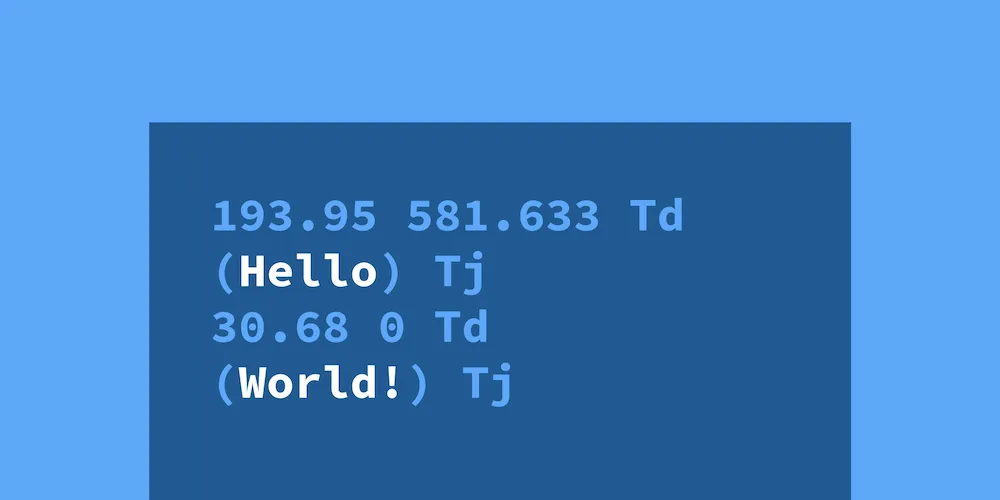
Each page in a PDF has one or more content streams that tell the PDF viewer application how to render a page. A very simple one might look like this:
193.95 581.633 Td(Hello) Tj30.68 0 Td(World!) TjThese content streams can be represented differently while accomplishing the same goal, like this:
193.95 581.633 Td<00290046004d004d00500001003800500053004d0045> TjTd instructs the PDF viewer where to draw the next string. Tj specifies which string to draw.
Extracting text from a content stream
The only way to extract text from a PDF is by looking at the rendering commands and making a heuristic attempt to reconstruct it. In the example above, we know we’re supposed to render Hello, reposition the text cursor, and then output World!.
You might have noticed there’s no whitespace in the first example above. Because the content stream only instructs the rendering engine what to draw on the screen, and because whitespace has no rendering command, we have to infer the spaces and newlines ourselves most of the time.
Doing this reliably across all the different PDF documents out there is difficult, and it’s not uncommon to encounter problems where tweaking the heuristic breaks one document but fixes another.
Extracting text with the Nutrient SDK
The Nutrient SDK offers APIs to retrieve text from a document across iOS, Android, and Web. All platforms use the same underlying heuristic to determine the layout of the text on the page and how to extract blocks out of it.
iOS
On iOS, you can use PSPDFTextParser to retrieve the text, text blocks, words, or glyphs from a page:
guard let textParser = documentProvider.textParserForPage(at: 0) else {    // Handle failure.    abort()}print("Text of page 0: \(textParser.text)")
for textBlock in textParser.textBlocks {    print("TextBlock at \(textBlock.frame): \(textBlock.content)")}
Android
On Android, there’s no dedicated text parser class; instead, you retrieve your page text using PdfDocument:
val pageText = document.getPageText(0)print("Text of page 0: $pageText")
for (textRect in document.getPageTextRects(0, 0, pageText.length)) {    val blockText = document.getPageText(0, textRect)    print("TextBlock at $textRect: $blockText")}
Web
Nutrient Web SDK can extract the text from a page using textLinesForPageIndex, but doesn’t currently support text block extraction:
const textLines = await instance.textLinesForPageIndex(0);textLines.forEach((textLine) => console.log(textLine.contents));instance.textLinesForPageIndex(0).then(function (textLines) { textLines.forEach(function (textLine) { console.log(textLine.contents); });});Python
Python has several extraction libraries. PyPDF is widely used and open source. PyMuPDF is faster and better at preserving layout. Our Python PDF text extraction tutorial covers both in depth:
from pypdf import PdfReader
reader = PdfReader("document.pdf")for page in reader.pages:    text = page.extract_text()    print(text)
For scanned documents, you’ll need OCR. The Nutrient API handles both native text and scanned PDFs:
import osimport requests
with open("scanned.pdf", "rb") as f:    response = requests.post(        "https://api.nutrient.io/build",        headers={"Authorization": f"Bearer {os.environ['NUTRIENT_API_KEY']}"},        files={"file": f},        data={            "instructions": '{"parts": [{"file": "file"}], "actions": [{"type": "ocr"}], "output": {"type": "json-content"}}'        },        timeout=60,    )response.raise_for_status()print(response.json())
Java
Java developers commonly use Apache PDFBox for text extraction. The example below uses the PDFBox 2.x API (PDDocument.load); on PDFBox 3.x, use Loader.loadPDF(new File(...)) instead:
import org.apache.pdfbox.pdmodel.PDDocument;import org.apache.pdfbox.text.PDFTextStripper;
PDDocument document = PDDocument.load(new File("document.pdf"));PDFTextStripper stripper = new PDFTextStripper();String text = stripper.getText(document);System.out.println(text);document.close();
For more control over layout, PDFBox also offers PDFTextStripperByArea to extract text from specific regions of a page — useful when processing invoices or forms with known layouts.
Comparing PDF text extraction tools
Choose based on language, OCR requirements, and document complexity:
| Tool | Language | OCR support | Layout preservation | License |
|---|---|---|---|---|
| PyPDF | Python | No | Basic | BSD |
| PyMuPDF | Python | No (add-on) | Good | AGPL/Commercial |
| Nutrient API | Any (REST) | Yes (built-in) | Excellent | Commercial |
| Nutrient SDK | iOS/Android/Web | Yes | Excellent | Commercial |
| Apache PDFBox | Java | No (add-on) | Good | Apache 2.0 |
| PDF.js | JavaScript | No | Basic | Apache 2.0 |
| Tesseract | Python/C++ | Yes (OCR only) | N/A (image-based) | Apache 2.0 |
For a deeper comparison of Python options, see our PyMuPDF vs. Nutrient guide. For JavaScript, our complete guide to PDF.js covers the PDF.js approach in detail.
Handling scanned PDFs with OCR
Not all PDFs contain selectable text. Scanned documents store pages as images, so you need optical character recognition (OCR) to extract text from them. Common OCR approaches include Tesseract for open source workflows and the Nutrient API for production-grade accuracy. Our automated PDF OCR workflows guide walks through setting up batch processing for scanned documents. If you’re working with C#, see our guide on OCR for images and PDFs in C#.
Conclusion
PDF text extraction comes down to two things: how PDFs store text internally, and which tool fits your language and workflow. Whether you use Python, JavaScript, Java, or the Nutrient SDK on mobile, the core challenge is the same — PDFs store rendering commands, not structured text. The Nutrient SDK and Nutrient API handle both native text and scanned PDFs without requiring separate OCR tooling. This text extraction capability also powers our PDF text comparison feature for identifying differences between document versions. For help choosing between extraction platforms, see our evidence-based guide to evaluating document AI platforms.
FAQ
PDFs are designed for visual consistency rather than text extraction. They store rendering commands (where to draw glyphs on a page) instead of structured text with paragraphs and whitespace. Extracting readable text requires heuristics to reconstruct word spacing, line breaks, and reading order from these low-level drawing instructions.
Use PyPDF for basic extraction (PdfReader("file.pdf").pages[0].extract_text()), PyMuPDF for faster processing with better layout preservation, or the Nutrient API for production workflows with built-in OCR. See our Python PDF text extraction tutorial for complete code examples.
Use PDF.js to parse the PDF and retrieve text content from each page. Our guide to extracting text with PDF.js walks through the implementation step by step. Nutrient Web SDK also provides the textLinesForPageIndex API for client-side extraction.
Scanned PDFs store pages as images, so you need optical character recognition (OCR) to extract text. Tesseract is a popular open source option, while the Nutrient API provides built-in OCR with higher accuracy for production use.
It depends on your language and requirements. For Python, PyMuPDF offers the best balance of speed and accuracy for open source use. For Java, Apache PDFBox is the standard. For JavaScript, PDF.js works well in browser environments. If you need OCR or handle complex layouts, the Nutrient API covers all languages via REST.
The Nutrient SDK interprets PDF rendering commands to reconstruct text with high accuracy across iOS, Android, and Web. The Nutrient API adds server-side extraction with built-in OCR for scanned documents and structured output for downstream processing.
Yes, if you have the password. Most extraction libraries (PyPDF, PDFBox, Nutrient SDK) accept a password parameter when opening the document. Without the correct password, extraction will fail — this is by design to protect the document owner’s content.
Layout preservation depends on the tool. PyMuPDF and the Nutrient SDK do well at maintaining reading order and paragraph structure. For tabular data, specialized tools or the Nutrient API’s structured output mode produce better results than general-purpose text extraction. See our PDF data extraction developer guide for advanced techniques.
Text extraction reads the text data already embedded in a PDF’s content streams — it works on PDFs created from digital sources (Word documents, webpages, etc.). Optical character recognition (OCR) converts images of text into machine-readable characters — it’s needed for scanned documents, photographs, or PDFs where text was rasterized into images.
Related
Python text extraction: Parse PDFs with Python (PyPDF tutorial), extract text from PDFs with PyMuPDF, top 10 ways to generate PDFs in Python
JavaScript text extraction: Extract text from a PDF using JavaScript, complete guide to PDF.js, JavaScript PDF libraries compared
OCR and scanned PDFs: Use Tesseract OCR in Python, automated PDF OCR workflows, OCR images and PDFs in C#
Data extraction: PDF data extraction developer guide, best document AI platforms: an evaluation guide
Document conversion: Convert PDF to JPG using Python, build an HTML5 PDF viewer