Export PDFs with embedded annotations via PDF.js and annotpdf

Table of contents
annotpdf library. This tutorial covers mapping app annotation types to the PDF specification, color conversion, and triggering browser downloads.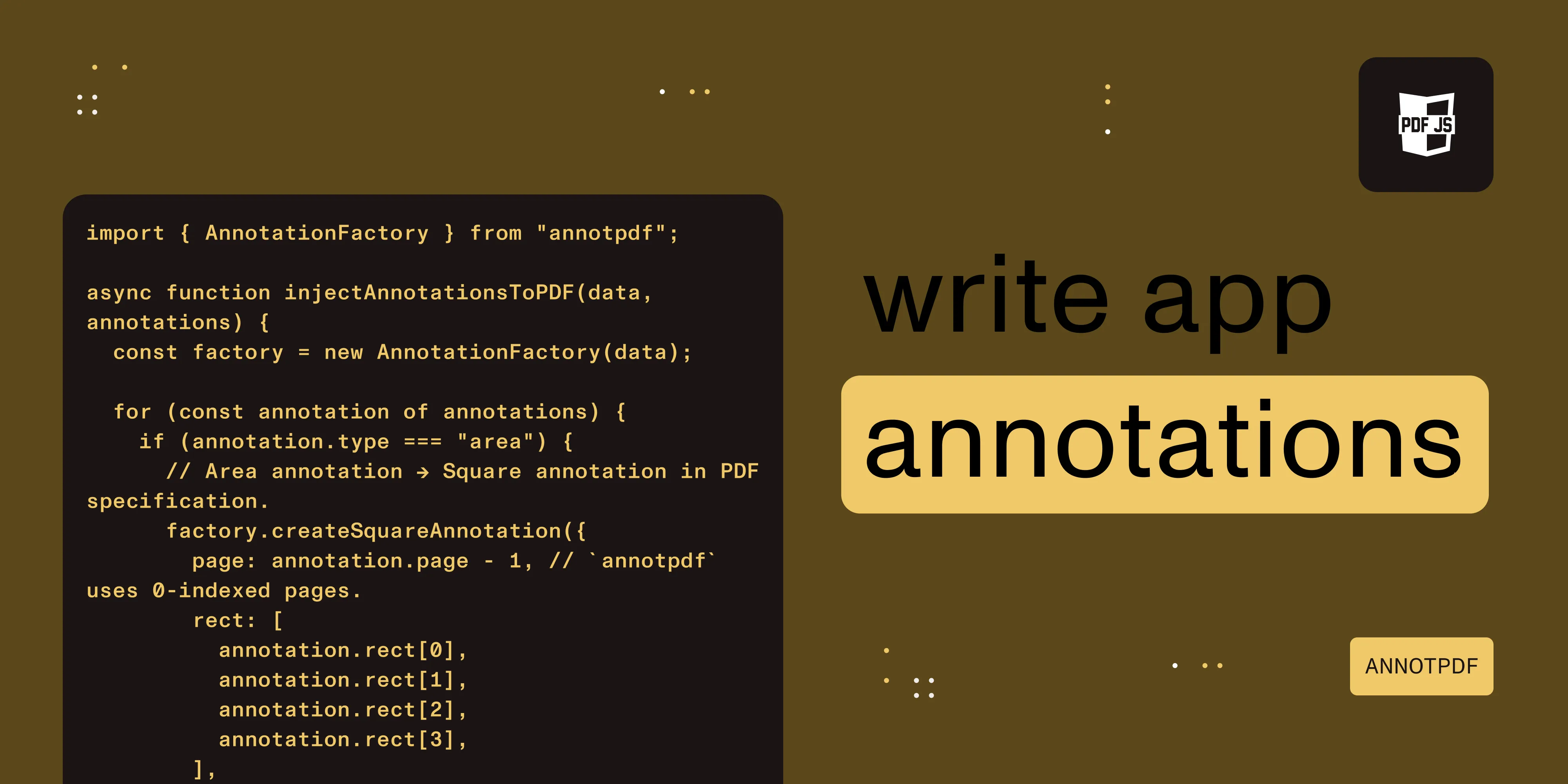
- Pull the raw PDF bytes via
pdfDocument.getData()and pass them toannotpdf’sAnnotationFactory. - Map your app’s annotation types to PDF specification annotations: highlight →
createHighlightAnnotation, area →createSquareAnnotation, note →createTextAnnotation. - Call
factory.write()to get a newUint8Array. Then trigger a browser download.
Prerequisites
This guide assumes you have a loaded PDFDocumentProxy (from getDocument(...).promise) and annotations stored outside the PDF — typically in your app’s database. If you don’t have a viewer yet, start with our guide on how to set up a custom PDF.js viewer in React.
You’ll also need:
pdfjs-dist4.x or laterannotpdf(npm install annotpdf) anddownloadjs(npm install downloadjs)- Annotations stored with their PDF-space coordinates — see PDF.js coordinate systems for the conversion patterns
Maintenance note: annotpdf hasn’t had a new release since April 2022. Its surface API is stable and the methods used in this tutorial still work, but the dependency is effectively unmaintained. If you’re starting fresh, also evaluate pdf-lib, which is actively maintained and covers annotation creation as well as page manipulation. For annotations created in PDF.js’s own AnnotationEditorLayer, pdfDocument.saveDocument() writes them into the PDF directly without a third-party library.
When users create annotations in your viewer, those annotations live in your app’s database — not in the PDF file itself. To let users download a PDF with annotations baked in, you need to write annotation objects into the PDF binary. The annotpdf library makes this straightforward.
Install
Install the annotpdf package:
npm install annotpdfGetting the raw PDF data
PDF.js gives you access to the original PDF binary through PDFDocumentProxy.getData():
const pdfData = await pdfDocument.getData(); // Returns Uint8ArrayWriting annotations into the PDF
annotpdf’s AnnotationFactory takes a PDF as a Uint8Array, lets you add annotations, and writes a new PDF:
import { AnnotationFactory } from "annotpdf";
async function injectAnnotationsToPDF(data, annotations) {  const factory = new AnnotationFactory(data);
  for (const annotation of annotations) {    if (annotation.type === "area") {      // Area annotation -> Square annotation in PDF specification.      factory.createSquareAnnotation({        page: annotation.page - 1, // `annotpdf` uses 0-indexed pages.        rect: [          annotation.rect[0],          annotation.rect[1],          annotation.rect[2],          annotation.rect[3],        ],        color: { r: 255, g: 94, b: 94 },        contents: annotation.comments.map((c) => c.content).join("\n"),        author: annotation.authorName,      });    } else if (annotation.type === "text") {      // Text highlight -> Highlight annotation in PDF specification.      const boundingRect = getBoundingLocation(annotation.locations);
      factory.createHighlightAnnotation({        page: boundingRect.page - 1,        rect: boundingRect.rect,        color: { r: 255, g: 94, b: 94 },        contents: annotation.comments.map((c) => c.content).join("\n"),        author: annotation.authorName,      });    } else if (annotation.type === "note") {      // Sticky note -> Text annotation in PDF specification.      factory.createTextAnnotation({        page: annotation.page - 1,        rect: [          annotation.coords[0],          annotation.coords[1],          annotation.coords[0] + 16,          annotation.coords[1] + 16,        ],        color: { r: 241, g: 217, b: 4 },        contents: annotation.comments.map((c) => c.content).join("\n"),        author: annotation.authorName,      });    }  }
  return factory.write(); // Returns Uint8Array}
Annotation type mapping
| Your app | PDF specification (annotpdf method) | Visual |
|---|---|---|
| Text highlight | createHighlightAnnotation | Colored highlight overlay |
| Area selection | createSquareAnnotation | Colored rectangle border |
| Sticky note | createTextAnnotation | Note icon with popup |
Color mapping
annotpdf takes colors as { r, g, b } objects with 0–255 values:
const colorMap = { red: { r: 255, g: 94, b: 94 }, orange: { r: 255, g: 162, b: 94 }, yellow: { r: 241, g: 217, b: 4 }, green: { r: 86, g: 224, b: 153 }, blue: { r: 25, g: 128, b: 230 }, purple: { r: 86, g: 100, b: 224 }, pink: { r: 234, g: 139, b: 219 },};Note annotation sizing
PDF text annotations (sticky notes) need a rect even though they display as an icon. Use a small fixed-size rect at the note’s coordinates:
rect: [ coords[0], coords[1], coords[0] + 16, // 16-point wide icon. coords[1] + 16, // 16-point tall icon.],Download the annotated PDF
Use downloadjs to trigger a browser download of the annotated PDF or the original without annotations:
import downloadjs from "downloadjs";
async function handleExport(pdfDocument, annotations, filename) {  const data = await pdfDocument.getData();
  // Option 1: Download with annotations  const annotatedPdf = await injectAnnotationsToPDF(data, annotations);  downloadjs(annotatedPdf, filename, "application/pdf");
  // Option 2: Download without annotations (original)  downloadjs(data, filename, "application/pdf");}
Combining comments
When multiple users have commented on an annotation, join them with a separator for the PDF’s contents field:
const contents = annotation.comments.reduce((accum, comment, index) => { accum += `${comment.authorName}: ${comment.content}`; if (index < annotation.comments.length - 1) { accum += "\n-----------\n"; } return accum;}, "");Bounding rect for multiline highlights
Text annotations can have multiple locations (one per line). For the PDF annotation, compute the bounding rectangle:
function getBoundingLocation(locations) {  let minX = Infinity, minY = Infinity;  let maxX = -Infinity, maxY = -Infinity;  let page = locations[0].page;
  for (const loc of locations) {    minX = Math.min(minX, loc.rect[0]);    minY = Math.min(minY, loc.rect[1]);    maxX = Math.max(maxX, loc.rect[2]);    maxY = Math.max(maxY, loc.rect[3]);  }
  return { page, rect: [minX, minY, maxX, maxY] };}
Key points
annotpdfis the simplest library for writing standard PDF annotations.- Always use 0-indexed pages with
annotpdf(PDF.js uses 1-indexed internally). - Coordinates are in PDF space — no conversion is needed if you already store in PDF coordinates.
factory.write()returns a newUint8Array— it doesn’t modify the original.- Text annotations (notes) need a rect even though they display as small icons.
downloadjsis a simple way to trigger browser downloads fromUint8Arraydata.- For more complex PDF manipulation (merging, splitting pages), use
pdf-libinstead.
How Nutrient Web SDK handles this
Nutrient Web SDK stores annotations in its own model and embeds them into the PDF on export, with no separate library, type mapping, or coordinate handling required. instance.exportPDF() returns an ArrayBuffer with the annotations baked in:
const pdfBuffer = await instance.exportPDF();
const blob = new Blob([pdfBuffer], { type: "application/pdf" });const url = URL.createObjectURL(blob);const a = document.createElement("a");a.href = url;a.download = "annotated.pdf";a.click();
For server-side processing, the SDK also exports XFDF and Instant JSON — useful when you need to roundtrip annotations through a backend without rebuilding the PDF each time.
Learn more about Nutrient Web SDK | Migration guide | Contact Sales
FAQ
annotpdf, pdf-lib, or pdfDocument.saveDocument()?Use pdfDocument.saveDocument() when annotations were created in PDF.js’s built-in AnnotationEditorLayer — it embeds them natively. Use annotpdf or pdf-lib when annotations live in your app’s database and you need to write them into the PDF at export time. pdf-lib is more actively maintained today; annotpdf has a smaller surface area focused on annotations.
annotpdf but 1-indexed in PDF.js?PDF.js’s high-level API uses 1-indexed page numbers (pdfDocument.getPage(1)) because that’s what readers see in a UI. annotpdf follows the lower-level PDF specification, which is 0-indexed. When you call annotpdf methods from PDF.js code, subtract 1 from the page number.
rect?PDF user space: origin at the bottom-left of the page, Y-axis pointing up, units in PDF points (1 point = 1/72 inch). If you store coordinates in screen space, convert them first with viewport.convertToPdfPoint() — see PDF.js coordinate systems.
annotpdf?The library is creation-focused — you can read existing annotations with factory.getAnnotations(), but updating or deleting them in place isn’t well-supported. For roundtrip editing, render annotations from your store and let annotpdf write fresh annotation objects each export.
Yes. annotpdf writes standard PDF specification annotations, not viewer-specific ones. Acrobat, Preview, Foxit, and any specification-compliant reader will render the highlights, squares, and sticky notes correctly.
Convert them to RGB objects before passing to annotpdf. A small utility: { r: parseInt(hex.slice(1,3),16), g: parseInt(hex.slice(3,5),16), b: parseInt(hex.slice(5,7),16) }. Values can be 0–255 or 0–1 — pick one and stay consistent.