How to build a Vue.js PDF viewer

Table of contents
This step-by-step tutorial demonstrates how to build a Vue.js PDF viewer using Nutrient. It covers project setup, Vue CLI installation, PDF library integration, and component creation for displaying and interacting with PDF documents. The guide showcases Nutrient’s Vue.js PDF viewer library with 30+ features, including annotation tools, document editing, signing capabilities, and support for multiple file types, like PDF, MS Office, and images.
This post provides you with a step-by-step guide on how you can deploy Nutrient’s Vue.js PDF viewer. Vue.js(opens in a new tab) is a popular frontend JavaScript framework for building single-page applications (SPAs) and user interfaces (UIs), and it’s one of the most starred projects on GitHub(opens in a new tab). It enables users to create rapid prototypes and build fast and reliable applications.
What is a Vue.js PDF viewer?
A Vue.js PDF viewer lets you render and view PDF documents in a web browser without the need to download it to your hard drive or use an external application like a PDF reader.
Nutrient Vue.js PDF viewer
We offer a commercial Vue.js PDF viewer library that can easily be integrated into your web application. It comes with 30+ features that let you view, annotate, edit, and sign documents directly in your browser. Out of the box, it has a polished and flexible UI that you can extend or simplify based on your unique use case.
- A prebuilt and polished UI for an improved user experience
- 15+ prebuilt annotation tools to enable document collaboration
- Support for more file types with client-side PDF, MS Office, and image viewing
- Dedicated support from engineers to speed up integration
Example of our Vue.js PDF viewer
To demo our Vue.js PDF viewer, upload a PDF, JPG, PNG, or TIFF file by clicking Open Document under the Standalone option (if you don’t see this option, select Choose Example from the dropdown). Once your document is displayed in the viewer, try drawing freehand, adding a note, or applying a crop or an eSignature.
Requirements to get started
To get started, you’ll need:
- Git(opens in a new tab)
- Node.js(opens in a new tab) (version 18 or later recommended)
- A package manager for installing the Vue command-line interface (CLI) and importing packages — you can use npm(opens in a new tab) or Yarn(opens in a new tab)
Installing the Vue CLI
To work with Vue.js, you need to install Vue CLI(opens in a new tab), which is standard tooling for Vue.js. It helps you create, build, and run Vue.js applications.
You can install the CLI using npm(opens in a new tab), which comes with Node.js, or yarn(opens in a new tab):
npm install -g @vue/cliyarn global add @vue/cliYou can check the version of Vue by running the following:
vue --versionThis tutorial uses Vue CLI version 5 or later. Note that Vue CLI is now in maintenance mode — for new projects, the Vue team recommends create-vue(opens in a new tab) (Vite-based). The Nutrient integration below works the same either way.
Creating the project
Now you’ll learn how to integrate Nutrient into your Vue.js project.
- Vue CLI provides an easy way of creating projects by using the following command:
vue create pspdfkit-vue-projectHere, you’re using the create option with the name of the project you want to create (pspdfkit-vue-project).
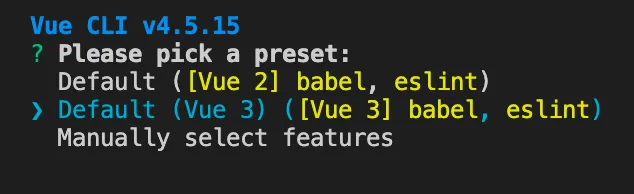
It’ll then ask some configuration questions.
- Select Default (Vue 3) (
[Vue 3] babel, eslint) from the list.
- Now, change the directory to
pspdfkit-vue-project:
cd pspdfkit-vue-projectAdding Nutrient
- Install
@nutrient-sdk/vieweras a dependency withnpmoryarn:
npm install @nutrient-sdk/vieweryarn add @nutrient-sdk/viewer- Now you can start building your Vue.js project. First, create a
jsdirectory under thepublicdirectory. Go to your terminal and run:
mkdir -p public/js- Copy the Nutrient Web SDK library assets to the
public/jsdirectory:
cp -R ./node_modules/@nutrient-sdk/viewer/dist/nutrient-viewer-lib public/js/nutrient-viewer-libThis will copy the nutrient-viewer-lib directory from within node_modules/ into the public/js/ directory to make it available to the SDK at runtime.
Displaying the PDF
- Add the PDF document you want to display to the
publicdirectory. You can use our demo document as an example. - Add a component wrapper for the Nutrient library and save it as
src/components/NutrientContainer.vue:
<template>  <div class="pdf-container"></div></template>
<script>import NutrientViewer from "@nutrient-sdk/viewer";
export default {  name: "NutrientContainer",  /**   * The component receives the `pdfFile` prop, which is of type `String` and is required.   */  props: {    pdfFile: {      type: String,      required: true,    },  },  /**   * We wait until the template has been rendered to load the document into the library.   */  mounted() {    this.loadNutrient().then((instance) => {      this.$emit("loaded", instance);    });  },  /**   * We watch for `pdfFile` prop changes and trigger unloading and loading when there's a new document to load.   */  watch: {    pdfFile(val) {      if (val) {        this.loadNutrient();      }    },  },  /**   * Our component has the `loadNutrient` method. This unloads and cleans up the component and triggers document loading.   */  methods: {    async loadNutrient() {      NutrientViewer.unload(".pdf-container");      return NutrientViewer.load({        // To access the `pdfFile` from props, use `this` keyword.        document: this.pdfFile,        container: ".pdf-container",      });    },  },
  /**   * Clean up when the component is unmounted so it's ready to load another document (not needed in this example).   */  beforeUnmount() {    NutrientViewer.unload(".pdf-container");  },};</script>
<style scoped>.pdf-container {  height: 100vh;}</style>
Here’s what’s happening in the component:
- The
templatesection is rendering adivwith thepdf-containerclass. This will help you declaratively bind the rendered DOM to the underlying component instance’s data. - The
scriptsection is defining a Vue.js instance namedNutrientContainerand creating methods for mounting, loading, and unloading PDF files into thepdf-container. - The
stylesection is defining the height of the container.
- Now, replace the contents of
src/App.vuewith the following:
<template>  <div id="app">    <label for="file-upload" class="custom-file-upload"> Open PDF </label>    <input id="file-upload" type="file" @change="openDocument" class="btn" />    <NutrientContainer :pdfFile="pdfFile" @loaded="handleLoaded" />  </div></template>
<script>import NutrientContainer from "@/components/NutrientContainer.vue";
export default {  data() {    return {      pdfFile: "/example.pdf",    };  },  /**   * Render the `NutrientContainer` component.   */  components: {    NutrientContainer,  },  /**   * Our component has two methods — one to check when the document is loaded, and the other to open the document.   */  methods: {    handleLoaded(instance) {      console.log("Nutrient has loaded: ", instance);      // Do something.    },
    openDocument(event) {      // To access the Vue instance data properties, use `this` keyword.      if (this.pdfFile) {        window.URL.revokeObjectURL(this.pdfFile);      }      this.pdfFile = window.URL.createObjectURL(event.target.files[0]);    },  },};</script>
<style>#app {  text-align: center;  color: #2c3e50;}
body {  margin: 0;}
input[type="file"] {  display: none;}
.custom-file-upload { border: 1px solid #ccc; border-radius: 4px; display: inline-block; padding: 6px 12px; cursor: pointer; background: #4a8fed; padding: 10px; color: #fff; font: inherit; font-size: 16px; font-weight: bold;}</style>- In the
templatesection, you have a file upload input and theNutrientContainercomponent.
Vue.js uses directives to handle some types of functionality. For the input field, you’re using the v-on directive to attach an event listener to the element. In this case, it’s the change event. There’s a shortcut to v-on that removes the keyword and uses an @ symbol instead.
v-on:change="openDocument"v-on:loaded="handleLoaded"// Or@change="openDocument"@loaded="handleLoaded"Similar to the input field, for the NutrientContainer component, you’re using the v-bind directive to bind the pdfFile property to the pdfFile property of the component and attaching an event listener for the loaded event:
<NutrientContainer :pdfFile="pdfFile" @loaded="handleLoaded" />- In the
scriptsection, you can see the implementation of thehandleLoadedandopenDocumentmethods. Also, there’s a data function that returns thepdfFileproperty.
The data keeps track of reactive state within the current component. It’s always a function and returns an object. The object’s top-level properties are exposed via the component instance.
- In the
stylesection, there are styles for custom file input, and there are some general styles for theapp.
- Start the app:
npm run serveyarn serveYou can see the application running on localhost:8080.
If you can’t see your PDF file rendered in the browser, make sure you actually uploaded a PDF file inside the public directory.
In the demo application, you can open different PDF files by clicking the Open PDF button. You can add signatures, annotations, stamps, and more.
The finished code is available on GitHub(opens in a new tab). You can find the example code for Vue 2 in the vue-2 branch.
Adding even more capabilities
Once you’ve deployed your viewer, you can start customizing it to meet your specific requirements or easily add more capabilities. To help you get started, here are some of our most popular Vue.js guides:
- Adding annotations
- Editing documents
- Filling PDF forms
- Adding signatures to documents
- Real-time collaboration
- Redaction
- UI customization
Conclusion
You should now have our Vue.js PDF viewer up and running in your web application. If you hit any snags, don’t hesitate to reach out to our Support team for help.
You can also integrate our PDF viewer using web frameworks like Angular, jQuery, and React.js. To see a list of all web frameworks, start your free trial. Or, launch our demo to see our viewer in action.
Do you prefer an open source approach in Vue? See how to build a Vue.js PDF viewer with PDF.js.
FAQ
A Vue.js PDF viewer renders PDF documents directly in a web browser without downloading them or using an external PDF reader application. It integrates with Vue.js components for seamless document viewing.
Install @nutrient-sdk/viewer via npm or yarn, copy the SDK assets to your public/js directory, create a wrapper component that calls NutrientViewer.load(), and use the component in your Vue application.
Nutrient includes 30+ features: annotation tools (highlights, comments, ink), document editing, form filling, digital signatures, and support for PDF, MS Office, and image files.
Yes. The component watches for prop changes and automatically reloads when a new document is provided. Use window.URL.createObjectURL() to create a URL from a file input selection.
Yes. Nutrient supports both Vue 2 and Vue 3. The example code for Vue 2 is available in the vue-2 branch of the GitHub repository.