How to build an ASP.NET PDF viewer

Table of contents
This step-by-step guide shows how to integrate Nutrient Web SDK to build a PDF viewer in ASP.NET Core MVC. It covers project setup, SDK integration, and the core viewing capabilities, plus advanced features like annotations, document editing, and eSignatures. The result lets users view and interact with PDFs directly in the browser, with no external applications required.
This post provides you with a step-by-step guide outlining how to deploy Nutrient’s ASP.NET PDF viewer.
ASP.NET(opens in a new tab) is an open source web framework used to build modern web apps and services with .NET, and it was created by Microsoft. ASP.NET Core is the open source version of ASP.NET, and it runs on macOS, Windows, Linux, and Docker.
ASP.NET Core MVC(opens in a new tab) is a framework used to build web applications and APIs using the Model-View-Controller (MVC) design pattern, which will be the focus of this tutorial.
MVC is an architectural pattern that promotes separation of concerns(opens in a new tab). It allows you to separate your code into logical units and then build a web application that can easily be maintained and extended.
What is an ASP.NET PDF viewer?
An ASP.NET PDF viewer lets you render and view PDF documents in a web browser without the need to download it to your hard drive or use an external application like a PDF reader.
We offer a commercial ASP.NET PDF viewer library that can easily be integrated into your web application using .NET PDF SDK. It comes with 30+ features that let you view, annotate, edit, and sign documents directly in your browser. Out of the box, it has a polished and flexible UI that you can extend or simplify based on your unique use case.
- A prebuilt and polished UI for an improved user experience
- 15+ prebuilt annotation tools to enable document collaboration
- Support for more file types with client-side PDF, MS Office, and image viewing
- Dedicated support from engineers to speed up integration
Try the ASP.NET PDF viewer
To try the ASP.NET PDF viewer, upload a PDF, JPG, PNG, or TIFF file by clicking Open Document under the Standalone option (if you don’t see this option, select Choose Example from the dropdown). Once your document is displayed in the viewer, try drawing freehand, adding a note, or applying a crop or an eSignature.
Requirements to get started
To get started, you’ll need:
- .NET 6.0, which is the current long-term support (LTS) version of .NET.
You can download it from Microsoft’s website(opens in a new tab).
Creating a new ASP.NET project
- For this tutorial, you’ll install the ASP.NET web application (Model-View-Controller) template using the .NET CLI(opens in a new tab) (command-line interface). Open your terminal, navigate to the directory where you want to create your project, and run the following command:
dotnet new mvc -o nutrient-aspnet-exampleThis command creates your ASP.NET MVC project and places it in a new directory called nutrient-aspnet-example inside your current location.
- Change your directory to the newly created project:
cd nutrient-aspnet-examplemvc is a template that creates the initial files and directory structure for an ASP.NET MVC project. Here’s the file structure of the project:
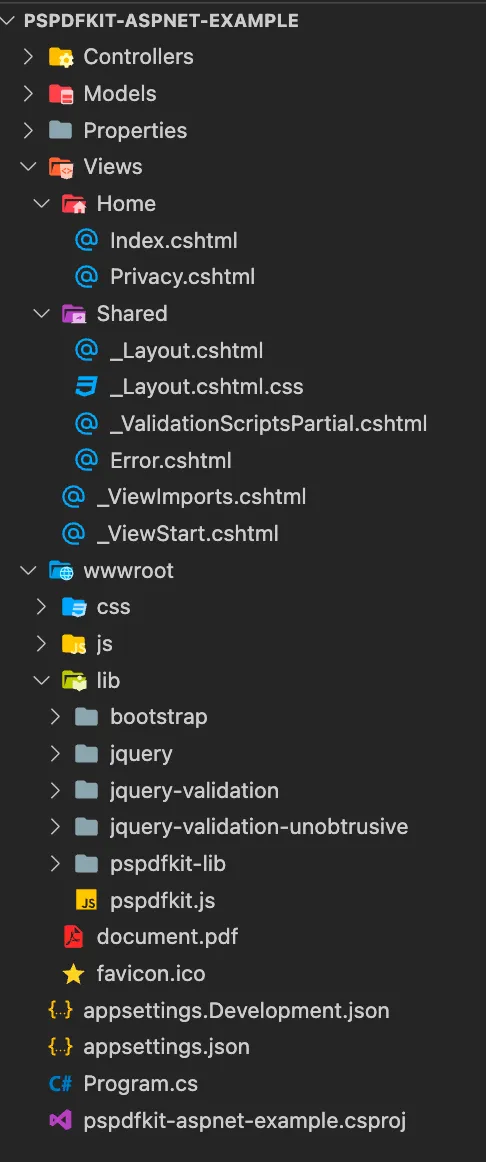
Controllers— Handles the request flow and delegates information between the Model and the View. The Controller will get the data information from the Model and then pass that data into the View.Models— Handles data logic and represents how data is stored.Views— Presents the user interface to the user. View templates are created using Razor(opens in a new tab). These templates have a.cshtmlextension.Views/Shared— Contains the shared components and stylesheets.Properties/launchSettings.json— Located in thePropertiesfolder and holds the development environment configuration(opens in a new tab).wwwroot— Contains the public static assets. You’ll store the PDF file and Nutrient artifacts in this folder.Program.cs— The entry point of the web application.nutrient-aspnet-example.csproj— Defines the app project and its dependencies.
Adding Nutrient to your project
Nutrient Web SDK library files are distributed as an archive that can be extracted manually.
- Download the framework here(opens in a new tab). The download starts immediately and saves a
.tar.gzarchive of Nutrient Web SDK to your computer. - Once the download is complete, extract the archive and copy the entire contents of its
distfolder to your project’swwwroot/lib/folder. - Make sure your
wwwroot/lib/folder contains thenutrient-viewer.jsfile and anutrient-viewer-libdirectory with the library assets.
Displaying a PDF
- Add the PDF document you want to display to the
wwwrootdirectory. You can use the demo document as an example. - Navigate to the
Views/Shared/_Layout.cshtmlfile. You’ll only keep the@RenderBody()placeholder in this file. This will help you display the contents of the view-specific pages in the@RenderBody()placeholder:
<!DOCTYPE html><html lang="en"> <head> <title>@ViewData["Title"] - nutrient_aspnet_example</title> @* Removed for brevity *@ </head> <body> @RenderBody() </body></html>- Now, you’ll start working on the
Homeroute. Navigate to your project’sViews/Home/Index.cshtmlRazor file.
- Add an empty
<div>element with a defined height to where Nutrient will be mounted:
<div id="nutrient" style="height: 100vh"></div>- Include
nutrient-viewer.js. The path is relative to thewwwrootdirectory:
<script src="/lib/nutrient-viewer.js"></script>- Load the Nutrient SDK before the
</body>tag:
<script> NutrientViewer.load({ container: "#nutrient", document: "document.pdf", }) .then(function(instance) { console.log("Nutrient Web SDK loaded", instance); }) .catch(function(error) { console.error(error.message); });</script>You can see the full code for the Views/Home/Index.cshtml file here:
@{    ViewData["Title"] = "Home Page";}
<div id="nutrient" style="height: 100vh"></div>
<script src="/lib/nutrient-viewer.js"></script>
<script>  NutrientViewer.load({    container: "#nutrient",    document: "document.pdf",  })    .then(function(instance) {      console.log("Nutrient Web SDK loaded", instance);    })    .catch(function(error) {      console.error(error.message);    });</script>
Serving the application
- Start the app in the root directory of your project:
dotnet watch runThe server will start and automatically restart the application when changes are made to the project.
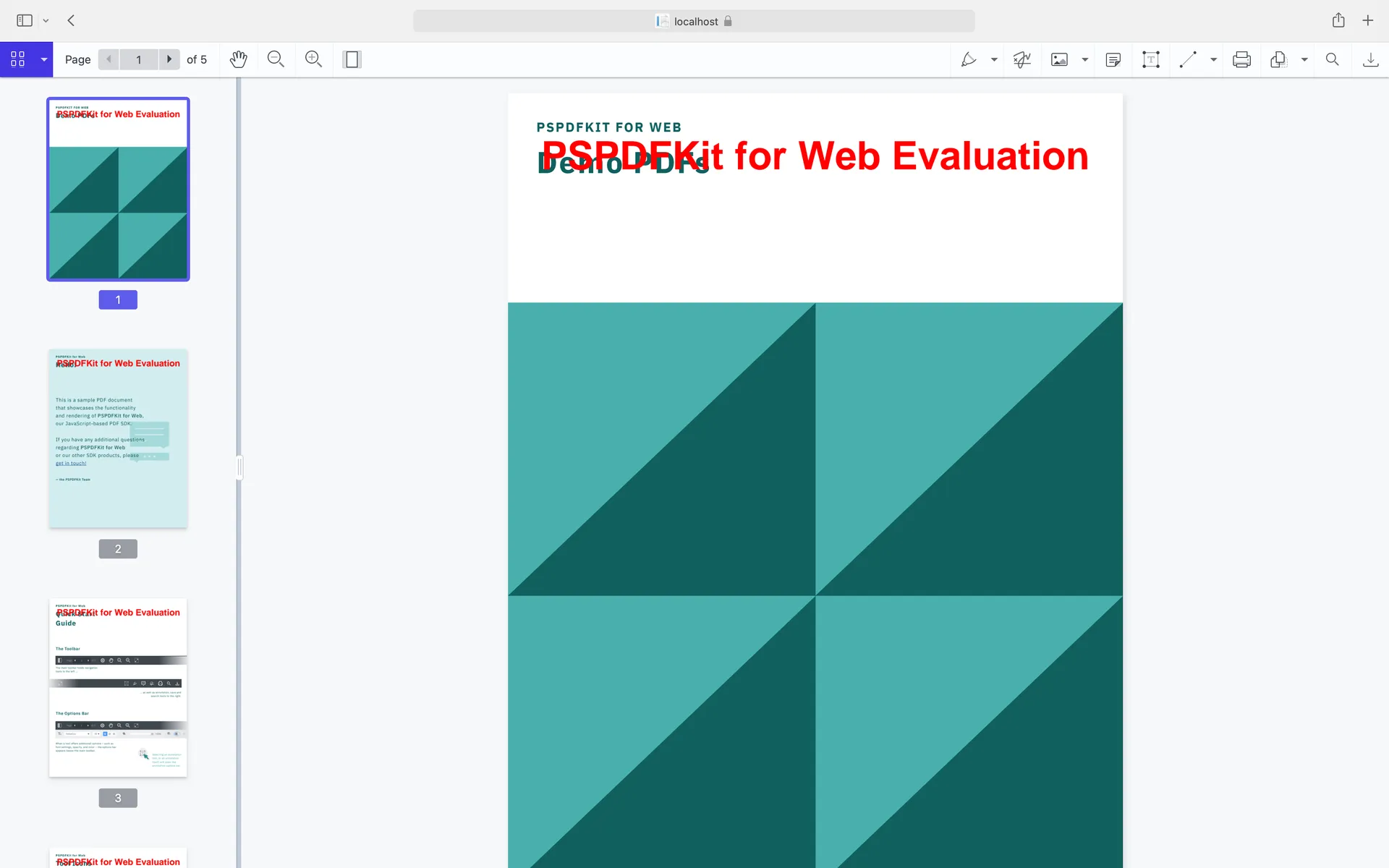
You can access the source code for this tutorial on GitHub(opens in a new tab). If you’re using Visual Studio, follow the getting started guide for Visual Studio.
Adding even more capabilities
Once you’ve deployed your viewer, you can start customizing it to meet your specific requirements or easily add more capabilities. To help you get started, here are some of our most popular ASP.NET guides:
- Adding annotations
- Editing documents
- Filling PDF forms
- Adding signatures to documents
- Real-time collaboration
- Redaction
- UI customization
Conclusion
You should now have our ASP.NET PDF viewer up and running in your web application. If you hit any snags, don’t hesitate to reach out to the Support team for help.
You can also deploy our vanilla JavaScript PDF viewer or use one of our many web framework deployment options like React.js, Vue.js, jQuery, and Angular.
To see a list of all web frameworks, start your free trial. Or, launch the demo to see it in action.
FAQ
Copy the Nutrient Web SDK dist files into wwwroot/lib, reference nutrient-viewer.js from your Razor view, and call NutrientViewer.load() with a container element. The viewer runs client-side, so it works with ASP.NET Core MVC or Razor Pages.
It runs in the browser. Nutrient Web SDK loads client-side from your Razor view, and your ASP.NET app simply serves the page and the PDF — no server-side rendering is required for standalone viewing.
Beyond PDF, Nutrient Web SDK renders images such as PNG, JPEG, and TIFF, and — with a backend — Office files like Word, Excel, and PowerPoint.
No. You can evaluate it without a key (an evaluation notice appears on the document). Contact Sales for a license key when you’re ready for production.