Image annotation in Vue.js: A simple guide

Table of contents

In this post, we’ll show you how to set up a UI to add an image to the top-left corner of a PDF document as an annotation using our JavaScript image annotation library.
More specifically, we’ll create the “Add logo” button in the Nutrient toolbar, and every time the button is clicked, it’ll add an image annotation to a PDF — and all of this from within your Vue.js app!
We’ll assume you already know how to load Nutrient inside your app. If that’s not the case, please refer to our Open and annotate PDFs from your Vue.js app blog post.
Loading Nutrient
Let’s start by loading Nutrient with Vue.js:
<!DOCTYPE html><html lang="en">  <head>    <meta charset="UTF-8" />    <title>Nutrient Web SDK example - Vue</title>    <!-- Vue library loaded here -->    <script src="https://cdn.jsdelivr.net/npm/vue/dist/vue.js"></script>    <!-- Nutrient Web SDK library loaded here -->    <script type="text/javascript" src="nutrient-viewer.js"></script>    <style>      /* Basic layout styling to be able to show the UI */      body {        height: 100vh;      }
      #app,      .App-viewer,      .container {        height: 100%;      }    </style>  </head>  <body>    <!-- Template for the main app component -->    <div id="app">      <div>        <input          type="file"          id="selectDocument"          v-on:change="openDocument"        />        <span class="error">{{errorMsg}}</span>      </div>      <div class="App-viewer">        <pdf-viewer          :document-url="documentUrl"          :base-url="baseUrl"          @update:error="errorMsg = $event"        ></pdf-viewer>      </div>    </div>    <script>      /**       * Nutrient Web SDK example component.       */      const PdfViewer = Vue.component('pdf-viewer', {        /**         * Nutrient Web SDK UI container template.         */        template: '<div class="container"></div>',        name: 'pdf-viewer',        /**         * The component receives these parameters:         * `@documentUrl: string` — URL of the document to be loaded.         * `@baseUrl: string` — URL from which the Nutrient library should get its payload and artifacts.         */        props: ['documentUrl', 'baseUrl'],        _instance: null,        /**         * We wait until the template has been rendered to load the document into the library.         */        mounted: function mounted() {          this.load();        },        /**         * Our component has two methods: one to trigger document loading, and the other to unload and clean up         * so that the component is ready to load another document.         */        methods: {          load: function load() {            NutrientViewer.load({              document: this.documentUrl,              container: '.container',              baseUrl: this.baseUrl,            })              .then((instance) => {                this._instance = instance;                this.$emit('update:error', '');              })              .catch((err) => {                NutrientViewer.unload('.container');                this.$emit('update:error', err.message);              });          },          unload: function unload() {            if (this._instance) {              NutrientViewer.unload(this._instance || '.container');              this._instance = null;            }          },        },        /**         * We watch for `documentUrl` prop changes and trigger unloading and loading when there's a new document to load.         */        watch: {          documentUrl: function documentUrl() {            this.unload();            this.load();          },        },        /**         * Clean up when the component is unmounted (not needed in this example).         */        beforeDestroy: function beforeDestroy() {          this.unload();        },      });
      /**       * Container component, which includes a button to open a PDF file and the URL of the example PDF loaded       * by default. Its template is inlined in the HTML above.       */      new Vue({        components: { 'pdf-viewer': PdfViewer },        el: '#app',        name: 'nutrient-web-example-vue',        data: function data() {          return {            documentUrl: this.documentUrl || 'example.pdf',            baseUrl: '',            errorMsg: '',          };        },        methods: {          openDocument: function openDocument(event) {            if (this.documentUrl) {              window.URL.revokeObjectURL(this.documentUrl);            }            this.documentUrl = window.URL.createObjectURL(              event.target.files[0],            );          },        },      });    </script>  </body></html>
Adding the button
Now let’s tweak the toolbar to only contain one button, our Add logo button. To do this in the load function, we’ll need to add the following:
toolbarItems: [ { type: "custom", title: "Add logo", className: "addLogo", name: "addLogo", },],Assigning the behavior
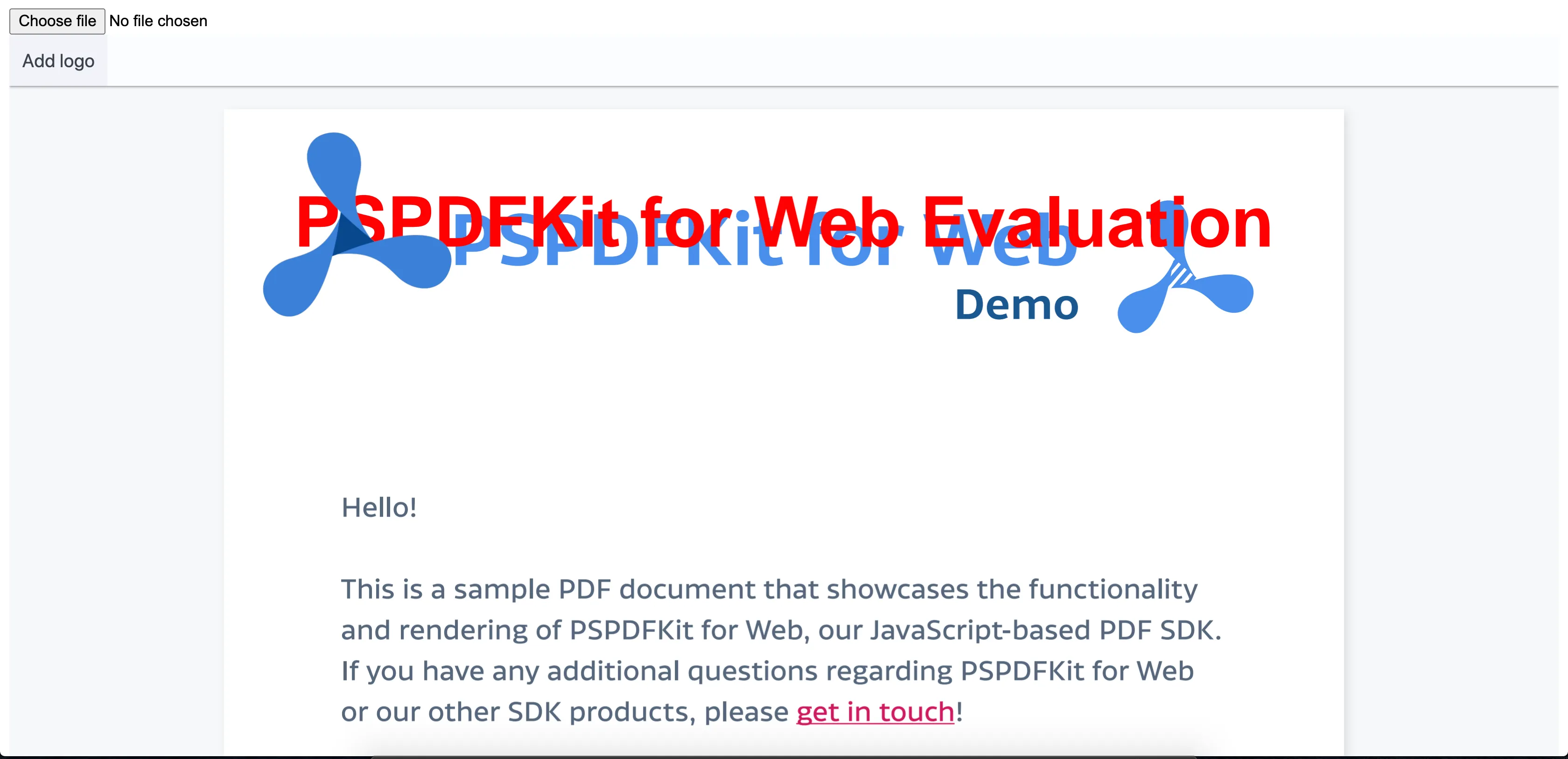
The next step is adding the behavior to our button. Every time it’s clicked, the button will add our logo, an image annotation(opens in a new tab), to the top-left corner of the loaded PDF:
onPress: async () => { // Get the image. const request = await fetch("/pspdfkit.png"); const blob = await request.blob(); const imageAttachmentId = await this._instance.createAttachment( blob ); this._instance.createAnnotation( new NutrientViewer.Annotations.ImageAnnotation({ pageIndex: 0, contentType: "image/png", imageAttachmentId, description: "Logo Image Annotation", boundingBox: new NutrientViewer.Geometry.Rect({ left: 10, top: 10, width: 150, height: 150, }), }) );},In general, the preferred way is to import an image in the JavaScript module, but to keep this example simple, we won’t use webpack. Instead, we’ll fetch the image from the public folder (see Vue CLI(opens in a new tab)).
And that’s it! Now our page looks like the following.
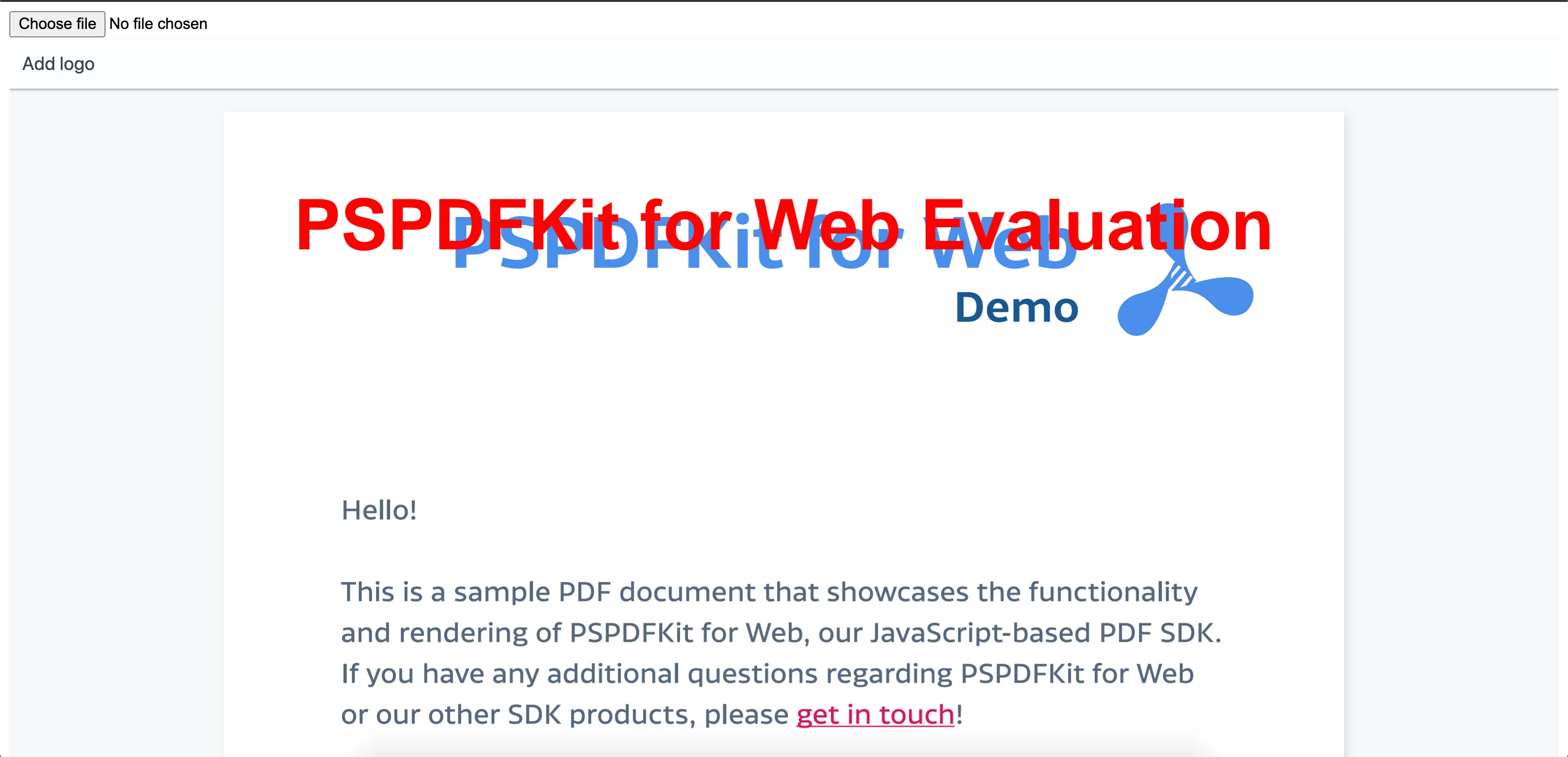
Clicking the Add logo button will add the logo image annotation.
Summary
It was surprisingly simple to add a logo to our PDF. As this example demonstrates, we can simplify opening and annotating PDF documents by making use of Nutrient Web SDK, an opinionated PDF SDK that can be used with (and without) any JavaScript framework. It supports all modern mobile and desktop browsers(opens in a new tab) and multiple languages(opens in a new tab).
We encourage you to check out all the features included in Nutrient(opens in a new tab).
Thank you for following this example and reading our blog.