How to build a Vue.js Word (DOC and DOCX) viewer using Nutrient

Table of contents
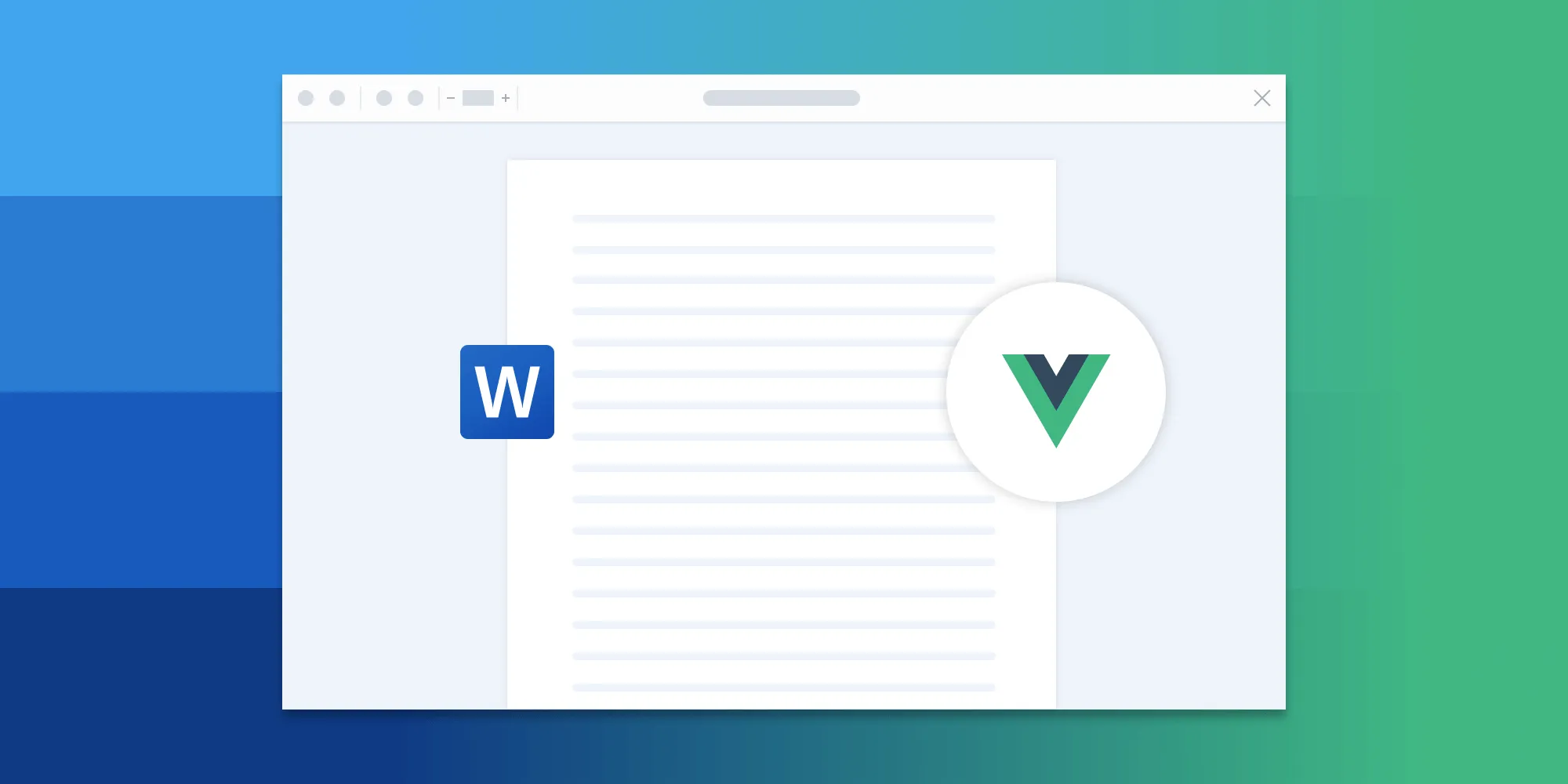
In this blog post, you’ll learn how to build a Vue 3 Word viewer using Nutrient Web SDK. You’ll open DOC and DOCX files directly in the browser with Vite and Vue’s Composition API. The document is processed client-side, so this example doesn’t require a document conversion server.
The image below shows what you’ll be building.
You can check out the demo to see it in action.
Opening and rendering Office documents in the browser
Nutrient Web SDK brings Word, Excel, and PowerPoint support to your application without requiring Microsoft Office software, Microsoft Office licenses, or a third-party conversion service. It converts the Office document to PDF in the browser and renders the result in the JavaScript viewer. Opening Office files requires the Office Files component in your Nutrient license.
Unlocking more capabilities with Office-to-PDF conversion
By converting an Office document to PDF using client-side JavaScript, you can add functionality to the converted PDF representation, such as:
- Text editing — Edit text in the converted PDF.
- Page manipulation — Add, remove, or rearrange pages in the converted PDF.
- Annotations — Boost collaboration by adding text highlights, comments, or stamps.
- Adding signatures — Draw, type, or upload a signature to the converted PDF.
Requirements to get started
To get started, you’ll need:
- Git(opens in a new tab)
- Node.js(opens in a new tab) version
^22.18.0or>=24.12.0, as required by the current Vue project scaffold - npm(opens in a new tab), pnpm(opens in a new tab), Yarn(opens in a new tab), or another package manager supported by Vue
Creating the Vue project
Vue CLI is in maintenance mode. The recommended way to start a Vue 3 application is create-vue(opens in a new tab), which scaffolds a project powered by Vite.
- Create a new Vue project:
npm create vue@latest- When prompted, use
nutrient-vue-word-vieweras the project name and enable TypeScript. The other options are optional for this tutorial. - Change to the project directory and install its dependencies:
cd nutrient-vue-word-viewernpm installAdding Nutrient
Install the current Nutrient Web SDK package:
npm install @nutrient-sdk/viewerThis tutorial uses useCDN: true, so the SDK loads its supporting assets from Nutrient’s content delivery network (CDN). If your deployment requires self-hosted assets, follow the current self-hosting guide instead of copying the deprecated pspdfkit-lib directory manually.
Displaying a Word document
- Add a Word (DOC, DOCX) document you want to display to the
publicdirectory. You can use our demo document as an example. - Add a component wrapper for Nutrient Web SDK and save it as
src/components/WordViewer.vue:
<script setup lang="ts">import { onMounted, onUnmounted, useTemplateRef, watch } from "vue";
const props = defineProps<{  document: string;}>();
const emit = defineEmits<{  loaded: [instance: unknown];}>();
const containerRef = useTemplateRef("container");let NutrientViewer:  | typeof import("@nutrient-sdk/viewer").default  | undefined;let latestLoadId = 0;
async function loadDocument() {  const container = containerRef.value;
  if (!container) return;
  const loadId = ++latestLoadId;
  NutrientViewer ??= (await import("@nutrient-sdk/viewer")).default;  const configuration = {    document: props.document,    useCDN: true,    processorEngine: NutrientViewer.ProcessorEngine.fasterProcessing,  };
  await NutrientViewer.preloadWorker(configuration);
  // A newer document was requested while this one was preparing; let it win.  if (loadId !== latestLoadId) return;
  NutrientViewer.unload(container);
  const instance = await NutrientViewer.load({    container,    ...configuration,  });
  if (loadId !== latestLoadId) return;
  emit("loaded", instance);}
onMounted(loadDocument);watch(() => props.document, loadDocument);
onUnmounted(() => {  const container = containerRef.value;
  if (container && NutrientViewer) {    NutrientViewer.unload(container);  }});</script>
<template>  <div ref="container" class="doc-container" /></template>
<style scoped>/* The parent layout is a column flex container, so the viewer fills whatever   height remains below the toolbar — no hardcoded offsets. */.doc-container {  flex: 1;  min-height: 0;  width: 100%;}</style>
Here’s what’s happening in the component:
useTemplateRef()provides the document object model (DOM) container Nutrient needs to mount the viewer.- The SDK is imported dynamically after the component mounts, which keeps browser-only code out of server-side rendering paths.
preloadWorker()loads the WebAssembly worker and Office conversion engine before the viewer opens the document.watch()reloads the viewer whenever the selected Word file changes.latestLoadIdmakes rapid document switches safe.loadDocument()awaits the import and worker preload, so an older call can finish after a newer one; comparing its capturedloadIdagainst the latest lets the stale call bail out instead of overwriting the newer document or emittingloadedfor the wrong file.NutrientViewer.unload()cleans up the previous instance before a new document loads and when Vue unmounts the component.
- Now, replace the contents of
src/App.vuewith the following:
<script setup lang="ts">import { onUnmounted, ref, useTemplateRef } from "vue";import WordViewer from "./components/WordViewer.vue";
const fileInputRef = useTemplateRef("fileInput");const wordFile = ref("/document.docx");let objectUrl: string | undefined;
function openDocument(event: Event) {  const input = event.target as HTMLInputElement;  const file = input.files?.[0];
  if (!file) return;
  if (objectUrl) {    URL.revokeObjectURL(objectUrl);  }
  objectUrl = URL.createObjectURL(file);  wordFile.value = objectUrl;}
function handleLoaded(instance: unknown) {  console.log("Nutrient Web SDK loaded", instance);}
onUnmounted(() => {  if (objectUrl) {    URL.revokeObjectURL(objectUrl);  }});</script>
<template>  <main>    <button      type="button"      class="custom-file-upload"      @click="fileInputRef?.click()"    >      Open Word    </button>    <input      ref="fileInput"      type="file"      accept=".doc,.docx"      @change="openDocument"    />    <WordViewer :document="wordFile" @loaded="handleLoaded" />  </main></template>
<style>body {  margin: 0;}
/* A column flex layout hands the viewer the height left over below the button,   so nothing needs to know how tall the toolbar is. */main {  display: flex;  flex-direction: column;  height: 100vh;}
input[type="file"] {  display: none;}
.custom-file-upload { align-self: flex-start; margin: 8px; padding: 10px 14px; border: none; border-radius: 4px; cursor: pointer; background: #4a8fed; color: #fff; font: 600 16px/1 sans-serif;}</style>- In the
template, a realbuttonopens the hidden file input through a template ref, which keeps the picker focusable and operable from the keyboard — something a styledlabeldoesn’t provide on its own. The input accepts DOC and DOCX files, and the active object URL is passed toWordViewer. - In the
<script setup>block, Vue’sref()stores the current document URL. The previous object URL is revoked when a different file is selected and when the component unmounts. - The
@changeand@loadeddirectives use Vue’s shorthand forv-on, while:documentuses shorthand forv-bind.
For example, these pairs are equivalent:
v-on:change="openDocument"v-on:loaded="handleLoaded"
@change="openDocument"@loaded="handleLoaded"
The WordViewer binding can also be written in long form:
<WordViewer v-bind:document="wordFile" v-on:loaded="handleLoaded" />- Start the app:
npm run devVite prints the local development URL in your terminal — usually http://localhost:5173.
If you can’t see your Word file rendered in the browser, make sure you actually uploaded a DOC or DOCX file inside the public directory.
In the demo application, you can open different Word files by clicking the Open Word button. After conversion, you can add signatures, annotations, stamps, and more to the PDF.
A note about fonts
For client-side Office-to-PDF conversion, Nutrient substitutes fonts when the original typeface isn’t available. To improve fidelity, embed fonts in the source document, configure custom fonts, or use dynamic font loading so the SDK can fetch required fonts at runtime.
Adding even more capabilities
Once you’ve deployed your viewer, you can start customizing it to meet your specific requirements or easily add more capabilities. To help you get started, here are some of our most popular Vue.js guides:
Conclusion
In this blog post, you learned how to build a Word viewer with Vue 3, Vite, and Nutrient Web SDK. The current integration uses @nutrient-sdk/viewer, the Composition API, and client-side Office conversion. If you hit any snags, refer to the Vue integration guide or contact Nutrient Support.
You can also integrate the viewer with Angular or React. Launch the Office viewer demo to test the experience, or start a free trial to build it into your application.
Start your free trialFAQ
Nutrient Web SDK can open DOC and DOCX files. Available annotation, signing, and editing capabilities depend on the components enabled in your license.
No. The example in this tutorial converts and renders Word files in the browser, so it doesn’t require a document conversion server.
Yes, you can start a free trial of Nutrient, although you’ll have a watermark on documents without a license key.
Yes. After conversion, the viewer allows you to add annotations, text highlights, and signatures to the PDF.
If you experience any issues, you can reach out to the Nutrient Support team for assistance.