How to combine OCR with redaction in Java

Table of contents

Learn how to combine OCR and redaction in Java using Nutrient’s PDF library. This tutorial shows how to extract text from scanned documents using OCR, then automatically redact sensitive information like email addresses and phone numbers using preset patterns.
The release of the Nutrient Java library version 1.3 introduced the OCR feature. If you’re unfamiliar with OCR, check out the Introduction to OCR post for more information on what it provides.
This blog post shows an example of removing sensitive information from an image by combining OCR with the Nutrient Java library redaction feature. It walks you through the step-by-step process using the Java API so you can see how redaction and OCR work together for document processing.
If you want to try this example as you read along, you’ll need to set up your Java project to use our latest OCR release. To do this, head over to our guide on integrating the new OCR package dependencies into your existing Java project.
Use case
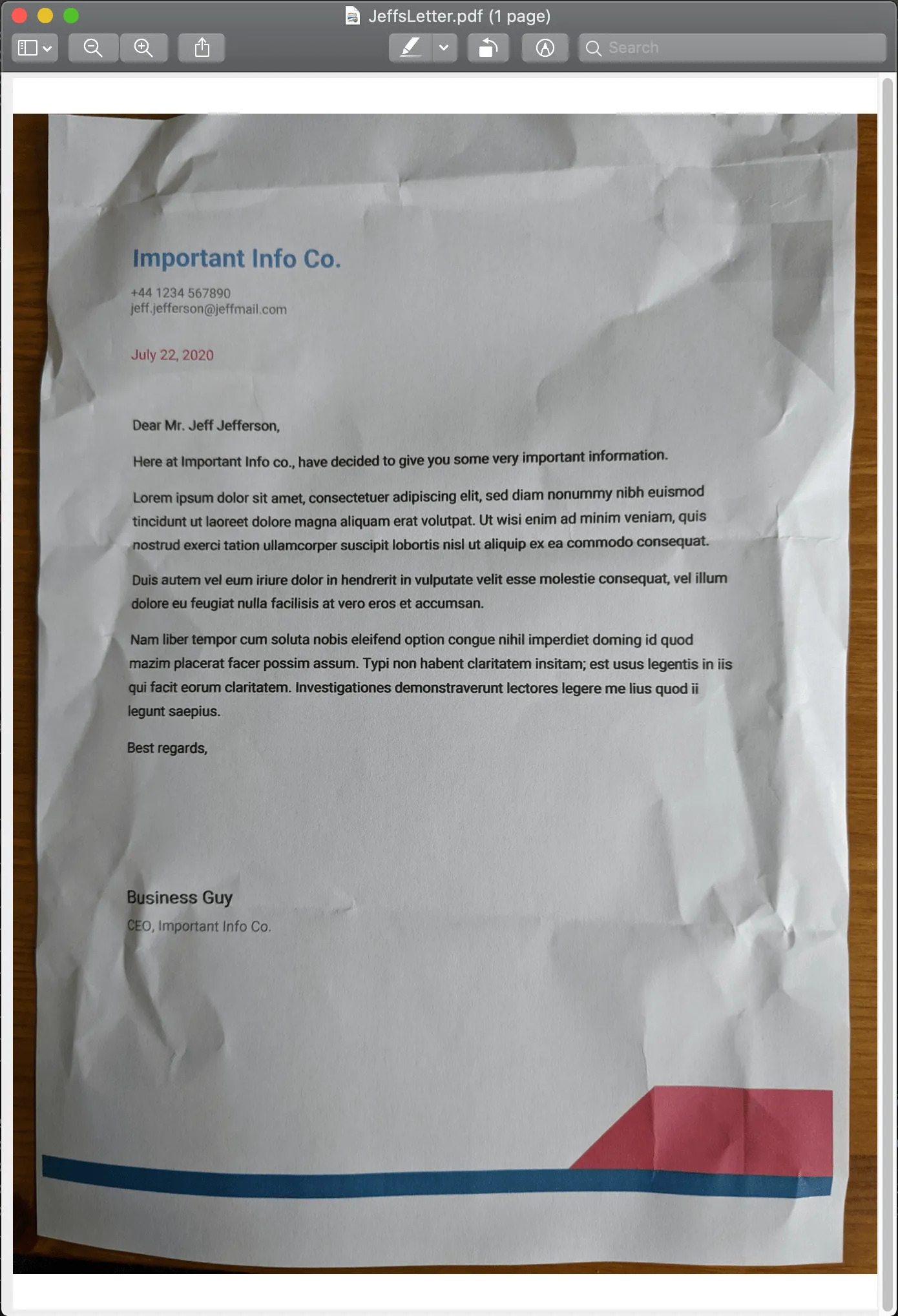
This example uses an image document that was created from a photo of a letter sent to an imaginary friend, Jeff. This letter contains some important information he wants to share, but it also includes an email address and phone number, which he doesn’t want to share.
Jeff can use OCR to expose previously inaccessible text in the letter image, and then he can use our redaction presets search API to redact the sensitive information. Our API provides a range of regex presets that can help find common patterns in the text such as email addresses, dates, and URLs. This example uses the EMAIL_ADDRESS and INTERNATIONAL_PHONE_NUMBER Java presets. For information on all the available presets, check out our preset API reference.
Jeff has already gone through the trouble of scanning his letter and saving it as a PDF called JeffsLetter.pdf.
Performing OCR
To perform the actions mentioned above, first load Jeff’s image into the application. Create a PdfDocument object with the original document, and prepare an output source into which the file processed with OCR is written:
PdfDocument document = PdfDocument.open(new FileDataProvider(new File("/path/to/JeffsLetter.pdf")));FileDataProvider ocrProcessedFile = new FileDataProvider(new File("/tmp/JeffsLetterWithOCR.pdf"));Because JeffsLetter.pdf is only one page in length and the text is in English, building the OCR processor is simple:
OcrProcessor ocrProcessor = new OcrProcessor.Builder(document).build();ocrProcessor.performOcr(ocrProcessedFile);For a larger, more complicated document, specify the pages to process and the language data to use (if the document is longer than a page and/or written in another one of our supported languages). Check out our Java OCR API guide for more information.
Print out the path to the processed image using the File class. After opening it in your favorite PDF viewer(opens in a new tab), you’ll see it’s now possible to highlight text and create annotations.
Taking this one step further, use the Redaction feature to remove sensitive information from the letter.
Redaction
Now take the processed document and use the following code to remove any email addresses and phone numbers present in the letter:
// We can reuse the `document` object we created from the previous section to reload the OCR processed document.document = PdfDocument.open(ocrProcessedFile);// And then we redact any email addresses or international phone numbers found in the letter.RedactionProcessor.create() .addRedactionTemplates(new RedactionPreset.Builder(RedactionPreset.Type.EMAIL_ADDRESS).build()) .addRedactionTemplates(new RedactionPreset.Builder(RedactionPreset.Type.INTERNATIONAL_PHONE_NUMBER).build()) .redact(document);Now see how to combine OCR and redaction in a single workflow.
Putting it all together
Combining the previous steps, create a reusable function for OCR processing and call it from the main method:
/** * A function that takes an input and output file path along with OCR language, * performs OCR on the input document, outputs it to `outputFile` path, and returns a * processed document for further use. */@Nullablepublic PdfDocument performOcrAndReturnProcessedDocument(@NotNull final String inputFile,                                                        @NotNull final String outputFile,                                                        @NotNull final OcrLanguage language) {    try {        PdfDocument document = PdfDocument.open(new FileDataProvider(new File(inputFile)));        FileDataProvider ocrProcessedFile = new FileDataProvider(new File(outputFile));
        OcrProcessor ocrProcessor = new OcrProcessor.Builder(document)                .setLanguage(language)                .build();
        ocrProcessor.performOcr(ocrProcessedFile);
        // Log where our output file goes so we can easily find it.        System.out.println("OCR processed file outputted to " + ocrProcessedFile.getFile().getAbsolutePath());
        // Reopen the processed file so we have access to the OCR metadata.        return PdfDocument.open(ocrProcessedFile);    } catch (IOException | PSPDFKitInitializeException e) {        e.printStackTrace();    }    return null;}
// Our main function performs OCR and then redacts the text from the image.public void main() {    final PdfDocument document = performOcrAndReturnProcessedDocument(        "/path/to/JeffsLetter.pdf",        "/tmp/JeffsLetterProcessed.pdf",        OcrLanguage.English);
    // If the OCR was successful, we'll have a valid `document` to redact.    if (document != null) {        try {            RedactionProcessor.create()                .addRedactionTemplates(new RedactionPreset.Builder(RedactionPreset.Type.EMAIL_ADDRESS).build())                .addRedactionTemplates(new RedactionPreset.Builder(RedactionPreset.Type.INTERNATIONAL_PHONE_NUMBER).build())                .redact(document);        } catch (IOException e) {            e.printStackTrace();        }    }}
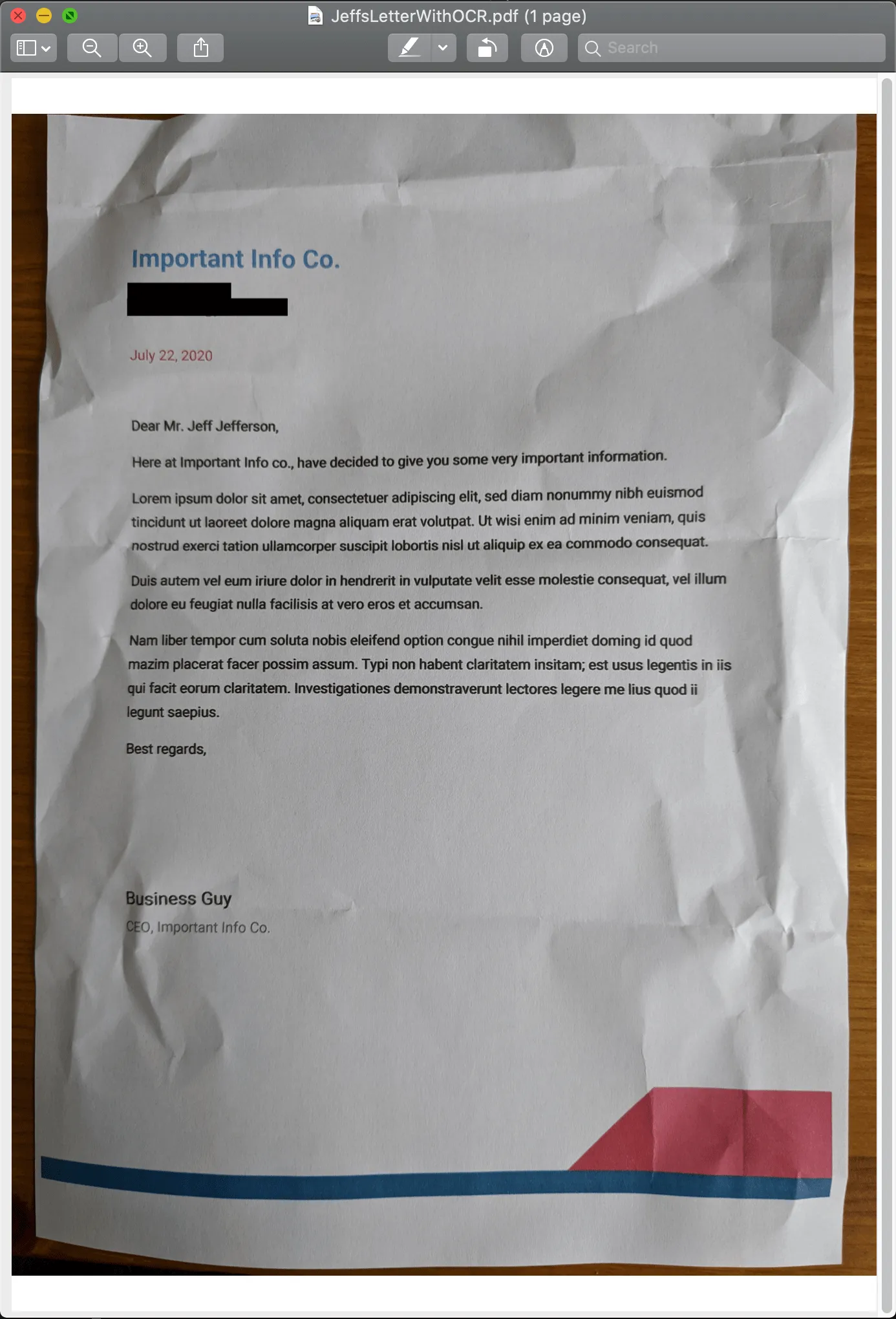
Now the personal details in the image have been removed.
Conclusion
This example showed how to combine two PDF processing features. This use case — programmatically removing personal details from a scanned image of a letter — was simple, but it demonstrated what OCR and redaction can achieve together. To see what else can be done with our Java library, head over to our other guides and read the API documentation.
To try these features, check out our free trial and download the library.
FAQ
OCR (Optical Character Recognition) extracts text from scanned images or documents. Combining OCR with redaction allows you to automatically find and remove sensitive information from scanned documents that would otherwise be unsearchable.
Nutrient Java library includes preset patterns for common sensitive data types: email addresses, phone numbers, dates, URLs, Social Security numbers, and credit card numbers. You can also create custom regex patterns for specific data formats.
The Nutrient Java library OCR feature supports multiple languages including English, German, French, Spanish, and many others. Check the language support guide for the full list of supported languages.
Yes. The OCR processor can handle multipage documents. You can specify which pages to process using the OcrProcessor.Builder API, and redaction will apply to all pages containing matching patterns.
Yes. Once you call redact() on a document, the redacted content is permanently removed from the PDF. The original text cannot be recovered from the redacted document.