How to add annotations to a PDF using React Native

Table of contents

In this post, you’ll learn how to use React Native to add annotations to PDF documents.
Nutrient lets you add document annotation functionality to your React Native application. This tutorial will explore how to add ink and text annotations, how to set an annotation author, and how to embed annotations into PDFs.
Nutrient React Native PDF library
Nutrient offers a commercial React Native PDF library for viewing, generating, annotating, and editing PDFs. You can use it to quickly add PDF functionality to your React Native applications.
It offers a variety of additional features and capabilities, including:
- 17+ out-of-the-box annotations to mark up, draw on, and add comments to documents.
- PDF editing to merge, split, rotate, and crop documents.
- PDF forms to create, fill, and capture PDF form data.
- Digital signatures to validate the authenticity and integrity of a PDF.
New to React Native PDFs? Start with how to build a React Native PDF viewer for the end-to-end setup, then come back here to add annotations.
Requirements
For this tutorial, you’ll need a React Native development environment(opens in a new tab) for running React Native projects using the React Native command-line interface (CLI) — not the Expo CLI — and configured for the platforms you want to build (Android, iOS, or both).
Dependencies
There are two dependencies you’ll need:
Getting started
Here’s an overview of the steps you’ll follow:
- Installing the necessary dependencies
- Displaying a PDF document
- Creating ink annotations
- Adding text annotations
- Setting an annotation author
- Embedding annotations into a PDF
Installing the necessary dependencies
Create a fresh React Native project:
Terminal window npx react-native@latest init NutrientAnnotationsChange to the project directory and add the Nutrient React Native SDK(opens in a new tab):
Terminal window cd NutrientAnnotationsyarn add @nutrient-sdk/react-nativeAdd the
react-native-fs(opens in a new tab) dependency:yarn add react-native-fsNow, install all the dependencies for the project:
yarn installOpen your project’s
android/build.gradlefile and add the Nutrient repository so Gradle can download the Nutrient library:allprojects {repositories {mavenCentral()maven { url 'https://my.nutrient.io/maven/' }}}Open your project’s
ios/Podfileand set the platform version to iOS 15. The Nutrient pod is linked automatically through the npm package, so no manualpodentry is required:platform :ios, '11.0'platform :ios, '15.0'Change to the
iosdirectory and install the CocoaPods dependencies:Terminal window cd iospod installOpen your project’s Workspace in Xcode:
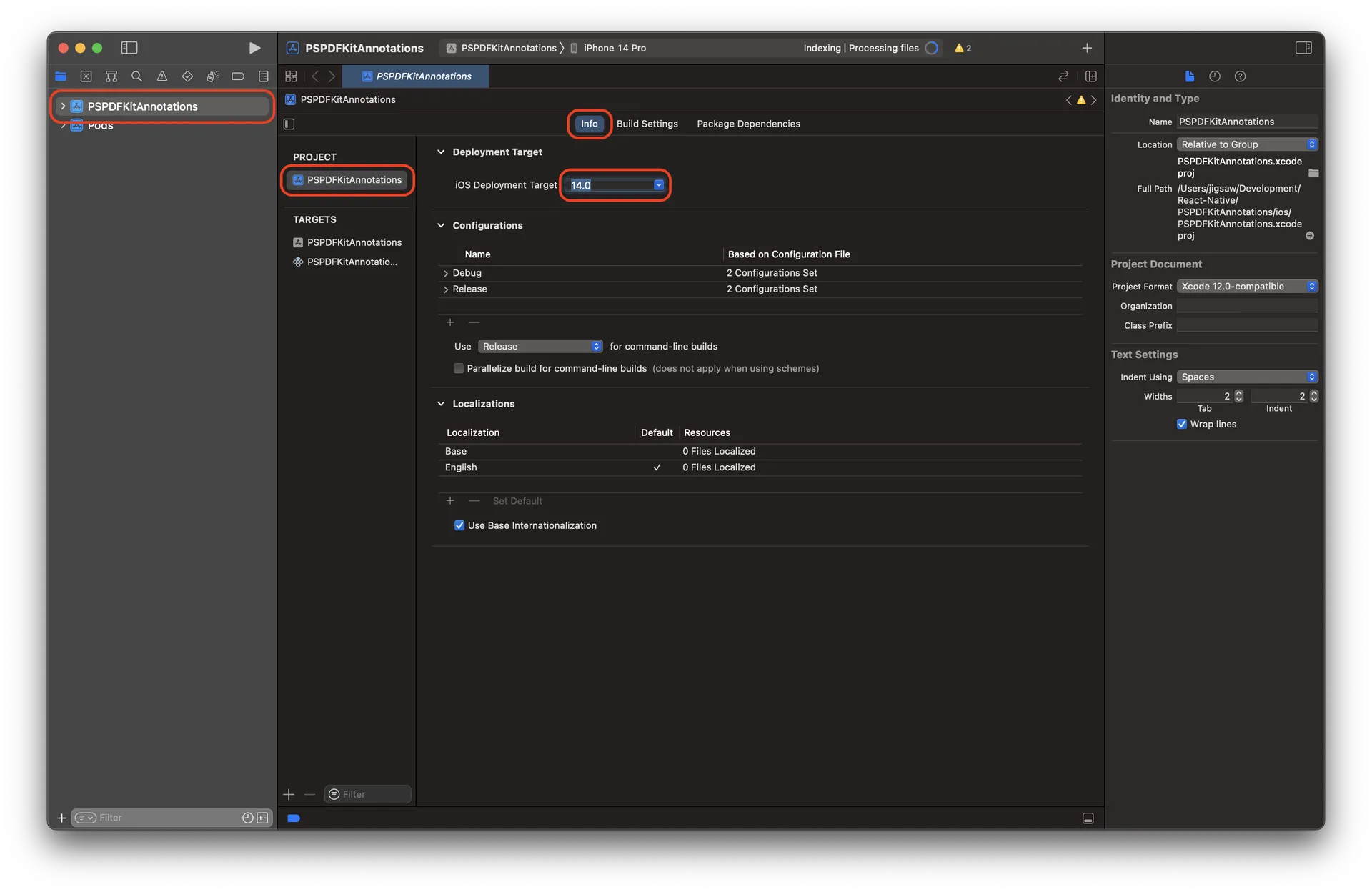
Terminal window open NutrientAnnotations.xcworkspaceMake sure the deployment target is set to 15.0 or higher.
- Change
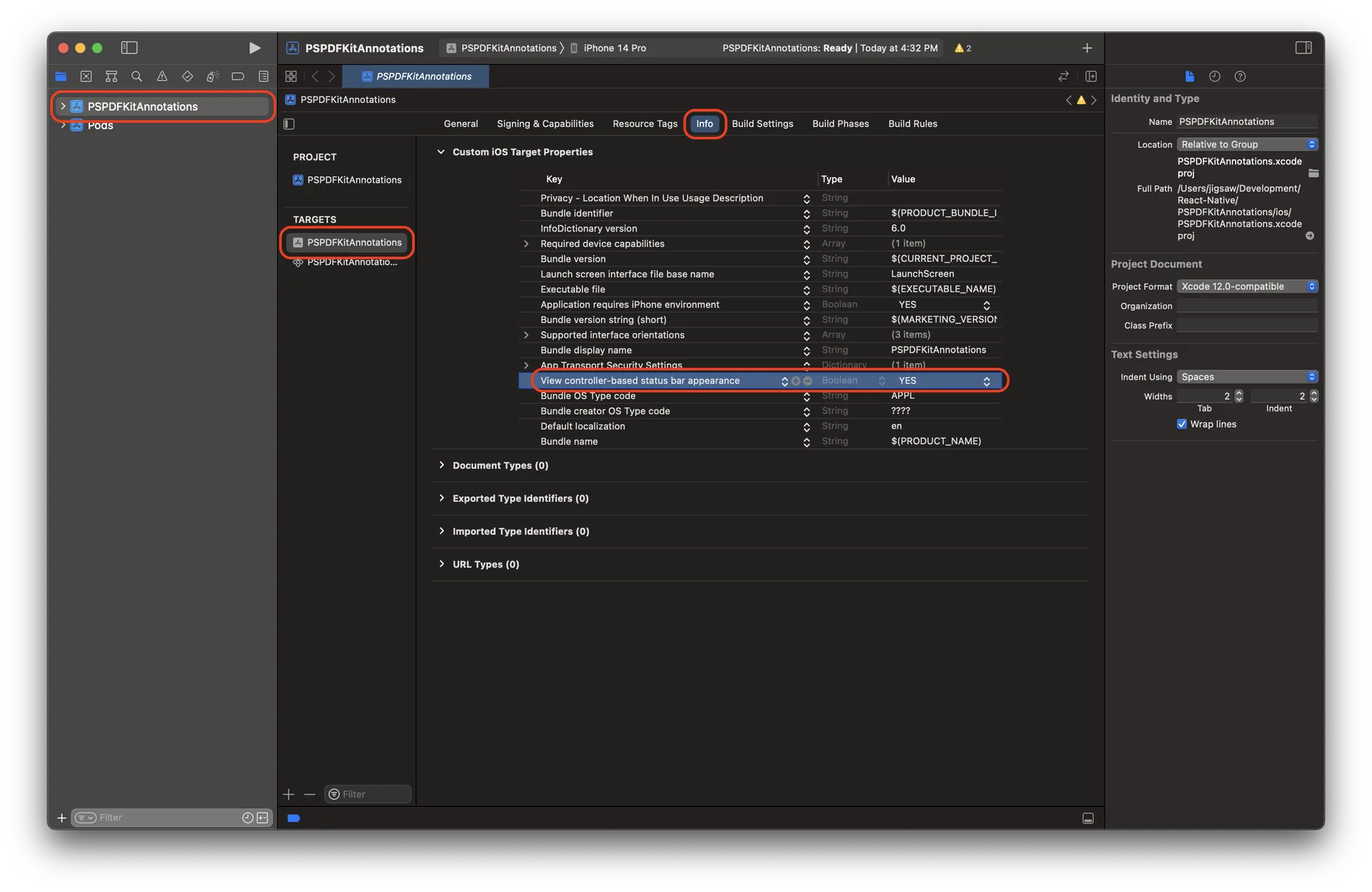
View controller-based status bar appearancetoYESin your project’sInfo.plist.
Displaying a PDF document
Add the PDF document you want to display to your application by dragging it into your project. In the dialogue that’s displayed, select Finish to accept the default integration options. Any PDF will work as a sample.
Change to the root of your project and create the
assetsdirectory:cd ..mkdir android/app/src/main/assetsThen, copy the PDF document you want to display to the
assetsdirectory.Open the
App.jsfile and delete all its contents. Then, add the following import statements:import React, { Component } from 'react';import { Platform, NativeModules } from 'react-native';import NutrientView from '@nutrient-sdk/react-native';Point to the document you added earlier:
const DOCUMENT =Platform.OS === 'ios'? 'Document.pdf': 'file:///android_asset/Document.pdf';Now, display the document with the
NutrientViewcomponent:<NutrientViewdocument={DOCUMENT}configuration={{showThumbnailBar: 'scrollable',pageTransition: 'scrollContinuous',scrollDirection: 'vertical',}}ref={this.pdfRef}fragmentTag="PDF1"style={{ flex: 1 }}/>Put it all together:
import React, { Component } from 'react';import { Platform, NativeModules } from 'react-native';import NutrientView from '@nutrient-sdk/react-native';const Nutrient = NativeModules.Nutrient;Nutrient.setLicenseKey(null);const DOCUMENT =Platform.OS === 'ios'? 'Document.pdf': 'file:///android_asset/Document.pdf';export default class NutrientDemo extends Component {constructor(props) {super(props);this.pdfRef = React.createRef();}render() {return (<NutrientViewdocument={DOCUMENT}configuration={{showThumbnailBar: 'scrollable',pageTransition: 'scrollContinuous',scrollDirection: 'vertical',}}ref={this.pdfRef}fragmentTag="PDF1"style={{ flex: 1 }}/>);}}Open your terminal and launch your application:
Terminal window npx react-native run-android
npx react-native run-iosCreating ink annotations
- Nutrient React Native SDK leverages Instant JSON to import and export annotations. The PDF changes, such as annotations, can be stored in a separate JSON file with Instant JSON and added as an overlay to the existing PDF. You’ll use the following JSON for this example:
const annotationJSONInk = { bbox: [ 89.586334228515625, 98.5791015625, 143.12948608398438, 207.1583251953125, ], isDrawnNaturally: false, lineWidth: 5, lines: { intensities: [ [0.5, 0.5, 0.5], [0.5, 0.5, 0.5], ], points: [ [ [92.086334228515625, 101.07916259765625], [92.086334228515625, 202.15826416015625], [138.12950134277344, 303.2374267578125], ], [ [184.17266845703125, 101.07916259765625], [184.17266845703125, 202.15826416015625], [230.2158203125, 303.2374267578125], ], ], }, opacity: 1, pageIndex: 0, name: 'A167811E-6D10-4546-A147-B7AD775FE8AC', strokeColor: '#DC143C', type: 'pspdfkit/ink', v: 1,};The bbox array contains the size and positional data for the annotation’s bounding box.
- You can add ink annotations to your document by passing the JSON above to the
getDocument().addAnnotations([jsonAnnotation])function. Create aButtoncomponent, which will trigger theaddAnnotationsfunction when pressed:
<Button onPress={() => { const annotationJSONInk = { bbox: [ 89.586334228515625, 98.5791015625, 143.12948608398438, 207.1583251953125, ], isDrawnNaturally: false, lineWidth: 5, lines: { intensities: [ [0.5, 0.5, 0.5], [0.5, 0.5, 0.5], ], points: [ [ [92.086334228515625, 101.07916259765625], [92.086334228515625, 202.15826416015625], [138.12950134277344, 303.2374267578125], ], [ [184.17266845703125, 101.07916259765625], [184.17266845703125, 202.15826416015625], [230.2158203125, 303.2374267578125], ], ], }, opacity: 1, pageIndex: 0, name: 'A167811E-6D10-4546-A147-B7AD775FE8AC', strokeColor: '#DC143C', type: 'pspdfkit/ink', v: 1, }; this.pdfRef.current ?.getDocument().addAnnotations([annotationJSONInk]) .then((result) => { if (result) { alert('Annotation was successfully added.'); } else { alert('Failed to add annotation.'); } }) .catch((error) => { alert(JSON.stringify(error)); }); }} title="Add Ink Annotation" accessibilityLabel="Add Ink Annotation"/>- Put it all together:
import React, { Component } from 'react';import { Platform, Button, NativeModules } from 'react-native';import NutrientView from '@nutrient-sdk/react-native';
const Nutrient = NativeModules.Nutrient;Nutrient.setLicenseKey(null);
const DOCUMENT =  Platform.OS === 'ios'    ? 'Document.pdf'    : 'file:///android_asset/Document.pdf';
export default class NutrientDemo extends Component {  constructor(props) {    super(props);    this.pdfRef = React.createRef();  }
  render() {    return (      <>        <NutrientView          document={DOCUMENT}          configuration={{            showThumbnailBar: 'scrollable',            pageTransition: 'scrollContinuous',            scrollDirection: 'vertical',          }}          ref={this.pdfRef}          fragmentTag="PDF1"          style={{ flex: 1 }}        />
        <Button          onPress={() => {            const annotationJSONInk = {              bbox: [                89.586334228515625,                98.5791015625,                143.12948608398438,                207.1583251953125,              ],              isDrawnNaturally: false,              lineWidth: 5,              lines: {                intensities: [                  [0.5, 0.5, 0.5],                  [0.5, 0.5, 0.5],                ],                points: [                  [                    [92.086334228515625, 101.07916259765625],                    [92.086334228515625, 202.15826416015625],                    [138.12950134277344, 303.2374267578125],                  ],                  [                    [184.17266845703125, 101.07916259765625],                    [184.17266845703125, 202.15826416015625],                    [230.2158203125, 303.2374267578125],                  ],                ],              },              opacity: 1,              pageIndex: 0,              name: 'A167811E-6D10-4546-A147-B7AD775FE8AC',              strokeColor: '#DC143C',              type: 'pspdfkit/ink',              v: 1,            };            this.pdfRef.current              ?.getDocument().addAnnotations([annotationJSONInk])              .then((result) => {                if (result) {                  alert('Annotation was successfully added.');                } else {                  alert('Failed to add annotation.');                }              })              .catch((error) => {                alert(JSON.stringify(error));              });          }}          title="Add Ink Annotation"          accessibilityLabel="Add Ink Annotation"        />      </>    );  }}
Replace the contents of App.js with the code above for a working example.
- Launch the app:
npx react-native run-androidnpx react-native run-iosAdding text annotations
- Similar to ink annotations, you’ll define the text annotation JSON first:
const annotationJSONText = {  bbox: [    89.586334228515625, 98.5791015625, 143.12948608398438,    207.1583251953125,  ],  horizontalAlign: 'center',  verticalAlign: 'center',  isBold: true,  text: 'Welcome to\nNutrient',  font: 'Helvetica',  fontColor: '#DC143C',  fontSize: 24.0,
opacity: 1, pageIndex: 0, name: 'A167811E-6D10-4546-A147-B7AD775FE8AC', type: 'pspdfkit/text', v: 1,};- Create a
Buttoncomponent, which will trigger theaddAnnotations([jsonAnnotation])function when pressed:
<Button  onPress={() => {    const annotationJSONText = {      bbox: [        89.586334228515625,        98.5791015625,        143.12948608398438,        207.1583251953125,      ],      horizontalAlign: 'center',      verticalAlign: 'center',      isBold: true,      text: 'Welcome to\nNutrient',      font: 'Helvetica',      fontColor: '#DC143C',      fontSize: 24.0,
opacity: 1, pageIndex: 0, name: 'A167811E-6D10-4546-A147-B7AD775FE8AC', type: 'pspdfkit/text', v: 1, }; this.pdfRef.current ?.getDocument().addAnnotations([annotationJSONText]) .then((result) => { if (result) { alert('Annotation was successfully added.'); } else { alert('Failed to add annotation.'); } }) .catch((error) => { alert(JSON.stringify(error)); }); }} title="Add Text Annotation" accessibilityLabel="Add Text Annotation"/>- In your
App.jsfile, you’ll have:
import React, { Component } from 'react';import { Platform, Button, NativeModules } from 'react-native';import NutrientView from '@nutrient-sdk/react-native';
const Nutrient = NativeModules.Nutrient;Nutrient.setLicenseKey(null);
const DOCUMENT =  Platform.OS === 'ios'    ? 'Document.pdf'    : 'file:///android_asset/Document.pdf';
export default class NutrientDemo extends Component {  constructor(props) {    super(props);    this.pdfRef = React.createRef();  }
  render() {    return (      <>        <NutrientView          document={DOCUMENT}          configuration={{            showThumbnailBar: 'scrollable',            pageTransition: 'scrollContinuous',            scrollDirection: 'vertical',          }}          ref={this.pdfRef}          fragmentTag="PDF1"          style={{ flex: 1 }}        />
        <Button          onPress={() => {            const annotationJSONInk = {              bbox: [                89.586334228515625,                98.5791015625,                143.12948608398438,                207.1583251953125,              ],              isDrawnNaturally: false,              lineWidth: 5,              lines: {                intensities: [                  [0.5, 0.5, 0.5],                  [0.5, 0.5, 0.5],                ],                points: [                  [                    [92.086334228515625, 101.07916259765625],                    [92.086334228515625, 202.15826416015625],                    [138.12950134277344, 303.2374267578125],                  ],                  [                    [184.17266845703125, 101.07916259765625],                    [184.17266845703125, 202.15826416015625],                    [230.2158203125, 303.2374267578125],                  ],                ],              },              opacity: 1,              pageIndex: 0,              name: 'A167811E-6D10-4546-A147-B7AD775FE8AC',              strokeColor: '#DC143C',              type: 'pspdfkit/ink',              v: 1,            };            this.pdfRef.current              ?.getDocument().addAnnotations([annotationJSONInk])              .then((result) => {                if (result) {                  alert('Annotation was successfully added.');                } else {                  alert('Failed to add annotation.');                }              })              .catch((error) => {                alert(JSON.stringify(error));              });          }}          title="Add Ink Annotation"          accessibilityLabel="Add Ink Annotation"        />
        <Button          onPress={() => {            const annotationJSONText = {              bbox: [                89.586334228515625,                98.5791015625,                143.12948608398438,                207.1583251953125,              ],              horizontalAlign: 'center',              verticalAlign: 'center',              isBold: true,              text: 'Welcome to\nNutrient',              font: 'Helvetica',              fontColor: '#DC143C',              fontSize: 24.0,
              opacity: 1,              pageIndex: 0,              name: 'A167811E-6D10-4546-A147-B7AD775FE8AC',              type: 'pspdfkit/text',              v: 1,            };            this.pdfRef.current              ?.getDocument().addAnnotations([annotationJSONText])              .then((result) => {                if (result) {                  alert('Annotation was successfully added.');                } else {                  alert('Failed to add annotation.');                }              })              .catch((error) => {                alert(JSON.stringify(error));              });          }}          title="Add Text Annotation"          accessibilityLabel="Add Text Annotation"        />      </>    );  }}
Replace the contents of App.js with the code above for a working example.
- Launch your app:
npx react-native run-androidnpx react-native run-iosSetting an annotation author
Programmatically adding an author name is accomplished by passing the annotationAuthorName prop in the NutrientView component:
<NutrientView document={DOCUMENT} annotationAuthorName={'Jane Appleseed'} configuration={{ showThumbnailBar: 'scrollable', pageTransition: 'scrollContinuous', scrollDirection: 'vertical', }} ref={this.pdfRef} fragmentTag="PDF1" style={{flex: 1}}/>Embedding annotations into a PDF
Before creating a new document with embedded annotations, it’s necessary to save all the annotations in the current document first. This can be done by calling the getDocument().save() function.
After a successful save, call the Nutrient.processAnnotations(annotationChange, annotationType, sourceDocumentPath, processedDocumentPath) function to create a new document with embedded annotations.
Once again, you’ll create a Button component, which will trigger the above steps. Don’t forget to import the react-native-fs and NativeModules before continuing:
import React, {Component} from 'react'; import {Platform, Button} from 'react-native'; import {Platform, Button, NativeModules} from 'react-native';import NutrientView from '@nutrient-sdk/react-native';import RNFS from 'react-native-fs';
const DOCUMENT =  Platform.OS === 'ios' ? 'Document.pdf' : 'file:///android_asset/Document.pdf';
 const {Nutrient} = NativeModules; Nutrient.setLicenseKey(null);
...<Button onPress={async () => { const processedDocumentPath = RNFS.DocumentDirectoryPath + '/flattened.pdf'; // Delete the processed document if it already exists. RNFS.exists(processedDocumentPath) .then((exists) => { if (exists) { RNFS.unlink(processedDocumentPath); } }) .then(() => { // First, save all annotations in the current document. this.pdfRef.current ?.getDocument().save() .then((success) => { if (success) { console.log(Nutrient); // Then, embed all the annotations. Nutrient.processAnnotations( 'embed', 'all', DOCUMENT, processedDocumentPath, ) .then((success) => { if (success) { // And finally, present the newly processed document with embedded annotations. Nutrient.present( processedDocumentPath, {}, ); } else { alert('Failed to embed annotations.'); } }) .catch((error) => { alert(JSON.stringify(error)); }); } else { alert('Failed to save current document.'); } }); }); }} title="Embed All Annotations"/>You’ll have the following in your App.js:
import React, { Component } from 'react';import { Platform, Button, NativeModules } from 'react-native';import NutrientView from '@nutrient-sdk/react-native';import RNFS from 'react-native-fs';
const DOCUMENT =  Platform.OS === 'ios'    ? 'Document.pdf'    : 'file:///android_asset/Document.pdf';
const { Nutrient } = NativeModules;Nutrient.setLicenseKey(null);
export default class NutrientDemo extends Component {  constructor(props) {    super(props);    this.pdfRef = React.createRef();  }
  render() {    return (        <>        <NutrientView          document={DOCUMENT}          annotationAuthorName={'Jane Appleseed'}          configuration={{            showThumbnailBar: 'scrollable',            pageTransition: 'scrollContinuous',            scrollDirection: 'vertical',          }}          ref={this.pdfRef}          fragmentTag="PDF1"          style={{ flex: 1 }}        />
        <Button          onPress={() => {            const annotationJSONInk = {              bbox: [                89.586334228515625,                98.5791015625,                143.12948608398438,                207.1583251953125,              ],              isDrawnNaturally: false,              lineWidth: 5,              lines: {                intensities: [                  [0.5, 0.5, 0.5],                  [0.5, 0.5, 0.5],                ],                points: [                  [                    [92.086334228515625, 101.07916259765625],                    [92.086334228515625, 202.15826416015625],                    [138.12950134277344, 303.2374267578125],                  ],                  [                    [184.17266845703125, 101.07916259765625],                    [184.17266845703125, 202.15826416015625],                    [230.2158203125, 303.2374267578125],                  ],                ],              },              opacity: 1,              pageIndex: 0,              name: 'A167811E-6D10-4546-A147-B7AD775FE8AC',              strokeColor: '#DC143C',              type: 'pspdfkit/ink',              v: 1,            };            this.pdfRef.current              ?.getDocument().addAnnotations([annotationJSONInk])              .then((result) => {                if (result) {                  alert('Annotation was successfully added.');                } else {                  alert('Failed to add annotation.');                }              })              .catch((error) => {                alert(JSON.stringify(error));              });          }}          title="Add Ink Annotation"          accessibilityLabel="Add Ink Annotation"        />
        <Button          onPress={() => {            const annotationJSONText = {              bbox: [                89.586334228515625,                98.5791015625,                143.12948608398438,                207.1583251953125,              ],              horizontalAlign: 'center',              verticalAlign: 'center',              isBold: true,              text: 'Welcome to\nNutrient',              font: 'Helvetica',              fontColor: '#DC143C',              fontSize: 24.0,
              opacity: 1,              pageIndex: 0,              name: 'A167811E-6D10-4546-A147-B7AD775FE8AC',              type: 'pspdfkit/text',              v: 1,            };            this.pdfRef.current              ?.getDocument().addAnnotations([annotationJSONText])              .then((result) => {                if (result) {                  alert('Annotation was successfully added.');                } else {                  alert('Failed to add annotation.');                }              })              .catch((error) => {                alert(JSON.stringify(error));              });          }}          title="Add Text Annotation"          accessibilityLabel="Add Text Annotation"        />
        <Button          onPress={async () => {            const processedDocumentPath =              RNFS.DocumentDirectoryPath + '/flattened.pdf';            // Delete the processed document if it already exists.            RNFS.exists(processedDocumentPath)              .then((exists) => {                if (exists) {                  RNFS.unlink(processedDocumentPath);                }              })              .then(() => {                // First, save all annotations in the current document.                this.pdfRef.current                  ?.getDocument().save()                  .then((success) => {                    if (success) {                      // Then, embed all the annotations.                      Nutrient.processAnnotations(                        'embed',                        'all',                        DOCUMENT,                        processedDocumentPath,                      )                        .then((success) => {                          if (success) {                            // And finally, present the newly processed document with embedded annotations.                            Nutrient.present(                              processedDocumentPath,                              {},                            );                          } else {                            alert(                              'Failed to embed annotations.',                            );                          }                        })                        .catch((error) => {                          alert(JSON.stringify(error));                        });                    } else {                      alert(                        'Failed to save current document.',                      );                    }                  });              });          }}          title="Embed All Annotations"        />      </>    );  }}
Replace the contents of App.js with the code above for a working example.
Launch your app:
npx react-native run-androidnpx react-native run-iosConclusion
In this post, you learned how to annotate PDFs and embed annotations into a PDF in React Native using Nutrient React Native SDK. In case of any hiccups, don’t hesitate to reach out to our Support team for help.
Nutrient React Native SDK is an SDK for viewing, annotating, and editing PDFs. It offers developers the ability to quickly add PDF functionality to any React Native application. Try it for free, or visit [our demo][] to see it in action.
FAQ
You can add annotations using the NutrientView component, which enables you to display and modify PDF documents.
You can add various types of annotations like ink, text, and more using Nutrient’s React Native PDF library.
Yes, Nutrient supports both iOS and Android in React Native applications.
Yes, annotations can be embedded into the PDF file using the provided functionality in Nutrient.
Yes, you need a Nutrient license key, though you can pass null during the trial period.