How to build a web component PDF viewer with Nutrient Web SDK

Table of contents

Build a reusable <nutrient-viewer> custom element that loads a PDF with Nutrient Web SDK — wrapping the viewer setup behind a single HTML tag using Web Components (custom elements and shadow DOM).
This post will look at how you can build a custom web component(opens in a new tab) PDF viewer that uses Nutrient Web SDK.
Prerequisites
- Node.js(opens in a new tab) installed (used here to run a local server with
npx serve). - The Nutrient Web SDK assets — either download them(opens in a new tab) or install the
@nutrient-sdk/viewernpm package and copy itsdistfolder. - Basic familiarity with HTML, JavaScript, and Web Components(opens in a new tab).
Creating the PDF viewer
Start by creating the PDF viewer the same way you’d integrate Nutrient Web SDK into a vanilla JavaScript project.
Vanilla JavaScript
For the purposes of this blog post, follow the steps outlined below.
- Download the SDK(opens in a new tab), and copy the entire contents of the
distfolder to yourassetsfolder. - Add a PDF example document to the root folder. Feel free to use our demo PDF.
- Create a basic HTML file and insert an empty
divelement with a unique ID, width, and height defined:
<div id="nutrient" style="width: 100%; height: 100vh;"></div>- Include Nutrient Web SDK in the HTML:
<script src="assets/nutrient-viewer.js"></script>- Load Nutrient Web SDK with the example document:
<script> NutrientViewer.load({ container: '#nutrient', document: 'example.pdf', });</script>For a more extensive guide to integrating Nutrient Web SDK into a vanilla JavaScript project, refer to the getting started guide.
Following the steps above, your HTML document now looks like this:
<!DOCTYPE html><html>  <head>    <meta charset="UTF-8" />    <title>Title</title>    <style>      * {        margin: 0;        padding: 0;      }    </style>  </head>  <body>    <div id="nutrient" style="width: 100%; height: 100vh;"></div>
    <script src="assets/nutrient-viewer.js"></script>
    <script>      NutrientViewer.load({        container: '#nutrient',        document: 'example.pdf',      });    </script>  </body></html>
To serve this folder using a server and see your vanilla JavaScript PDF viewer in action, execute the following command:
npx serveAfter the server success message appears in the terminal, the local address will be copied to the clipboard automatically. Open a web browser and paste the link from the clipboard to see the PDF viewer.
Although this approach is nice and fast, it’s not very reusable. Fortunately, you can use Web Components to improve it, as they move all the unnecessary logic into a single component, which is independent and reusable.
Web Components
Web Components are a set of three main technologies that allow users to create their own reusable custom HTML elements with interoperability and encapsulated functionality.
The three main technologies are:
- Custom elements — A set of JavaScript APIs that allow you to build custom HTML elements and their functionality.
- Shadow DOM — A set of JavaScript APIs that allow the web browser to render document object model (DOM) elements but not inside main DOM tree. This provides encapsulation so that it’s hidden from other code on the page.
- HTML templates — The mechanism for writing HTML that won’t be rendered on the page. Templates can serve as the basis for a custom element’s structure.
To create a custom element, you first need to write a class that defines its functionality, together with some lifecycle methods. Go ahead and create a new file in the root folder, call it web-component.js, and place the following code inside:
class NutrientPdfViewer extends HTMLElement {  static get observedAttributes() {    // Here we define attributes this element will accept.    // In our case, we'll display a string path to the PDF.    return ['src'];  }
  constructor() {    super();  }
  connectedCallback() {    // This lifecycle method executes each time a custom element is appended into a document-connected element.    console.log('[nutrient-viewer]: mounted');  }
  attributeChangedCallback(attr, oldVal, val) {    // This method executes every time an attribute is added, changed, or removed.    console.log(`[nutrient-viewer]: ${attr} attribute changed`);  }}
// This is how a new custom element is registered and made available for use.customElements.define('nutrient-viewer', NutrientPdfViewer);
Now you can use the custom element and provide the PDF source path, as long as you import the web-component.js script too:
<nutrient-viewer src="example.pdf"></nutrient-viewer><!-- Import `web-component.js` in order to use our custom HTML element.--><script type="module" src="web-component.js"></script>Adding functionality
This is all great, but your custom element still doesn’t do anything other than logging to the web browser console that the src attribute changed. Go ahead and add real functionality to the web-component.js file:
 import './assets/nutrient-viewer.js'
class NutrientPdfViewer extends HTMLElement { readyPromise; resolveReady;
  static get observedAttributes() {    // Here we define attributes this element will accept.    // In our case, we'll display a string path to the PDF.    return ["src"];  }
  constructor() {    super();
   this.readyPromise = new Promise((resolve) => {    this.resolveReady = resolve;   });  }
 connectedCallback() {  // This lifecycle method executes each time a custom element is appended into a document-connected element.  console.log('[nutrient-viewer]: mounted');  this.resolveReady();  this.attachShadow({ mode: 'open' });  this.shadowRoot.innerHTML = `<div style="width: 100%; height: 100vh;"></div>` }
  attributeChangedCallback(attr, oldVal, val) {  // This method executes every time an attribute is added, changed, or removed.  console.log('[nutrient-viewer]: src attribute changed');  if (attr === 'src' && val !== null) {    this.loadPdf(val);  }  }
 async loadPdf(path) {   await this.readyPromise;
   await NutrientViewer.load({     baseUrl: `${window.location.protocol}//${window.location.host}/assets/`,     container: this.shadowRoot.querySelector("div"),     document: path,   }); }}
// This is how a new custom element is registered and made available for use.customElements.define('nutrient-viewer', NutrientPdfViewer);
There are a few things worth noting in the changes above. The most obvious change is the addition of the loadPdf asynchronous method. This actually loads Nutrient Web SDK with a specific configuration once the custom element has been inserted into the DOM.
In the Nutrient Web SDK configuration object, there are three things you need to set:
baseUrl— A property that tells Nutrient Web SDK where to look for its other files.container— Either the CSS selector or the actual DOM element where the PDF will be displayed.document— A string path to the PDF you want to display.
To see all configuration options available to you when loading a PDF document, check out our API reference documentation.
In addition to the loadPdf method, you use the attachShadow(opens in a new tab) built-in method to attach a shadow DOM tree, and you introduce a mechanism in the form of readyPromise to let the component know when it has been inserted into the DOM.
Nutrient Web SDK mounts cleanly inside a shadow DOM. If the viewer doesn’t appear, make sure the target div has a defined height (here, 100vh) and that baseUrl points to the folder containing the SDK assets.
Now that you’ve changed the web-component.js file, you need to change the index.html file too, since you’re using the custom element directly:
<!DOCTYPE html><html>  <head>    <meta charset="UTF-8">     <title>Title</title>     <style>         * {             margin: 0;             padding: 0;         }     </style>  </head>  <body>   <div id="nutrient" style="width: 100%; height: 100vh;"></div>   <nutrient-viewer src="example.pdf"></nutrient-viewer>
   <script src="assets/nutrient-viewer.js"></script>   <script type="module" src="web-component.js"></script>
  <script>    NutrientViewer.load({      container: "#nutrient",      document: "example.pdf",    })  </script>  </body></html>
Changes to the index.html file are fairly simple: You’re removing everything related to Nutrient Web SDK (because you’ve moved it to the custom element) and replacing it with an import of the custom web component.
One important change that needs to be mentioned is that the addition of type="module" to the script tag is necessary. Otherwise, you wouldn’t be able to import the nutrient-viewer.js module into your custom HTML component.
And that’s basically it: Your custom element is ready to be used. If you restart the server you previously started, you’ll be able to see an example PDF loaded using a custom element.
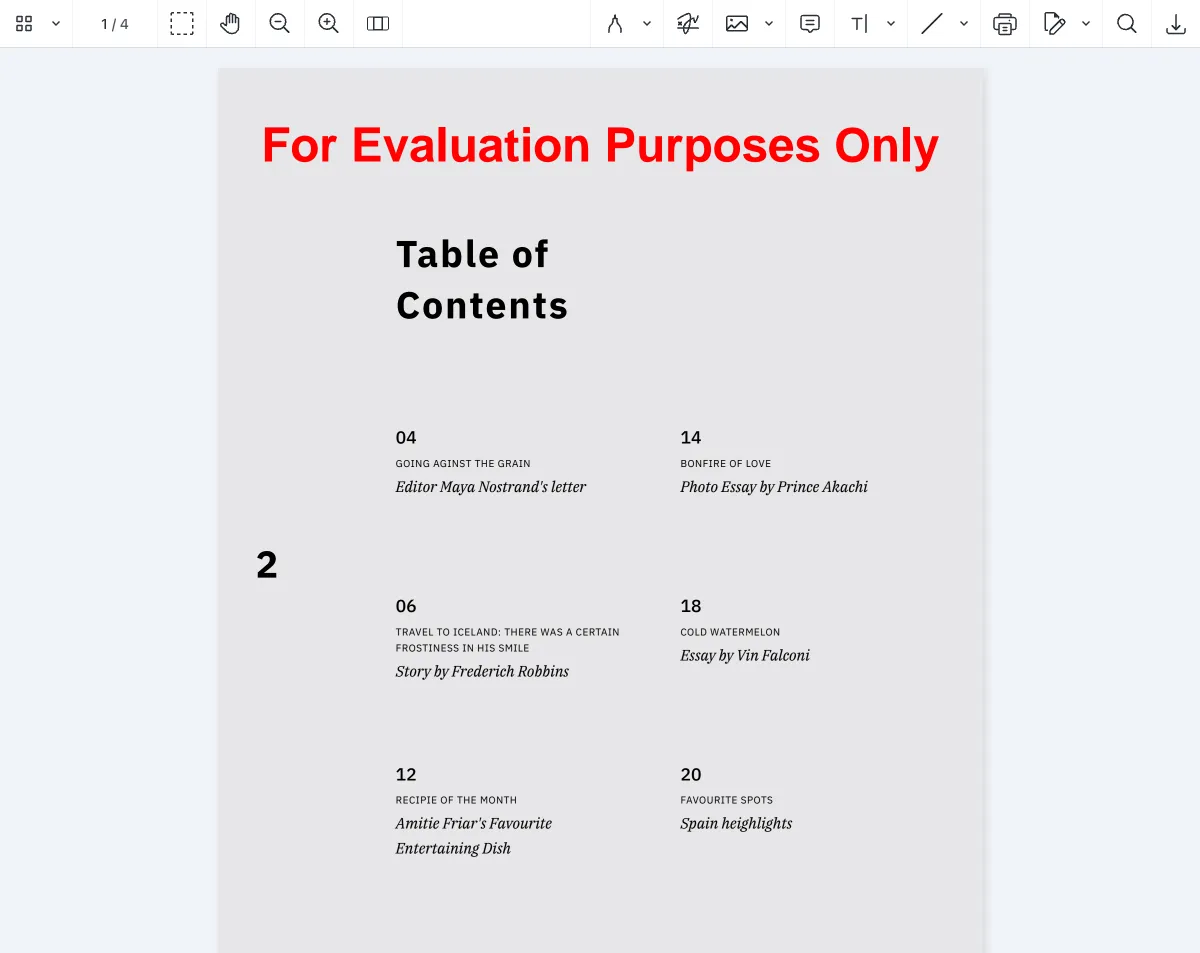
To see all the changed files, click below to expand individual sections.
Project structure
nutrient-web-component-example├─ assets│ ├─ modern│ │ └─ ...│ ├─ nutrient-viewer-lib│ │ └─ ...│ ├─ index.d.ts│ └─ nutrient-viewer.js├─ example.pdf├─ index.html└─ web-component.jsHTML
<!DOCTYPE html><html lang="en"> <head> <meta charset="UTF-8" /> <title>Title</title> <style> * { margin: 0; padding: 0; } </style> </head> <body> <nutrient-viewer src="example.pdf"></nutrient-viewer> <script type="module" src="web-component.js"></script> </body></html>JavaScript
import './assets/nutrient-viewer.js';
class NutrientPdfViewer extends HTMLElement {  readyPromise;  resolveReady;
  static get observedAttributes() {    return ['src'];  }
  constructor() {    super();
    this.readyPromise = new Promise((resolve) => {      this.resolveReady = resolve;    });  }
  connectedCallback() {    this.resolveReady();    this.attachShadow({ mode: 'open' });    this.shadowRoot.innerHTML = `<div style="width: 100%; height: 100vh;"></div>`;  }
  attributeChangedCallback(attr, oldVal, val) {    if (attr === 'src' && val !== null) {      this.loadPdf(val);    }  }
  async loadPdf(path) {    await this.readyPromise;
    await NutrientViewer.load({      baseUrl: `${window.location.protocol}//${window.location.host}/assets/`,      container: this.shadowRoot.querySelector('div'),      document: path,    });  }}
customElements.define('nutrient-viewer', NutrientPdfViewer);
Next steps
You’ve used two of three technologies for building Web Components. This is because your example is simple enough that it doesn’t require using HTML templates.
If you’d like to improve upon this example, try refactoring it so that it uses HTML templates. While refactoring, you can even try to add a dropdown to the web component you created to change the Nutrient Web SDK locale. Check out the localization guide for information on how to change the Nutrient Web SDK locale during runtime.
Apart from using templates and adding new features, you could try bundling your app using a common bundler such as webpack(opens in a new tab). Doing this will make your custom element better supported across browsers and allow use of npm modules. However, you’re still limited by Web Components browser support, but fortunately, there’s an available polyfill(opens in a new tab).
Conclusion
This post covered how to use Web Components to hide the unnecessary implementation details of displaying a PDF using Nutrient Web SDK. If you hit any snags, don’t hesitate to reach out to the Support team for help.
You can also deploy a vanilla JavaScript PDF viewer or use one of the many web framework deployment options like Vue.js, React.js, and jQuery, or explore other ways to open a PDF in your web app. To see a list of all web frameworks, start your free trial. Or, launch the demo to see it in action.
FAQ
Yes. Nutrient Web SDK mounts into whatever container you pass to NutrientViewer.load(), including an element inside a shadow root. Make sure the container has a defined height and that baseUrl points to the SDK assets.
No. This example uses plain ECMAScript (ES) modules served with npx serve — no build step. A bundler like webpack is optional and helps mainly if you want to use npm modules or broaden older-browser support.
The vanilla approach loads Nutrient Web SDK inline on the page. The web component moves that logic into a reusable <nutrient-viewer> custom element, so you can drop a viewer onto any page with a single tag.