How to manage KYC onboarding documents in Salesforce

Table of contents
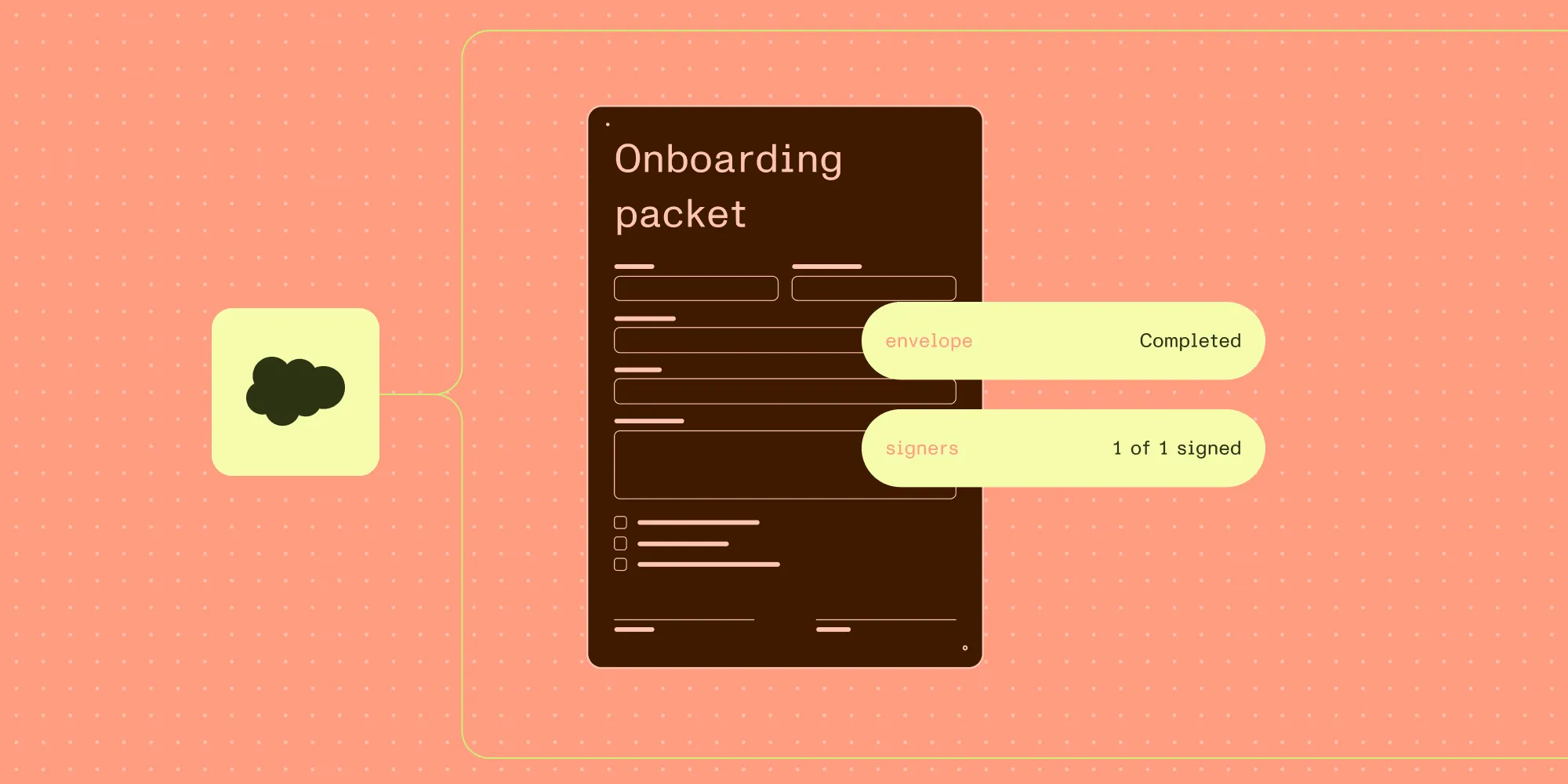
Nutrient’s Salesforce integration handles document generation, editing, and signing natively.
Know your customer (KYC) onboarding is a document workflow as much as a compliance one. A bank collects an onboarding form, routes it to the right signer, and keeps a record of what happened afterward. When the form lives outside Salesforce, someone copies account details into it by hand. The banking team then has a second version of the same data to check and maintain.
Nutrient Documents for Salesforce connects document generation, editing, and signing to Salesforce records. A Salesforce administrator can use these tools to build a KYC onboarding document workflow without a custom development project. This walkthrough is for administrators who build that workflow and the banking operations teams who rely on it. Identity verification, screening, and the decision to accept a customer remain separate responsibilities.
- Generate an onboarding document from an approved template and Salesforce record data.
- Review the populated values and prepare the version each recipient should receive.
- Add recipient form fields, collect a signature, and inspect the completed envelope in Salesforce.
- Treat signing status as evidence about the document, not a completed KYC decision.
What this walkthrough demonstrates
The walkthrough combines two tests in a Salesforce demo environment:
- Generation from records — A prepared mutual nondisclosure agreement (NDA) merges data from the fictional Summit Peak Industries account and its demo contact, Dana Whitfield.
- Banking document review and signing — One copy of a two-page fictional onboarding packet tests redaction; another tests recipient form filling and signing. Salesforce returns a completed envelope and a signed PDF containing the responses.
The banking packet was created locally, not generated from a Salesforce template. A bank-specific generation template and the bank’s KYC requirements still need their own validation.
Prepare the Salesforce environment
Start in a test Salesforce environment with fictional records and documents. Use an authorized test mailbox that can receive signing invitations. The banking test used the author’s mailbox; Dana’s fictional address was only part of the earlier NDA demonstration.
Before starting, the administrator needs to configure:
- The installed Nutrient package and document generation setup.
- A template configured for the source record type, such as Account or Contact.
- The Nutrient Create Documents permission for the person generating documents, plus the permissions needed for signing.
- The Create and Send Document with Nutrient widget on the record page.
- The Nutrient Document Web Services (DWS) signing integration and a way to view envelope status.
For signing, Salesforce manages the requests, routing, status, and signed record. Recipients receive an email and sign in a secure, cloud-based signing environment connected through DWS. Review that data flow and the signing setup with the bank’s security and vendor-risk reviewers before using customer documents.
Step 1: Define the documents and their owners
Agree on the packet with the banking operations team before configuring templates. The bank determines which documents are required, who can access them, and who approves the onboarding decision.
Use this table to plan the document tasks. The bank supplies the required KYC document list.
| Document or record | Salesforce document task | Decision still owned by the bank |
|---|---|---|
| Onboarding form | Generate from approved record fields and send for signature | Which information and declarations the form must contain |
| Submitted identity or supporting document | Make the appropriate document available to authorized reviewers | Whether the evidence satisfies identity and screening checks |
| Copy for another recipient | Apply the required redactions before sharing | Which information that recipient is permitted to see |
| Signed document and signing history | Track the envelope and retain the resulting evidence | Whether the wider onboarding process is complete |
Nutrient Documents for Salesforce doesn’t provide identity-document extraction, which Nutrient’s separate KYC data extraction offering covers. If extraction is part of the process, plan that integration separately. Reading a field from an identity document doesn’t establish that the identity is valid.
Step 2: Generate from the account record
Use the template management guide to prepare a template for the chosen record type. The demo already has an editable NDA template configured for the Account record type.
- Open the source record.
- In Create and Send Document with Nutrient, select the configured template and click Create.
- If the template requests dynamic data, select the related record and click Continue. The demo requests a contact.
- If data review is enabled, check the values in Review Data. The demo displays the account’s name and address, the selected contact, and the document date.
- Click Create Document.
The generated NDA contains Summit Peak’s account details and the selected contact’s name and title. For an onboarding template, check the equivalent fields against the source records before sending.
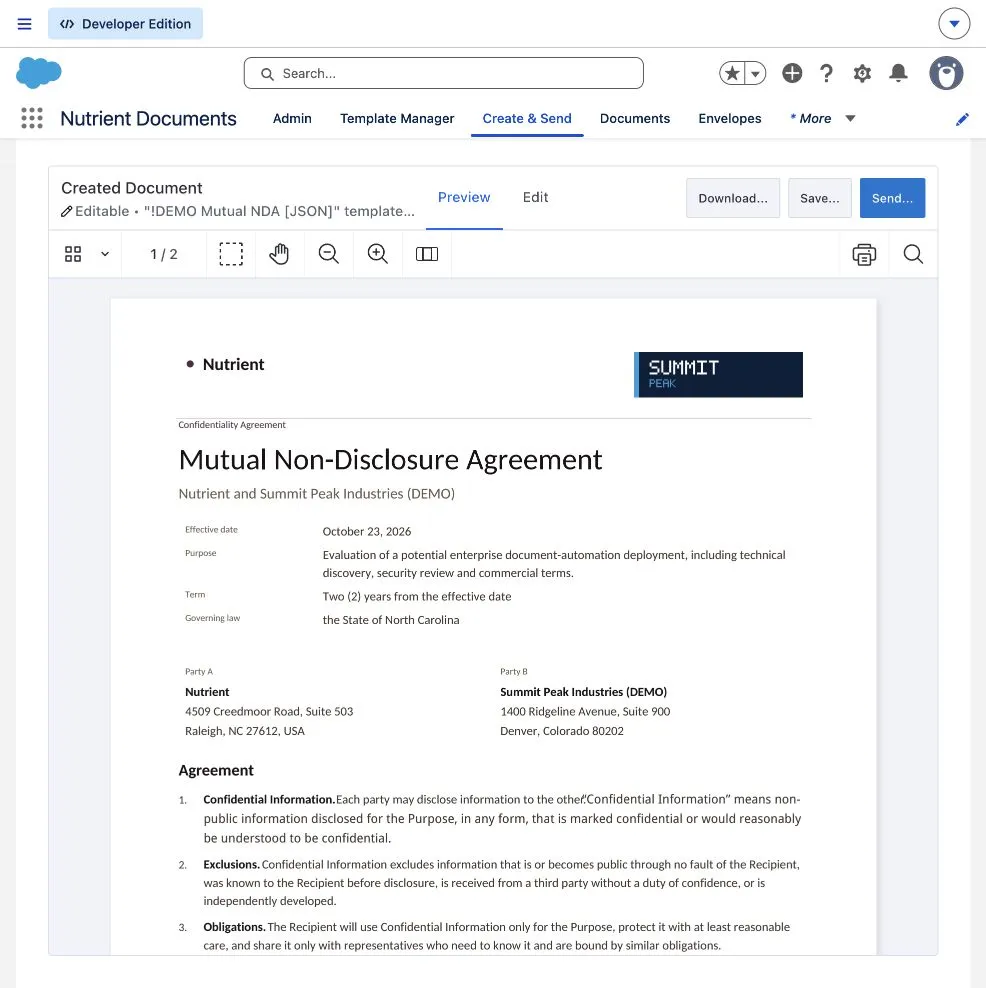
The demo NDA shows populated account data. A banking rollout needs its own approved onboarding template.
Step 3: Review the generated document
Check the document itself, including names, addresses, dates, missing values, and page layout. A generated file can still contain incorrect source data.
For an editable template, open Edit to adjust the generated document. The document creation guide describes editing text and formatting before saving. Locked templates don’t offer the same editing path.
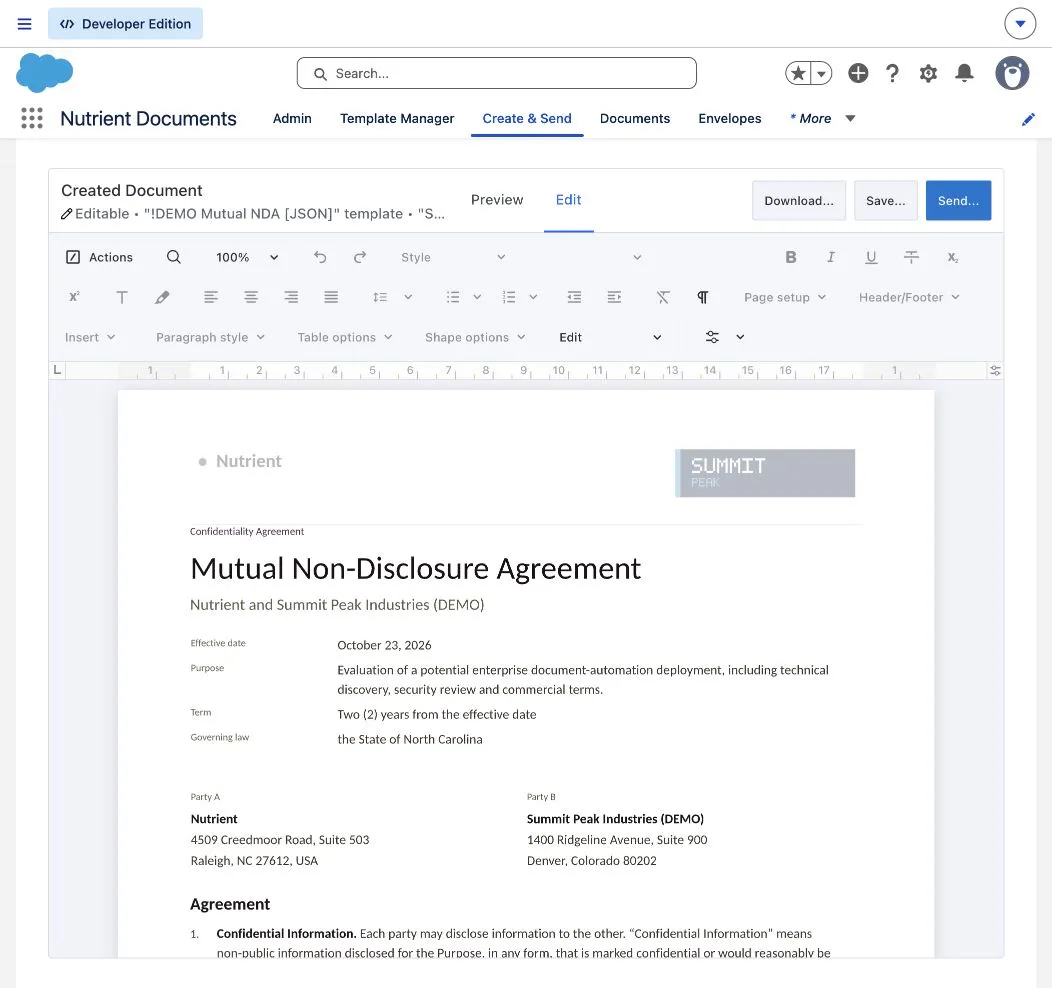
The editor opened successfully in the demo. Saving a content edit wasn’t part of this test.
Treat changes to the document and corrections to the source record as separate tasks. If a source value is wrong, assign someone to correct it before another document is generated from that record.
Step 4: Prepare the version each recipient can see
An onboarding packet can include personally identifiable information (PII) that another recipient doesn’t need. Establish which copy is intended for that recipient before sharing it.
Nutrient’s Salesforce redaction capability supports permanent removal of selected text and document areas. You can also search for a term and redact selected matches.
For this part of the test, a two-page fictional banking packet was uploaded through the account’s Upload Files control and opened in Documents.
The test used Text Redaction on the fictional identifier DEMO-ID-84729 on page two. After applying the redaction, the PDF downloaded from Salesforce showed a blacked-out identifier. The identifier was also absent from extracted text. This check covers that test value; search-based and area redaction weren’t tested.
Redaction and signing were tested on separate copies of the fictional packet. Before using the workflow, confirm that the envelope contains the intended sharing copy.
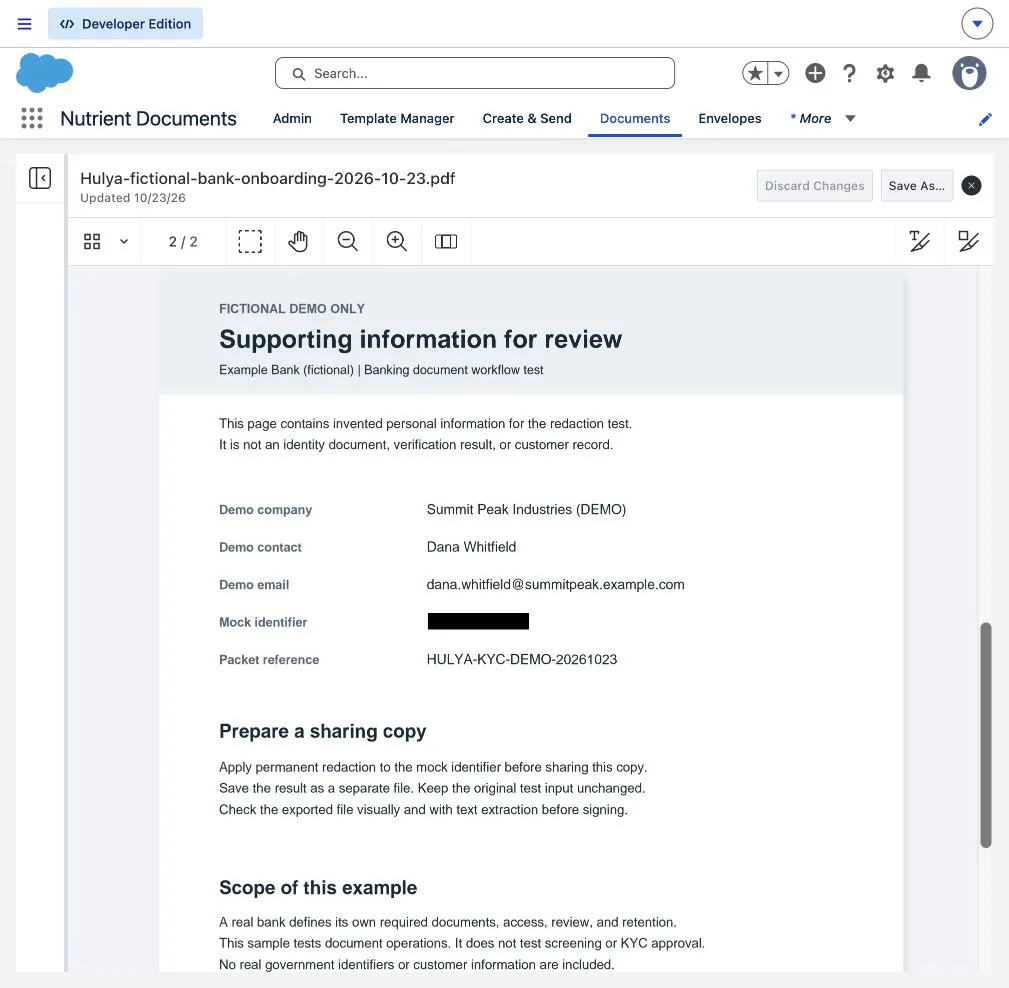
Test with a fictional identifier and inspect the saved result before sharing. Check whether the removed value can still be found or copied. Verify which file was saved, and keep access to the original and its retention rules separate from access to the redacted copy.
Complete content review and redaction before sending the final version for signature. Agree on how to handle changes to an already signed document before testing the workflow.
Step 5: Configure the signing envelope
An envelope groups the document with its recipients and signing settings. The two document routes enter setup differently:
- From the generated document, click Send, enter a name in Save Document, and click Save.
- For the uploaded packet, open its actions menu in Documents and choose Send for Signing….
In Set Up Envelope, check the envelope name and any record association. The uploaded packet’s signing setup showed “No record context.” Uploading a file to an account didn’t establish an account association for this envelope.
Use Add from Salesforce… for an existing contact or Add External Recipient for another recipient. The banking test used one external recipient with the Needs to Sign role and an authorized mailbox. Check the name and email address before adding fields.
The roles include Needs to Sign, Needs to Review, and Receives a Copy. If review must happen before a customer signs, configure an explicit signing order. The signing guide documents the default sequence as signers first, reviewers second, and copy recipients last.
Review the message and reminder settings before proceeding. The test invitation identified the packet as a fictional, nonbinding software demonstration.
Step 6: Add form and signing fields
Click Next: Add Fields and select the intended signer from the dropdown above the field tools. Drag the fields onto their corresponding areas in the document.
The fictional banking packet uses five fields on page one:
| Field tool | Placement | Test configuration |
|---|---|---|
| Signature | Test signature line | Assigned to the signer |
| Signature Date | Signing date line | Assigned to the signer |
| Text Field | Review note box | Format None, required |
| Text Field | Reviewer role box | Format None, required |
| Checkbox | Printed acknowledgment checkbox | Required |
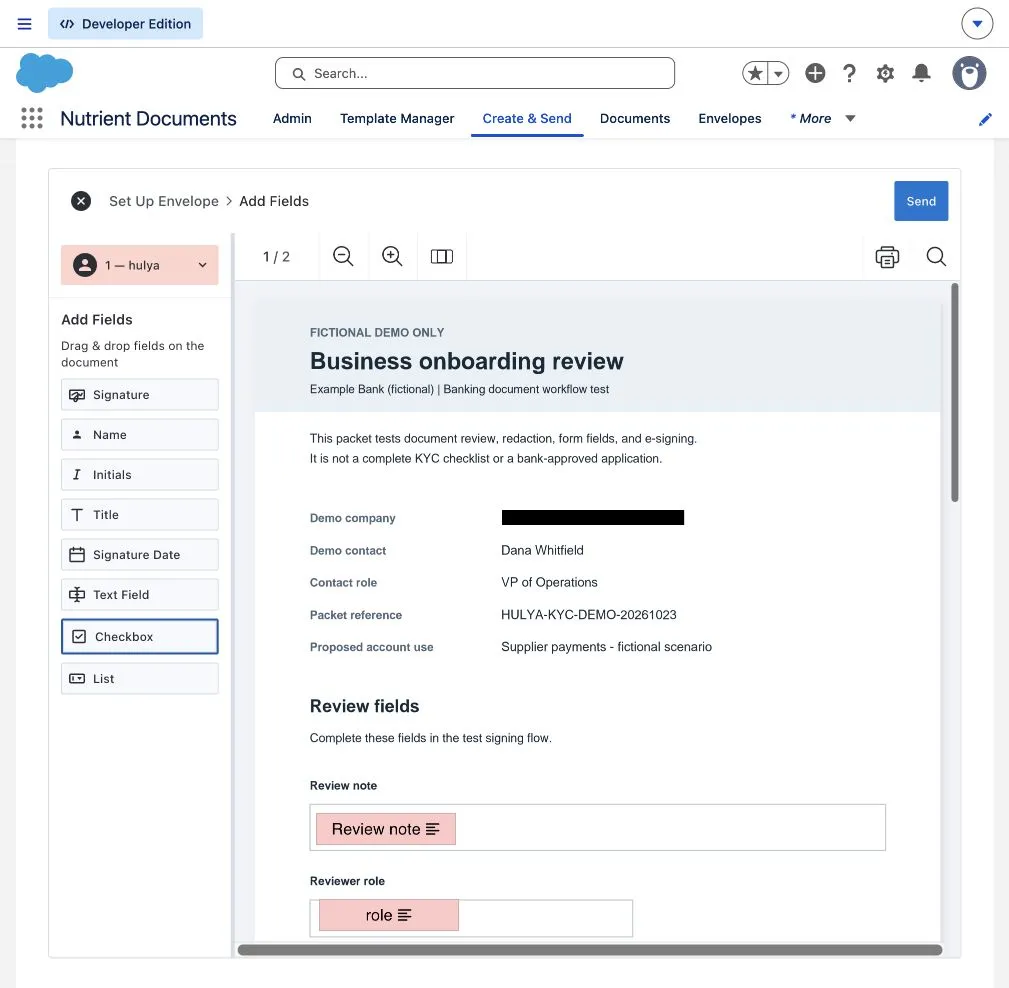
The earlier NDA test displayed this message: “Each signer must have at least one signing field placed on the document.” Adding a recipient and displaying a printed signature line aren’t enough. Place an interactive field for each signer.
Finalize the recipients before placing fields. After any recipient change, recheck the fields and their assignments before sending.
Nutrient’s signing guide also describes mapping supported editable fields to Salesforce fields. This test verifies values in the returned PDF. It doesn’t verify record updates, list fields, or rejection of blank required fields.
Step 7: Track the envelope through completion
Before clicking Send, check the final PDF, recipient addresses, field assignments, and signing order. A test invitation needs a real, authorized test mailbox.
The test recipient received the invitation, entered a review note and role, checked the acknowledgment, and signed. The returned PDF contains “Looks good!”, “Admin”, the checked box, a signature, and the signing date.
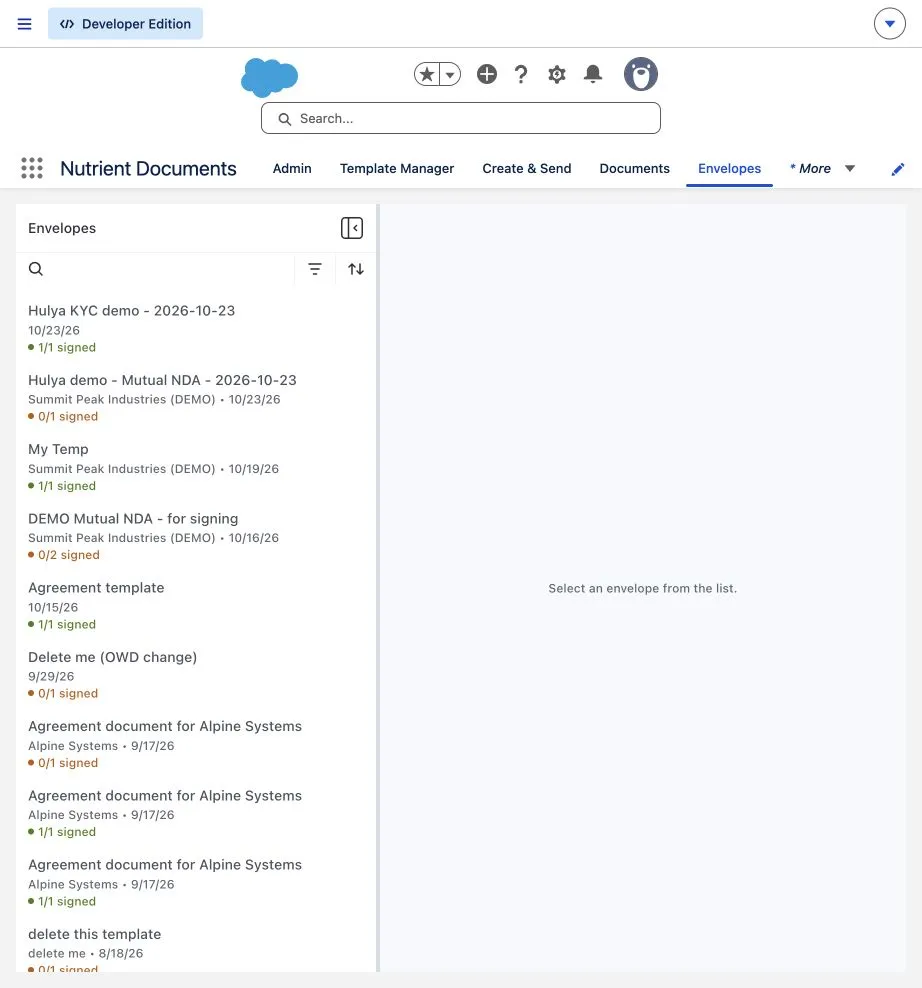
Open Envelopes in the Nutrient Documents app to inspect the result. The banking envelope shows “Envelope Completed” and “1 of 1 signed,” with the recipient marked “Completed.” A completion email also arrived.
The signed PDF’s viewer reports that the document is digitally signed and all signatures are valid. That’s the viewer’s result; this test didn’t independently validate the cryptographic signature.
The signing guide describes Update record, when available, for returning captured field data to Salesforce. That action wasn’t tested. The uploaded packet’s send confirmation reported that it was saved to the user’s files.
Nutrient’s signing product page describes returning the signed document and audit trail to Salesforce. The completed envelope’s actions menu includes Download certificate. Inspect the exported PDF and certificate before relying on them for the bank’s records.
Validate the bank’s onboarding workflow
Test the bank’s template and configured process before rollout. Record the outcome of each check:
- The correct source record and related contact populate the document, and missing data is caught before sending.
- The intended sharing copy contains the required redactions while access to the original remains controlled.
- Every signer receives the right fields, and required form fields behave as configured.
- An authorized test recipient receives the invitation, completes signing, and produces the expected status update.
- The signed document, signing evidence, and any mapped field updates appear where reviewers expect them.
- A named reviewer checks the remaining onboarding requirements before marking the customer process complete.
Define separate statuses for document completion and onboarding approval. A signed form is one input to the bank’s decision.
Try the workflow with an approved onboarding form
Start with one approved template, one fictional account, and an authorized test recipient. Use Nutrient Documents for Salesforce to generate the document from record data, review it, and test the signing flow. For uploaded documents, verify the envelope’s record association and where the completed files are saved before adding more packet types.
Request a Nutrient Salesforce trial to evaluate that workflow in a test environment. The setup guides cover installation, template configuration, and the signing integration.