pdfplumber in Python: Extract text and tables

Table of contents
Structured output with per-field confidence scores through the Nutrient Data Extraction API.
pdfplumber extracts text, tables, and coordinates from PDFs with an existing text layer. Start with its default line strategy for bordered tables, and try text-based boundaries for unruled tables. Inspect the visual debugger when results are wrong. It can render page images but doesn’t perform optical character recognition (OCR) or write PDFs. For varied documents and scans, Nutrient’s Data Extraction API is an option that combines parsing and OCR.
A table can look clear on a PDF page and still extract as an empty list. The visible columns may be aligned words, with no drawn borders for the default table finder to follow. This guide shows how to choose a strategy, inspect the detected cells, and extract text or coordinates when a table isn’t the right representation.
What is pdfplumber?
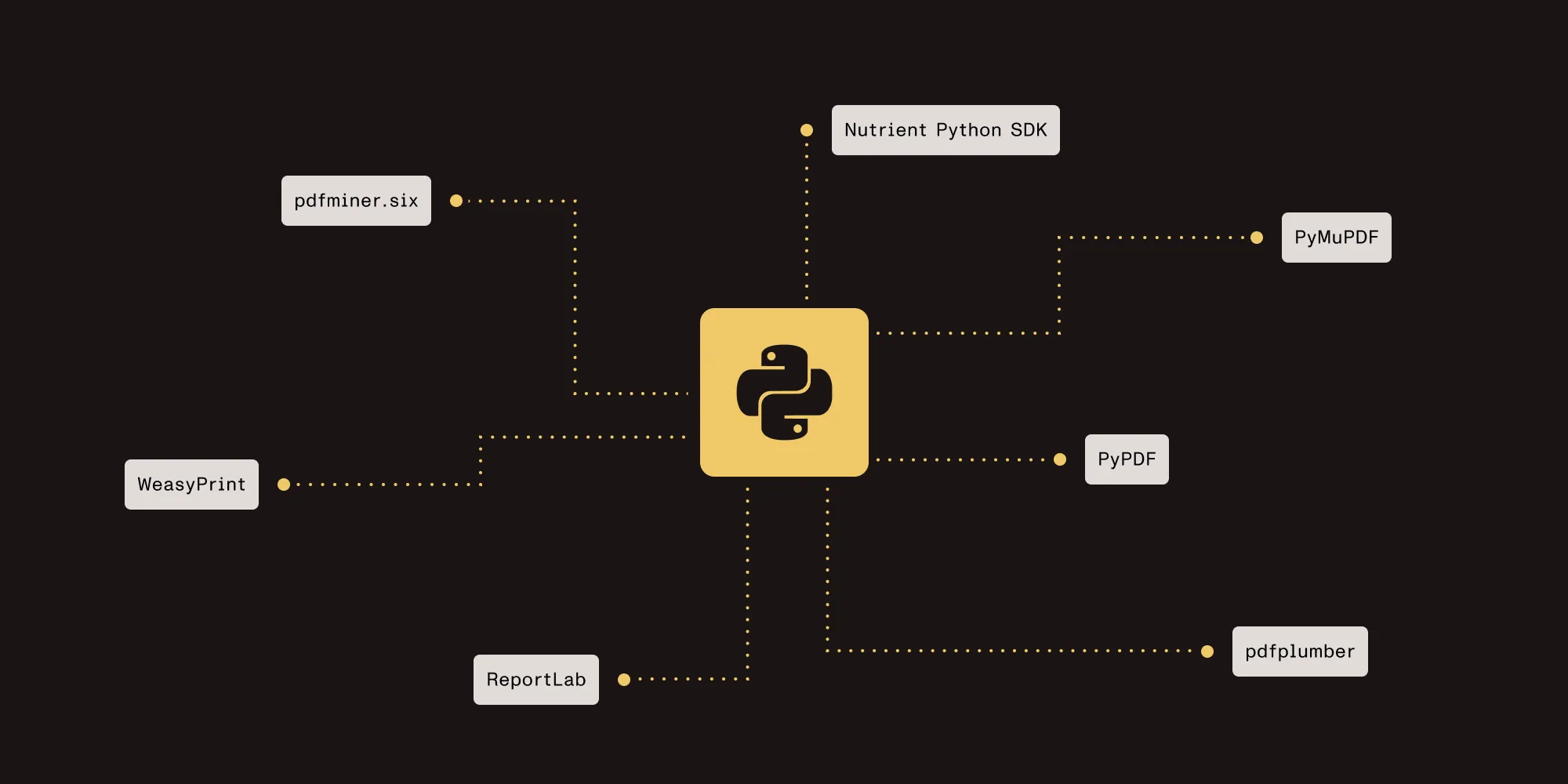
pdfplumber is a pure-Python library for reading structured information from a PDF’s content streams: characters with coordinates and font attributes, lines, rectangles, curves, and images. It adds higher-level helpers on top of those primitives for text and table extraction. It’s one of several options in Python — the Python PDF library comparison covers where each one fits.
It’s built on pdfminer.six(opens in a new tab) and released under the MIT license. It can rasterize pages through page.to_image(), using pypdfium2, but doesn’t perform OCR or write PDFs. Without a text layer, text extraction returns an empty string; image and vector objects can still be inspected.
Prerequisites
- Python 3.12 for the examples tested here
- A PDF with extractable text, such as a digitally generated document or a scan with an OCR text layer
Installation
Install the version used for these examples:
python -m pip install pdfplumber==0.11.10The installer pulls in pdfminer.six for parsing and pypdfium2 for the optional page-image rendering used by the visual debugging helpers. Standard wheels bundle the rendering dependencies on supported platforms; no OCR model is included.
Extracting text from a PDF
pdfplumber.open() returns a PDF object. Accessing pages builds the page list, while pdfplumber computes page layout data when needed and caches it. For large files, page.close() can release a processed page’s caches. The following example extracts the text of the first page:
import pdfplumber
with pdfplumber.open("document.pdf") as pdf:    first_page = pdf.pages[0]    print(first_page.extract_text())
The Python text-extraction guide covers the same task across other libraries.
To collect the whole document, iterate the pages and guard against the empty result. extract_text() returns an empty string on a page with no extractable characters, so if text skips it. Testing text is not None would accept the empty string:
import pdfplumber
def extract_document_text(path: str) -> str:    pages = []    with pdfplumber.open(path) as pdf:        for page in pdf.pages:            text = page.extract_text()            if text:                pages.append(text)    return "\n\n".join(pages)
print(extract_document_text("document.pdf"))
Empty text is a reason to inspect the PDF, not proof that it’s a scan. A page may be blank, contain image-only content, use outlined text, or have encoding problems. OCR can help when visible text isn’t extractable.
Extracting tables
Table extraction is a core pdfplumber feature, and it’s configuration-driven. The PDF data extraction guide covers the layered alternative: parsing, OCR, layout analysis, and schema-shaped JSON. It suits cases where the goal is the extracted data rather than the parsing stack. extract_tables() returns a list of tables, each containing rows of cell strings or None values. It returns [] when no tables are found. extract_table() returns the largest table, or None if none is found.
import pdfplumber
with pdfplumber.open("statement.pdf") as pdf:    page = pdf.pages[0]    for table in page.extract_tables():        for row in table:            print(row)
Bordered tables — The default line strategy
The defaults are vertical_strategy: "lines" and horizontal_strategy: "lines", meaning pdfplumber takes cell boundaries from the ruling lines and rectangle edges drawn on the page. This is a useful starting point for bordered tables, although broken lines or closely spaced edges can require tuning.
Unruled tables — Switching to the text strategy
For a table without drawn cell boundaries, try deriving boundaries from aligned words. The following settings are a starting point for an unruled table. Word alignment and minimum-word thresholds still affect detection:
table_settings = {    "vertical_strategy": "text",    "horizontal_strategy": "text",}
with pdfplumber.open("report.pdf") as pdf:    table = pdf.pages[0].extract_table(table_settings)
For a table with vertical column rules but no horizontal row rules, try mixing "lines" vertically with "text" horizontally:
table_settings = { "vertical_strategy": "lines", "horizontal_strategy": "text", "snap_y_tolerance": 5, "intersection_x_tolerance": 15,}The tolerance families do different jobs. snap_* aligns nearby parallel edges, join_* joins collinear segments, and intersection_* controls how close orthogonal edges must be to form a cell corner. The settings above are illustrative, not defaults for every document.
An empty result can come from a strategy mismatch, missing text, broken borders, or unsuitable tolerances. page.debug_tablefinder() returns a TableFinder object for inspecting edges, intersections, cells, and tables. For a visual overlay, use the method on a page image instead:
import pdfplumber
with pdfplumber.open("statement.pdf") as pdf:    page = pdf.pages[0]    image = page.to_image(resolution=150)    image.debug_tablefinder(table_settings={})    image.save("table-debug.png")
This uses the default strategies. Pass the settings you’re testing in place of {} to see their effect. The pdfplumber table extraction reference(opens in a new tab) also documents "lines_strict" and "explicit" strategies.
Try a bordered-table example
Download the sample statement and save it as statement.pdf beside your script. It contains a bordered table with three made-up transactions. Run the table-extraction and visual-debugging examples from that directory using the default settings.
With Python 3.12 and pdfplumber 0.11.10, the extraction returned one table: a header row and all three transaction rows. The amounts were strings: 1000.00, -42.18, and 250.00. Download the extracted rows as CSV to compare the values with your result.
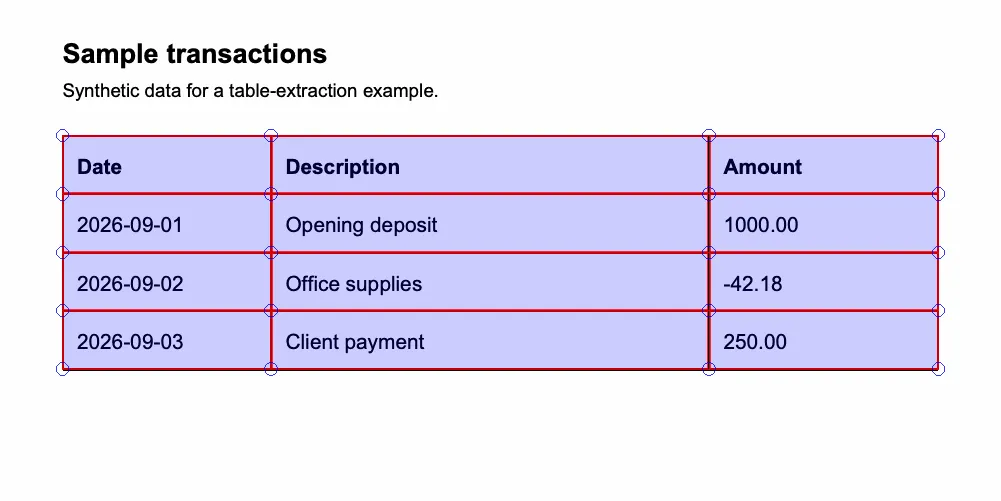
This overlay came from the visual-debugging example above. The sample demonstrates the default line strategy on a simple table; test your own layouts separately.
Working with words and coordinates
Beyond text and tables, pdfplumber exposes the positional data the page is assembled from. extract_words() returns each word with its bounding box. extra_attrs restricts words to characters that share the same font attributes, which helps isolate headings, totals, or a specific typeface:
with pdfplumber.open("document.pdf") as pdf:    words = pdf.pages[0].extract_words(extra_attrs=["fontname", "size"])
for word in words[:5]:    print(word["text"], word["x0"], word["top"], word["fontname"], word["size"])
Coordinates make region-based extraction possible. crop() takes an (x0, top, x1, bottom) bounding box and returns a page restricted to it, so you can read a known layout positionally:
with pdfplumber.open("invoice.pdf") as pdf: page = pdf.pages[0] header = page.crop((0, 0, page.width, 120)) print(header.extract_text())For fields at known positions, crop to the region containing the value and extract text from that crop. Fixed coordinates may need adjustment when the layout changes.
pdfplumber vs. PyMuPDF
Both libraries expose text, tables, and layout data. Compare the specific operations your application needs rather than assuming only one supports a feature.
| Capability | pdfplumber | PyMuPDF |
|---|---|---|
| License | MIT | AGPL v3 or commercial |
| Parsing implementation | Python, using pdfminer.six | MuPDF engine with Python bindings |
| Table extraction | extract_tables() with line, text, or explicit strategies | Page.find_tables() with configurable strategies and tolerances |
| Character and layout data | Character dictionaries and drawn objects | get_text("rawdict") and drawing APIs |
| Visual inspection | to_image().debug_tablefinder() overlay | Page rendering and drawing APIs |
| Page rasterization | to_image(), using pypdfium2 | Page.get_pixmap() |
| Writing PDFs | Not supported | Supported |
| OCR | Not built in | Tesseract integration; requires Tesseract installed separately |
Choose pdfplumber when its table settings, object dictionaries, and visual debugging fit your extraction task. Evaluate PyMuPDF if you also need PDF editing or its rendering and extraction APIs. Benchmark both on your own files if throughput is a deciding factor. See the PyMuPDF text extraction guide for examples.
For scanned pages, pdfplumber needs an OCR text layer supplied by another tool. PyMuPDF provides integrated OCR methods(opens in a new tab), including Page.get_textpage_ocr(), through a separately installed Tesseract engine.
Where pdfplumber fits, and where it stops
pdfplumber suits projects that work from digitally generated PDFs with known layouts. In those projects, teams can tune the extraction logic per document type, and per-page speed isn’t the binding constraint.
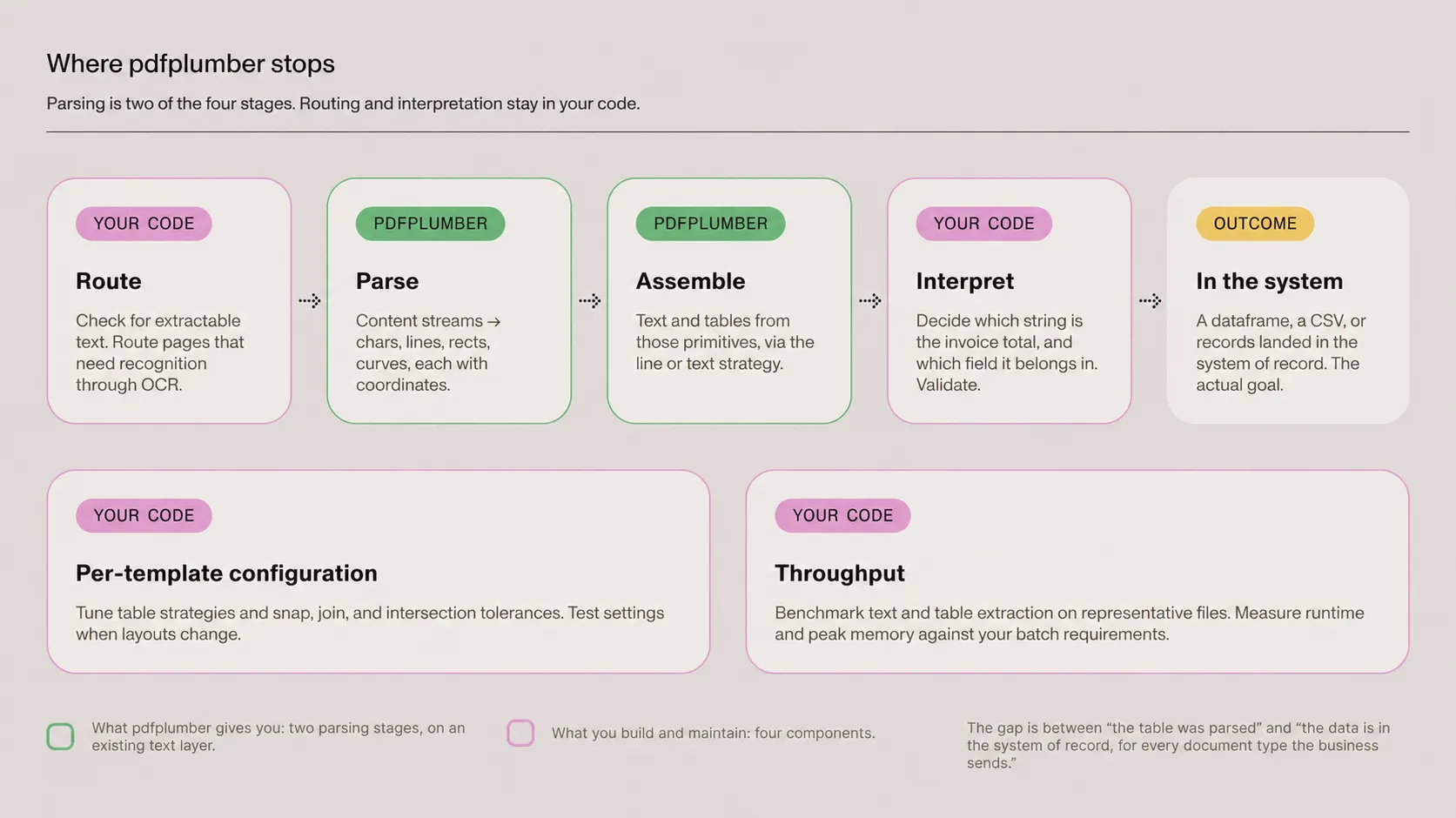
The limits show up as document variety increases:
- OCR — Image-only text needs recognition before pdfplumber can extract it. Mixed documents may need routing by page.
- Layout changes — A table configuration that works on one template may need adjustment on another. Keep representative files for regression checks.
- Throughput — Measure text and table extraction separately, with runtime and peak memory limits that match your workload.
- Field meaning — Coordinates and cell strings don’t identify business fields by themselves. Your application still maps values and validates them.
These are the tasks between parsing a table and delivering validated records to another system. The intelligent document processing guide explains how a broader document workflow handles them.
Reaching the same outcome with Nutrient
For projects that need extraction across varied layouts and scanned documents, consider Nutrient’s Data Extraction API. It combines parsing with OCR and can reduce the amount of extraction infrastructure and layout tuning your team maintains.
The following request uses /extraction/parse in understand mode and asks for spatial document elements. It doesn’t return Markdown at the same time. Install requests with python -m pip install requests and replace the placeholder with your Nutrient API key before running it:
import requests
with open("statement.pdf", "rb") as document:    response = requests.post(        "https://api.nutrient.io/extraction/parse",        headers={"Authorization": "Bearer your_api_key_goes_here"},        files={"file": document},        data={            "instructions": '{"mode":"understand","output":{"format":"spatial"}}'        },        timeout=120,    )    response.raise_for_status()
print(response.json())
Use the document element parsing guide to select an output format. The table extraction API page covers the tabular use case. Your application still needs to validate results, map them to its data model, and handle request failures.
For named fields, use schema extraction through /extraction/extract. Its citations can include page regions and match labels where available. Not every element returned by the parsing request above carries those labels. See confidence scores and source grounding and the extraction case studies for how to use evidence during validation.
If documents must stay in your own environment, evaluate the Python SDK against your required operations. Check the SDK’s supported operations and output formats separately from the hosted API.
Extract PDF tables with NutrientConclusion
pdfplumber is a useful choice for text and table extraction when you can test and tune against known layouts. Start with the examples above, inspect failed table detections, and measure performance on the files you’ll process.
Teams that handle varied layouts and scans may want less extraction infrastructure to maintain. Run Nutrient’s Data Extraction API against the same documents and validation criteria.
FAQ
Yes. Its MIT license(opens in a new tab) permits commercial use, subject to retaining the required copyright and permission notice. Check the license text when distributing software that includes it.
Use pdfplumber for its table extraction settings and visual debugger. PyMuPDF also extracts tables and character data, and it adds PDF editing and Tesseract-based OCR integration. Compare extraction quality, runtime, and licensing on your own files.
It can extract an existing OCR text layer from a scanned PDF, but it can’t recognize text in images itself. For image-only pages, add OCR first or use Nutrient’s Data Extraction API, which supports scanned documents.
extract_tables() return an empty list on a visible table?The table finder may lack usable boundaries or text, or its tolerances may not fit the layout. Try text strategies for unruled tables and inspect an overlay with page.to_image().debug_tablefinder(). When no tables are found, extract_tables() returns []; extract_table() returns None.
An API is a better fit when handling scans, layout variation, and extraction infrastructure takes more effort than your team wants to maintain. Test Nutrient’s parsing or schema extraction on representative documents, and check the output against your accuracy and validation requirements.
That depends on document complexity, the extraction operations, and your processing window. Benchmark representative files and record both runtime and peak memory. Calling page.close() after processing a page can release its cached layout data.