Best tools to extract tables from complex PDFs (2026)

Table of contents
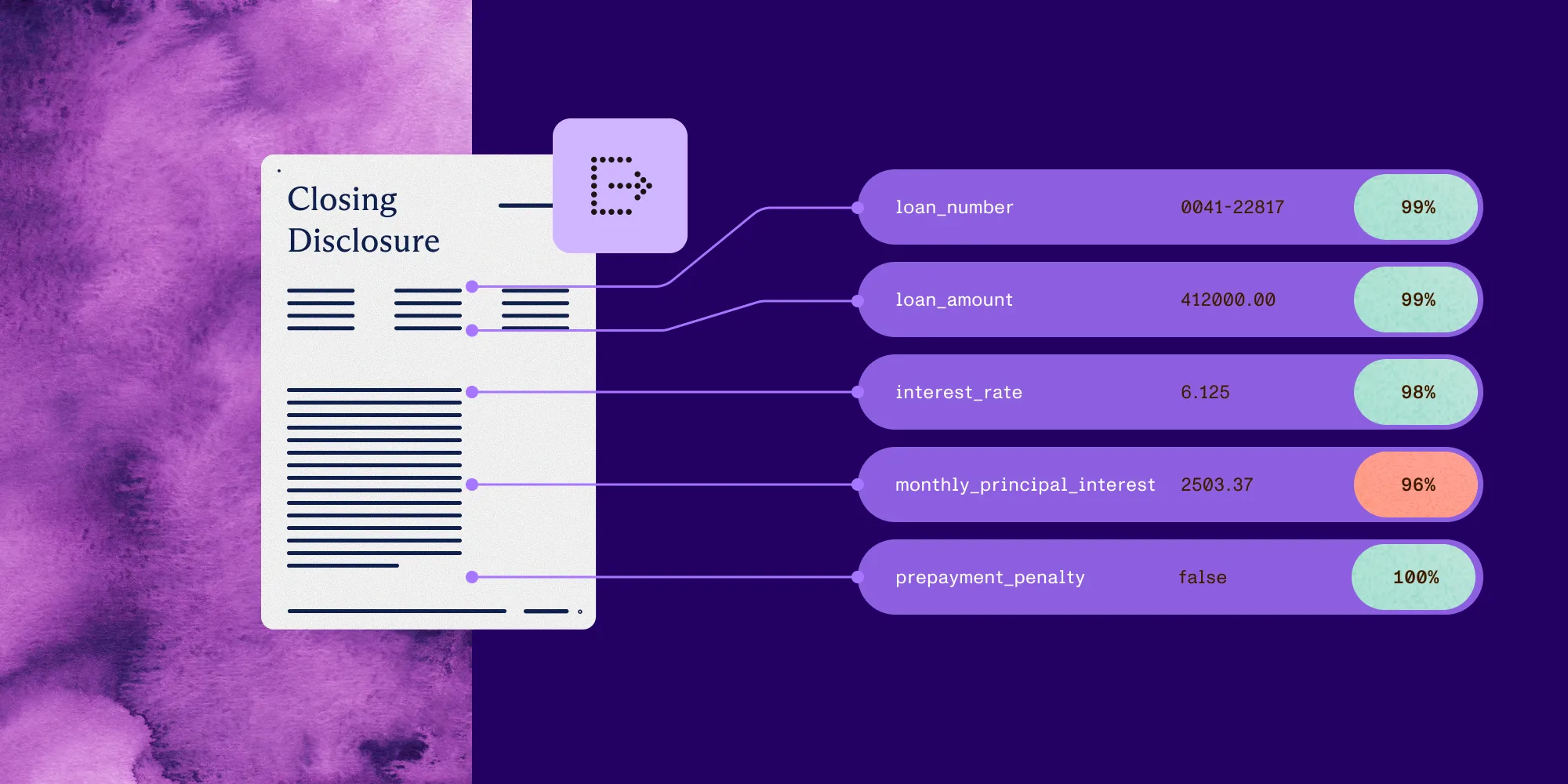
Structured output with per-field confidence scores through the Nutrient Data Extraction API.
- Choose Nutrient Data Extraction API when complex tables from PDFs and scans must come back as JSON with merged-cell spans, header flags, and a bounding box and confidence score on every cell.
- There’s no universal best table extractor. Choose by merged cells, borderless layouts, scans, tables that run across pages, output format, and cell-level grounding.
- Choose Camelot when born-digital tables need a local Python library.
- Choose Reducto when a hosted parser should cite cells and join tables that continue onto the next page.
- Choose a hyperscaler document API when the rest of the pipeline already runs in that cloud.
Nutrient Data Extraction API is the pick for extracting tables from complex PDFs when each table has to arrive as JSON, with row and column spans for merged cells, header flags, and a bounding box and confidence score on every cell. Camelot is the pick when tables live in born-digital PDFs and a local Python library is enough. Tabula is the pick for a one-off CSV export of a text-based table. pdfplumber is the pick when a developer wants to tune table detection by hand. Docling is the pick when table structure has to be recovered locally, including from scans. Reducto and LlamaParse are the hosted parsers that document joining tables across pages. Amazon Textract, Azure Document Intelligence, and Google Document AI fit teams committed to one cloud. Adobe PDF Extract API and ABBYY round out the field.
The hardest table in your corpus decides the choice. Almost every tool here handles a ruled table in a born-digital PDF. Two-level headers, borderless columns, scanned statements, and tables that continue on the next page are where they diverge.
What makes a PDF table “complex”
A PDF doesn’t store a table. It stores characters, lines, and coordinates, and the extractor infers rows, columns, and headers from them. Four patterns cause most failures:
- Merged cells. A header such as “Q3 2026” spans two columns. Flattening it shifts every value under it.
- Borderless tables. Whitespace is the only column separator, so the extractor guesses where columns end.
- Scanned tables. There’s no text layer, so optical character recognition (OCR) has to read the cells first.
- Tables across pages. The tool has to decide whether page 5 starts a new table or continues the old one.
Criteria that matter in production
Merged cells and headers
Check whether the output carries row and column spans and marks header cells, or only returns a grid of strings. Markdown tables can’t represent merged cells, so Markdown-only output flattens them.
Borderless and scanned tables
Test whitespace-separated columns and scans as their own slice. Confirm whether OCR runs in the same call or needs a separate package or mode.
Tables across pages
Find out whether the tool joins continued tables, offers an option to, or leaves stitching to your code, and how it decides two tables belong together.
Output format
Decide whether the consumer needs Excel, CSV, JSON with cell coordinates, Markdown or HTML for a large language model (LLM), or a pandas DataFrame. Converting later usually loses the spans.
Cell-level grounding
For review and audit, each cell should carry its page position and a confidence signal. Treat confidence as a routing signal, not a probability that a value is correct.
Throughput, deployment, and cost
Check page and file limits, asynchronous jobs, and whether documents can leave your infrastructure. A free library still costs engineering time at volume.
Tools to extract tables from complex PDFs at a glance
This table summarizes what each vendor documents. It isn’t a ranking.
| Tool | Class | Merged cells and headers | Scanned tables | Tables across pages | Output | Cell grounding |
|---|---|---|---|---|---|---|
| Nutrient Data Extraction API | Hosted table and parsing API | rowSpan, colSpan, and isHeader per cell | Yes, OCR in understand mode | Not described; stitch in code | JSON, Markdown with HTML tables; Excel via Processor API | Bounds and confidence on every cell |
| Adobe PDF Extract API(opens in a new tab) | Hosted extraction API | Per-cell contents and formatting | Native or scanned PDFs | Not described | JSON, plus CSV, XLSX, and PNG table renditions | Bounds on elements |
| Azure Document Intelligence(opens in a new tab) | Cloud layout model | Row and column spans, column headers | Yes | Split and post-process, per the docs | JSON, Markdown with HTML tables | Bounding polygon per cell |
| Amazon Textract(opens in a new tab) | Cloud document analysis | MERGED_CELL blocks, titles, footers, headers | Yes | Not covered in the tables guide | Block JSON, CSV through sample code | Geometry and confidence per block |
| Google Document AI(opens in a new tab) | Cloud processors | Layout Parser documents merged cells and headers | Yes, OCR in Form Parser | May split into two tables | Document JSON, chunks | Not described for Layout Parser tables |
| ABBYY FineReader(opens in a new tab) | OCR desktop app and SDK | Manual merge and split tools | Yes | Not described | Excel and other editable formats | Desktop review in the OCR editor |
| Reducto(opens in a new tab) | Hosted parsing platform | HTML output preserves merged cells | Yes | merge_tables option | HTML, Markdown, JSON, CSV | Cell boxes with return_citations |
| LlamaParse(opens in a new tab) | Hosted parser | Cell structure preserved; HTML tables option | Yes | merge_continued_tables option | Markdown, HTML tables, JSON, XLSX | Word, line, and cell boxes with granular_bboxes |
| Docling(opens in a new tab) | Open source local converter | Table structure recognition | Yes, OCR support | Not described | Markdown, HTML, JSON, DataFrame to CSV | Lossless JSON export |
| Camelot(opens in a new tab) | Open source Python library | Lattice and ML parsers for ruled and borderless | With the [ml,ocr] extras | stack_contiguous() | DataFrame, CSV, JSON, Excel, HTML, Markdown | Per-table accuracy and confidence metrics |
| Tabula(opens in a new tab) | Open source desktop app | Lattice and stream modes | No, text-based PDFs only | Not described | CSV, TSV, JSON | None |
| pdfplumber(opens in a new tab) | Open source Python library | Line and text strategies you tune | No, machine-generated PDFs | Not described | Python lists of rows | Cell boxes through Table.cells |
Twelve tools compared
1. Nutrient Data Extraction API
Nutrient Data Extraction API returns each table as an element from the parse endpoint, POST /extraction/parse. A table element carries rowCount, columnCount, and cells, and each cell has its row, column, rowSpan, colSpan, isHeader flag, text, bounding box, and confidence score. A two-level header rebuilds as printed. Wrapped rows stay together as one row when detected, and captionIds and footnoteIds link the table to its caption and footnotes.
Scanned PDFs go through OCR before the tables are read. The table extraction API page recommends understand mode for tables, at 9 credits per page. structure mode, at 1.5 credits, can miss complex table structure, and text mode returns no table elements. auto is the recommended starting mode for mixed documents. Ask for Markdown, and tables arrive as HTML tables with rowspan and colspan, ready for a retrieval-augmented generation (RAG) index.
For spreadsheets, the sibling Nutrient DWS Processor API’s PDF-to-Excel API returns an XLSX workbook with rows and columns preserved. CSV and XML output are in development. Each table element carries one page reference, and the parse guide doesn’t describe joining continued tables, so stitch those in your code. The free plan includes 5,000 Data Extraction API credits a month with no credit card required, and the Python SDK for PDF data extraction runs table extraction on your own infrastructure.
Choose Nutrient when complex tables must arrive as JSON with spans, header flags, and cell-level bounds and confidence a reviewer can check.
2. Adobe PDF Extract API
Adobe PDF Extract API(opens in a new tab) extracts native or scanned PDFs into JSON, with tables “extracted and parsed with the contents and table formatting information delivered for each cell.” Table data can also be written as CSV and XLSX, plus PNG images for visual checks. The Extract API how-to(opens in a new tab) lists limits of 400 pages for non-scanned PDFs, 150 for scanned PDFs, and 100 MB per file, lower for files with many tables.
Choose Adobe PDF Extract API when tables are headed for spreadsheets and the team already uses Adobe PDF Services.
3. Azure Document Intelligence
The Azure Document Intelligence layout model(opens in a new tab) returns tables with row and column counts, spans, cell bounding polygons, and a columnHeader kind, including rotated tables. With outputContentFormat=markdown, v4.0 returns tables as HTML so merged cells and multirow headers survive. For tables that span pages, Microsoft suggests splitting the PDF and post-processing the pages into one table. XLSX input isn’t supported for table analysis.
Choose Azure Document Intelligence when the application runs on Azure and Markdown with HTML tables suits the consumer.
4. Amazon Textract
Amazon Textract(opens in a new tab) returns tables from AnalyzeDocument or the asynchronous GetDocumentAnalysis with the TABLES feature. The response is a graph of blocks: a TABLE marked structured or semistructured, CELL blocks with row and column indexes, and MERGED_CELL blocks for merged cells. Cells can be tagged as column headers, section titles, titles, footers, or summary cells, and every block carries geometry and confidence. Your code walks the block graph to rebuild the grid.
Choose Amazon Textract when documents already land in Amazon S3 and the team can own the block-to-table conversion.
5. Google Document AI
Google Document AI(opens in a new tab) Layout Parser “excels at extracting data from complex tables with merged cells and intricate headers” and builds chunks that carry table headers. Its documentation warns that PDF “tables spanning multiple pages might be split in two tables” and caps online processing at 15 pages per PDF, or 500 in batch. Form Parser(opens in a new tab) extracts simple tables with no spanning cells from images and PDFs.
Choose Google Document AI when table-aware chunks feed a retrieval system on Google Cloud.
6. ABBYY FineReader
ABBYY FineReader PDF(opens in a new tab) is a desktop OCR application that converts PDFs and scans to Excel. When a table isn’t detected, its user guide has the operator draw a table area, run Analyze Table Structure, and fix rows and columns with split and merge tools. Developers use ABBYY FineReader Engine(opens in a new tab), an OCR SDK for Windows, Linux, or Mac, deployable on premises.
Choose ABBYY when operators correct scanned tables by hand or an on-premises OCR SDK is required.
7. Reducto
Reducto(opens in a new tab) returns tables as dynamic, html, md, json, jsonbbox, or csv, and says HTML is the only format that preserves merged cells. Its merge_tables option combines consecutive tables with the same column count, with a warning that different tables with matching column counts may be merged incorrectly. With return_citations(opens in a new tab), table blocks list each cell with its indexes and page box. Deployment covers software as a service (SaaS), hybrid or full virtual private cloud (VPC), and air-gapped on premises.
Choose Reducto when cell citations, a cross-page merge option, and VPC or air-gapped deployment lead the evaluation.
8. LlamaParse
LlamaParse(opens in a new tab) runs in four tiers, from fast to agentic_plus, and recommends the agentic tiers for scans, real tables, and dense financial reports. Its configuration options(opens in a new tab) include HTML tables, merge_continued_tables, XLSX table export, and granular_bboxes for word, line, and cell boxes. Tiers can be pinned to a release date, and self-hosting is available.
Choose LlamaParse when parsed tables feed a LlamaIndex pipeline and continued tables should be merged.
9. Docling
Docling(opens in a new tab) is an MIT-licensed converter that runs locally, including air-gapped. It covers layout, reading order, table structure, and OCR for scans, and exports Markdown, HTML, and lossless JSON. Its table export example(opens in a new tab) turns each table into a pandas DataFrame and saves CSV and HTML. In Nutrient’s opendataloader-bench run, docling 2.110.0 scored 0.93 on tree edit distance similarity (TEDS), the table structure metric.
Choose Docling when table structure has to be recovered on your own hardware and the team can run the models.
10. Camelot
Camelot(opens in a new tab) 2.0.0 is an MIT-licensed Python library built only for tables. It ships lattice for ruled tables, stream and network for whitespace-separated ones, and an optional ml parser for hard borderless tables. Its built-in parsers need a text-based PDF, and scans need the [ml,ocr] extras. Tables come back as pandas DataFrames with CSV, JSON, Excel, HTML, Markdown, and SQLite export, a per-table parsing report, and stack_contiguous() to join continued tables.
Choose Camelot when tables sit in born-digital PDFs and a configurable local library is enough.
11. Tabula
Tabula(opens in a new tab) is a free, open source tool: Draw a box around a table and export CSV or Excel. Its site says it “only works on text-based PDFs, not scanned documents,” and its desktop release is 1.2.1 from 2018. The tabula-java(opens in a new tab) library offers lattice and stream modes with CSV, TSV, and JSON output, and tabula-py wraps it for Python.
Choose Tabula when a person needs a one-off CSV export of a text-based table.
12. pdfplumber
pdfplumber(opens in a new tab) is an MIT-licensed Python library for inspecting PDF characters, lines, and rectangles. find_tables() and extract_tables() use lines, text, or explicit strategies with tolerance settings, and visual debugging shows what the detector saw. Its README says it “works best on machine-generated, rather than scanned, PDFs” and lists OCR as out of scope.
Choose pdfplumber when a developer needs fine-grained control over table detection in born-digital PDFs.
Scenario-based recommendations
Each recommendation depends on the scenario. No tool wins every table.
- Choose Nutrient when complex tables from PDFs and scans must arrive as JSON with spans, header flags, and per-cell bounds and confidence.
- Choose Adobe PDF Extract API when CSV and XLSX table renditions should come from the same Adobe call.
- Choose Azure Document Intelligence when Markdown with HTML tables must come from an Azure-hosted model.
- Choose Amazon Textract when tables are part of an AWS pipeline that already uses Textract blocks.
- Choose Google Document AI when table-aware chunks feed a retrieval system on Google Cloud.
- Choose ABBYY when people correct scanned tables by hand.
- Choose Reducto when cell citations and a cross-page merge option must run in a VPC or air-gapped deployment.
- Choose LlamaParse when continued tables should be merged inside a LlamaIndex pipeline.
- Choose Docling when table structure has to be recovered locally, including from scans.
- Choose Camelot when born-digital tables need ruled, borderless, and multipage handling in Python.
- Choose Tabula when a one-off CSV export from a text-based PDF is the whole job.
- Choose pdfplumber when a developer wants to tune table detection rules by hand.
Run a fair proof of concept
- Collect 30–50 tables you actually receive: ruled and borderless, born-digital and scanned, two-level headers, and at least five that continue across pages.
- Write the expected output for each by hand, including spans and header rows.
- Score structure and text separately. Right text in the wrong cells still breaks the next step.
- Check cell coordinates where a tool returns them, and test the continuation rule with one continued table and one new table with the same column count.
- Measure throughput and monthly cost, including OCR, retries, and review time.
FAQ
Nutrient Data Extraction API is the pick when complex tables from PDFs and scans must come back as JSON with row and column spans, header flags, and a bounding box and confidence score on every cell. Camelot and pdfplumber fit born-digital PDFs processed locally in Python, and Docling fits local processing that includes scans. Reducto and LlamaParse document merging tables across pages, and the hyperscaler APIs fit teams already on those clouds. Test each on your hardest tables.
Nutrient’s table extraction API is the pick when one REST call should return tables as JSON with merged-cell spans and per-cell confidence, as Markdown with HTML tables, or as an Excel workbook. Adobe PDF Extract API returns table JSON with CSV and XLSX renditions. Amazon Textract, Azure Document Intelligence, and Google Document AI return tables in their own cloud formats. Reducto and LlamaParse offer table options inside broader parsing platforms.
Nutrient Data Extraction API returns each cell with rowSpan, colSpan, and an isHeader flag, so merged cells and two-level headers rebuild as printed, and its Markdown output uses HTML tables with rowspan and colspan. Avoid plain Markdown tables for this job, since they flatten merged cells. Reducto and Azure Document Intelligence document HTML output for the same reason, and Amazon Textract groups merged cells in MERGED_CELL blocks.
Nutrient Data Extraction API runs OCR on scanned tables in understand mode and returns table elements with a confidence score for each cell. Adobe PDF Extract API, Amazon Textract, Azure Document Intelligence, Google Document AI, ABBYY, Reducto, LlamaParse, and Docling also handle scans. Tabula and pdfplumber need a text layer, and Camelot reads scans only with its [ml,ocr] extras.
Nutrient Data Extraction API returns each table element with its own page reference and doesn’t document joining continued tables, so stitch them in your code by matching column counts and header cells. Reducto’s merge_tables, LlamaParse’s merge_continued_tables, and Camelot’s stack_contiguous() join continued tables. Google’s Layout Parser may split a spanning table in two, and Azure suggests post-processing pages into one table. Review merged output either way.
Nutrient treats them as solid baselines for born-digital PDFs, not for scans without extra setup. Camelot handles ruled tables with lattice, targets borderless ones with network and ml, and joins continued tables. Tabula works only on text-based PDFs, and its desktop release dates from 2018. Neither returns per-cell confidence for review, so add your own checks.
Nutrient publishes its table scores by mode, including where it scores lower. On opendataloader-bench’s 200 PDFs, understand mode scores 0.94 on table structure (TEDS) in Nutrient’s internal test of the latest engine, which isn’t independently verified. On ParseBench, a benchmark from LlamaIndex, Nutrient’s public leaderboard row scores 72.1 on tables, and Nutrient’s internal test of the latest engine scores 86.0; both figures are on the benchmarks page. Score finalists on your own tables.