How to migrate from Apryse WebViewer to Nutrient Web SDK

Table of contents

Scope an Apryse WebViewer to Nutrient Web SDK migration around annotation compatibility, collaboration, viewer customization, and required file formats.
- Annotation compatibility — Keep XFDF through Nutrient’s built-in import, or adopt Instant JSON for your new workflow. Test both the data and its appearance.
- Collaboration — Replace your custom synchronization implementation with Instant synchronization through Document Engine or a hosted deployment. Self-hosting still means operating the infrastructure.
- Viewer customization — Map the document loading, annotation, saving, and UI behavior your application needs to preserve.
- File formats — Confirm licensed computer-aided design (CAD) support and plan for XML Forms Architecture (XFA) forms before committing to a migration scope.
This guide is for teams that have already decided to evaluate a move and want to know what the work actually involves. If you’re still comparing the two products feature by feature, the benchmark-backed matrix lives on the Apryse alternative page. For a broader market view, including Foxit, Syncfusion, and IronPDF, see our enterprise PDF SDKs comparison.
Check the Nutrient SDK demos:
Why teams move
Apryse WebViewer provides document viewing and processing APIs. Evaluate a move against specific application requirements, including annotation storage, collaboration, and deployment.
- Data model — Nutrient supports XFDF interoperability and Instant JSON for annotation persistence. Choosing JSON can simplify integration with a JavaScript or TypeScript application, but you still need to map application-specific metadata and permissions.
- Collaboration ownership — Apryse’s collaboration documentation(opens in a new tab) describes a synchronization server that developers implement. Nutrient provides Instant synchronization through Document Engine or hosted options; your application still owns authentication and authorization decisions.
- In-viewer AI — Nutrient’s AI Assistant is a licensed add-on. Apryse provides a model-agnostic interaction layer and sample code for integrating AI with WebViewer(opens in a new tab). Compare the UI, model connections, and data-handling requirements of the configuration you intend to deploy.
- Deployment and validation — Decide where documents and model requests may be processed. Test output, error handling, and audit requirements in that deployment; a hosted service and a self-hosted stack have different data flows.
Scope the format requirements first
Two things are worth confirming against the document set before planning the rest of the work:
- CAD — Nutrient renders and converts DWG and DXF through Document Engine with the CAD conversion license component. Check other formats against the file type support matrix.
- XFA forms — Nutrient doesn’t support XFA forms. Identify an upstream conversion workflow before migrating those documents. Converting to AcroForms requires validating field behavior; flattening preserves a static document but removes interactive form functionality.
What changes architecturally
Both viewers can run client-only, while real-time collaboration requires a backend. Separate two decisions: who implements synchronization, and who operates the service.
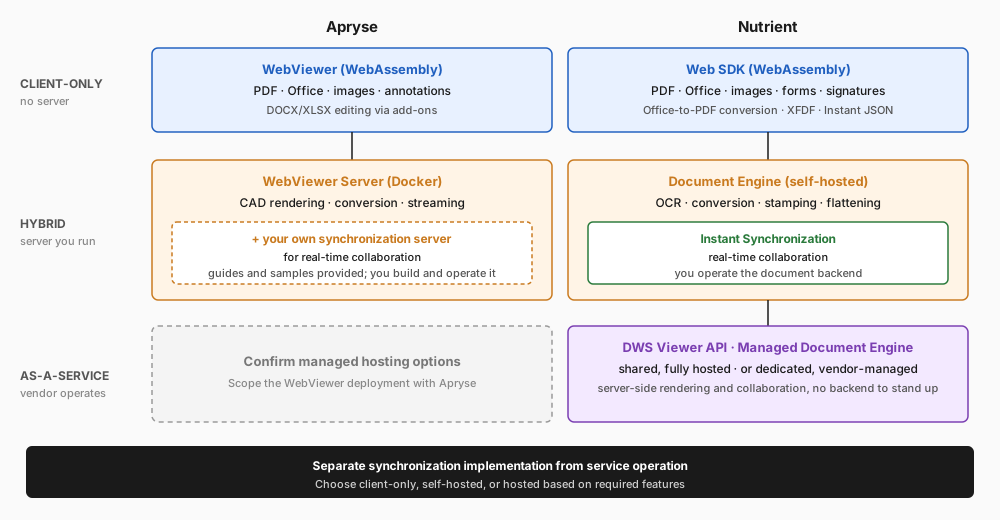
Nutrient offers three deployment options:
- Client-only (WebAssembly) — Viewing, annotations, forms, and signatures in-browser without a document-processing server. See the Web guides.
- Hybrid — Pair the Web SDK with Document Engine for optical character recognition (OCR), server-side processing, and Instant synchronization. Some operations, including Office-to-PDF conversion, can also run in the browser. Refer to the Document Engine guides for deployment requirements.
- As a service — Managed Document Engine is dedicated, Nutrient-managed, and isolated infrastructure. The DWS Viewer API is shared and fully hosted, adding server-side rendering and collaboration with no backend to operate.
If you used WebViewer Server, map each server-side operation to the target deployment before replacing it. Either self-hosted Document Engine or a hosted option can replace a custom synchronization implementation. A hosted option also transfers operation of the document backend to Nutrient.
Track 1 — Choose the annotation migration path
Start by deciding whether the new application will retain XFDF or adopt Instant JSON. A custom converter isn’t a prerequisite for migrating viewers.
Nutrient Web SDK can load a PDF with XFDF through its configuration, and Document Engine can import a PDF and XFDF together. Use the XFDF import guide to choose whether imported annotations replace or preserve those already in the PDF.
If your target workflow uses Instant JSON, import the existing annotations through the supported SDK path and export to Instant JSON. Validate custom properties, annotation identifiers, replies, stamps, and appearances against your source data. Refer to the annotation APIs and Instant JSON guide for the supported formats.
The example below explains the geometry difference for teams inspecting exported data or maintaining a custom transformation. It isn’t a complete migration script.
The difference is easiest to see on the same annotation: a blue rectangle on page one of a US Letter document. The page is 792 points tall, has no rotation, and has no crop-box offset. In XFDF, it’s an XML element:
<xfdf xml:space="preserve" xmlns="http://ns.adobe.com/xfdf/"> <annots> <square page="0" rect="100,150,300,225" color="#2293FB" width="5" opacity="1" creationdate="D:19700101000000Z" date="D:19700101000000Z" name="01F73GJ4RPENTCMFSCJ5CSFT5G" /> </annots></xfdf>The same annotation can be represented in Instant JSON:
{ "format": "https://pspdfkit.com/instant-json/v1", "annotations": [ { "v": 1, "type": "pspdfkit/shape/rectangle", "pageIndex": 0, "bbox": [100, 567, 200, 75], "strokeColor": "#2293FB", "strokeWidth": 5, "opacity": 1, "blendMode": "normal", "createdAt": "1970-01-01T00:00:00Z", "updatedAt": "1970-01-01T00:00:00Z", "id": "01F73GJ4RPENTCMFSCJ5CSFT5G" } ]}Note that the geometry isn’t a straight copy. XFDF rect is x1,y1,x2,y2 in PDF user space, where the origin sits at the bottom-left of the page. Instant JSON bbox is [left, top, width, height] in a normalized space whose origin is the top-left of the page, so the conversion is:
left=x1— unchanged, at 100.width=x2 - x1= 300 − 100 = 200.height=y2 - y1= 225 − 150 = 75.top=pageHeight - y2= 792 − 225 = 567. This is the one that catches people: The vertical origin flips, so the page height has to be in scope when the record is converted.
This calculation applies only to the unrotated, zero-offset page in the example. Rotated pages and nonzero crop-box offsets require the appropriate coordinate transformation. Prefer the built-in XFDF importer; if you maintain custom conversion code, include rotated and cropped pages in its test fixtures. Refer to the coordinate space guide for the distinction between PDF and normalized page coordinates.
See annotation data formats for the tradeoffs between retaining XFDF and adopting Instant JSON.
Test form fields separately from annotations. Verify names, values, validation behavior, and export requirements. Flattening creates static content, so use it only where the workflow no longer needs interactive fields.
Track 2 — Replace the collaboration stack
Inventory the document identifiers, annotation events, persistence, and access rules in your Apryse collaboration implementation. Apryse’s collaboration guide(opens in a new tab) describes exporting annotation changes, storing them, and broadcasting them to connected clients.
On Nutrient, Instant synchronization is the real-time synchronization layer. Enable it by connecting the Web SDK to Document Engine (self-hosted) or to the hosted DWS Viewer API. Collaboration isn’t client-only on either product. See the Instant synchronization guide and the DWS Viewer API.
Practically, this track is where the operational footprint changes most:
- Decide self-hosted vs. hosted first, because it determines what you decommission.
- Map your existing permission model onto Instant synchronization before cutover, and validate retention behavior.
- If you run the old synchronization service in parallel, be explicit about ownership. State which system owns the annotation of record at any given moment.
Track 3 — Replace the viewer and UI
Replace the existing viewer with Nutrient Web SDK, map the core flows (open, annotate, export), and align the UI through theming and components. See Web UI customization.
Inventory viewer callbacks, toolbar customizations, and keyboard workflows before implementation. Build a mapping for the behavior your application uses:
| Existing application behavior | Migration check |
|---|---|
| Open a document with saved annotations | Load the same PDF and import its annotation state; verify identifiers and appearance |
| Save or export | Confirm whether the destination expects XFDF, Instant JSON, or annotations embedded in PDF |
| Configure toolbar tools and events | Map each used action and callback. Test keyboard access and read-only states. |
| Enforce access rules | Verify document and annotation permissions with representative user roles |
Suggested phased plan
Use these phases to estimate your application’s migration. Advance when the validation criteria pass rather than assuming a fixed duration.
- Annotation compatibility — Load representative documents and verify XFDF import or the chosen Instant JSON workflow.
- Viewer integration — Connect open, save, and export behavior. Validate custom tools, events, and keyboard interactions.
- Collaboration — Configure Document Engine or a hosted option. Test permissions, persistence, and concurrent changes.
- Cutover — Run a controlled cohort, monitor failures, and exercise rollback before retiring the old viewer.
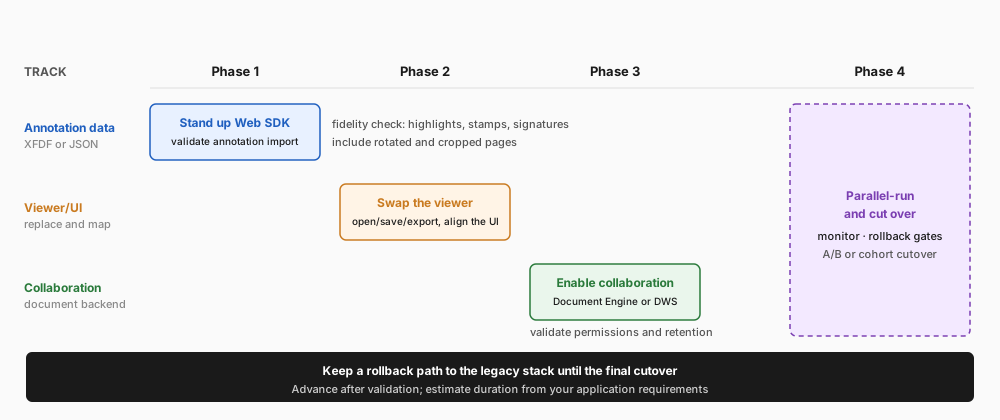
Estimate duration after testing annotation compatibility and inventorying custom UI, collaboration, and deployment requirements.
Risk controls — Run A/B or cohort cutovers, and keep a rollback path to the legacy stack. Validate annotation fidelity and access controls before final cutover.
Feature parity checklist
Work through this before the cutover gate.
| Area | What to verify on the Nutrient side |
|---|---|
| Annotations | Roundtrip fidelity per annotation type; coordinate conversion; custom annotation definitions |
| Forms | AcroForm fill, validation, flattening, and value export via Instant JSON |
| Digital signatures | Certificate-based signing and verification plus eSignature flows |
| Redaction | Search/regex-driven redaction parity; where you relied on OCR-based redaction, confirm the equivalent flow |
| Office and images | Client-side DOCX/XLSX/PPTX and PNG/JPEG/TIFF; see the file type support matrix |
| OCR and conversion | Map required operations to browser or Document Engine support; confirm licensed components |
| PDF/A and accessibility | Revalidate PDF/A conversion and your accessible reading-order flows against the new stack |
| CAD | DWG and DXF convert and render via Document Engine; confirm any other CAD formats in the document set |
| XFA | Not supported — validate an upstream AcroForm conversion or accept the loss of interactivity when flattening |
What changes in cost and operations
License fees are only part of it. Review these line items:
- Infrastructure you retire — The synchronization layer, and WebViewer Server if you ran it for Office conversion or streamed rendering.
- Infrastructure you take on — Choose either Document Engine (self-hosted, containerized) or a hosted subscription. The choice trades operations effort against data locality and control.
- Adapters you maintain — Review mappings for application metadata, identifiers, permissions, and events. Changing the annotation format doesn’t automatically remove those integrations.
- Maintenance either way — Both stacks need release tracking, prompt patching, and pinned versions. Run them through continuous integration and continuous delivery (CI/CD) with regression testing. Nutrient’s Web SDK builds on an optimized fork of PDFium. Because it’s a fork, upstream fixes arrive via Nutrient releases — track them as part of your patch cadence. Apryse uses a proprietary engine, so subscribe to vendor advisories. See the Nutrient security overview.
Nutrient licensing is modular across Web, Mobile, Document Engine, and hosted options, with a trial path and quotes scoped to the modules you choose; see pricing. Apryse packaging is enterprise and sales-assisted.
FAQ: Migrating from Apryse to Nutrient
Estimate the four phases against your application. Annotation compatibility, UI customizations, collaboration, and validation requirements determine the scope. The plan is a sequence of checks, not a fixed delivery estimate.
Yes. Use Nutrient’s built-in XFDF import and validate annotation fidelity with your documents. Adopt Instant JSON if it fits the target persistence or synchronization workflow; you don’t need to write a custom converter simply to switch viewers.
It depends on the features you use. Viewing, annotations, forms, signatures, and supported Office-to-PDF conversion can run in the browser. Instant synchronization and operations such as OCR require a document backend. Choose self-hosted Document Engine or a hosted option for those requirements.
Check every format your application uses against the target deployment. DWG and DXF require Document Engine’s CAD conversion component. XFA needs an upstream conversion workflow. Validate behavior for the remaining formats rather than assuming feature parity.
Yes. Use a controlled rollout: Run an A/B or cohort cutover, keep a rollback path to the legacy stack, and validate annotation fidelity and access controls before retiring the old viewer. The one thing to be explicit about is which system owns the annotation of record while both are live.
Start with a representative document set
Run a small proof of concept before scheduling the cutover. Include the annotation types, form behaviors, page rotations, and file formats your users rely on. Record any differences, confirm the deployment and license requirements, and use those results to estimate the remaining work.
Planning a move from Apryse? Review our features list, open the Web demo, and talk to an engineer to scope the migration against your stack.
Nutrient PDF SDKs provide modern APIs across all major platforms.