How to build an Excel (XLS/XLSX) viewer in JavaScript

Table of contents
Build a JavaScript Excel viewer with Nutrient Web SDK: Install the SDK, copy assets to your project, and initialize the viewer with NutrientViewer.load(). View XLS/XLSX files directly in the browser with no server required.
Want to display Excel spreadsheets directly in a browser without forcing users to download files or install software? This tutorial shows you how to build a JavaScript Excel viewer using the Nutrient Web SDK. You’ll open and view XLS or XLSX files directly in your web browser using client-side processing — no server required.
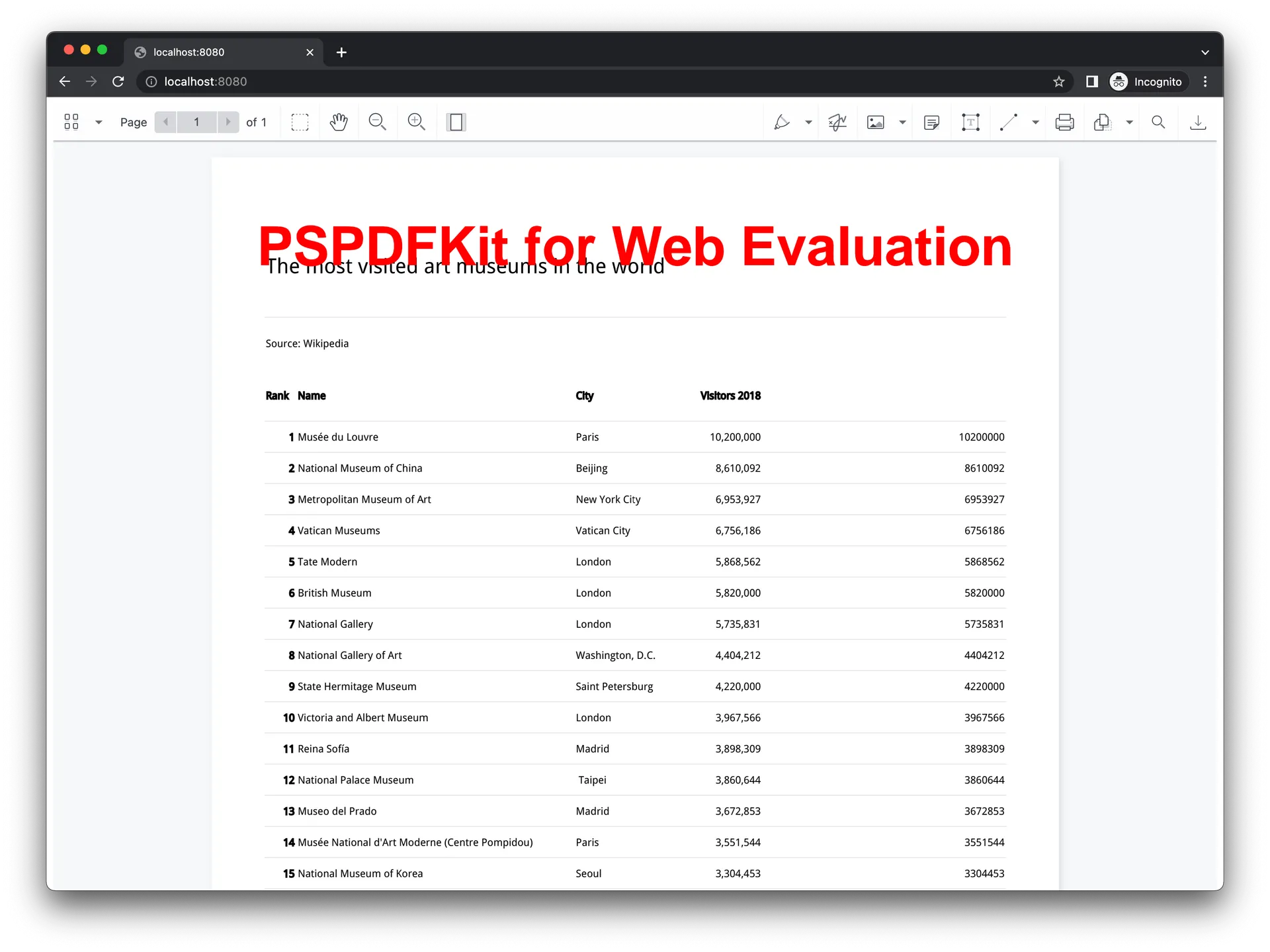
See the demo for a live example.
Opening and rendering Office documents in the browser
Nutrient Web SDK brings support for Word, Excel, and PowerPoint formats to your application, without you or your users needing any MS Office software, MS Office licenses, or third-party open source software. The technology works by converting an Office document to PDF directly in the browser, and the document is then rendered in our JavaScript viewer.
For both manual and npm installations, it’s important to note that the assets must be copied to a public folder. Make sure your server has the Content-Type: application/wasm MIME type set, as explained in our troubleshooting guide.
To serve the files, you need to use an npm package like serve(opens in a new tab) as a simple HTTP server.
Unlocking more capabilities with Office-to-PDF conversion
By using Office-to-PDF conversion, you have the option to support a rich array of additional Office document functionality, such as:
- Text editing — Edit text directly in the displayed Office document.
- Page manipulation — Organize documents by adding, removing, or rearranging pages.
- Annotations — Boost collaboration by adding text highlights, comments, or stamps.
- Adding signatures — Draw, type, or upload a signature directly to an Excel document.
Requirements to get started
To get started, you’ll need:
- The latest stable version of Node.js(opens in a new tab).
- A package manager compatible with npm(opens in a new tab). This guide contains usage examples for the npm client(opens in a new tab) (installed with Node.js by default).
Adding Nutrient to your project
- Install the
@nutrient-sdk/viewerpackage fromnpm. If you prefer, you can also download Nutrient Web SDK manually:
npm install @nutrient-sdk/viewer- For Nutrient Web SDK to work, it’s necessary to copy the directory containing all the required library files (artifacts) to the
assetsfolder. Use the following command to do this:
cp -R ./node_modules/@nutrient-sdk/viewer/dist/ ./assets/Make sure your assets directory contains the nutrient-viewer.js file and a nutrient-viewer-lib directory with the library assets.
Integrating into your project
- Add an Excel (XLS, XLSX) document you want to display to your project’s directory. You can use our demo document as an example.
- Add an empty
<div>element with a defined width and height to where Nutrient will be mounted:
<div id="nutrient" style="width:100%; height: 100vh;"></div>- Include
nutrient-viewer.jsin your HTML page:
<script src="assets/nutrient-viewer.js"></script>- Initialize Nutrient Web SDK in JavaScript by calling the
load()method.
This method takes a configuration object as its parameter. The configuration object specifies the location of the document on the page, the path to the source document, and the optional license key:
<script> NutrientViewer.load({ container: "#nutrient", document: "chart.xlsx", // Add the path to your document here. licenseKey: "YOUR_LICENSE_KEY" // Remove this line if you're using the free trial. })</script>This code loads chart.xlsx into the element with the ID nutrient.
Full index.html file:
<!DOCTYPE html><html>  <head>    <title>My App</title>    <!-- Provide proper viewport information so that the layout works on mobile devices. -->    <meta      name="viewport"      content="width=device-width, initial-scale=1.0, minimum-scale=1.0, maximum-scale=1.0, user-scalable=no"    />  </head>  <body>    <!-- Element where Nutrient will be mounted. -->    <div id="nutrient" style="width:100%; height: 100vh"></div>
    <script src="assets/nutrient-viewer.js"></script>    <script>      NutrientViewer.load({        container: '#nutrient',        document: 'chart.xlsx', // Add the path to your document here.      })        .then(function (instance) {          console.log('Nutrient Web SDK loaded', instance);        })        .catch(function (error) {          console.error(error.message);        });    </script>  </body></html>
Serving your website
You’ll use the npm serve package to serve your project.
- Install the
servepackage:
npm install --global serve- Serve the contents of the current directory:
serve -l 8080 .- Navigate to http://localhost:8080 to view the website.
A note about fonts
When converting an Office document with custom fonts to a PDF, Nutrient Web SDK might not have access to these fonts due to licensing constraints. Nutrient replaces unavailable fonts with equivalents — like Arial with Noto.
Adding more capabilities
Once you’ve deployed your viewer, you can start customizing it to meet your specific requirements or easily add more capabilities. To help you get started, here are some of our most popular JavaScript guides:
- Instant synchronization
- Document assembly
- Page manipulation
- Editor
- Forms
- Signatures
- Redaction
- Document security
Conclusion
This tutorial covered building an Excel viewer using JavaScript with the Nutrient SDK and the benefits of using Nutrient Web SDK to render Office documents in the browser.
The JavaScript Excel viewer should now be running in your web application. For troubleshooting, contact the Support team.
The JavaScript Excel viewer also integrates with web frameworks like Angular, Vue.js, and React.js. Start a free trial to see all web frameworks, or launch the demo to see the viewer in action.
FAQ
The Nutrient Web SDK loads and displays XLS/XLSX files directly in the browser using client-side processing.
No. No external software or MS Office licenses are required. Everything happens client-side using Nutrient.
Yes. Adjust the viewer layout and functionalities like annotations, page manipulation, and signatures.
Yes. After conversion, you can add annotations, manipulate pages, and add signatures to the document.
Nutrient replaces unavailable custom fonts with similar system fonts like Noto.