How to convert PDF pages to images in C# with Nutrient .NET SDK

Table of contents
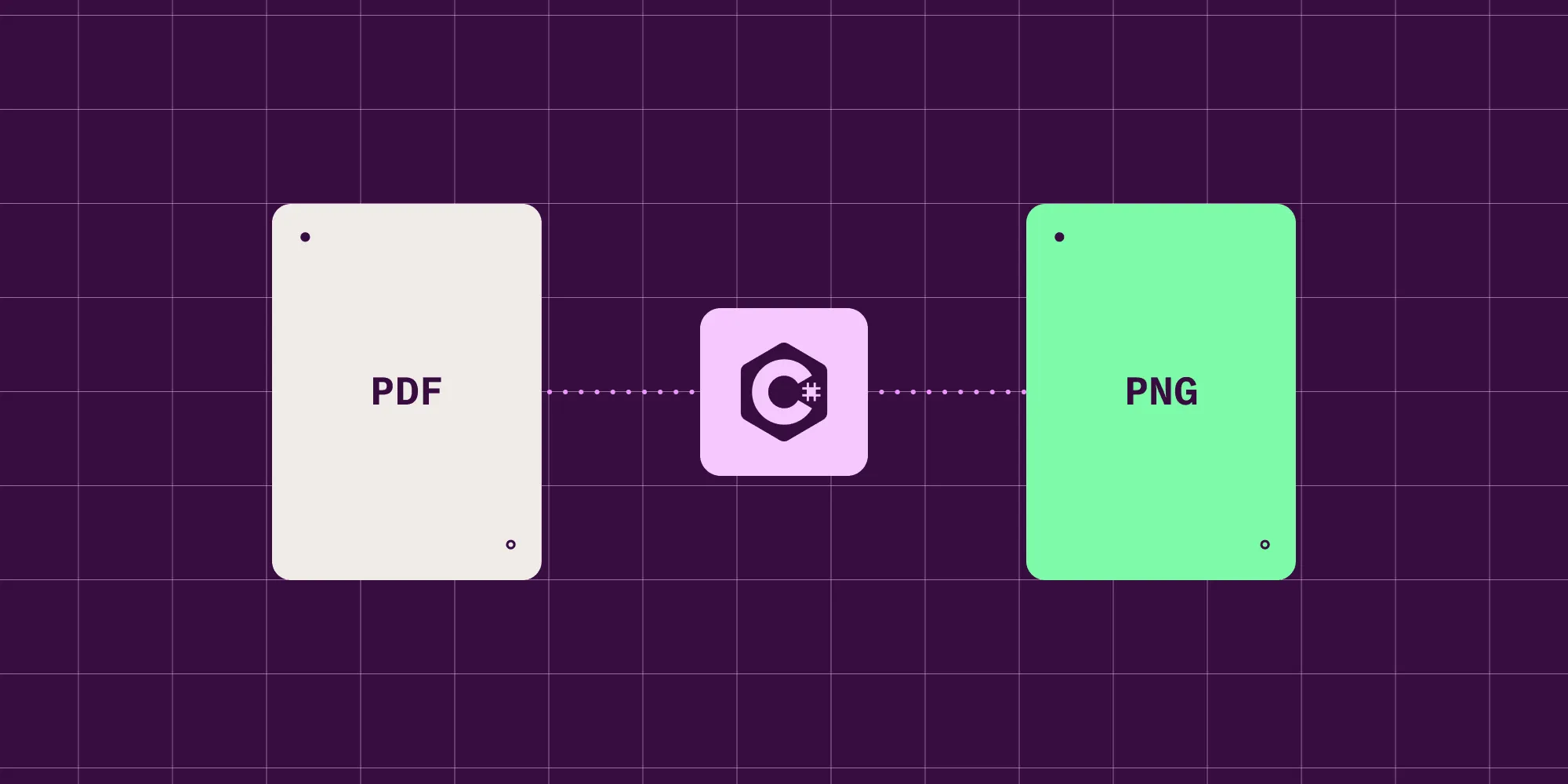
Nutrient .NET SDK (formerly GdPicture.NET) converts PDF pages to images in C#: Load the PDF with GdPicturePDF, render a page with RenderPageToGdPictureImage, and save it with GdPictureImaging.SaveAsPNG or SaveAsJPEG. Use GdPictureDocumentConverter to save every page in a single multipage TIFF.
Converting a PDF to an image in C# is common in .NET applications: generating thumbnails and previews, feeding pages to image-processing or machine learning pipelines, embedding a page in a webpage or email, or archiving documents as TIFF. This tutorial shows how to convert a PDF to PNG, JPG, BMP, and multipage TIFF in C# with Nutrient .NET SDK, one page at a time or for every page.
How PDF-to-image conversion works
A PDF page is a description of text, vector graphics, and images. Converting it to an image means rasterizing the page: drawing it onto a pixel grid at a chosen resolution, measured in dots per inch (DPI). A higher DPI produces sharper images and larger files.
Nutrient .NET SDK splits the job between two classes:
GdPicturePDFloads the PDF and renders a selected page to an in-memory image.GdPictureImagingsaves that image in the target format, such as PNG, JPG, BMP, or TIFF.
Choose an output format
| Format | Best for | Notes |
|---|---|---|
| PNG | Pages with text, line art, and sharp edges; UI previews | Lossless compression keeps text crisp. |
| JPG | Pages dominated by photographs; small files for the web | Lossy compression can blur small text. |
| TIFF | Archiving and document-imaging systems; multipage output | One TIFF file can hold every page of the PDF. |
| BMP | Legacy systems that expect uncompressed bitmaps | Uncompressed, so files are large. |
Setup
Install Microsoft’s .NET SDK version 8 or later. Then create a console project and add the Nutrient package:
dotnet new console -n PdfToImagecd PdfToImagedotnet add package GdPicture.API --version 14.4.9Each complete example includes using GdPicture14; and initializes the SDK with LicenseManager.RegisterKEY(""). An empty string enables trial mode; no trial key is required. Trial output is watermarked. For production, replace the empty string with a commercial license key. See the .NET integration guide for setup and licensing details.
Copy a PDF named source.pdf into the project directory. Run the examples from that directory so the relative input and output paths resolve correctly. Each example writes its output there, replacing any existing file with the same name.
Convert PDF to PNG in C#
Replace the contents of Program.cs with this example. It loads the PDF, selects the first page, renders it at 200 DPI, and saves it as a PNG:
using GdPicture14;
var licenseManager = new LicenseManager();if (!licenseManager.RegisterKEY(""))    throw new InvalidOperationException("SDK license initialization failed.");
using var pdf = new GdPicturePDF();using var imaging = new GdPictureImaging();int imageId = 0;
try{    Check(pdf.LoadFromFile("source.pdf"), "Load PDF");    Check(pdf.SelectPage(1), "Select page");
    // Render form fields and annotations along with the page.    imageId = pdf.RenderPageToGdPictureImage(200, true);    Check(pdf.GetStat(), "Render page");    if (imageId == 0)        throw new InvalidOperationException("Rendering returned no image.");
    Check(imaging.SaveAsPNG(imageId, "output.png"), "Save PNG");    Console.WriteLine("Saved output.png");}finally{    if (imageId != 0)        imaging.ReleaseGdPictureImage(imageId);    pdf.CloseDocument();}
static void Check(GdPictureStatus status, string operation){    if (status != GdPictureStatus.OK)        throw new InvalidOperationException($"{operation} failed: {status}");}
Run the program with:
dotnet runRenderPageToGdPictureImage returns an image ID for the page in memory. The finally block releases it even if saving fails. The status checks report which operation failed instead of continuing with an invalid document or image. If loading fails, check the input path and whether the PDF needs a password. If saving fails, check write permissions and available disk space. The PDF-to-PNG guide also covers C# and VB.NET conversion.
Convert PDF to JPG or BMP in C#
Keep the PNG program’s setup, rendering, and cleanup. Replace its SaveAsPNG call and success message with these two lines:
Check(imaging.SaveAsJPEG(imageId, "output.jpg"), "Save JPG");Console.WriteLine("Saved output.jpg");Run dotnet run again to create output.jpg.
To trade file size against image quality, pass a JPEG quality value as the third argument. Lower values produce smaller files with more compression artifacts:
Check(imaging.SaveAsJPEG(imageId, "output.jpg", 85), "Save JPG");To save a bitmap instead, use SaveAsBMP:
Check(imaging.SaveAsBMP(imageId, "output.bmp"), "Save BMP");Console.WriteLine("Saved output.bmp");See the PDF-to-JPG guide for C# and VB.NET examples. The PDF-to-image overview links guides for BMP, SVG, and other image formats.
Convert all PDF pages to images
To produce one image per page, loop through page numbers from 1 to GetPageCount(). In the PNG program, replace the try block with this loop. It selects each page, saves it with a unique file name, and releases its image before rendering the next page:
try{    Check(pdf.LoadFromFile("source.pdf"), "Load PDF");    int pageCount = pdf.GetPageCount();    Check(pdf.GetStat(), "Get page count");
    for (int page = 1; page <= pageCount; page++)    {        Check(pdf.SelectPage(page), $"Select page {page}");        imageId = pdf.RenderPageToGdPictureImage(200, true);        Check(pdf.GetStat(), $"Render page {page}");        if (imageId == 0)            throw new InvalidOperationException($"Rendering page {page} returned no image.");
        Check(imaging.SaveAsPNG(imageId, $"page-{page}.png"), $"Save page {page}");        imaging.ReleaseGdPictureImage(imageId);        imageId = 0;        Console.WriteLine($"Saved page-{page}.png");    }}
Setting imageId back to 0 after each release keeps the finally block from releasing the same image twice.
Convert PDF to multipage TIFF in C#
To keep all pages in a single file, replace Program.cs with this complete multipage TIFF example and run dotnet run:
using GdPicture14;
var licenseManager = new LicenseManager();if (!licenseManager.RegisterKEY(""))    throw new InvalidOperationException("SDK license initialization failed.");
using var converter = new GdPictureDocumentConverter();Check(converter.LoadFromFile("source.pdf", GdPicture14.DocumentFormat.DocumentFormatPDF), "Load PDF");converter.RasterizationDPI = 300;Check(converter.SaveAsTIFF("output.tiff", TiffCompression.TiffCompressionAUTO), "Save TIFF");Console.WriteLine("Saved output.tiff");
static void Check(GdPictureStatus status, string operation){    if (status != GdPictureStatus.OK)        throw new InvalidOperationException($"{operation} failed: {status}");}
RasterizationDPI sets the rendering resolution when converting vector content to raster output. The PDF-to-TIFF guide also shows how to render a single page to TIFF.
Choose the right resolution
The first argument of RenderPageToGdPictureImage is the DPI. The PNG and JPG examples use 200 DPI. Higher values produce more pixels and use more memory, so match the DPI to how the image will be used: lower for thumbnails, higher for print. For optical character recognition (OCR), the .NET OCR guide recommends 300 DPI as a balance of speed and accuracy. Increasing DPI won’t recover detail missing from a low-resolution scan.
For scanned pages, the related method, RenderPageToGdPictureImageEx, keeps the scan’s original resolution instead. Use it to keep the source pixels untouched. The examples here use RenderPageToGdPictureImage, so every page is rendered at the requested DPI.
For thumbnails, the PDF thumbnail guide uses the same render-and-save pattern at a lower DPI.
Conclusion
Use the rendered pages in application previews or pass them to an image-processing step, such as OCR or barcode scanning.
Convert PDFs to images with Nutrient .NET SDK
FAQ
Load the PDF with GdPicturePDF.LoadFromFile, select a page with SelectPage, render it with RenderPageToGdPictureImage, and save the image with GdPictureImaging.SaveAsPNG or SaveAsJPEG. Check each operation’s status and release the image with ReleaseGdPictureImage afterward.
Use PNG for pages with text and line art, because lossless compression keeps edges sharp. Use JPG for photo-heavy pages when smaller files matter more than perfect text rendering.
Loop through page numbers from 1 to GetPageCount(), selecting each page with SelectPage. Render and save each page with a unique file name. Then release its image. To get a single file containing every page, convert the PDF to a multipage TIFF with GdPictureDocumentConverter.SaveAsTIFF.
Use lower values for thumbnails and higher values for print, accounting for file size and memory use. For OCR input, Nutrient’s .NET OCR guide recommends 300 DPI.