Tesseract OCR in Python: Preprocessing, PSM, and OEM

Table of contents
Searchable PDFs and extracted text in 80+ languages through the Nutrient PDF OCR API — no Tesseract install, no servers to run. Start with 50 free credits.
Tesseract’s accuracy and speed in Python depend on configuration: Page segmentation modes (PSM) control layout analysis, OCR engine modes (OEM) select the recognition engine, and character allowlists constrain output. This guide covers those settings, plus the preprocessing and performance tuning that go with them. For a beginner-focused walkthrough of basic extraction, see the pytesseract tutorial; for searchable PDFs through a hosted service, see the Nutrient OCR API.
Create searchable PDFs from scanned images with Nutrient OCR API. Compare its output against your own documents.
Tesseract OCR(opens in a new tab) is an open source optical character recognition (OCR) engine. Recognition quality depends on the source image, language data, page segmentation mode, and engine configuration. This guide focuses on those settings: PSM and OEM modes, character allowlists, preprocessing, and performance tuning. For a first-steps walkthrough of installing pytesseract and extracting text from images, start with the pytesseract tutorial instead.
What is Tesseract?
Tesseract extracts text from images and recognizes more than 100 languages with the appropriate trained data. It doesn’t read PDF input directly: Rasterize PDF pages first. With pytesseract, you can call the engine from Python to automate data extraction.
What is pytesseract?
pytesseract is a Python wrapper for the Tesseract OCR engine. It provides a Pythonic interface to Tesseract without requiring direct interaction with the C++ engine. For a hands-on tutorial with code examples, see our pytesseract tutorial.
| Feature | Tesseract | pytesseract |
|---|---|---|
| Language | C++ | Python wrapper |
| Usage | Command-line tool or C++ API | Python import pytesseract |
| Installation | System package (brew, apt, installer) | pip install pytesseract |
| Requires | Standalone installation | Tesseract must be installed separately |
| Output formats | Text, hOCR, TSV, PDF | String, dict, DataFrame, bytes |
| Best for | Direct CLI usage, C++ integration | Python scripts, automation, data pipelines |
Prerequisites
Make sure you have the following installed:
- Installation of Python environment — Install Python on your system. You can download it from the official Python website(opens in a new tab).
- Pip package manager — If you don’t have pip installed, follow these steps:
- Windows — Pip comes bundled with Python. If it’s missing, download
get-pip.py(opens in a new tab) and run:
- Windows — Pip comes bundled with Python. If it’s missing, download
python get-pip.py- macOS/Linux — Open a terminal and run:
sudo apt install python3-pip # For Debian-based Linux.sudo dnf install python3-pip # For Fedora-based Linux.brew install python # For macOS (via Homebrew).- OpenCV library — This is required for image preprocessing tasks such as grayscale conversion, thresholding, and noise removal. Install it using:
pip install opencv-python- NumPy library — Used for handling numerical operations on image data. Install it using:
pip install numpy- Pillow — This is a fork of the Python Imaging Library (PIL), which you’ll need to open image files:
pip install PillowSetting up Tesseract with Python
The setup process covers installing the Tesseract engine and the pytesseract Python wrapper.
Installation
Install both the Tesseract OCR engine and the pytesseract(opens in a new tab) library.
Installing Tesseract
- Windows — Download the Windows installer from Tesseract’s official repository(opens in a new tab) and follow the installation instructions provided.
- macOS — Install Tesseract using Homebrew, a package manager for macOS, by executing the following command:
brew install tesseract- Linux — Most Linux distributions include Tesseract in their package repositories, so you can install it using APT with the following command:
sudo apt install tesseract-ocr- For Fedora-based distributions, use:
sudo dnf install tesseractAfter installation, make sure Tesseract is available in your system’s PATH, or provide the direct path in your code.
Installing pytesseract
Once Tesseract is installed on your system, install the pytesseract(opens in a new tab) library using Python’s package manager, pip:
pip install pytesseractVerifying installation
To ensure Tesseract has been installed correctly, open a terminal or command prompt and run the following command:
tesseract --versionIf the installation was successful, the terminal will display the version number of Tesseract, along with other relevant details.
How to use Tesseract with Python
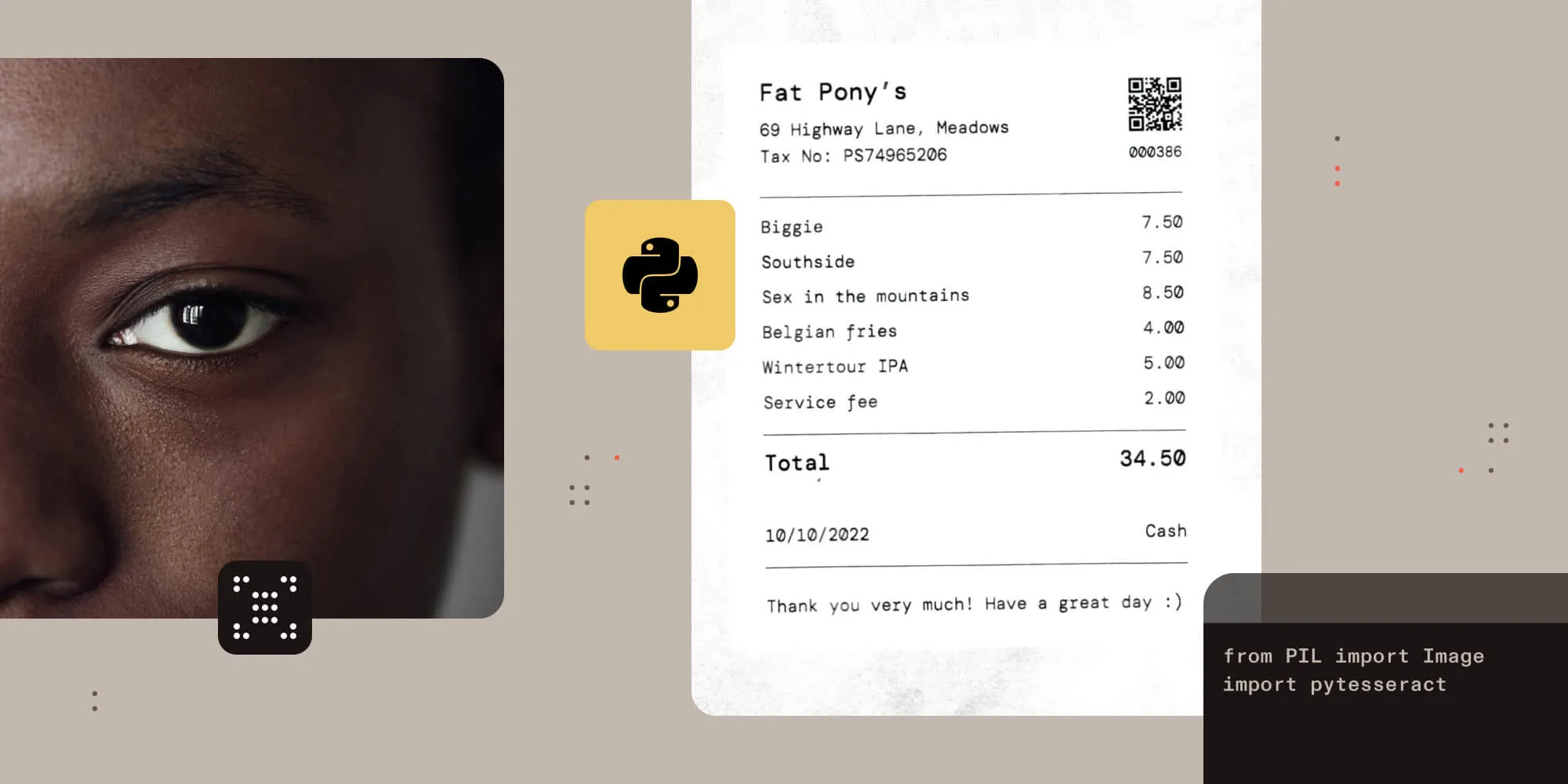
To use Tesseract with Python, install pytesseract, open an image with Pillow, and call pytesseract.image_to_string() to return the recognized text as a string. The example below demonstrates this with a sample image containing printed text.
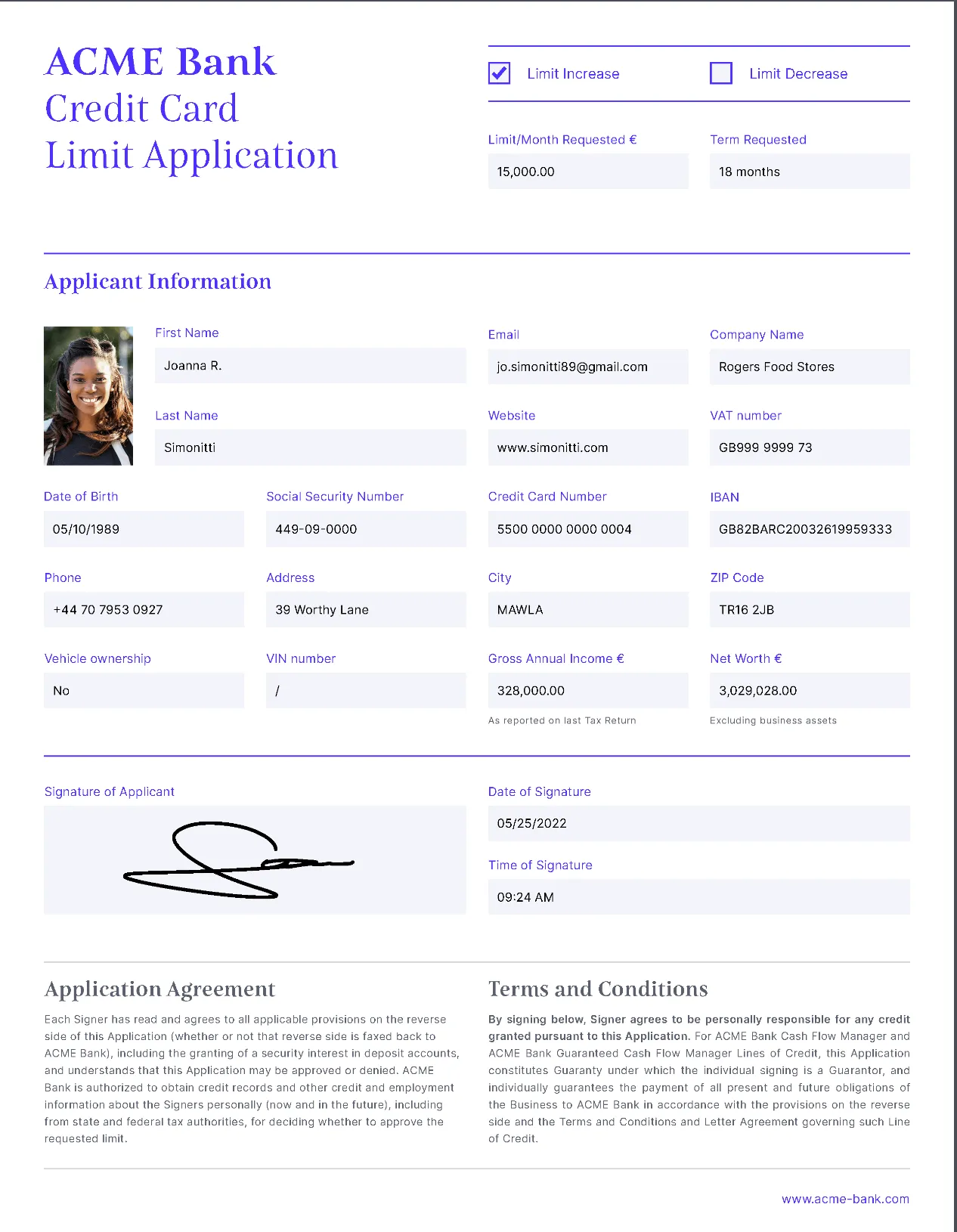
Use this code to get started with OCR using Tesseract and Python:
from PIL import Imageimport pytesseract
# Open an image file.image = Image.open('example.png')
# Use pytesseract to do OCR on the image.text = pytesseract.image_to_string(image)
# Print the extracted text.print(text)
In this example:
- Open an image file using Pillow.
- Pass the image to
pytesseract.image_to_string()to extract the text.
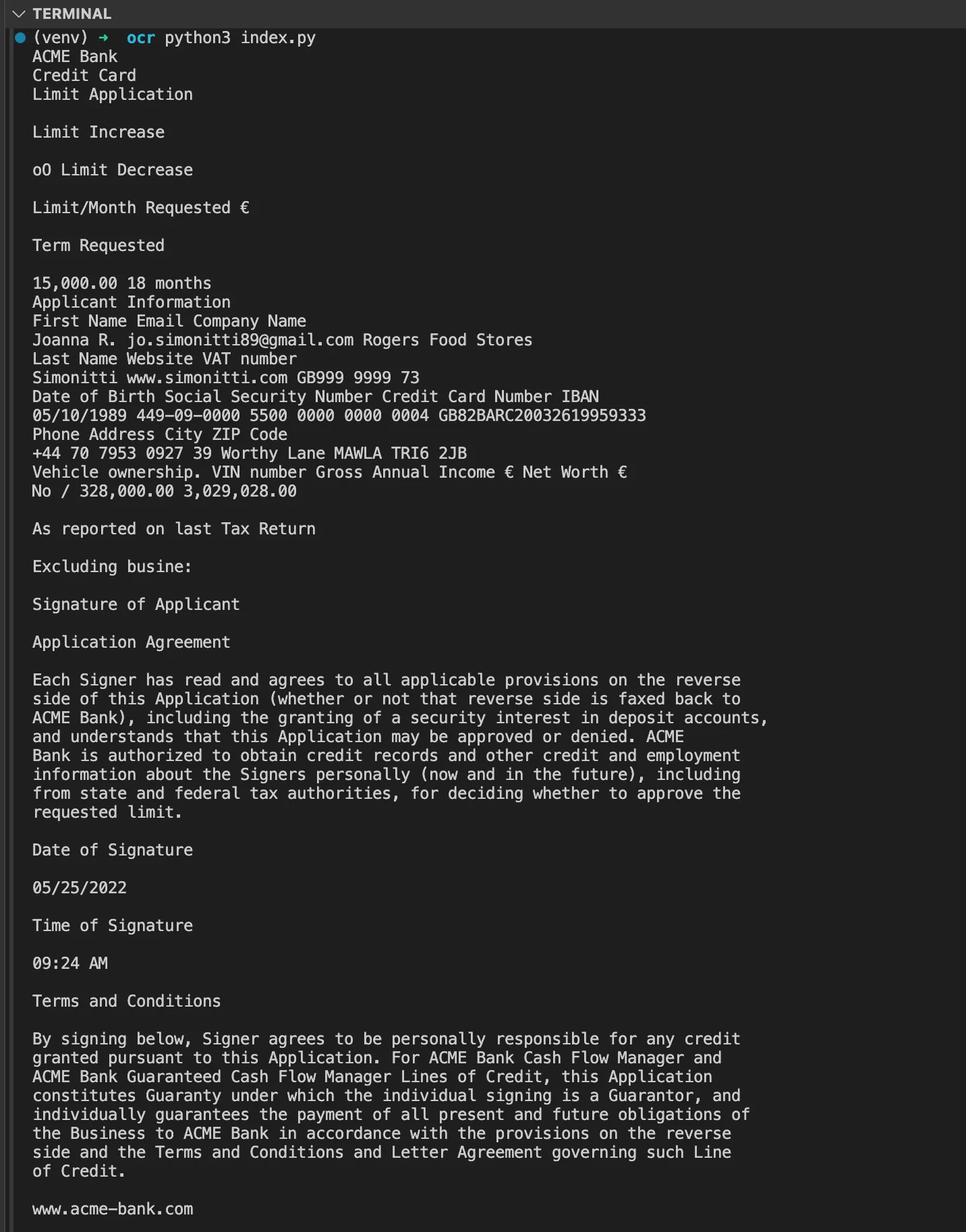
The image_to_string parameters
Most of Tesseract’s behavior in Python is controlled through the arguments to pytesseract.image_to_string(). The parameters below are the ones that matter most for accuracy and control.
| Parameter | What it does |
|---|---|
image | Input to OCR. Accepts a Pillow Image, a NumPy array (e.g. an OpenCV cv2 image), or a file path |
lang | Language(s) to recognize, e.g. "eng" or "eng+deu" for several at once. Defaults to English |
config | Custom Tesseract flags as a string — --psm, --oem, and -c key-value options (covered below) |
timeout | Maximum seconds to wait before raising RuntimeError. 0 (the default) means no limit |
output_type | Return format: Output.STRING (the default), Output.DICT, or Output.BYTES |
A single call can combine several of these:
import pytesseract
text = pytesseract.image_to_string(    image,    lang="eng",    config="--psm 6 --oem 1",    timeout=30,)
image_to_string() accepts NumPy arrays, but OpenCV loads color images in blue, green, red (BGR) order while pytesseract expects red, green, blue (RGB). Convert color input with cv2.cvtColor(image, cv2.COLOR_BGR2RGB) before OCR. Grayscale arrays don’t need this channel conversion. The config string is where page segmentation modes, engine modes, and character allowlists are set — see the configuration reference below.
For OpenCV color input and a bounded OCR call:
import cv2import pytesseract
image = cv2.imread('image.png')if image is None:    raise FileNotFoundError('image.png')rgb = cv2.cvtColor(image, cv2.COLOR_BGR2RGB)try:    text = pytesseract.image_to_string(rgb, config='--psm 6', timeout=30)    print(text)except RuntimeError as error:    print(f'OCR did not finish successfully: {error}')
timeout limits the Tesseract subprocess call. It doesn’t cover earlier image preprocessing or PDF rasterization. Handle a timeout as a failed attempt rather than treating it as an empty OCR result.
Understanding OpenCV (cv2)
Image preprocessing in this guide uses OpenCV(opens in a new tab), an open source computer vision library for Python. The cv2 module provides functions to manipulate and enhance images before passing them to Tesseract.
Key features of OpenCV (cv2)
- Reading and writing images — OpenCV enables loading, displaying, and saving images using functions like
cv2.imread()andcv2.imwrite(). - Image preprocessing — It provides various image enhancement techniques, such as grayscale conversion, thresholding, noise removal, and edge detection.
- Geometric transformations — Functions like rotation, resizing, and deskewing help in improving OCR accuracy.
- Object and text detection — OpenCV supports contour detection, which is useful for extracting regions of interest in images containing text.
Image preprocessing for better OCR accuracy
Tesseract accuracy depends on input image quality. Compare OCR output before and after each preprocessing step using representative images and known text. Thresholding, denoising, and sharpening can remove useful character detail; they aren’t always improvements. The Tesseract quality guide(opens in a new tab) explains common input problems. For a complete walkthrough of preprocessing pipelines, see our guide on building a document scanner with OCR in Python.
Grayscale conversion
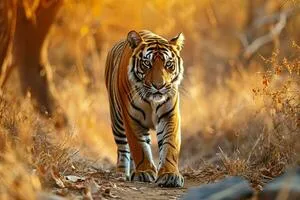
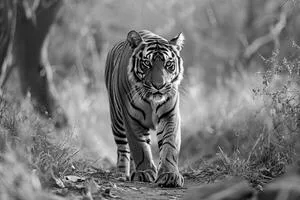
Converting an image to grayscale reduces the complexity of the image by eliminating unnecessary color information, making it easier for Tesseract to focus on text detection:
import cv2image = cv2.imread('image.png')if image is None: raise FileNotFoundError('image.png')gray = cv2.cvtColor(image, cv2.COLOR_BGR2GRAY)cv2.imwrite('gray_image.png', gray)| Original image | Grayscale image |
|---|---|
 |  |
Thresholding
Thresholding(opens in a new tab) is a technique that helps separate text from a background by converting an image into a binary format where pixels are either black or white:
thresh = cv2.threshold(gray, 0, 255, cv2.THRESH_BINARY + cv2.THRESH_OTSU)[1]cv2.imwrite('thresholded_image.png', thresh)The code above applies Otsu’s thresholding(opens in a new tab) to a grayscale image, converting it into a binary image where pixels are either black or white. The thresholded result is then saved as thresholded_image.png.
| Original image | Thresholded image |
|---|---|
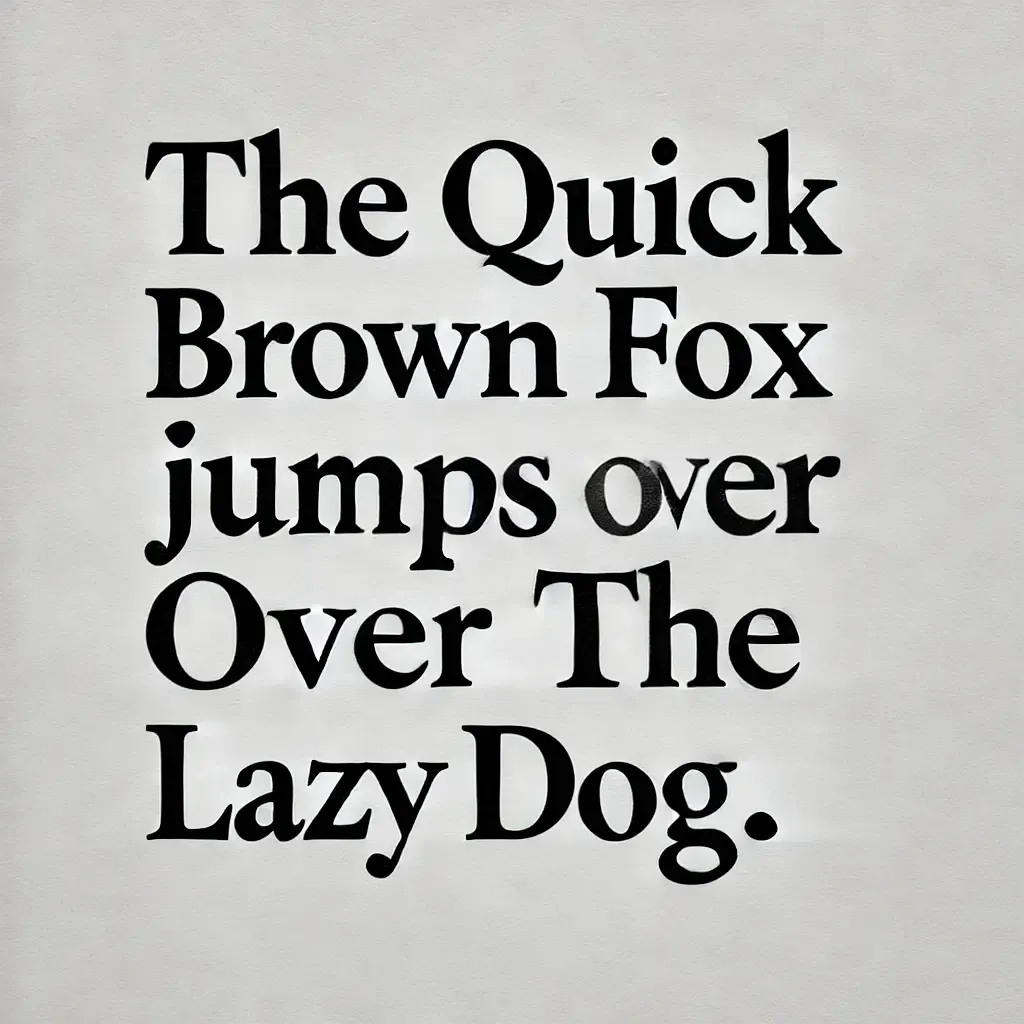 | 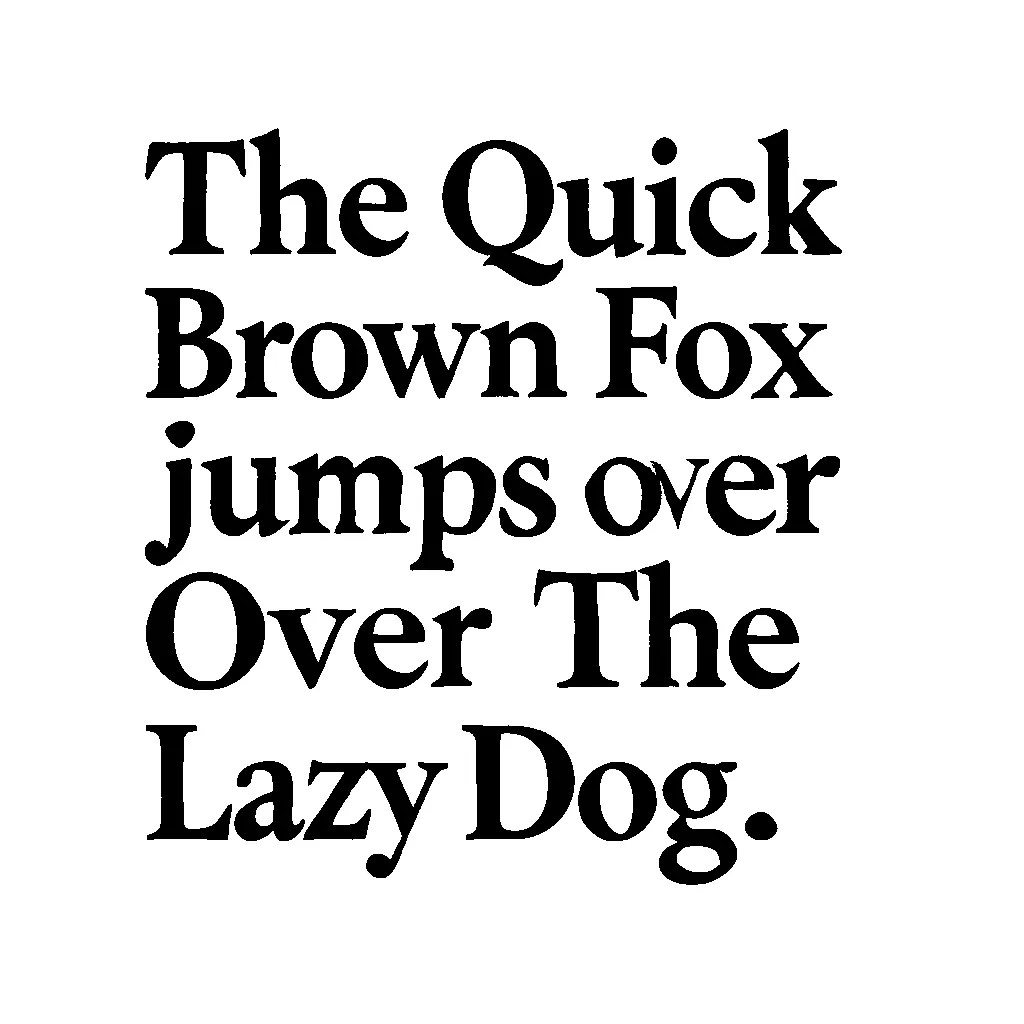 |
Noise removal
Noise, such as small speckles or distortions, can interfere with OCR. The following code, broken down into steps, applies image processing techniques to remove noise and improve text clarity.
Step 1
Load and convert to grayscale:
import cv2import numpy as np
image = cv2.imread('fax.jpg')if image is None: raise FileNotFoundError('fax.jpg')gray = cv2.cvtColor(image, cv2.COLOR_BGR2GRAY)cv2.imwrite('gray_image.png', gray)- Loads the image and converts it to grayscale for simpler processing.
Step 2
Apply a bilateral filter:
denoised = cv2.bilateralFilter(gray, 9, 75, 75)- Reduces noise while preserving edges using a bilateral filter.
Step 3
Sharpen the image:
kernel = np.array([[0, -1, 0], [-1, 5, -1], [0, -1, 0]])sharpened = cv2.filter2D(denoised, -1, kernel)- Sharpens the image by enhancing edges with a kernel filter.
Step 4
Save the processed image:
cv2.imwrite('denoised_image.png', sharpened)- Saves the final sharpened and denoised image.
Why does this matter for OCR?
- Reduces noise, making text more readable.
- Preserves important details while removing unwanted distortions.
- Can improve OCR accuracy when filtering preserves the character shapes; compare the result with the original.
| Original image | Denoised image |
|---|---|
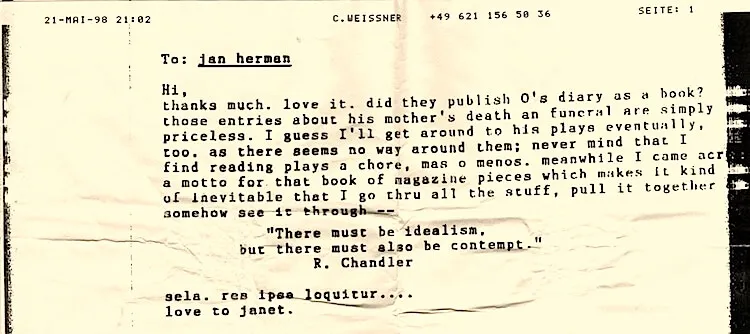 | 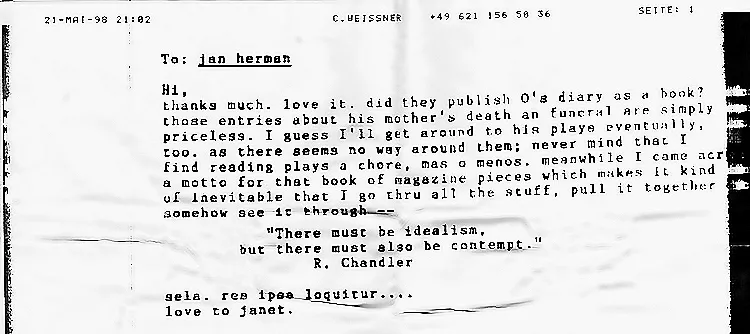 |
Deskewing for better OCR accuracy
For a slightly tilted, isolated text block, estimate the angle from the dark foreground pixels in the thresholded image. This continues the grayscale and thresholding examples above. It leaves a blank image unchanged:
# Use the binary image from the thresholding step: Dark text on white.points = cv2.findNonZero(cv2.bitwise_not(thresh))deskewed = thresh.copy()
if points is not None:    angle = cv2.minAreaRect(points)[-1]    # Normalize the rectangle angle to the nearest horizontal orientation.    if angle > 45:        angle -= 90    elif angle < -45:        angle += 90    h, w = thresh.shape[:2]    matrix = cv2.getRotationMatrix2D((w / 2, h / 2), angle, 1.0)    deskewed = cv2.warpAffine(        thresh, matrix, (w, h), flags=cv2.INTER_CUBIC,        borderMode=cv2.BORDER_CONSTANT, borderValue=255,    )
cv2.imwrite('deskewed_image.png', deskewed)
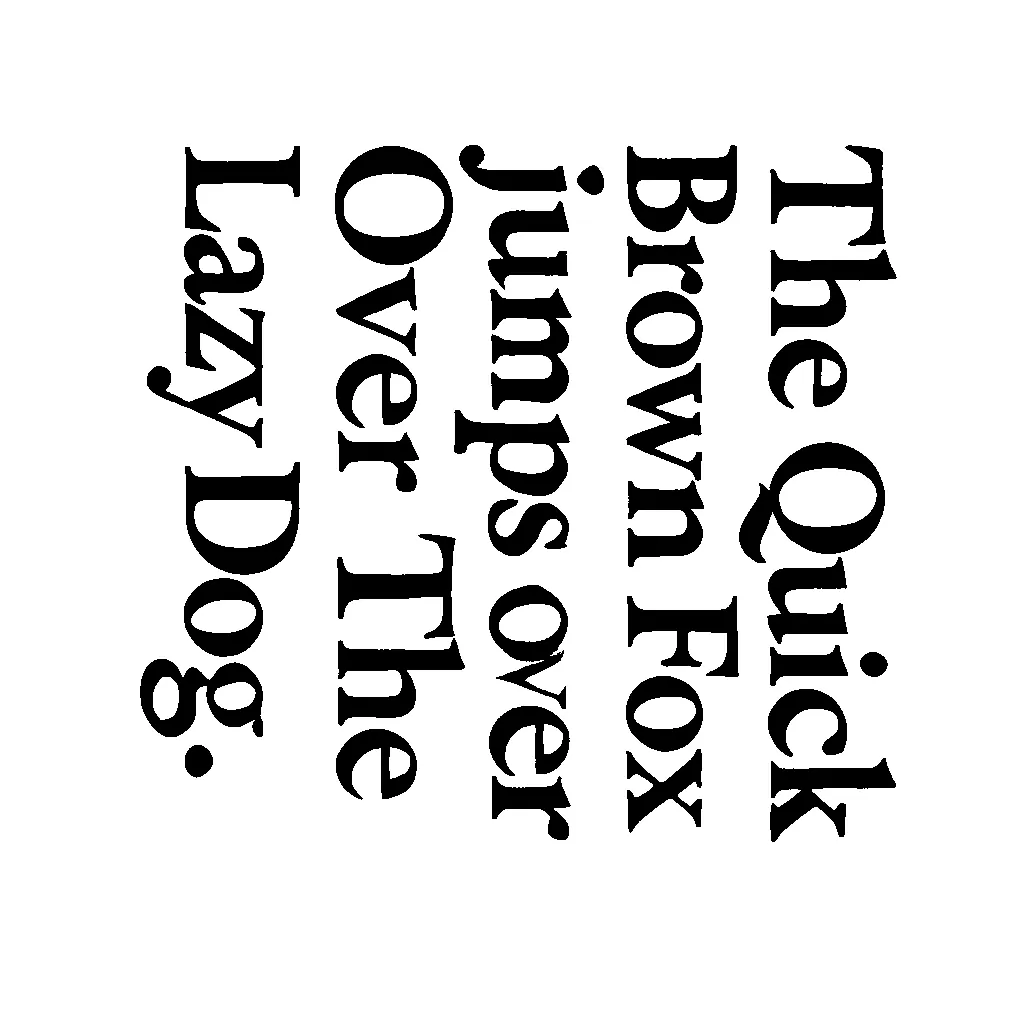
This bounding-box method assumes dark text on a white background and enough margin for rotation. Borders, graphics, multiple columns, or a page rotated by 90 degrees need different handling. Check the corrected image before OCR rather than applying deskewing to every document.
| Original image | Deskewed image |
|---|---|
| |  |
Multilingual text recognition
Tesseract supports more than 100 languages, which lets you extract text in different scripts and dialects. To enable multilingual OCR, the required language data files must be correctly installed and configured.
For Data Extraction API workflows, see the multilingual extraction guide and supported languages.
Language data files
Tesseract provides language data files that can be downloaded from Tesseract’s language repository(opens in a new tab) and placed in the tessdata directory of the Tesseract installation.
Configuring language in pytesseract
To instruct Tesseract to recognize multiple languages in an image, specify the desired languages in the lang parameter of pytesseract.image_to_string():
import pytesseracttext = pytesseract.image_to_string(image, lang='eng+fra')print(text)Tesseract configuration: PSM, OEM, and character allowlists
Three settings to evaluate through the config string are the page segmentation mode (how the page layout is analyzed), the OCR engine mode (which recognition engine runs), and character allowlists (which characters are allowed in the output).
Page segmentation modes (PSM)
Tesseract offers various page segmentation modes (PSM)(opens in a new tab) that determine how text is segmented within an image. For example:
text = pytesseract.image_to_string(image, config='--psm 6')Common PSM modes include:
- 0 — Orientation and script detection (OSD) only, no OCR.
- 3 — Fully automatic page segmentation with no OSD (the default).
- 4 — A single column of text of variable sizes.
- 6 — A single uniform block of text.
- 7 — A single text line.
- 10 — A single character.
- 11 — Sparse text: Find as much text as possible in no particular order.
If OCR output is missing text or scrambled, the PSM is the first thing to change. Use 6 for a clean block of text, 3 for full-page documents with mixed layout, and 11 for scattered text such as labels or receipts.
OCR engine modes (OEM)
Tesseract supports multiple OCR engine modes (OEM), which define the underlying text recognition approach:
text = pytesseract.image_to_string(image, config='--oem 1')Common OEM modes include:
- 0 — Uses the legacy OCR engine only.
- 1 — Uses the long short-term memory (LSTM)-based OCR engine.
- 2 — Uses both the legacy and LSTM engines.
- 3 — Selects the default engine based on the available trained data.
Mode 3 is the default; mode 1 explicitly selects LSTM. The tessdata_fast and tessdata_best models support only LSTM, so modes 0 and 2 require different trained data with legacy support. Check the installed engine’s options with tesseract --help-oem and the official model documentation(opens in a new tab).
Character allowlists (tessedit_char_whitelist)
When a field has a known character set, you can restrict recognition to those characters:
custom_config = r'--psm 6 -c tessedit_char_whitelist=ABCDEFGHIJKLMNOPQRSTUVWXYZ0123456789'text = pytesseract.image_to_string(image, config=custom_config)To exclude characters instead of allowing them, use tessedit_char_blacklist the same way. Constraining the character set is most useful on structured fields such as IDs, serial numbers, and monetary amounts, where the expected characters are known in advance.
Extracting text from PDF
Tesseract can extract text from PDFs by converting them to images. Ensure you have Poppler(opens in a new tab) installed first. For alternative Python approaches to PDF text extraction, see our dedicated guides.
For a Linux CLI workflow that wraps Tesseract with OCRmyPDF, see PDF OCR on the Linux command line.
Installing Poppler
First, install Poppler:
- macOS —
brew install poppler - Ubuntu —
sudo apt-get install poppler-utils - Windows — Download Poppler(opens in a new tab) and add it to your
PATH.
Then, use this code:
import pytesseractfrom pdf2image import convert_from_path
# Convert PDF to images.images = convert_from_path('example.pdf')
# Extract text from the first page.text = pytesseract.image_to_string(images[0])
print(text)
You’ll need to install pdf2image using:
pip install pdf2imageFor extracting text from PDFs without OCR (when text is already selectable), see how to extract text from a PDF using PyMuPDF.
Tesseract vs. commercial OCR solutions
Choosing between Tesseract and a commercial OCR solution depends on your use case, volume, and accuracy requirements.
| Consideration | Tesseract | Nutrient OCR API |
|---|---|---|
| Deployment | Local engine and installed language data | Hosted API |
| PDF input | Rasterize pages before recognition | Accepts PDFs directly |
| Searchable PDF output | Available through Tesseract’s PDF output | Returned by the OCR API |
| Integration | Manage preprocessing and execution in your application | Send a request and handle the response |
| Evaluation | Compare accuracy and runtime on your document set | Compare accuracy, latency, and data handling requirements |
Tesseract is Apache 2.0-licensed. Check the API’s current pricing and usage limits when evaluating costs. Neither approach guarantees correct recognition on every scan.
For production OCR that outputs searchable PDFs, see the Nutrient OCR API. You can also OCR PDFs directly using the API in JavaScript, Python, PHP, or Java.
Performance optimization tips
When processing large batches of images or working with high-resolution scans, performance becomes critical. These tips help you get the most out of Tesseract.
- Use
tessdata_fastmodels — The tessdata_fast(opens in a new tab) models prioritize speed. Compare their accuracy and runtime against your current models before switching. - Resize images appropriately — Tesseract’s quality guide recommends scans of at least 300 dots per inch (DPI). Increasing a DPI metadata value alone doesn’t restore missing character detail; test resampling against your original image.
- Limit the recognition region — If you only need text from a specific area, crop the image before passing it to Tesseract. This reduces processing time significantly.
- Use the right PSM mode — Choosing the correct page segmentation mode avoids unnecessary layout analysis. Use
--psm 6for a single uniform block and measure the result; it isn’t a universal speed improvement. - Process pages in parallel — For multipage documents, use Python’s
concurrent.futuresto OCR pages in parallel:
from concurrent.futures import ThreadPoolExecutorimport pytesseractfrom pdf2image import convert_from_path
images = convert_from_path('document.pdf')
def ocr_page(image):    return pytesseract.image_to_string(image)
with ThreadPoolExecutor(max_workers=4) as executor:    results = list(executor.map(ocr_page, images))
full_text = '\n'.join(results)- Cache preprocessed images — If you’re iterating on OCR settings, save preprocessed images to disk so you don’t repeat expensive preprocessing steps.
For high-volume document processing, consider automated OCR workflows or the Nutrient OCR API when you want a hosted alternative to maintaining the local pipeline.
Common errors and troubleshooting
Most issues fall into four categories: the Tesseract engine can’t be found, output is empty or incorrect, the Python library won’t import, or processing is too slow.
TesseractNotFoundError
This means Python can’t locate the Tesseract executable. Fix it by setting the path explicitly:
pytesseract.pytesseract.tesseract_cmd = r'C:\Program Files\Tesseract-OCR\tesseract.exe' # Windows.# pytesseract.pytesseract.tesseract_cmd = '/usr/local/bin/tesseract' # macOS/Linux.Empty or garbled output
If Tesseract returns empty strings or incorrect characters, check these common causes:
- Image quality — Apply grayscale conversion, thresholding, and noise removal before OCR.
- Wrong PSM mode — Try
--psm 6for blocks of text,--psm 7for single lines. - Wrong language — Specify the correct language with
lang='eng'or install additional language packs. - Low resolution — Use a higher-quality scan when possible; changing DPI metadata alone doesn’t improve recognition.
Import errors
If import pytesseract fails, ensure the library is installed in the correct Python environment. See the troubleshooting guide in our pytesseract tutorial for detailed solutions.
Slow processing
If OCR is taking too long, reduce image resolution, use tessdata_fast models, limit the recognition region, or switch to parallel processing as described in the performance optimization section above.
Common OCR challenges
The most frequent sources of reduced accuracy are poor image quality, unusual fonts, and non-standard characters.
Low-quality images
For blurry or noisy images, apply preprocessing before OCR:
- Denoising —
cv2.fastNlMeansDenoising() - Binarization —
cv2.threshold()
Text in uncommon fonts
Tesseract may struggle with decorative or distorted fonts. Try training Tesseract on custom font data, or apply additional image processing to increase contrast and clarity.
Non-standard characters
If Tesseract misrecognizes special characters or symbols, verify that you have the correct language data installed and try adjusting the OEM or PSM settings.
Nutrient OCR solutions and features
Nutrient offers OCR across multiple platforms, extracting text from scanned PDFs and images to make documents searchable and editable.
Choosing an OCR integration
Use the Nutrient OCR API for hosted processing with searchable PDF output. For an application that manages its own document processing, compare the options in Nutrient’s OCR documentation. Platform support, deployment requirements, and licensed components differ, so use the guide for your target product when planning an integration.
Choose the integration by the output and deployment you need:
- A searchable PDF from a hosted service — Use the OCR capability of Nutrient DWS Processor API. The OCR request guide includes Python examples and a sample input; use the OCR API page to start an evaluation.
- OCR in a browser viewer backed by a server — Use Web SDK with Document Engine. OCR requires Document Engine; it isn’t available in the browser-only Web SDK. For processing without a viewer, see the Document Engine OCR guide.
- Structured data for another application — Use Nutrient Data Extraction API when you need document elements, Markdown, or schema-shaped JSON. A searchable PDF and extracted structured data are different outputs; choose the one your downstream workflow needs.
OCR may require an additional license component. For more details, visit Nutrient OCR solutions or contact Sales.
Conclusion
Tesseract with Python is a free, customizable option for text recognition — from digitizing medical records to automating data entry. Compare preprocessing, language data, and PSM/OEM settings against a representative set of documents. For production OCR that outputs searchable PDFs through a hosted service, see the Nutrient OCR API or contact Sales.
Related Python guides
- pytesseract tutorial: Extract text from images
- Watermark PDFs with Python
- Generate PDF invoices with Python
- Convert HTML to PDF with Python
- Extract text from PDF with Python
- Extract text from PDF using PyMuPDF
- Top 10 Python PDF generator libraries
OCR and document processing
- Build a document scanner with OCR in Python
- OCR images and PDFs in Java
- OCR images and PDFs in C#
- Automated OCR workflows from images
- Automated PDF OCR workflows
- Barcode OCR
- Document searchability best practices
- AI-powered redaction
- Medical records digitization with OCR
FAQ
PSM (page segmentation mode) controls how Tesseract analyzes page layout — whether it treats an image as a full page, a single block, a single line, or sparse text. OEM (OCR engine mode) selects which recognition engine runs: the legacy engine, the LSTM neural engine, or both. Both are set through the config string — for example, --psm 6 --oem 1.
Use --psm 6 for a single uniform block of text, --psm 3 (the default) for full-page documents with mixed layout, and --psm 11 for sparse or scattered text such as labels and receipts. If OCR output is missing text or scrambled, changing the PSM is usually the first fix.
Start with high-quality images and apply preprocessing: grayscale conversion, thresholding, and noise removal. Then tune the page segmentation mode (PSM) and OCR engine mode (OEM) to match your document layout. Measure the result against known text; preprocessing can also reduce accuracy.
pytesseract doesn’t support PDFs directly. Convert PDF pages to images first using the pdf2image library: images = convert_from_path('file.pdf'). Then run pytesseract.image_to_string() on each image. You also need Poppler installed on your system. For native PDF OCR without this extra step, use the Nutrient OCR API.
TesseractNotFoundError?This error means Python can’t find the Tesseract executable. Either add Tesseract to your system PATH, or set the path explicitly: pytesseract.pytesseract.tesseract_cmd = r'C:\Program Files\Tesseract-OCR\tesseract.exe' on Windows, or pytesseract.pytesseract.tesseract_cmd = '/usr/local/bin/tesseract' on macOS/Linux.
Pass a character allowlist through the config string with the -c tessedit_char_whitelist= option — for example, --psm 6 -c tessedit_char_whitelist=0123456789 to read digits only. Use tessedit_char_blacklist to exclude characters instead. Constraining the character set can help on structured fields such as IDs, serial numbers, and amounts.
image_to_string?Set the timeout parameter in seconds to stop OCR on a slow image — pytesseract.image_to_string(image, timeout=30) raises RuntimeError if it exceeds the limit. image_to_string() also accepts NumPy arrays. Convert a color image loaded with cv2.imread() from BGR to RGB with cv2.cvtColor(image, cv2.COLOR_BGR2RGB) before passing it; a grayscale array can be passed directly.
Nutrient’s OCR API accepts documents through a hosted service and returns searchable PDFs. Evaluate its output and data handling requirements against your local Tesseract pipeline.
For OCR inside a browser viewer, use Nutrient Web SDK with Document Engine; browser-only Web SDK doesn’t perform OCR. For hosted processing without a viewer, follow the DWS Processor API OCR request guide. If you need structured document data instead of a searchable PDF, start with the Data Extraction API guide.
The Nutrient OCR API accepts PDF or image input via a REST call and returns a searchable PDF with an embedded text layer. Evaluate the output on representative scans before replacing an existing preprocessing pipeline.
Tesseract has limited support for handwriting recognition out of the box. While it can recognize clearly printed handwriting, it struggles with cursive or informal handwriting. For better results with handwritten text, consider training Tesseract on a custom dataset of handwriting samples, or use a commercial OCR solution with built-in handwriting support.
pytesseract supports all image formats that Pillow (PIL) can open, including PNG, JPEG, TIFF, BMP, GIF, and WebP. For best OCR results, use lossless formats like PNG or TIFF. JPEG compression artifacts can reduce accuracy, especially with small or low-contrast text.