Best JavaScript PDF viewer libraries (2026): 5 options compared

Table of contents

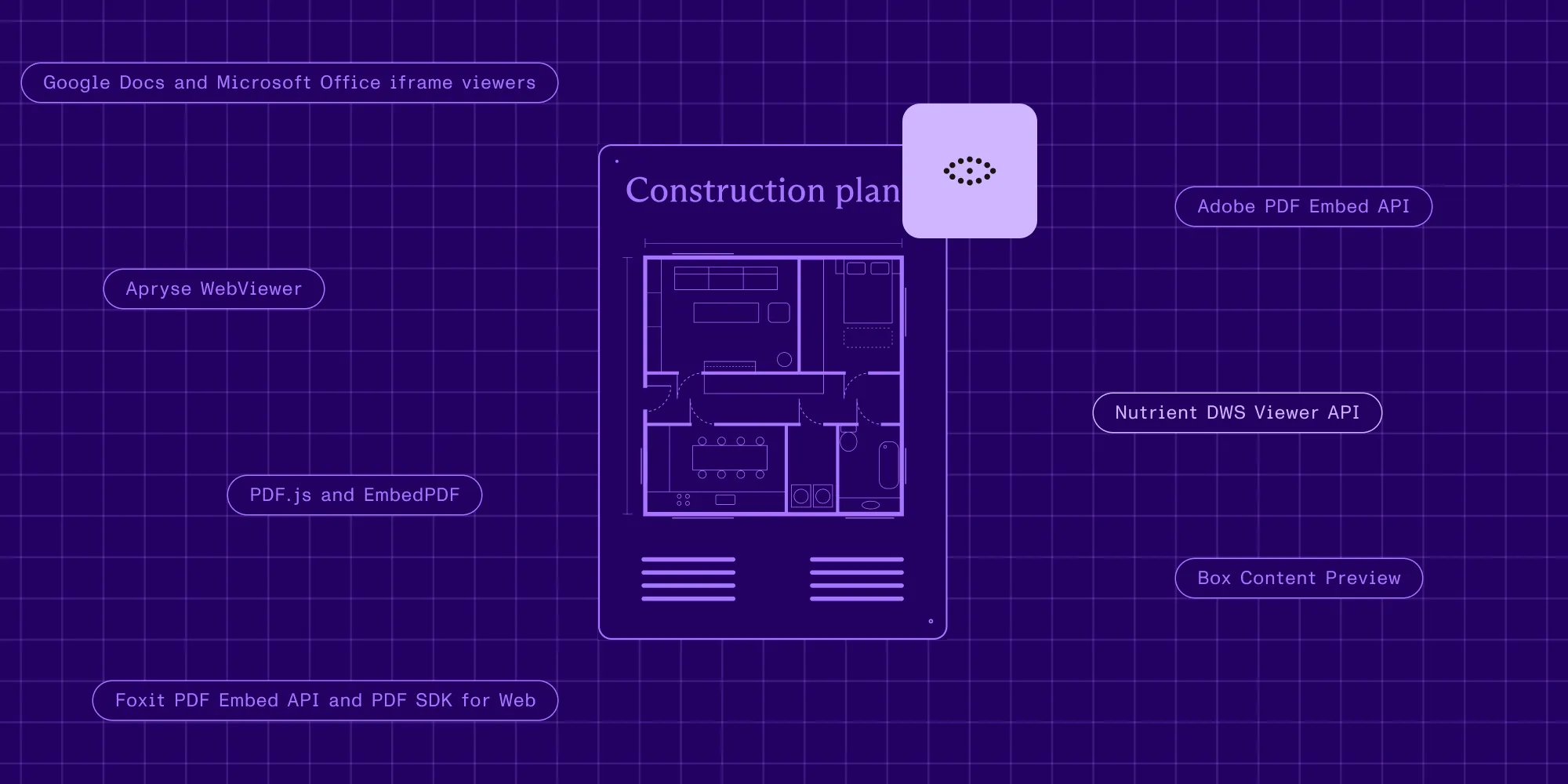
A JavaScript PDF viewer library displays PDF pages inside your web app. Choose Nutrient Web SDK for licensed document tools and support, PDF.js for a customizable open source viewer, react-pdf for React page components, ngx-extended-pdf-viewer for an Angular viewer with a toolbar, or EmbedPDF for a PDFium-based viewer across frameworks.
Quick summary table of JavaScript PDF viewers
The main distinction is how much of the viewer each library supplies. Rendering a page, providing annotation tools, and synchronizing edits between users are separate capabilities.
| Viewer | Rendering engine | What you integrate | License |
|---|---|---|---|
| Nutrient Web SDK | Nutrient’s PDFium-based engine | A viewer with licensed document tools; JavaScript, React, Angular, Vue | Commercial |
| PDF.js | PDF.js | A rendering API or the full generic viewer | Apache 2.0 |
| react-pdf | PDF.js | React components for displaying pages; build your own controls | MIT |
| ngx-extended-pdf-viewer | PDF.js | Angular component with viewer controls and events | Apache 2.0 |
| EmbedPDF v2 | PDFium | A viewer and plugins for React, Vue, Svelte, Preact, or vanilla JavaScript | MIT |
This is a comparison of documented capabilities, not a performance benchmark. For EmbedPDF, the table covers the stable v2 branch(opens in a new tab); its development branch has different licensing. Check the release you install.
What is a JavaScript PDF viewer?
A JavaScript PDF viewer parses PDF data and renders pages inside a browser. It can add search, navigation, text selection, and document tools without requiring a browser extension.
A library’s rendering API may return a page canvas without a toolbar. A complete viewer adds controls around that renderer. A Node.js backend can serve the files, but the embedded viewer UI runs in the browser.
What is the cost of a JavaScript PDF viewer?
PDF.js, react-pdf, ngx-extended-pdf-viewer, and EmbedPDF v2 are open source options with no license fee under their respective terms. Budget for integration, upgrades, document testing, and any controls or storage your application needs.
Nutrient Web SDK requires a commercial production license. Review pricing for the components and deployment your application needs. A trial lets you evaluate those capabilities before purchasing.
Use the free trial to test your own documents and workflows. Confirm which components and deployment options your production license includes.
The five best JavaScript PDF viewers
Each option below fits a different integration approach. Start with your framework and required document actions. Then test the shortlisted viewers on the same files.
Nutrient Web SDK: Best for enterprise and collaboration
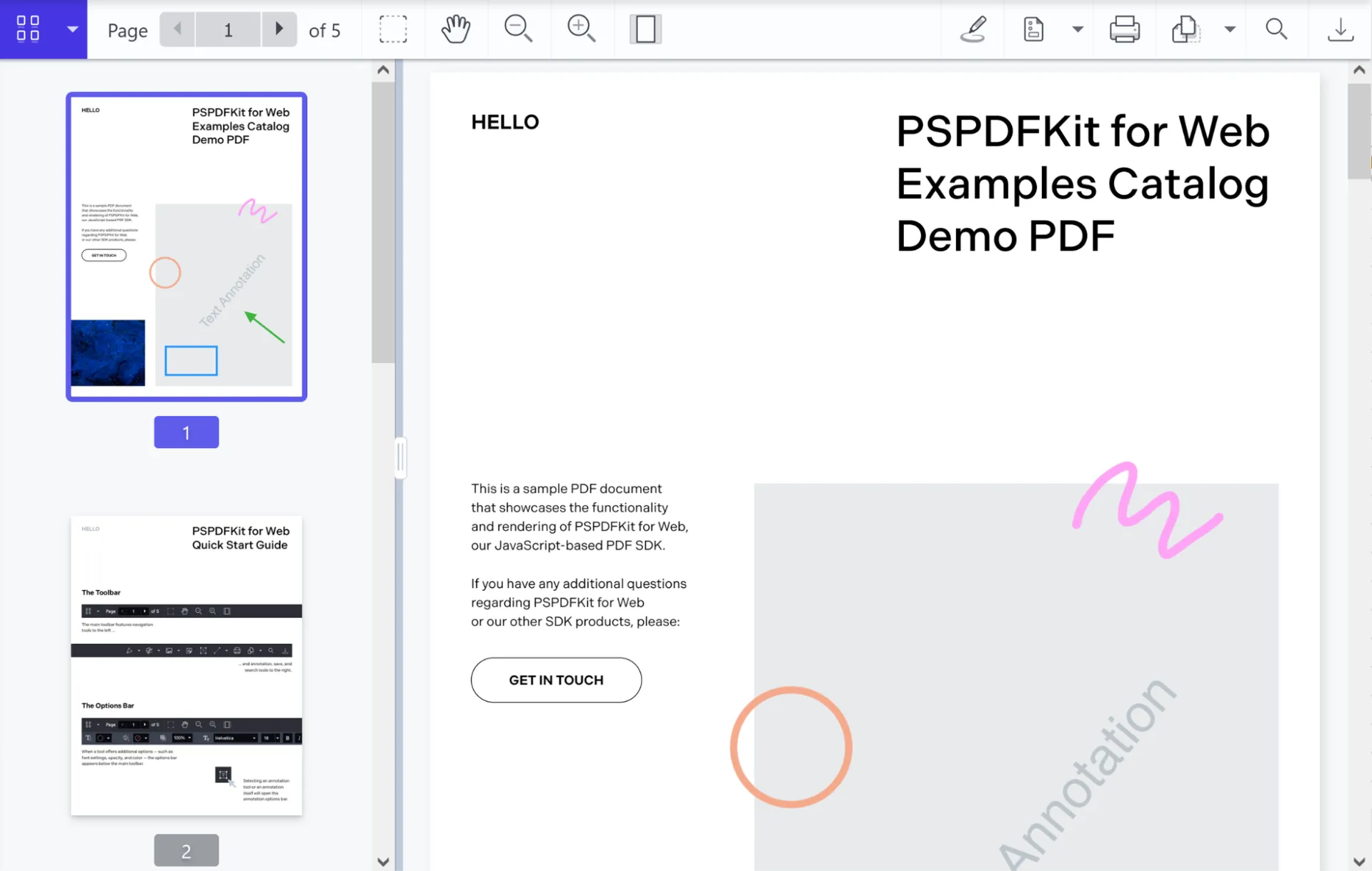
Nutrient Web SDK combines an embedded PDF viewer with APIs and UI tools for document workflows. It fits applications that need commercial support and capabilities such as annotations, form filling, signing, and redaction.
Example of our JavaScript PDF viewer
Open the web demo and load a sample or your own document to try its viewing and annotation tools. The demo includes capabilities that may require additional licensed components in your application.
Key features
- Viewer customization — Adapt the toolbar and navigation to your application.
- Annotations — Create and manage document annotations through the UI or API.
- Forms — Fill PDF form fields and build form workflows.
- Signatures — Add electronic signatures or integrate certificate-based digital signing with the appropriate components.
- Document editing and redaction — Organize pages or permanently remove selected content with the licensed tools.
- Accessibility — Review the viewer’s keyboard and screen reader support against your application’s requirements.
Check the component requirements for each feature. Instant synchronization connects users’ annotations and form changes through a server-backed deployment; a standalone viewer doesn’t automatically synchronize edits.
Pros
- One SDK provides a viewer and APIs for several document workflows.
- Commercial support and integration guides are available.
- You can evaluate additional tools as your application’s requirements grow.
Cons
- A commercial license adds cost compared with an open source viewer.
- Component selection and server requirements need planning, particularly for collaboration.
Ideal use cases
Nutrient Web SDK fits document review portals, applications with PDF form or signing workflows, and teams that need a supported viewer with configurable tools. For a simple page preview, compare the required functionality and cost with the open source options.
Pricing
See Nutrient SDK pricing for the current commercial options. Confirm the required components and whether documents will be processed in the browser, on your servers, or in a managed service.
How to get started with Nutrient Web SDK
The following example uses Nutrient Web SDK 1.21.0 to load a local PDF in a standalone viewer. You’ll need Node.js, npm, a supported browser, and curl and unzip for the macOS/Linux setup commands. Serve the example over HTTP rather than opening the HTML file directly.
Create a project directory. Open your terminal and run:
Terminal window mkdir my-pdf-viewer && cd my-pdf-viewerInitialize a Node.js project:
Terminal window npm init -yInstall the
@nutrient-sdk/viewerpackage:Terminal window npm install @nutrient-sdk/viewer@1.21.0Copy the SDK JavaScript file and extract the matching runtime assets archive into a local
assetsdirectory:Terminal window mkdir assetscp ./node_modules/@nutrient-sdk/viewer/dist/nutrient-viewer.js ./assets/curl --fail --location https://cdn.cloud.nutrient.io/assets/pspdfkit-web-assets@1.21.0.zip --output nutrient-assets.zipunzip nutrient-assets.zip -d assetsKeep the extracted
nutrient-viewer-lib/folder insideassets/. When upgrading, update both the npm package and archive to the same version. See the self-hosting guide for details.Rename the PDF you want to display to
document.pdfand place it in the root of your project directory. You can also use our demo PDF document for testing.Create an
index.htmlfile with the following content:<!DOCTYPE html><html lang="en"><head><meta charset="UTF-8" /><title>Nutrient PDF Viewer</title><meta name="viewport" content="width=device-width, initial-scale=1.0" /></head><body><div id="nutrient" style="width: 100%; height: 100vh;"></div><script type="module" src="index.js"></script></body></html>Initialize the viewer in JavaScript. Create an
index.jsfile:import "./assets/nutrient-viewer.js";const baseUrl = `${window.location.protocol}//${window.location.host}/assets/`;NutrientViewer.preloadWorker({ baseUrl });NutrientViewer.load({baseUrl,container: "#nutrient",document: "document.pdf",}).then((instance) => {console.log("Nutrient loaded", instance);}).catch((error) => {console.error(error.message);});This loads your document in the Nutrient PDF viewer. Without a
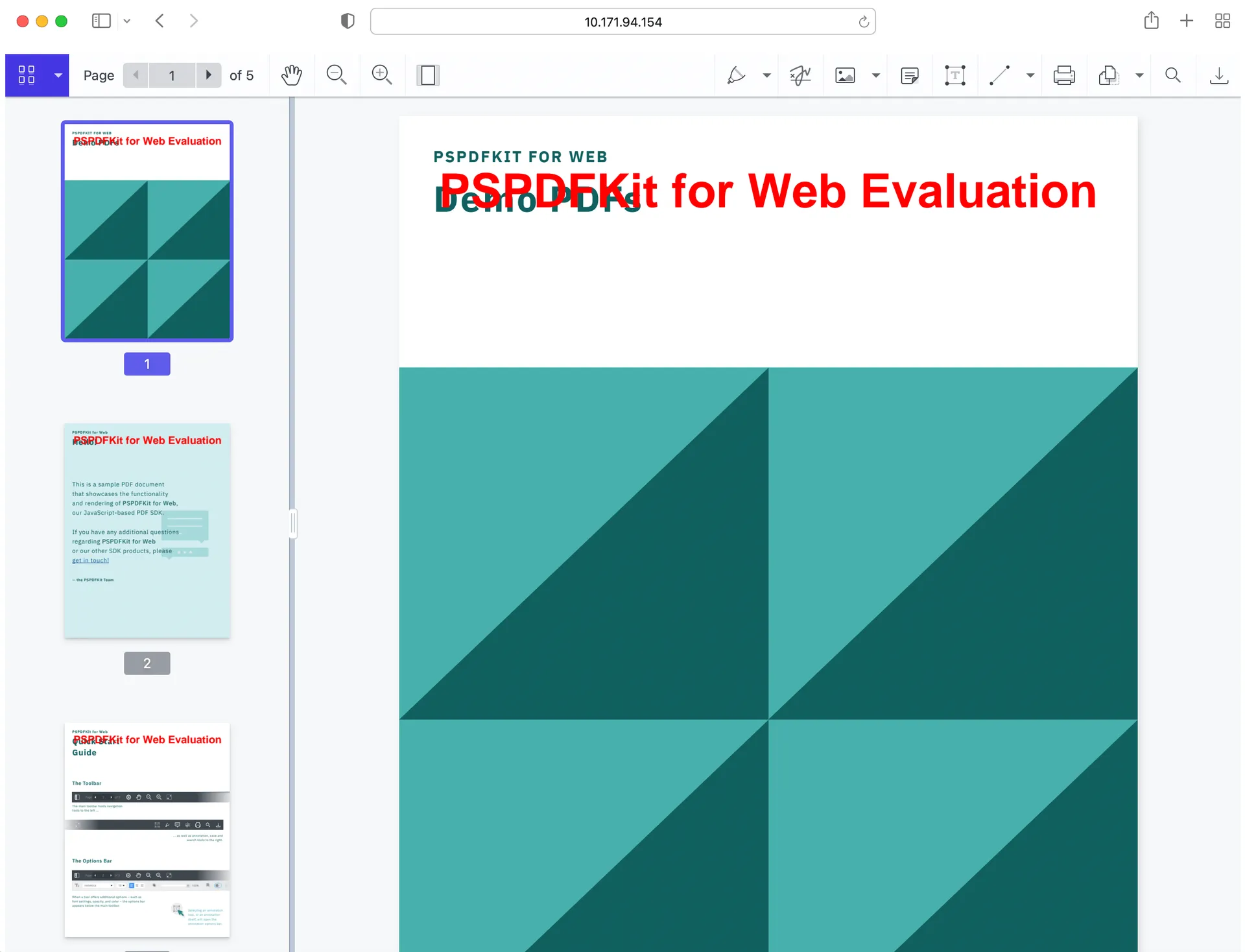
licenseKey, the SDK runs in limited trial mode with an evaluation watermark. Add your license key to the load configuration for your licensed deployment.Install a local static server and run it:
Terminal window npm install --global serveserve -l 8080 .Visit http://localhost:8080(opens in a new tab) to see your PDF in the Nutrient Web SDK viewer.
If you prefer a video tutorial, you can watch our step-by-step guide.
Additional resources
See our guides, code samples, and API reference for integration details.
These tutorials cover embedding a viewer and converting HTML to PDF:
Try Nutrient Web SDK free — no credit card required. Explore high-fidelity viewing, annotations, signing, and more.
PDF.js: Best for simple, open source needs
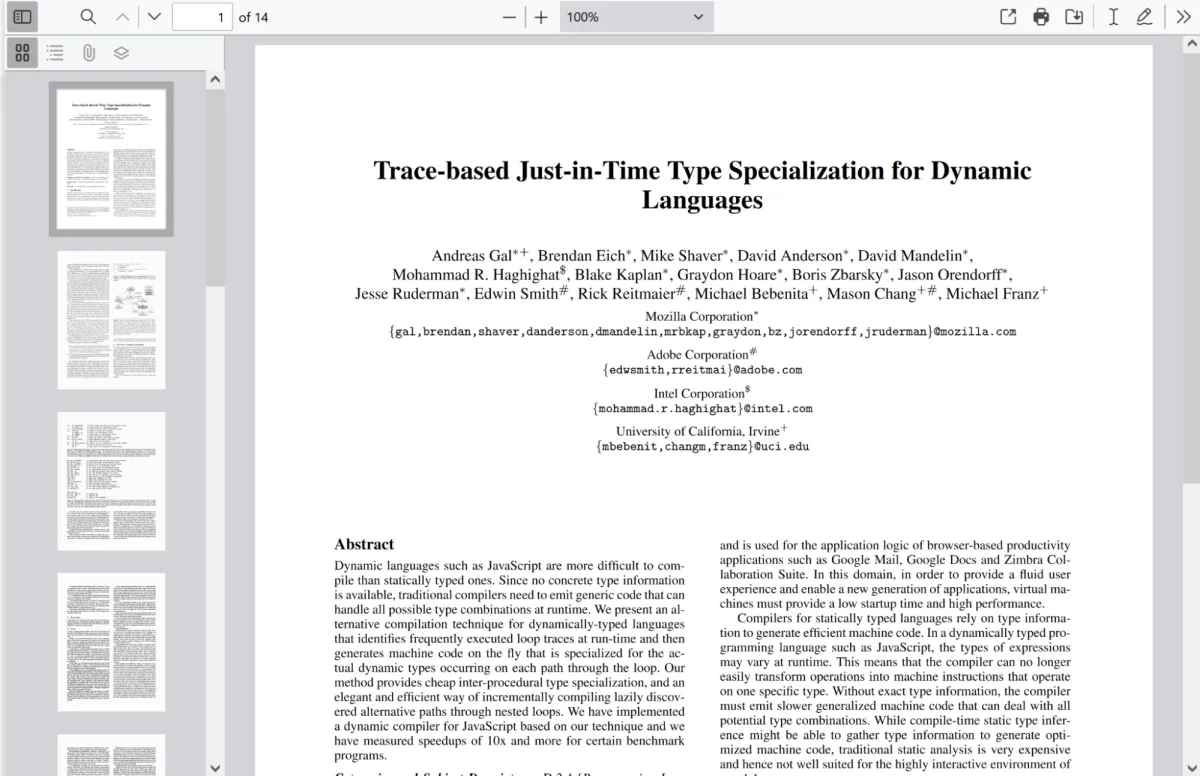
PDF.js(opens in a new tab) is Mozilla’s open source PDF rendering project, used by Firefox. You can integrate its rendering API or customize its full generic viewer.
The Firefox viewer documentation(opens in a new tab) demonstrates form filling, highlighting, text additions, and drawing. Check which tools your chosen release exposes; a custom canvas integration doesn’t automatically include the generic viewer’s UI.
Supported file types
PDF.js displays PDF files. Convert other document formats before loading them.
Pricing
PDF.js is available under the Apache License 2.0(opens in a new tab).
Pros
- You can use the full viewer or build controls around the rendering API.
- The source code is available for inspection and customization.
- The generic viewer supplies navigation, search, and document tools.
Cons
- A custom integration needs worker setup, UI development, and ongoing updates.
- Shared storage and multiuser synchronization require application infrastructure.
Use cases
Choose PDF.js when you want an open source renderer or viewer and can maintain its integration. Test large files and complex pages on your target devices before choosing a rendering strategy.
These tutorials cover PDF.js setup in JavaScript and several frameworks:
- Complete guide to PDF.js: The leading JavaScript library for PDF rendering
- How to build a JavaScript PDF viewer with PDF.js
- How to build a React PDF viewer with PDF.js
- How to build a TypeScript PDF viewer with PDF.js
- How to build a Vue.js PDF viewer with PDF.js
- How to build an Angular PDF viewer with PDF.js
- How to build an Electron PDF viewer with PDF.js
react-pdf: Best for React developers
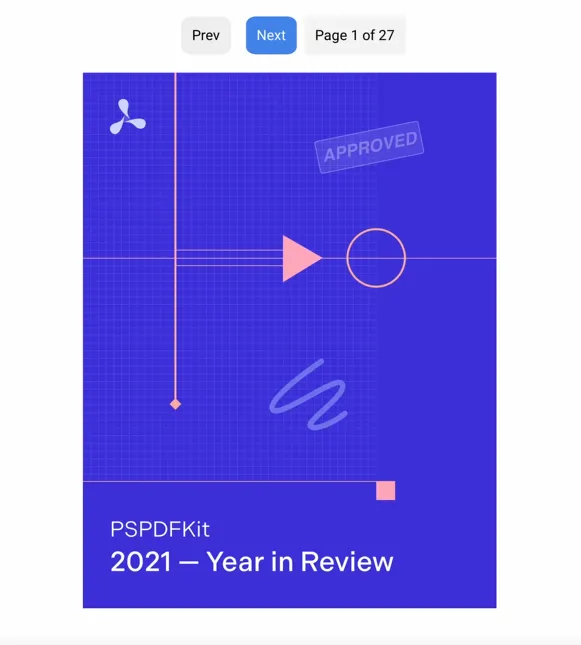
react-pdf(opens in a new tab) wraps PDF.js in React components for displaying existing PDFs. It’s a different project from @react-pdf/renderer, which generates documents.
react-pdf provides page rendering, text and annotation layers, and optional form rendering. It doesn’t supply the full PDF.js toolbar. Its documentation(opens in a new tab) describes the worker configuration, required stylesheets, and form options.
Supported file types
react-pdf displays PDF files.
Pricing
The package uses the MIT license(opens in a new tab).
Pros
- Page components fit into an existing React interface.
- You control page navigation and the surrounding UI.
Cons
- You need to build controls such as a toolbar and page selector.
- Worker and stylesheet setup are required beyond rendering a page component.
Use cases
Choose react-pdf when you want PDF pages inside a custom React interface and can implement the surrounding controls.
Integration example
This component illustrates rendering one page. Complete the react-pdf setup(opens in a new tab), including its worker and layer stylesheets, before using it in your application. Follow the loading and error-handling guidance for your installed version.
import { Document, Page } from "react-pdf";
function MyPDFViewer() {  return (    <div>      <Document file="/path/to/your/document.pdf">        <Page pageNumber={1} />      </Document>    </div>  );}
Extending the example
Add a page selector for multipage documents. Form rendering is optional and doesn’t, by itself, provide a workflow for saving users’ changes.
For setup instructions, follow this react-pdf tutorial:
ngx-extended-pdf-viewer: Best for Angular apps
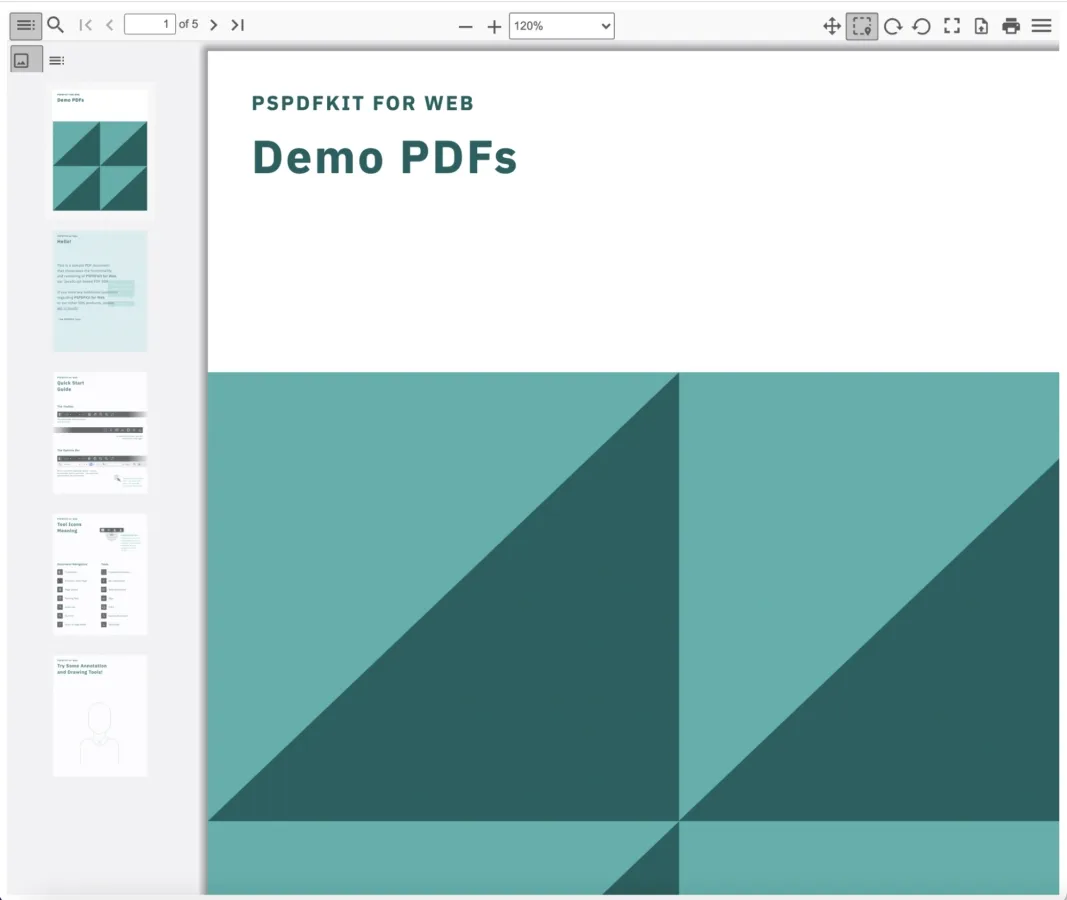
ngx-extended-pdf-viewer(opens in a new tab) brings the PDF.js viewer and its UI into Angular. Its toolbar, sidebar, and events reduce the amount of viewer UI you need to build yourself.
The project documents form support and annotation tools(opens in a new tab), including two-way form data binding. Application storage and shared editing still need separate design.
Supported file types
The viewer displays PDF files.
Pricing
The project uses the Apache 2.0 license(opens in a new tab).
Pros
- The Angular integration includes a viewer UI.
- Configuration and events support toolbar customization and form workflows.
Cons
- The integration is specific to Angular.
- Check Angular and PDF.js compatibility when upgrading the package.
Use cases
Choose this library when an Angular application needs a PDF viewer with controls, forms, and annotation tools.
Integration example
This template shows the viewer within an Angular application. First follow the project’s setup instructions(opens in a new tab) to install the package, register its Angular integration, and serve its assets.
<ngx-extended-pdf-viewer [src]="'/path/to/document.pdf'" [textLayer]="true" [showHandToolButton]="true" [showPresentationModeButton]="true" [showDownloadButton]="true"></ngx-extended-pdf-viewer>Extending the example
Use the toolbar documentation(opens in a new tab) to adapt the controls. Test filling, saving, and reopening your actual forms before deploying.
For setup instructions, follow this Angular viewer tutorial:
Try Nutrient Web SDK free — no credit card required. Explore high-fidelity viewing, annotations, signing, and more.
EmbedPDF: Best for Vue, Svelte, and framework-agnostic apps
EmbedPDF(opens in a new tab) is a PDFium-based viewer with integrations for React, Vue, Svelte, Preact, and vanilla JavaScript. The stable v2 branch(opens in a new tab) documents annotations, redaction, search, text selection, and plugins.
Supported file types
The viewer displays PDF files.
Pricing
EmbedPDF v2 is MIT-licensed. The project identifies v3 as a development version with different licensing; check the license and readiness of the release you select.
Pros
- It supports several frontend frameworks.
- Its documented tools include annotations and redaction.
- Plugins let you select functionality for your viewer.
Cons
- Version selection matters while the next major version is in development.
- Validate the plugin combination and saved output your workflow requires.
Use cases
Choose EmbedPDF when you want an open source, PDFium-based viewer with document tools across frontend frameworks.
Comparison table
Use this table to separate the viewer UI from application services. Annotation tools alone don’t establish a multiuser collaboration workflow.
| Library | Viewer controls | Forms and annotations | Shared editing |
|---|---|---|---|
| Nutrient Web SDK | Configurable viewer UI | Available with the appropriate licensed components | Instant synchronization with a compatible server deployment |
| PDF.js | Generic viewer or custom UI | Form filling and annotation tools in the full viewer; check the release | Build storage and synchronization in your application |
| react-pdf | Build controls around React page components | Annotation layer and optional forms; no full annotation toolbar | Build storage and synchronization in your application |
| ngx-extended-pdf-viewer | Angular viewer with toolbar and sidebar | Forms and annotation tools exposed by the integration | Build storage and synchronization in your application |
| EmbedPDF v2 | Viewer with configurable plugins | Annotations and redaction documented in v2 | Evaluate separately from local annotation tools |
How to choose the right JavaScript PDF viewer
Shortlist libraries by the actions your users need. Then run the same document checks for each candidate.
- Identify the workflow: viewing, filling forms, annotating, signing, or reviewing with other users.
- Decide how much UI you want to build. A page renderer and a complete viewer have different integration costs.
- Test representative files: a long report, a scanned document, a form, and a file with the fonts or drawings your users encounter.
- Measure first-page display time, scrolling, memory use, and downloaded assets on the same device and connection. Separate first visits from cached loads.
- Check keyboard navigation, text selection, saved changes, and your supported browsers.
- Review license terms and update responsibilities and where documents and edits are stored.
A browser-based renderer doesn’t determine the privacy of the whole application. File hosting, remote assets, analytics, AI features, and collaboration services all affect network traffic.
Common use cases for JavaScript PDF viewers
- Document portals — Display reports, manuals, and statements inside an existing application.
- Form workflows — Let users complete fields and save the resulting document or field values.
- Review workflows — Add comments or annotations, with storage and synchronization where multiple users participate.
- Custom interfaces — Place a PDF page beside application data, navigation, or review controls.
Final words
Choose the viewer that covers your required document actions with an integration your team can maintain. Use Nutrient’s web demo or free trial to test its tools on the same files as your open source shortlist.
FAQ
A JavaScript PDF viewer displays PDF pages inside a web application. Depending on the library and integration, it can include navigation, search, text selection, form filling, and annotation tools.
Choose Nutrient Web SDK for licensed document tools and support. Choose PDF.js for an open source renderer or generic viewer. Choose react-pdf for page components in a custom React UI, ngx-extended-pdf-viewer for an Angular viewer with controls, or EmbedPDF v2 for a PDFium-based viewer across frameworks. Test the required features with your own documents before deciding.
Yes. PDF.js includes document tools in its full viewer, ngx-extended-pdf-viewer exposes forms and annotation tools, and EmbedPDF v2 documents annotations and redaction. These capabilities vary by release and integration. Commercial support or shared editing requirements may change your selection.
No. Rendering a page, adding an annotation, filling a form, and editing existing text are different operations. Check each required operation rather than treating “editing” as a single feature.
Yes, but the starting point differs. react-pdf gives you page components around which to build controls. PDF.js, ngx-extended-pdf-viewer, EmbedPDF, and Nutrient provide viewer UI options with different customization APIs.
Yes. Node.js can authenticate users and serve PDF files to a viewer running in the browser. A browser viewer UI is separate from a Node.js library used to generate or process PDFs on the server.
Install your chosen library, configure its assets and worker, provide a viewer container, and load the document. Follow the library’s framework-specific setup and test loading, errors, and cleanup. The Nutrient example above demonstrates a standalone integration.
Yes. The viewers in this comparison run in the browser without a separate browser extension. Serve their scripts, assets, and documents from locations the application is allowed to access.
Related reading
- Comparing the best React PDF viewers — React-focused PDF viewer comparison
- PDF.js vs. Nutrient — In-depth comparison for enterprise web apps
- Open source vs. proprietary PDF SDKs — How open source libraries compare to commercial solutions
- Top five document viewers for developers — Compare DOCX and PDF viewer libraries side by side
See all product comparisons on the SDK comparison page.