Search
PDF OPTIMIZATION
PDF optimization SDK: Smaller files that stay readable
Large PDFs cost money to store, take time to open, and can exceed upload limits. Nutrient makes them smaller, and you decide how much image quality to give up.
What you can do
What you can do with PDF optimization
Compress
Shrink PDFs and scans
Compress images, trim fonts, and remove unused data. Scans get smaller while the text stays readable.
Clean up
Remove what readers don’t need
Remove bookmarks, attachments, color, or images a file doesn’t need. The options depend on where you run it.
Speed up
Open large files faster
Reorder a PDF so the first page shows before the rest has downloaded. This is called linearization.
Batch
Optimize whole folders on a schedule
Shrink whole folders and document libraries on a schedule, or as a step in an automated flow.
Ways to build
Compress PDFs on your servers, in scheduled jobs, or through an API
On your document server
Document Engine compresses PDFs, applies MRC compression to scans, and linearizes files in one request.
Compress MRC for scans Linearize
Through a hosted API
Nutrient APIs compress and linearize PDFs with nothing to deploy. Send a file or a link to one.
Nothing to deploy Compress Linearize
In .NET
Nutrient .NET SDK gives fine control over image resolution, image quality, and what to remove, with MRC compression for scans.
.NET MRC for scans Fast Web View
In scheduled jobs on Windows
Document Automation Server compresses and linearizes the PDFs in a watched folder, on a schedule.
Windows Watched folders
Inside Microsoft 365
Document Converter adds a Compress PDF step to Power Automate flows.
Power Automate
Try it in code
These are the instructions you send with a PDF to the cloud API. They turn on MRC compression, set image quality to level 2 of 4, and linearize the file.
{ "parts": [ { "file": "document" } ], "output": { "type": "pdf", "optimize": { "mrcCompression": true, "imageOptimizationQuality": 2, "linearize": true } }}How it works
Compress a PDF, linearize it, and check the result
1
Decide what you can give up
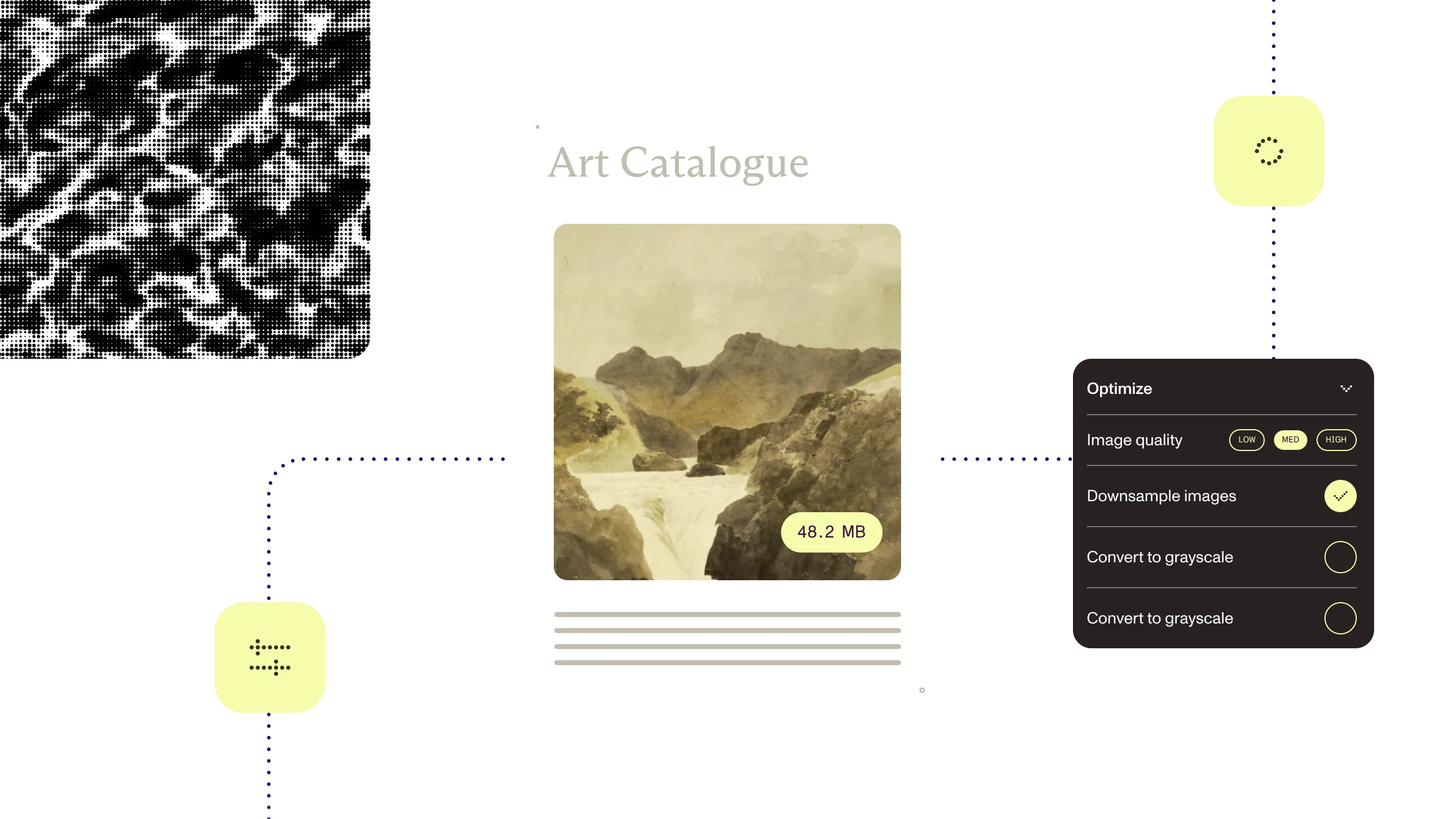
Pick an image quality level, and choose whether images or color can go.
2
Compress the file
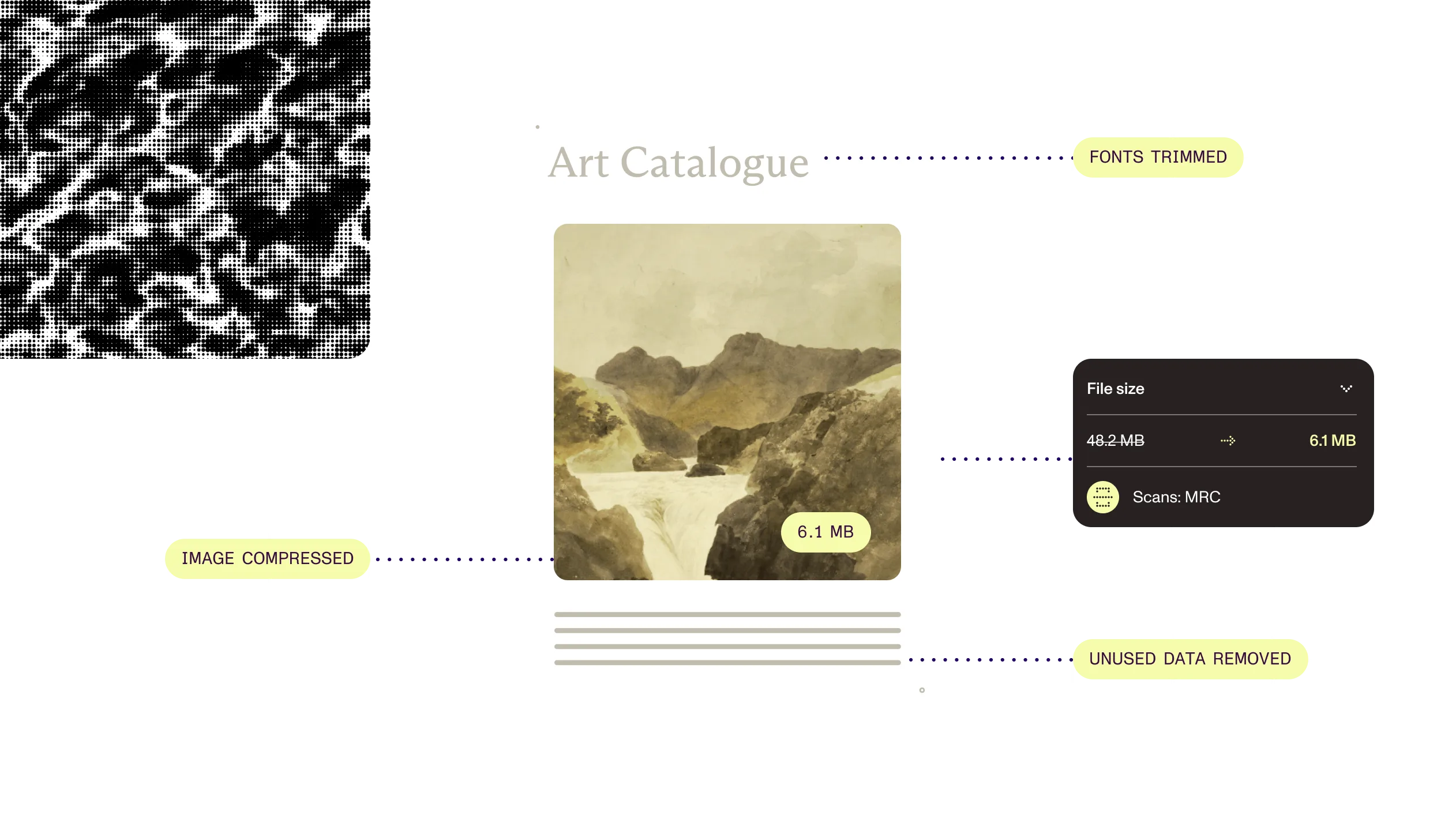
Images are compressed, fonts trimmed, and unused data removed. Scans get MRC compression, which keeps text readable.
3
Linearize it for the web
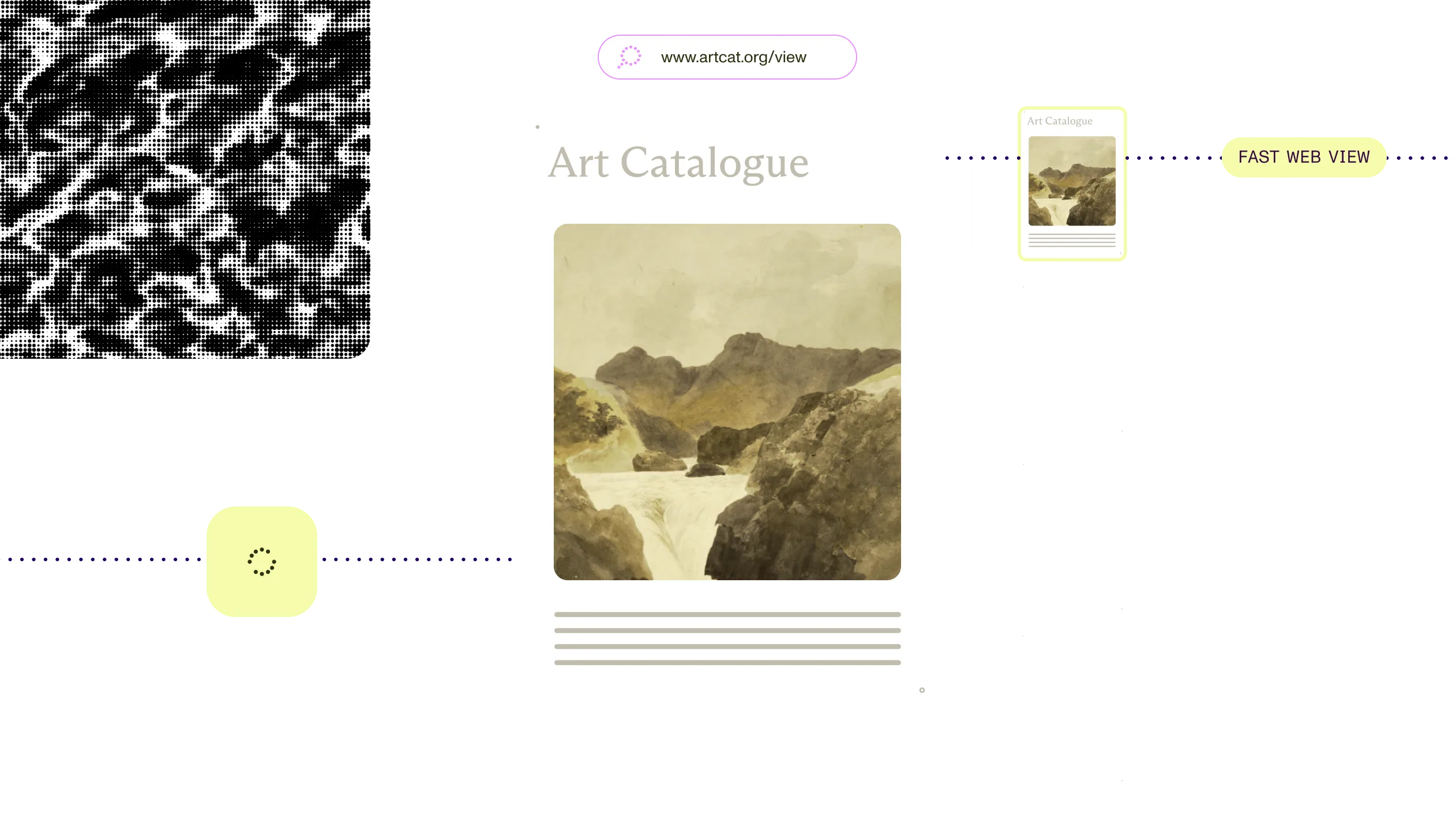
If people open the file online, reorder it so the first page shows first.
4
Check the result and sign
Check that a sample is still readable. Sign the file last, because optimization changes it.
At a glance
The specs behind PDF optimization
Nutrient PDF optimization makes PDF files smaller and faster to open. It compresses images, trims fonts, and removes data the file no longer needs. MRC compression shrinks scanned pages while the text stays readable. It can also linearize a PDF, so the first page shows before the whole file has downloaded.
Inputs
PDF files, including scanned ones.
Outputs
A PDF that’s smaller, faster to open, or both.
Compression
Compresses images, trims fonts, and shrinks scanned pages.
Faster opening
Shows the first page before the download ends.
Runs on
Your own servers, Microsoft 365, or Nutrient’s cloud.
Where it fits
PDF compression in the document workflow
Smaller files only help if nothing important gets lost. Shrink them to fit, catch the ones that don’t, and have a person confirm they’re still readable.
Preparing scanned filings for a court e-filing portal
ExampleReview
A paralegal checks that stamps, signatures, and fine print are still legible before filing.
Next: Archive the filed copy
PDF/A archivingFinancial application completion
Move application data, supporting documents, and signatures into a complete packet.
See the offeringWhy Nutrient
Smaller PDFs that people can still read
Compression that goes too far blurs signatures and fine print. With Nutrient, you decide how far it goes.
Compression made for scans
MRC compression treats text and background separately, so scanned pages get smaller while the text stays readable.
You set the tradeoff
Choose the image quality level and what to remove, so size and detail match what the file is for.
Smaller and faster in one step
Compress and linearize a file in the same request, so large PDFs show their first page sooner.
Files can stay in your environment
Run it on your own servers, so sensitive documents stay inside your systems.
- 3,000+ organizations worldwide
- 15 percent of Global 500 companies
- 1B+ document interactions a year
- SOC 2 Type 2 audited
- GDPR and CSA compliant
Frequently asked questions
A PDF optimization SDK, also called a PDF optimizer or PDF compression SDK, makes PDFs smaller and faster to open from your own code. Nutrient compresses images, trims fonts, removes data the file no longer needs, and uses MRC compression for scanned pages. It can also linearize a PDF, so the first page shows sooner.
It depends on the file. Scanned PDFs and PDFs with many images usually shrink the most. Text-only files and files that were already optimized shrink only slightly. There’s no fixed percentage, so test a sample of your own files.
It can, and you control how much. Compressing images and lowering their resolution trades detail for size, and you choose the quality level. MRC compression is built to keep the text in scans readable. Check a sample of the output when image detail matters.
MRC stands for mixed raster content. It splits a scanned page into text and background and compresses each part in the way that suits it. The page gets smaller while the text stays readable. It helps most on scans, and little on PDFs made in an app such as Word.
It reorders the file so a viewer can show the first page before the rest has downloaded. This is also called Fast Web View. Linearizing has little effect on file size. It works when the web server can send a file in parts and the viewer can read it that way.
It depends on where you run it. On your own servers, files stay with you. With the PDF optimization API, files are sent to Nutrient’s cloud for processing.