Search
VIEWER ACCESSIBILITY
A PDF viewer that works with screen readers
Let people read and move through documents with a screen reader, a keyboard, or larger text in your web and mobile apps. Everyone gets the same document.
What you can do
What you can do with an accessible PDF reader
Screen readers
Read with a screen reader
NVDA, JAWS, VoiceOver, and TalkBack announce the viewer’s controls. On web and iOS, they read page text too.
Keyboard
Navigate without a mouse
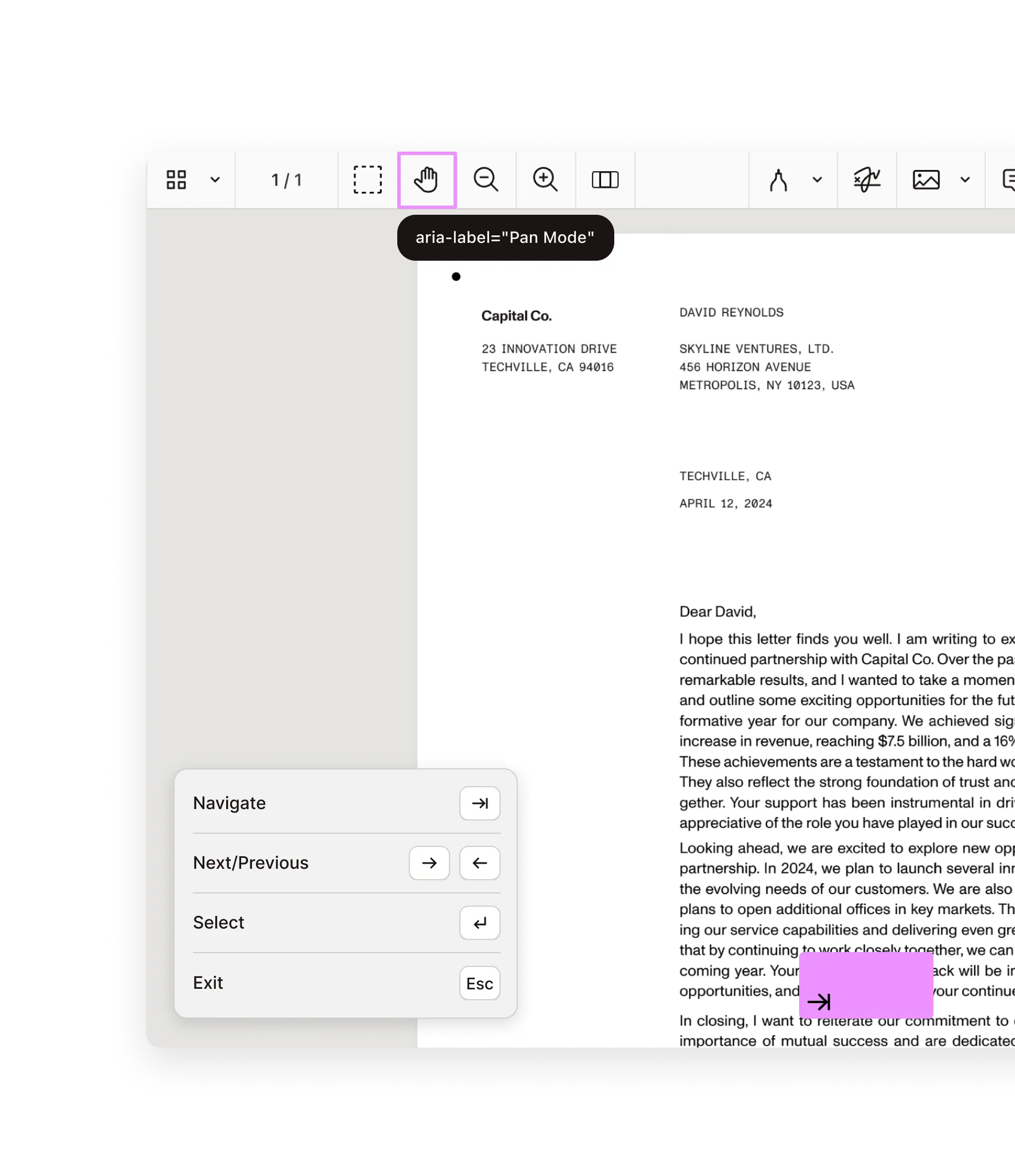
On the web, move through the toolbar, pages, fields, and annotations by keyboard, in the page’s order.
Reflow
Reflow text for easier reading
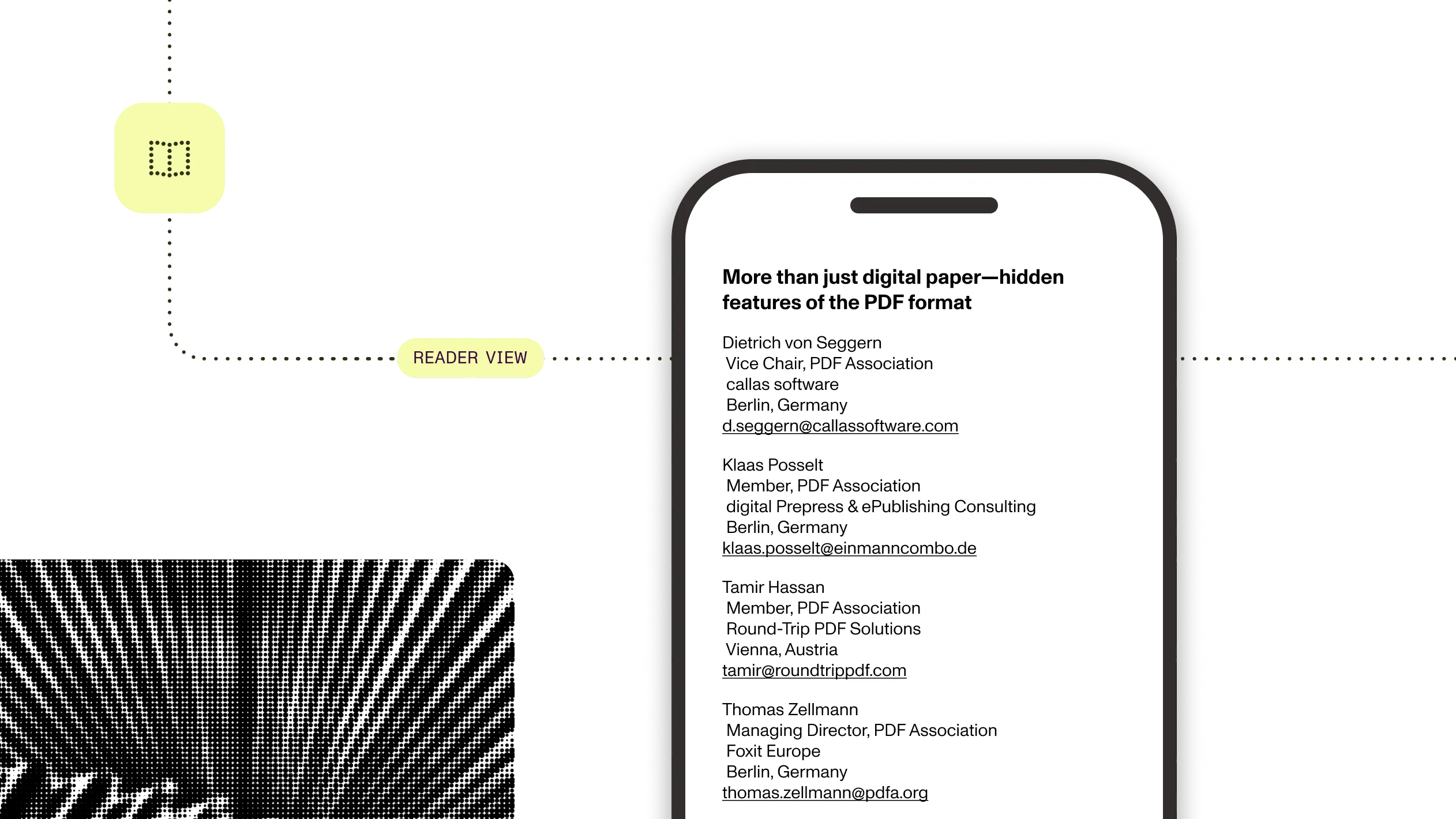
Switch to Reader View on iOS and Android: one column of text, sized to the reader’s settings on iOS.
Procurement
Answer accessibility reviews
Share the VPAT 2.5 for the Web SDK interface when a procurement team asks for one.
Ways to build
Add accessible PDF viewing to web and mobile apps
In web apps
Nutrient Web SDK announces its controls to NVDA and JAWS, supports keyboard navigation, and renders tagged PDFs as accessible HTML.
NVDA and JAWS Keyboard Tab order API VPAT 2.5
In iOS apps
Nutrient iOS SDK supports VoiceOver, Voice Control, hardware keyboards, Speak Selection, and Reader View with Dynamic Type.
VoiceOver Voice Control Dynamic Type Reader View
In Android apps
Nutrient Android SDK supports TalkBack, keyboard navigation, dark themes, a speak action for selected text, and Reader View.
TalkBack Keyboard Reader View
In cross-platform apps
Nutrient React Native and Flutter SDKs add the Reader View button to your toolbar. In Flutter, Reader View runs on iOS.
React Native Flutter (iOS)
Try it in code
Add the Reader View button to your mobile viewer’s toolbar.
pdfViewController.navigationItem.rightBarButtonItem = pdfViewController.readerViewButtonItemval configuration = PdfActivityConfiguration.Builder(context) .enableReaderView(true) .build()How it works
Read the same page three ways
1
Open the document
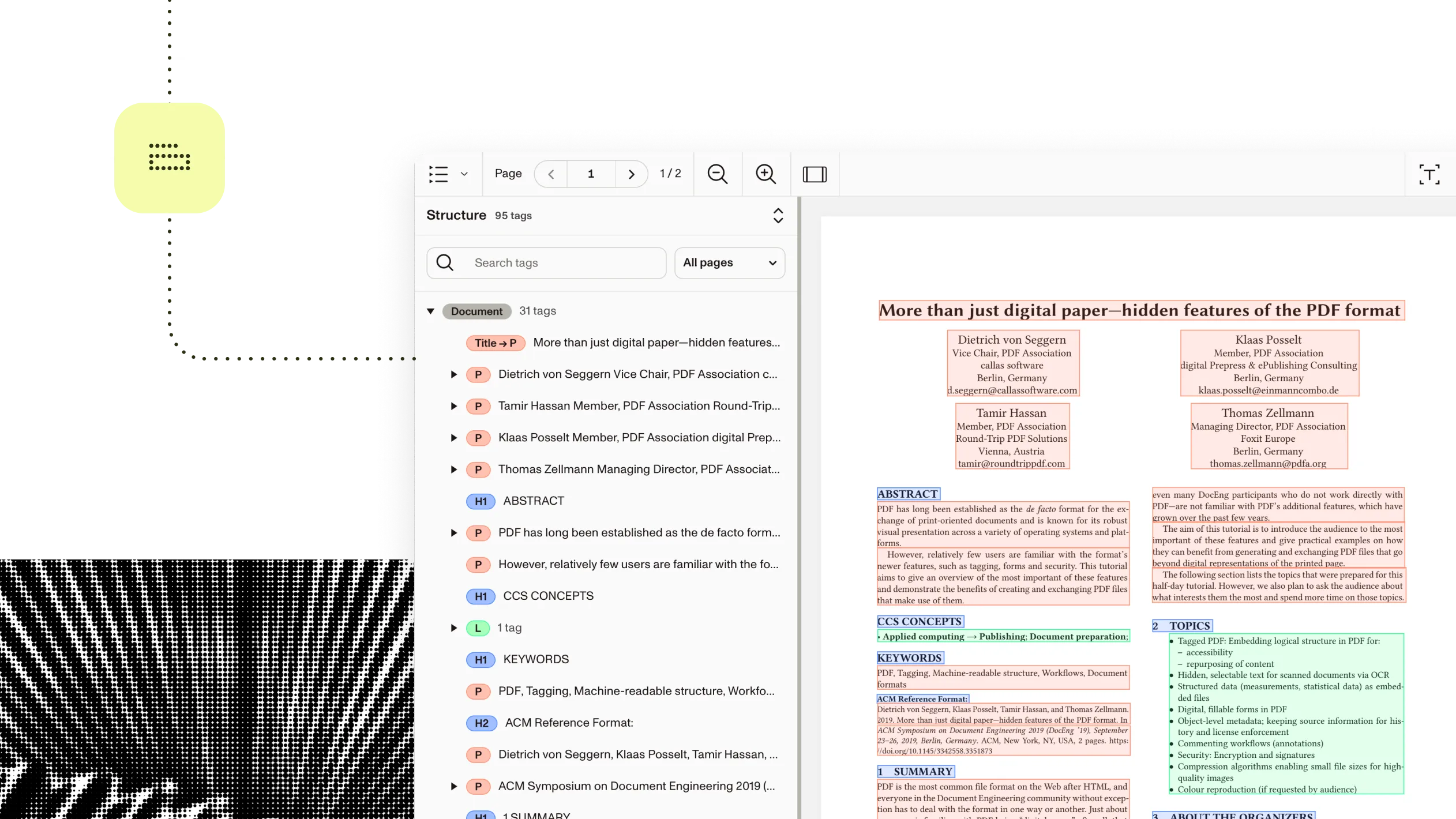
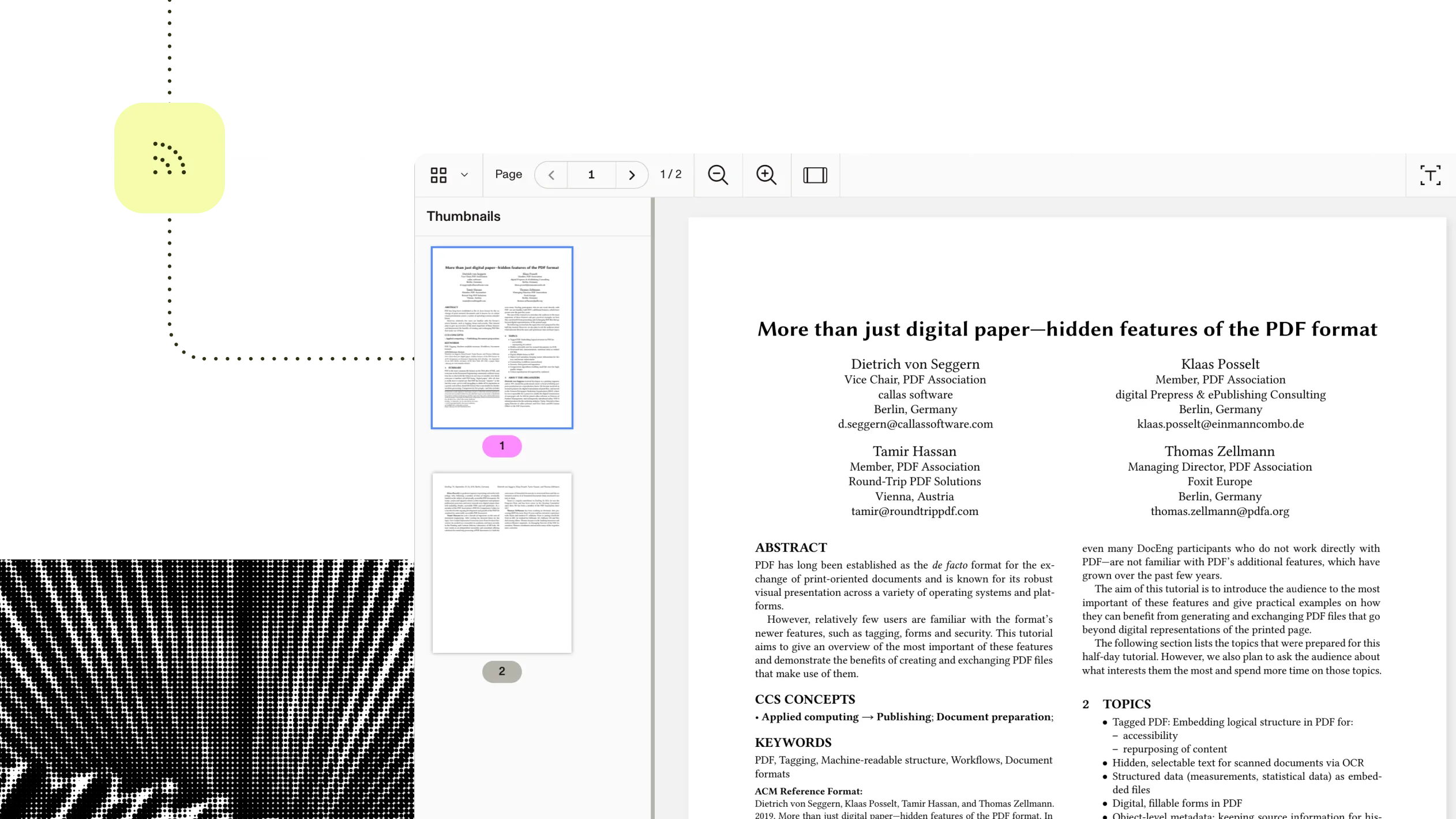
Load a PDF in the viewer. Tagged PDFs give screen readers headings, lists, and tables to announce.
2
Move through it by keyboard
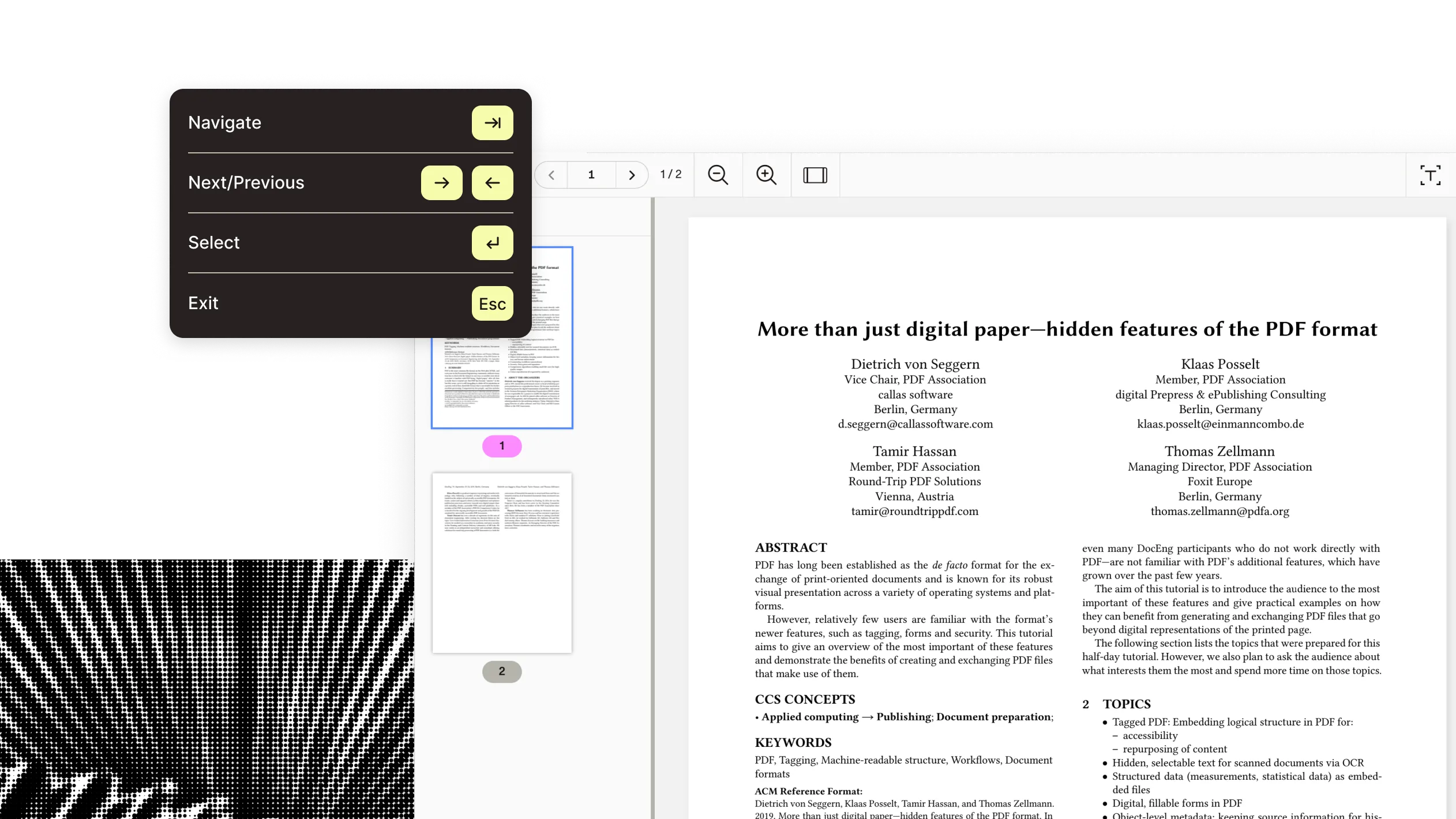
Tab into the toolbar, use the arrow keys between tools, and tab through pages, fields, and annotations.
3
Hear it read aloud
Screen readers announce each control’s name, role, and value and then read the page text.
4
Change the view
On iOS and Android, switch to Reader View for a single column of text.
At a glance
The specs behind accessible document viewing
Nutrient viewer accessibility is how the document viewer in a web or mobile app works for people who use assistive technology. It exposes the viewer’s controls and the document’s text to screen readers, supports keyboard navigation, and, on mobile, reflows text into one readable column. It covers the viewer, not the PDF file itself.
Inputs
PDFs. Tagged PDFs read best; scans need OCR first.
Screen readers
NVDA and JAWS on web, VoiceOver on iOS, TalkBack on Android.
Keyboard
Keyboard navigation on web and Android; hardware keyboards on iOS.
Reading modes
Reader View on iOS, Android, React Native, and Flutter (iOS).
Standards
Web SDK interface: VPAT 2.5 against WCAG 2.2 AA, under NDA.
Runs on
Web browsers, and iOS, Android, Flutter, and React Native apps.
Status
Available now. Coverage differs by platform; Reader View isn’t on Web.
Where it fits
Accessible document viewing in the document workflow
Every student needs to read the same material. Make the files accessible, route the ones that need extra work, and give every reader a viewer that works with their tools.
Giving every student access to course material
ExamplePrepare
Make course PDFs readable by assistive technology. Run OCR on scanned handouts first.
Review
Students read course material and fill in forms with screen readers and keyboard navigation.
EdTech
Give every student course material they can read in the learning platform with their own assistive tools.
See the offeringWhy Nutrient
Built for screen readers and keyboards
An accessible PDF still fails the reader if the viewer around it traps the keyboard or leaves buttons unnamed.
The document’s structure reaches the screen reader
The Web SDK renders tagged PDFs as accessible HTML, so headings, lists, and tables are announced correctly.
Keyboard users don’t get stuck
On the web, the toolbar is one tab stop, and focus moves on to your page instead of staying trapped.
Text the reader can resize
On iOS, Reader View reflows the page into one column that follows the reader’s text size and Dark Mode.
Evidence procurement asks for
A VPAT 2.5 for the Web SDK interface is available under NDA, so reviewers get the document they need.
- 3,000+ organizations worldwide
- 15 percent of Global 500 companies
- 1B+ document interactions a year
- SOC 2 Type 2 audited
- GDPR and CSA compliant
Frequently asked questions
Viewer accessibility means people who use screen readers, keyboards, or larger text can use the document viewer itself: its toolbar, navigation, forms, and page text. Nutrient builds it into the Web, iOS, and Android SDKs. It’s different from PDF accessibility, which makes the file itself tagged and conformant.
The Web SDK is built for screen readers such as NVDA and JAWS. The iOS SDK supports VoiceOver, and the Android SDK supports TalkBack. On iOS, reading and editing annotations and forms with VoiceOver is partly supported.
Yes, when the page has real text. The Web SDK turns tagged PDFs into accessible HTML and also exposes the text of untagged PDFs. Scanned pages need OCR first, and on iOS, images in page content aren’t read.
Yes. A Voluntary Product Accessibility Template (VPAT) 2.5 describes the Nutrient Web SDK interface against the Web Content Accessibility Guidelines (WCAG) 2.2 AA, including criteria that are only partly met. It’s available under NDA through the Trust Center or your sales contact.
Yes, on mobile. Reader View reflows a PDF into one column of text, and on iOS it follows the reader’s Dynamic Type size and Dark Mode. It’s available on iOS, Android, React Native, and Flutter on iOS, and it needs the Reader View license component.
Not on its own. The Web SDK interface is documented against WCAG 2.2 AA in its VPAT, and its default themes were designed with the goal of WCAG 2.1 AAA text contrast. Compliance also depends on your own app, any UI you customize, and your documents, so test your full setup.