Search
DOCUMENT ARCHIVING
Document archiving in PDF/A, with validation
Convert PDFs, Office files, and images to PDF/A, the ISO format for long-term storage. Validate the result, and catch the files that fail before they reach the archive.
What you can do
What you can do with PDF/A
Convert
Convert to PDF/A
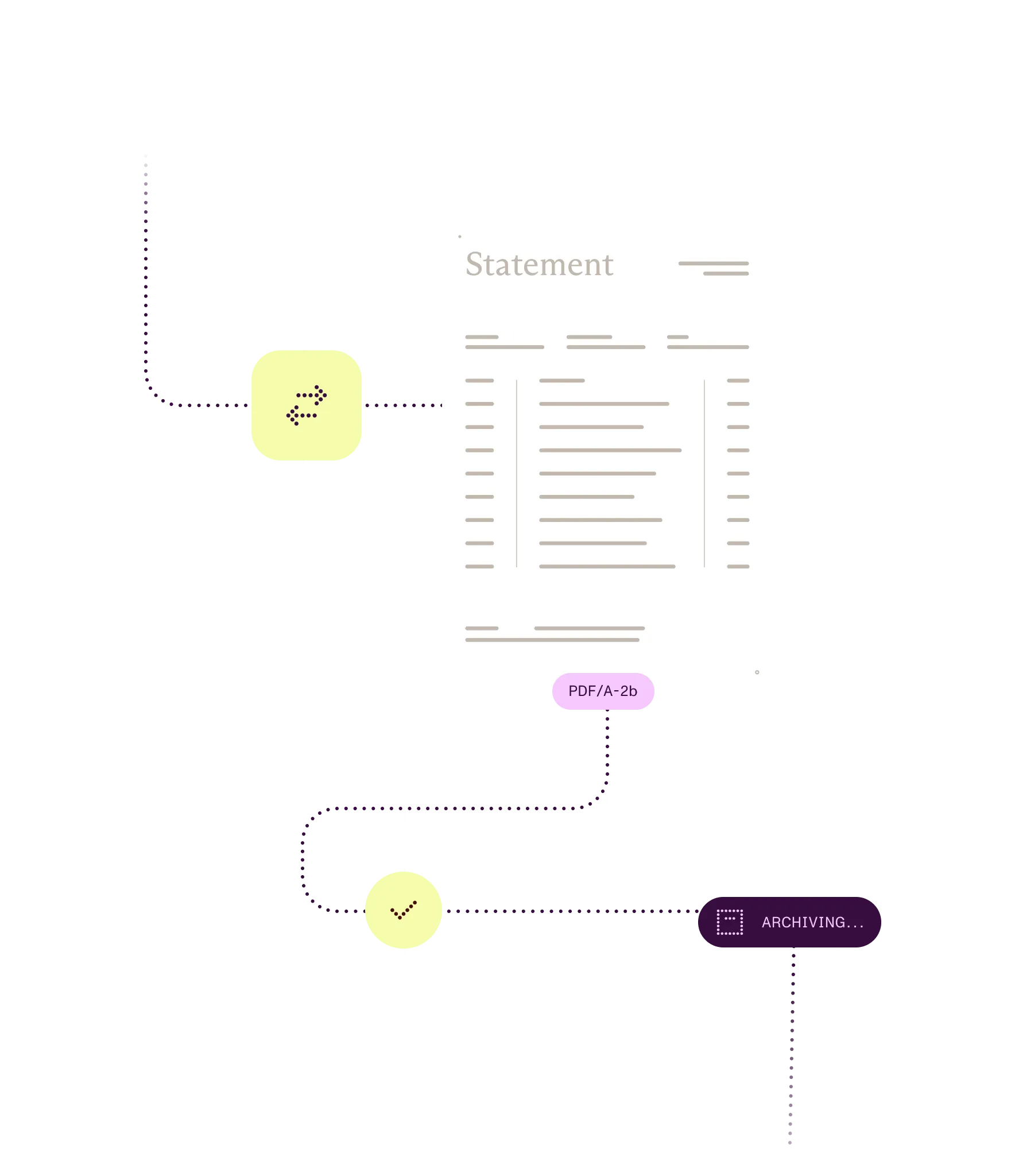
Turn PDFs, Office files, and images into PDF/A at the level you need.
Scans
Archive scans as searchable PDF/A
Recognize the text in a scan and save it as PDF/A, so archived scans can still be searched.
Validate
Validate files against the standard
Validate a file against the PDF/A standard and get a report of each failed check.
Batch
Convert whole folders on a schedule
Convert folders and document libraries on a schedule, and set failed files aside for a person.
Ways to build
Convert to PDF/A in your app, on your servers, or through an API
In the browser
Nutrient Web SDK converts PDFs, Office files, and images to PDF/A in the browser. The MAUI SDK does the same in .NET MAUI apps.
Web MAUI PDF/A-1 to PDF/A-4
On your document server
Document Engine converts files to PDF/A and validates them, with a report of each failed check.
Convert Validate
In .NET, Java, or Python
Nutrient SDKs for .NET, Java, and Python convert files to PDF/A and validate them. The .NET SDK also turns scans into searchable PDF/A.
.NET Java Python
Through a hosted API
Nutrient APIs convert images, Office files, and PDFs to PDF/A-1 through PDF/A-4.
Nothing to deploy PDF/A-1 to PDF/A-4
Inside Microsoft 365
Document Converter converts files to PDF/A as a step in Power Automate and SharePoint flows.
Power Automate SharePoint
Try it in code
This JavaScript loads a PDF in the browser and exports it as PDF/A-4f. Nothing is sent to a server.
NutrientViewer.load({ container: "#pspdfkit", document: "source.pdf", licenseKey: "YOUR_LICENSE_KEY"}).then((instance) => { instance.exportPDF({ outputFormat: { conformance: NutrientViewer.Conformance.PDFA_4F } });});How it works
Convert a file to PDF/A and validate it
1
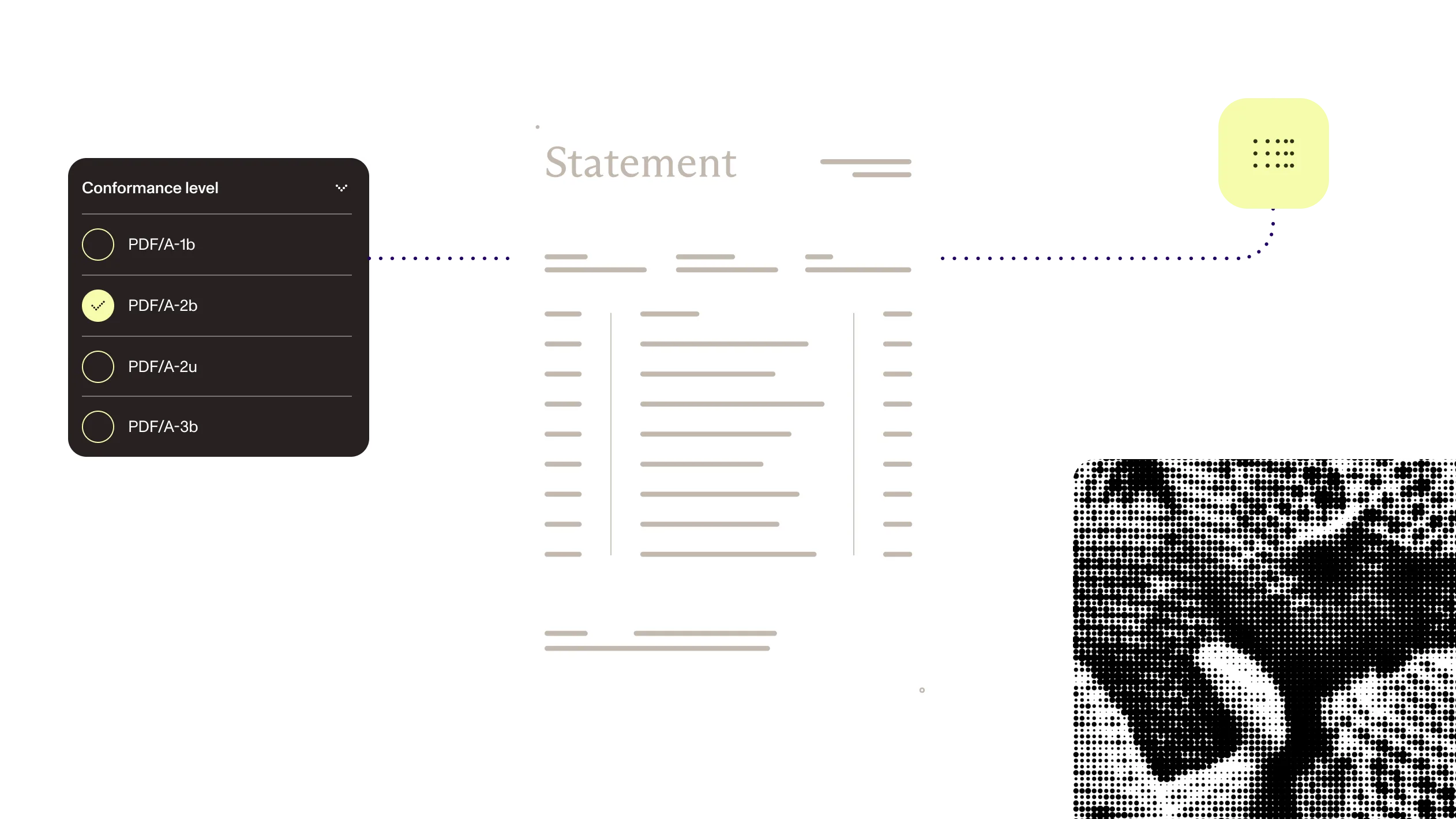
Choose the PDF/A level
Pick the level your archive or regulator asks for, such as PDF/A-2b.
2
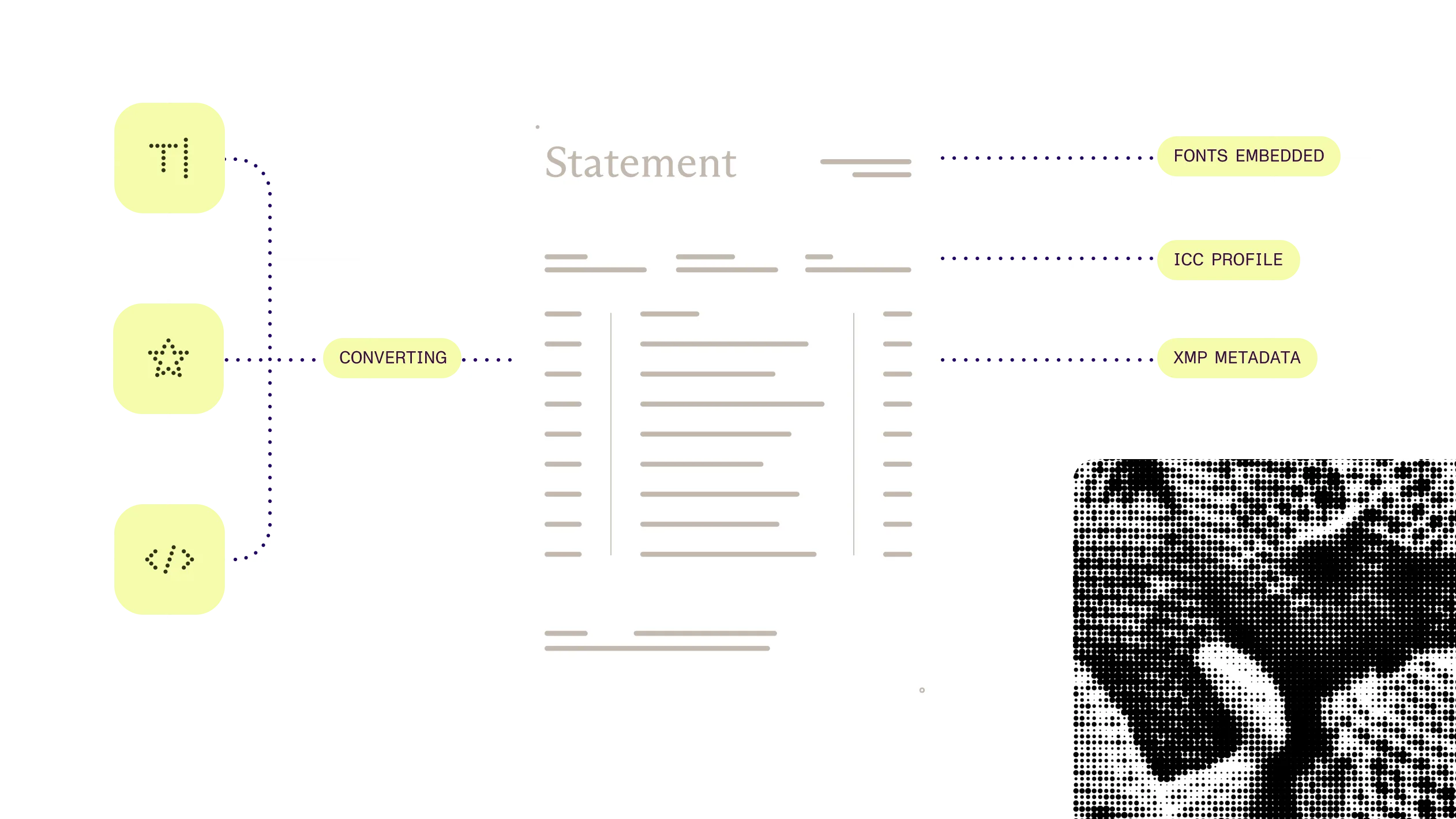
Convert the file
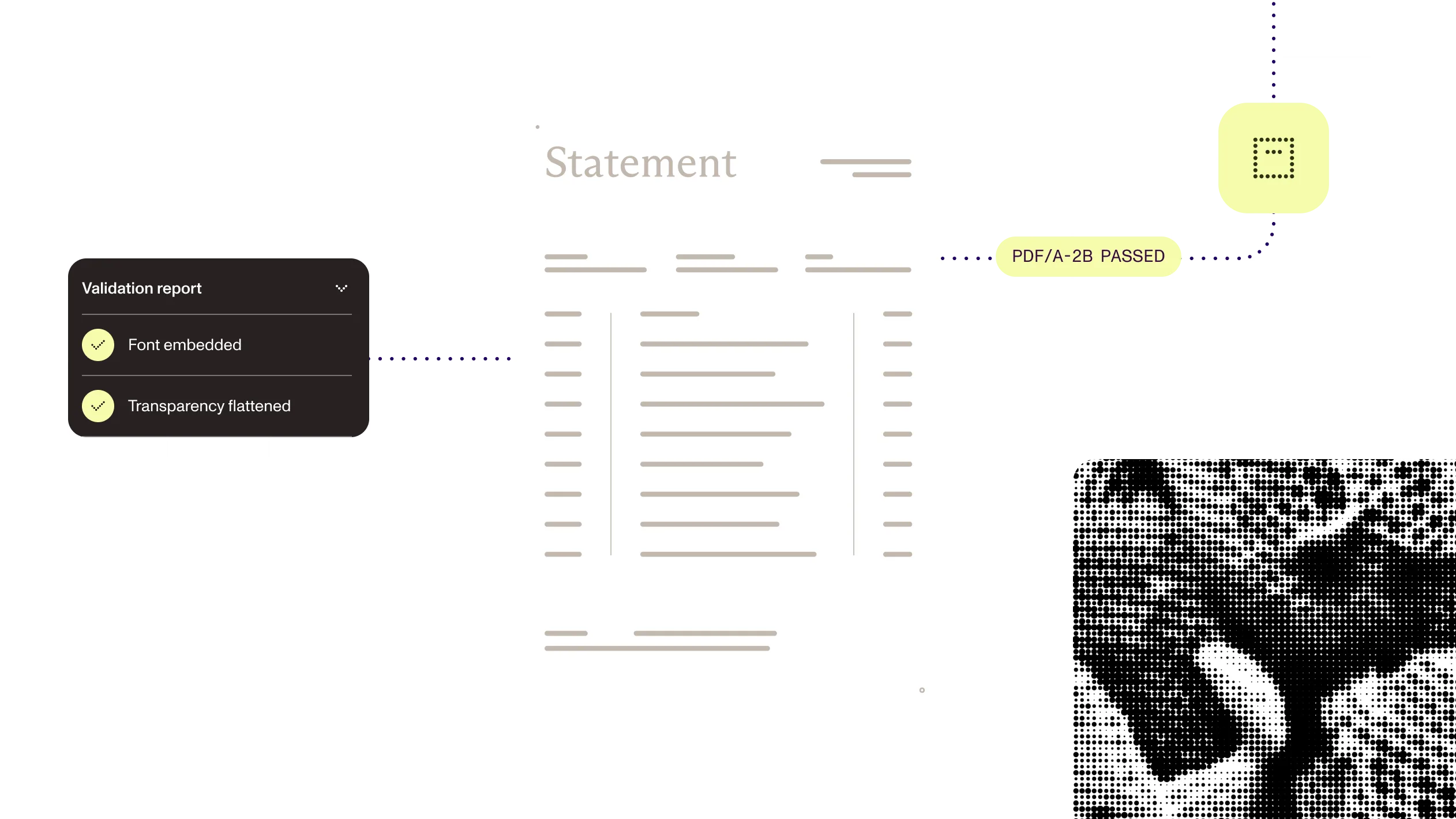
Conversion embeds the fonts and adds the color information and metadata the standard requires.
3
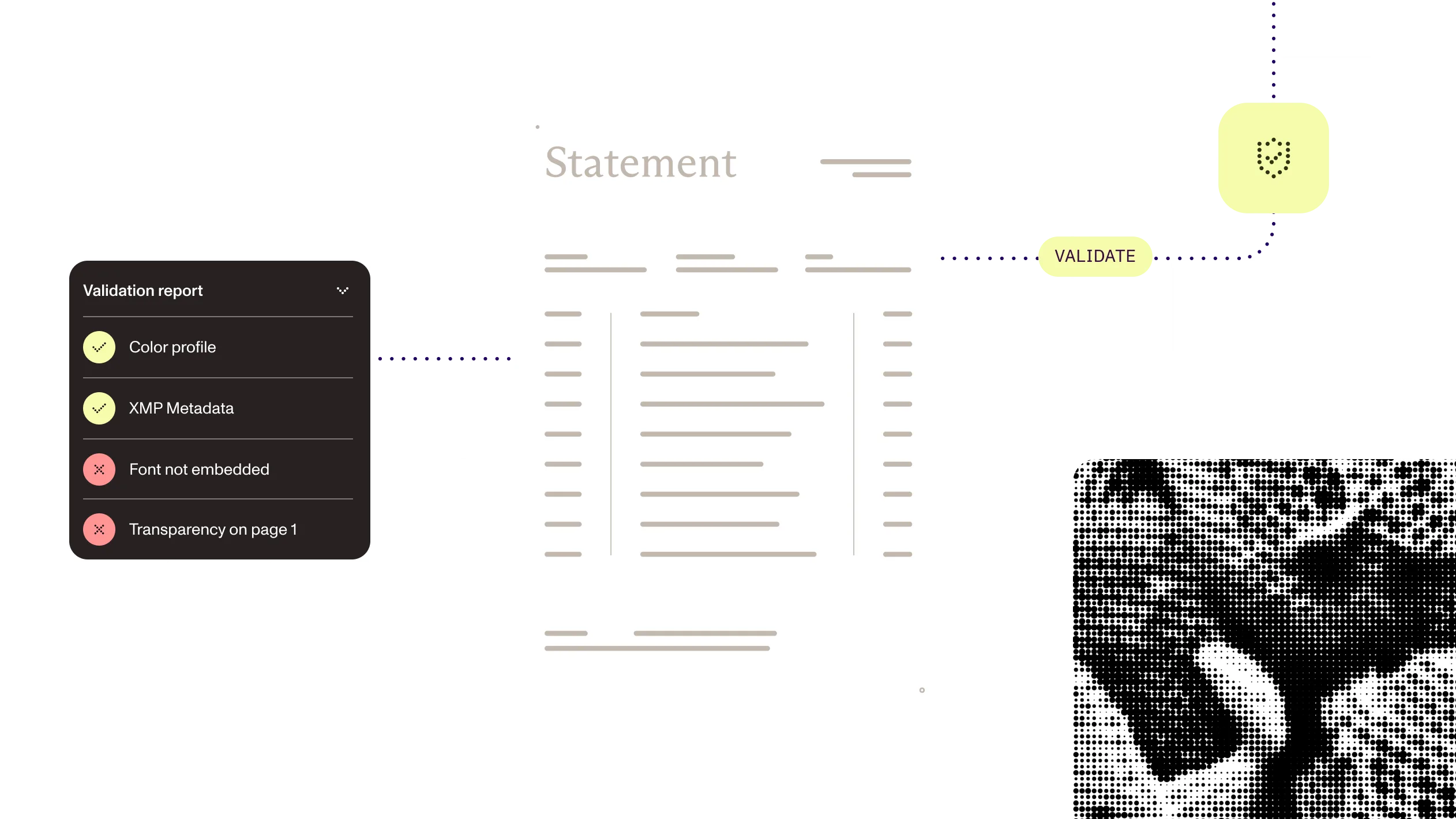
Validate the result
Check the file against the standard. You get the level found and a list of anything that failed.
4
Fix what fails and archive
Fix the cause — such as a missing font — convert again, and store the files that pass.
At a glance
The specs behind PDF/A archiving
Nutrient PDF/A archiving turns documents into PDF/A, the ISO standard format for long-term preservation. The output file carries its own fonts, color information, and metadata, so it’s built to open and look the same years from now. It can also validate a file against the standard and report what fails.
Inputs
PDFs, Office files, images, and scans.
Outputs
A PDF/A file. If you validate, a report of what failed.
PDF/A levels
PDF/A-1 through PDF/A-4.
Validation
Checks a file against the standard and lists what failed. Runs on your own servers.
Runs on
The browser, your own servers, Microsoft 365, or Nutrient’s cloud.
Where it fits
PDF/A archiving in the document workflow
An archive is only useful if the files still open years from now. Convert to PDF/A, catch the files that don’t convert cleanly, and have someone confirm the record matches the original.
Archiving signed agreements
ExampleSearchable records
Turn scanned and fragmented records into searchable context, and evaluate PDF/A where long-term preservation is required.
See the offeringTax and audit workflows
Carry supporting documents through preparation, review, and signoff.
See the offeringLegal document workflows
Connect document work to your matter system, access controls, and retention requirements.
See the offeringWhy Nutrient
PDF/A files you can validate before you store them
A file can carry a PDF/A label and still fail validation because of a missing font or a link to something outside the file.
Validation tells you what to fix
You get a list of each failed check, not only pass or fail, so you know what to repair.
The level your archive asks for
Convert to any level from PDF/A-1 to PDF/A-4 to match what your archive or regulator asks for.
Files can stay in your environment
Convert in the browser or on your own servers so sensitive records can stay inside your systems.
Failed files are set aside, not archived
In batch jobs, files that fail validation move to a separate folder for a person to fix.
- 3,000+ organizations worldwide
- 15 percent of Global 500 companies
- 1B+ document interactions a year
- SOC 2 Type 2 audited
- GDPR and CSA compliant
Frequently asked questions
Document archiving means keeping files so they stay readable for years. PDF/A is the ISO standard format for that: The file carries its own fonts, color information, and metadata, so it doesn’t depend on anything outside the file. Nutrient converts documents to PDF/A and can validate the result.
Every level from PDF/A-1a to PDF/A-4f, in the browser, on your own servers, and through the PDF-to-PDF/A API. In Java and Python, the guides list six levels, from PDF/A-1a to PDF/A-3b.
Yes, on your own servers. Validation checks a file against the PDF/A standard and returns the level it found and each failed check. In batch jobs, files that fail can be moved to a separate folder.
Usually, but not always. Conversion embeds fonts and may change the file’s structure to meet the standard. If a font isn’t embedded and isn’t installed where the conversion runs, the layout can shift. Test a sample of your own files and compare the results.
Converting a signed PDF changes the file, which can invalidate the signature. Test signed files separately before you convert them in bulk.
It depends on where you run the conversion. In the browser and on your own servers, files stay with you. With the cloud API, files are sent to Nutrient’s cloud for conversion.