Search
PDF ACCESSIBILITY
Accessible PDF SDK for screen readers and PDF/UA
A PDF can look right and still read as a jumble to a screen reader. Tag its structure, check it against PDF/UA-1, and see what still needs fixing.
What you can do
What you can do with accessible PDFs
Create
Create accessible PDFs from the start
Generate tagged PDF/UA output from PDFs and Word files where your documents are made.
Tag
Tag the PDFs you already have
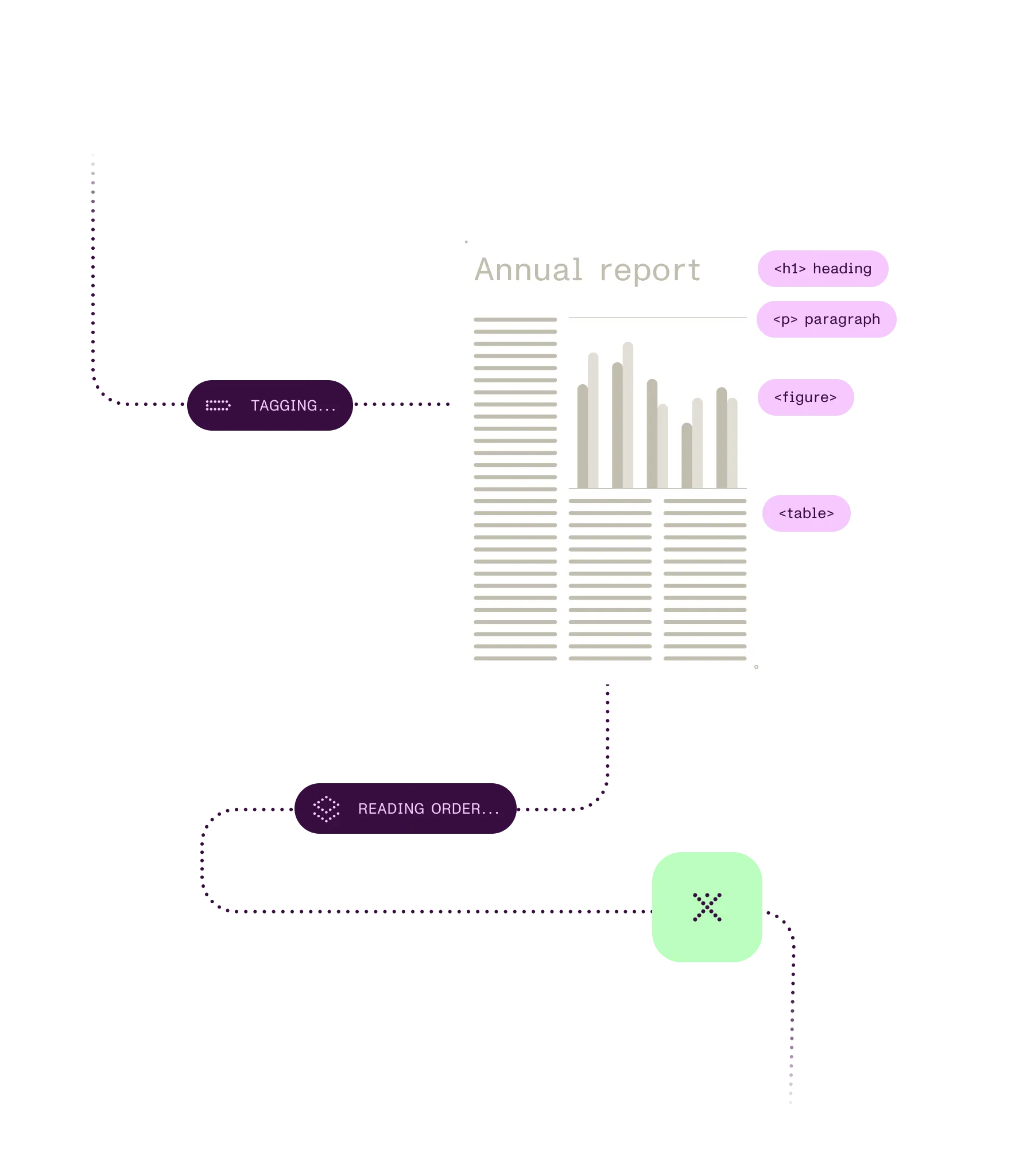
Auto-tag headings, lists, tables, figures, and reading order across an existing library of PDFs.
Check
Check files against PDF/UA-1
Validate each file before you publish it, and get a report that lists every check it fails.
Describe
Draft image descriptions for alt text
Describe images with a local or cloud vision model, so people write alt text from a draft.
Ways to build
Create tagged PDFs in your code, on your servers, or through an API
In .NET, Java, or Python
Nutrient SDKs for .NET, Java, and Python create PDF/UA-1 output and validate it, with an XML report of each failed check.
.NET Java Python Validation
On a server, self-hosted or Nutrient-hosted
Document Engine auto-tags PDFs, converts Word files to PDF/UA in one step, and validates the result with a machine-readable report.
Self-hosted Nutrient-hosted Auto-tagging Validation
Through a hosted API
Nutrient APIs auto-tag existing PDFs, with nothing to deploy. The Build API can run OCR first and then output PDF/UA.
Auto-tagging OCR first Nothing to deploy
From an AI agent
The remediate-pdf agent skill auto-tags PDFs through the Accessibility API and checks their structure before and after.
How it works
Auto-tag a PDF and check it
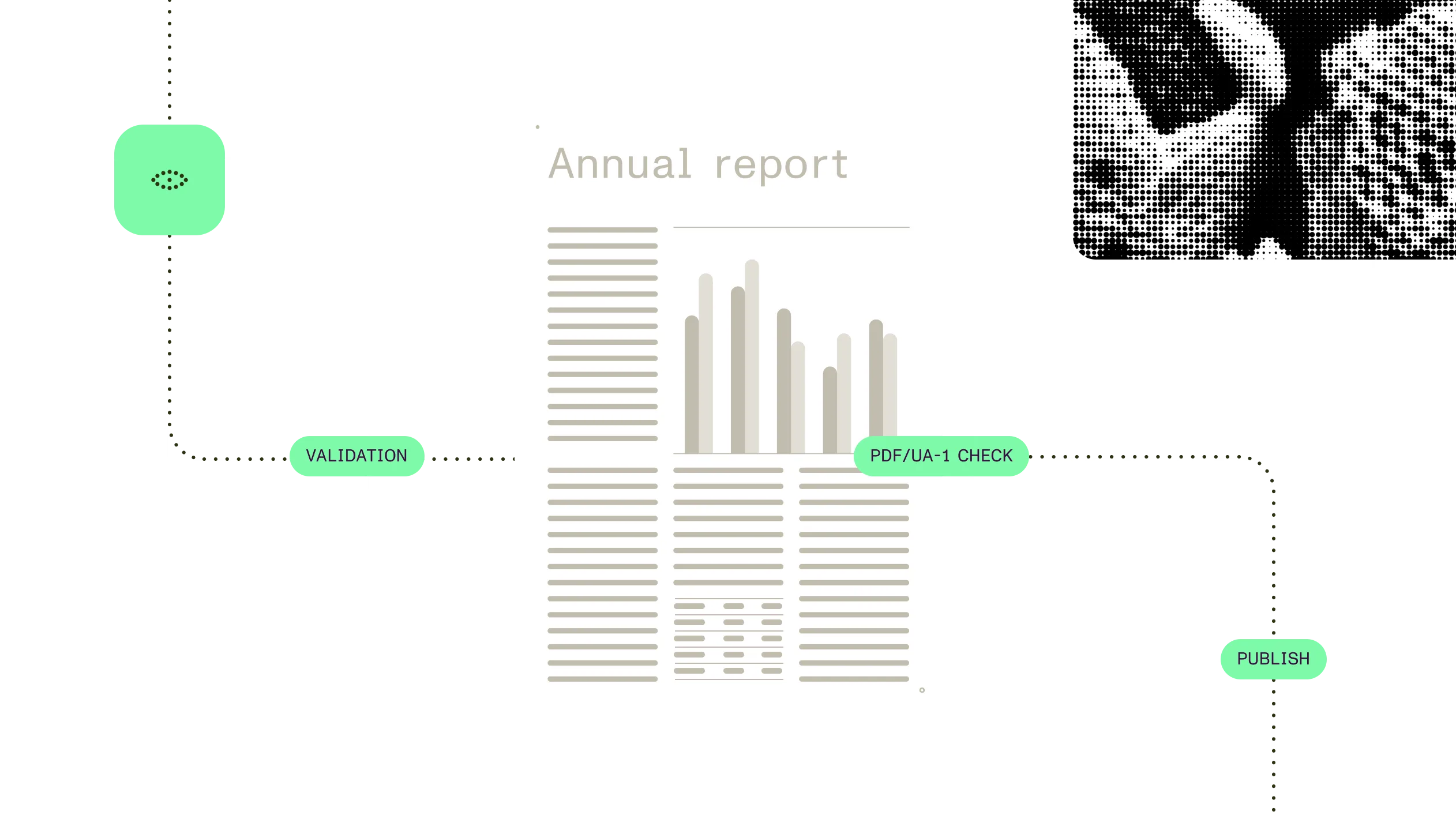
1
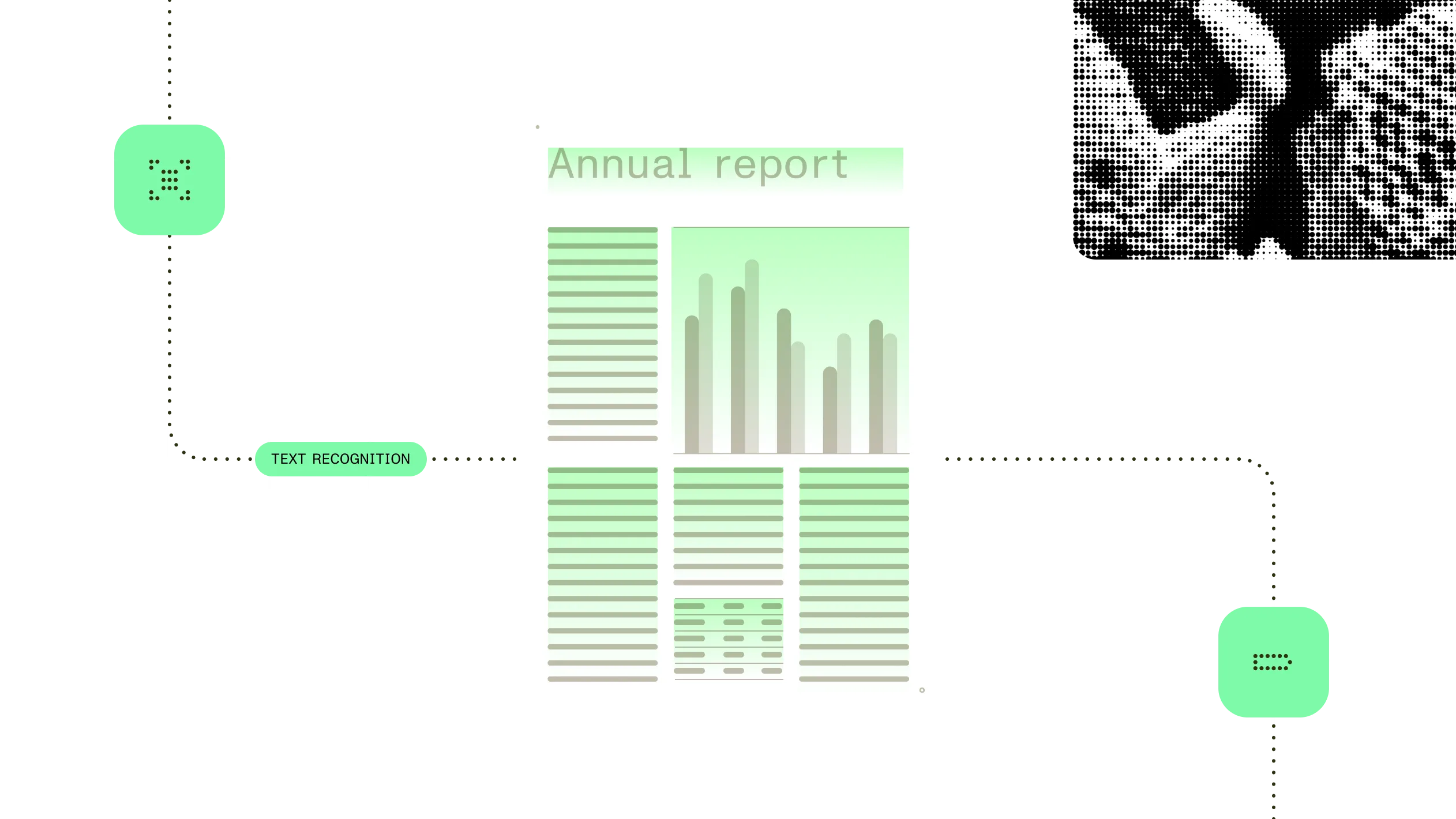
Run OCR on scans
A scanned page is only an image. Recognize its text first, so tagging has real content to work with.
2
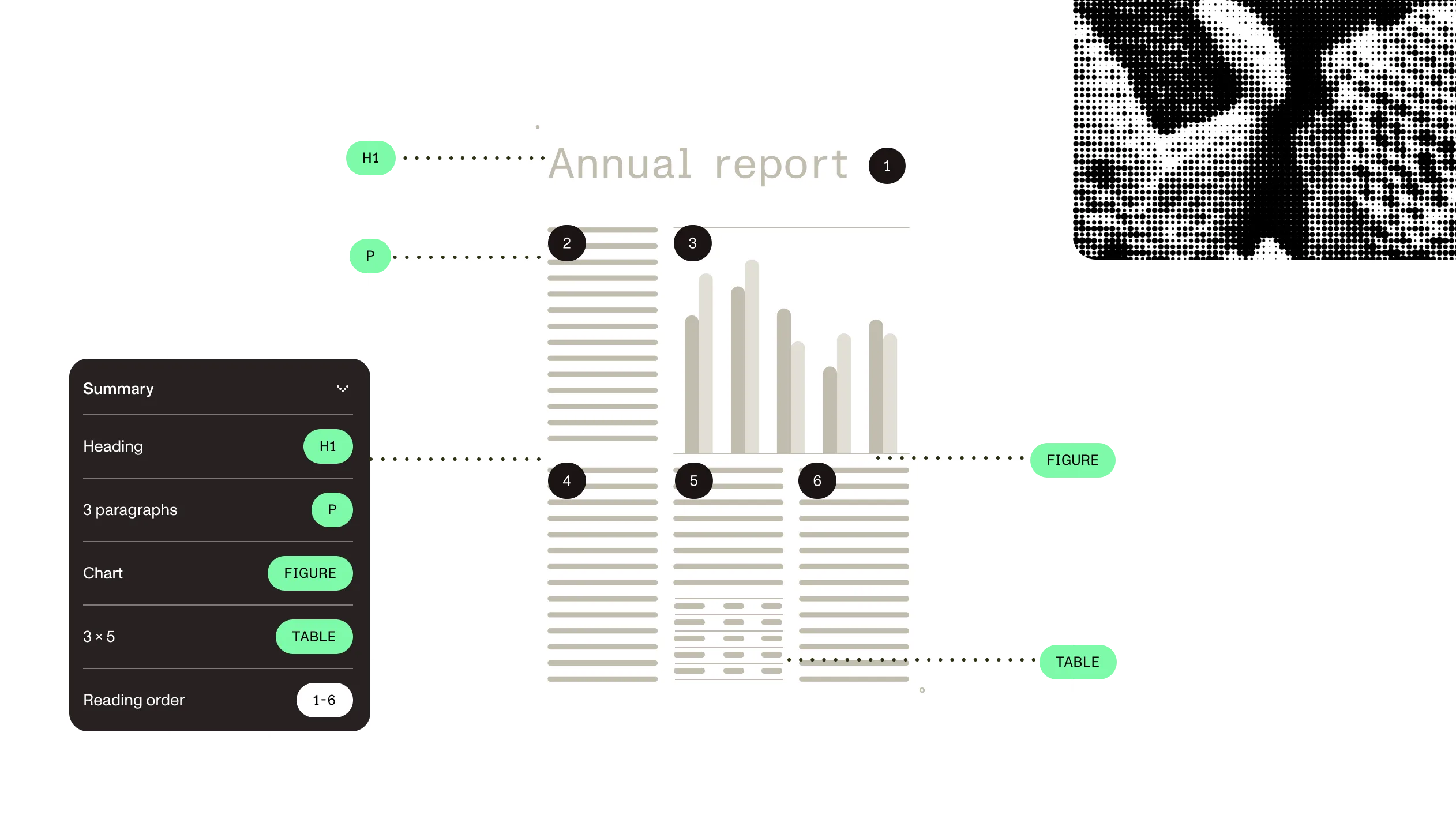
Auto-tag the structure
Add headings, lists, tables, figures, and reading order, targeting the PDF/UA-1 profile.
3
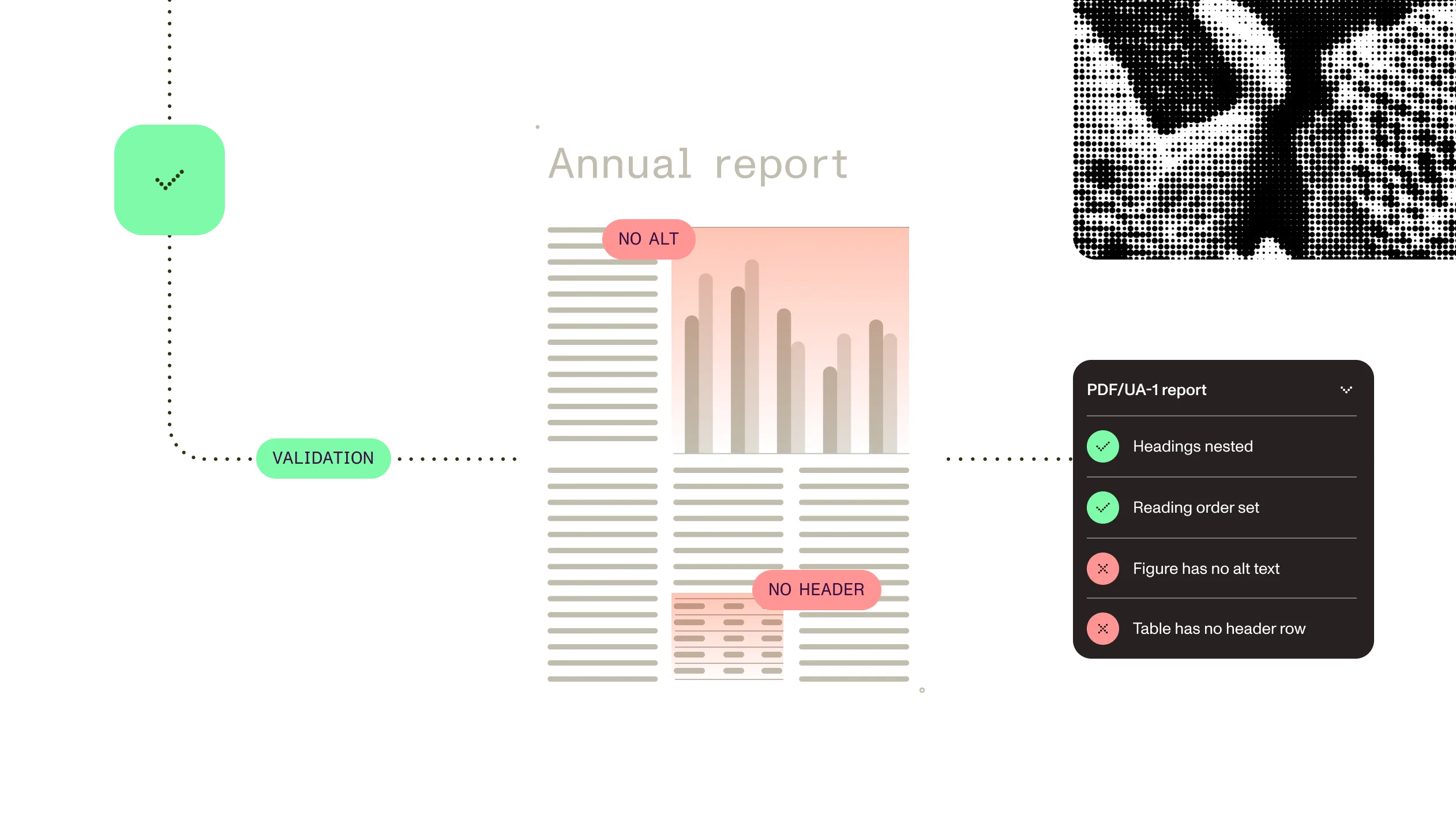
Validate against PDF/UA-1
Check the tagged file and get a report of each check it fails.
4
Review and publish
Have a person check alt text and complex layouts. Then publish the files that pass.
At a glance
The specs behind PDF/UA
Nutrient PDF accessibility gives documents the structure screen readers need. It takes a PDF — or on some routes, a Word, Excel, or PowerPoint file — and returns a tagged PDF that targets PDF/UA-1: headings, lists, tables, figures, and reading order. Validation then shows which checks still fail, so people can fix them before publishing.
Inputs
PDFs, Word files, and Office templates. Run OCR on scans first.
Outputs
A tagged PDF, plus a report of failing checks when you validate.
Structure added
Headings, paragraphs, lists, tables, figures, and reading order.
Standards
PDF/UA-1 (ISO 14289-1). PDF/UA-2 isn’t supported.
Runs on
Your own servers, or Nutrient’s cloud.
Status
Available now. Validation runs in the SDKs and Document Engine.
Where it fits
PDF accessibility in the document workflow
An accessible PDF has to be built that way and then checked. Tag documents for assistive technology, catch the ones that need more work, and let a specialist confirm before you publish.
Publishing public documents
ExamplePrepare
Tag each document’s structure so screen readers can follow headings, tables, and reading order. Run OCR on scans first.
Act
Route documents that need manual fixes, like complex tables, to an accessibility specialist.
Why Nutrient
PDFs you can check before you publish
Accessibility programs stall in two places: thousands of existing PDFs nobody has time to tag, and new ones that keep arriving untagged.
Stop the backlog at the source
Generate PDF/UA output where documents are made, so new files don’t need fixing later. This runs in the .NET, Java, and Python SDKs, Document Engine, and the Build API.
Tag the backlog at volume
Auto-tag existing PDFs through an API or on your own servers. Then send only the failures to people. Auto-tagging is a first pass, and complex layouts and alt text still need review.
Know what fails, and keep the report
Validate against PDF/UA-1 and get a report of each failing check to store with the file. Validation runs in the SDKs and Document Engine, and it checks that alt text exists, not that it’s accurate.
Run it where your files must stay
Process documents on your own servers, or in Nutrient’s cloud with nothing to deploy. On hosted plans with data retention, files can be used to improve Nutrient’s services, so check your plan.
- 3,000+ organizations worldwide
- 15 percent of Global 500 companies
- 1B+ document interactions a year
- SOC 2 Type 2 audited
- GDPR and CSA compliant
Frequently asked questions
PDF accessibility means a PDF carries the structure assistive technology needs: tags for headings, lists, tables, and figures; a reading order; and alt text for images. Nutrient adds that structure, creates PDF/UA output, and checks files against PDF/UA-1, so people can fix what still fails.
Tag its structure, check it, and fix what fails. Auto-tag existing PDFs with the Accessibility API or Document Engine, or create PDF/UA output in the .NET, Java, or Python SDKs. Then validate the result against PDF/UA-1 and have a person review alt text and complex layouts. This work is also called PDF remediation.
Validate it against PDF/UA-1, the ISO standard for accessible PDFs. The .NET, Java, and Python SDKs and Document Engine return a report that lists each failing check. A pass means the file passed automated checks, so a person should still review alt text and reading order.
No tool does that on its own. Nutrient gives you a structural first pass and a PDF/UA-1 check that shows what still fails, so your team can fix it. Compliance with the Web Content Accessibility Guidelines (WCAG), Section 508, the Americans with Disabilities Act (ADA), or the European Accessibility Act (EAA) depends on your whole process and a manual review.
Run OCR first. A scanned page is an image, so recognize its text before you auto-tag it. With the Build API, one request can run OCR and then produce PDF/UA output.
With the SDKs and self-hosted Document Engine, on your own servers. The Accessibility API runs in Nutrient’s cloud. On plans with data retention, submitted files can be used to improve Nutrient’s services, so check your plan before you send sensitive documents.