How to ensure your PDF fonts are embedded correctly
Embedding fonts helps PDF viewers render text consistently across devices. A viewer substitutes a font when the PDF doesn’t embed it and the device doesn’t provide it.
To check whether a PDF embeds its fonts, follow these steps:
- Open the PDF in Acrobat Pro(opens in a new tab) or Acrobat Reader(opens in a new tab), which is free for Windows and macOS.
- Open Document properties using the option for your operating system:
- Windows — Select Menu > Document properties.
- macOS — Select File > Document properties, or press Command-D.
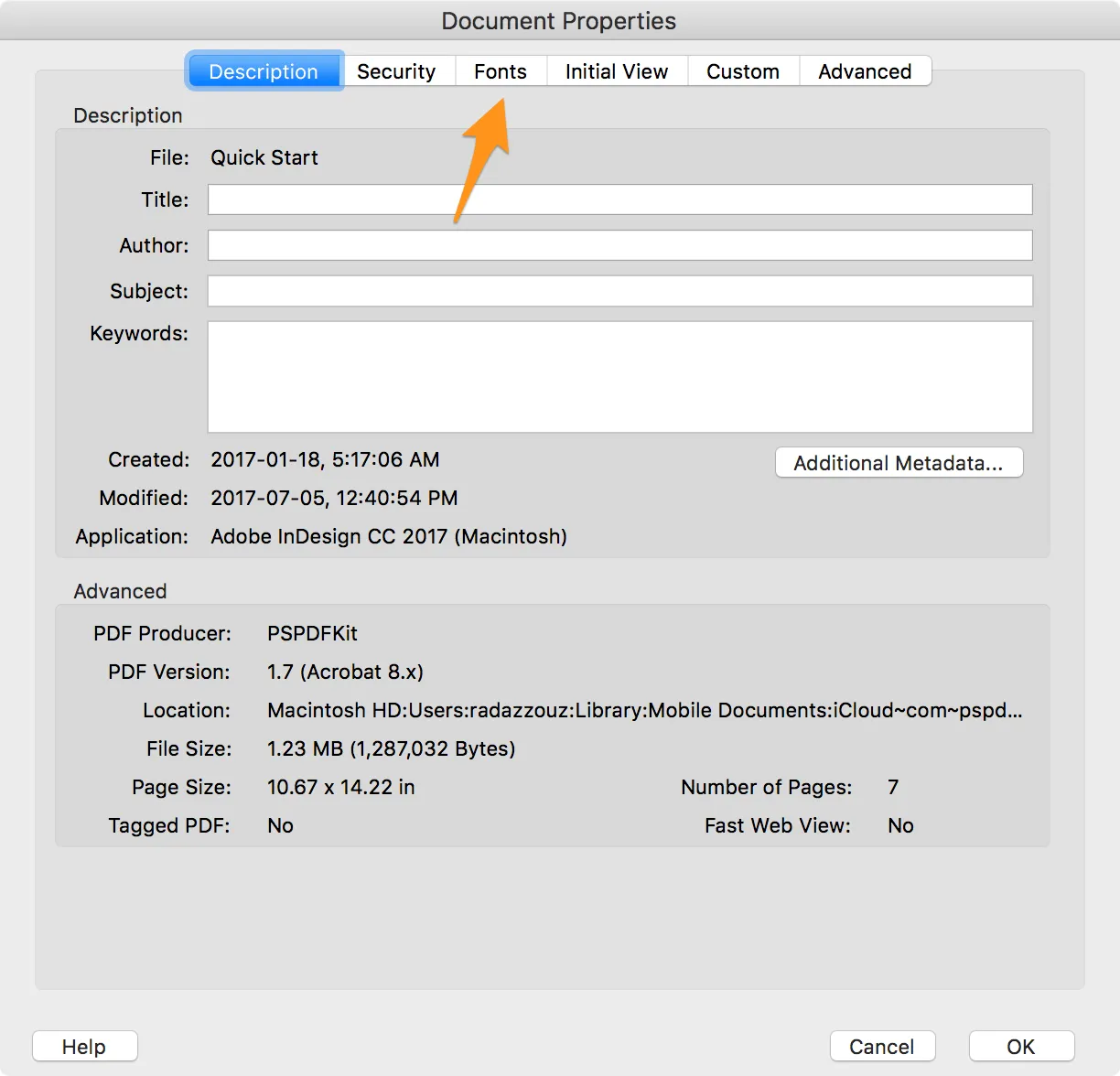
- Click the Fonts tab.
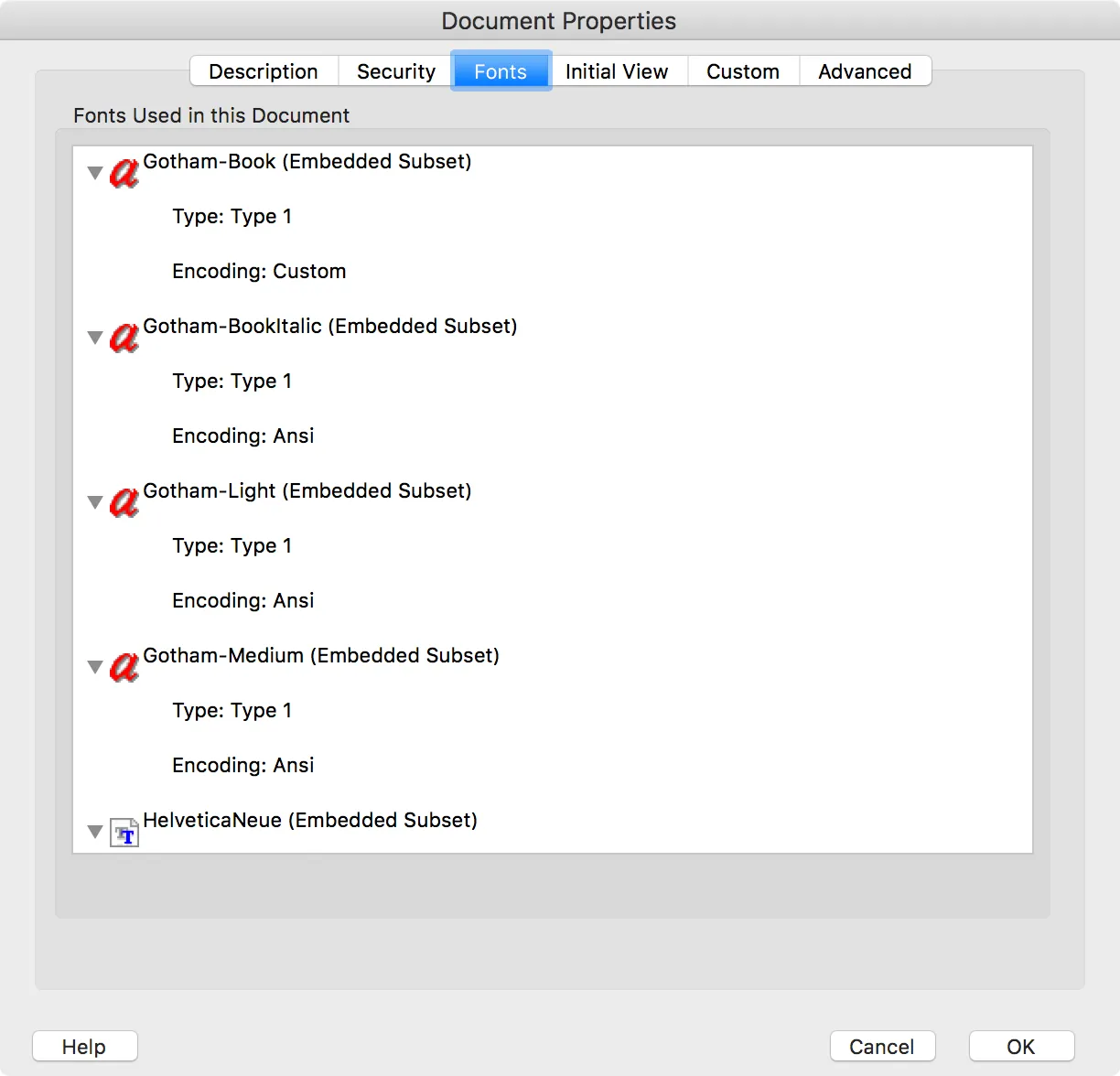
The Fonts tab lists each font’s embedding status. Embedded Subset means the PDF includes only the characters it uses. Embedded indicates that the PDF includes the font.
Most PDF authoring apps, including Acrobat Pro(opens in a new tab), support font embedding. Embed fonts to preserve their appearance across devices and readers.
If you can’t embed fonts, refer to the custom fonts guide.