Generate PDFs from a Word template using JavaScript
Nutrient Web SDK generates PDF documents from Word templates by merging DOCX files with data. You can run this flow headlessly in the background or in the Nutrient viewer UI. If your base document is already a PDF, you can instead generate a PDF from a PDF template.
This guide explains how to:
- Prepare DOCX templates with placeholders.
- Populate templates with structured data.
- Export output as PDF or PDF/A.
General principles
Word templating has three parts:
- A DOCX file that acts as the template.
- A template model with placeholder values.
- Optional delimiter configuration.
Template model
You can define the template model in an external JSON file or build it programmatically.
The model includes:
- Optional delimiter configuration (
startandend). If omitted, the default delimiters are{and}. - At least one placeholder-value pair. Placeholder names must match the placeholders in the DOCX template.
Classes, methods, and properties
This guide uses one entry point from the SDK:
Populate a Word template
Nutrient Web SDK supports placeholder replacement, loops, and dynamic tables. When content size changes, the DOCX template reflows across pages. Placeholders keep their original DOCX formatting.
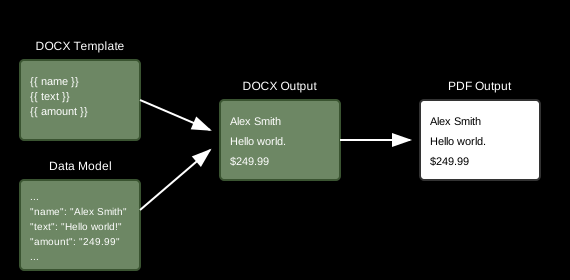
Start by preparing a DOCX template with placeholders. The example below uses {{ and }} delimiters.
Placeholder naming rules
Placeholder names must follow these rules:
- Supported characters — Letters (a–z, A–Z), numbers (0–9), and underscores (_)
- Valid examples —
{{name}},{{firstName}},{{item_1}},{{TOTAL_AMOUNT}} - Invalid examples —
{{first-name}},{{item.price}},{{user@email}},{{my placeholder}}
These rules help the parser process templates correctly and avoid conflicts with special syntax characters.

Prepare data:
const data = { config: { delimiter: { start: "{{", end: "}}", }, }, model: { name: "Alex Smith", text: "Hello World!", amount: "$249.99", },};Load the DOCX template and replace placeholders. This returns an ArrayBuffer with the populated DOCX:
const buffer = await NutrientViewer.populateDocumentTemplate( { // Other configuration options. document: "template.docx", }, data,);The following image shows the populated DOCX output.

Next, convert the DOCX to PDF. The following example converts to PDF/A-1a. Choose the conformance value you need from the conformance enumeration.
const pdfBuffer = await NutrientViewer.convertToPDF( { // Other configuration options. document: buffer, }, NutrientViewer.Conformance.PDFA_1A,);Image substitution
Along with text, loops, and conditionals, NutrientViewer.populateDocumentTemplate() also supports image substitution in standalone mode.
Use these markers in your DOCX template:
{{%name}}— Inserts an inline image{{%%name}}— Inserts a centered image
Set the model entry to an image object with _type: "image":
const data = { config: { delimiter: { start: "{{", end: "}}", }, }, model: { companyName: "Nutrient", logo: { _type: "image", source: "url", url: "https://example.com/logo.png", sizing: "fit-width", width: 96, altText: "Nutrient logo", }, },};Supported image sources
The source field selects how the image payload is supplied:
source: "base64"— Raw Base64 payload indata.source: "dataUrl"— Data URL payload indata(alias ofbase64).source: "url"— HTTP(S) URL inurl(fetched and normalized at runtime).
For URL sources, the host must enable cross-origin resource sharing (CORS). If CORS isn’t configured, use Base64 or data URL payloads.
Sizing and multipage behavior
The sizing mode determines which dimension fields are required:
- If you omit
sizing, preprocessing keeps sizing unchanged, and the engine applies default layout behavior. sizing: "original"requires no dimensions.sizing: "fixed"andsizing: "fit-max"require bothwidthandheight(positive numbers).sizing: "fit-width"requireswidth(positive number).sizing: "fit-height"requiresheight(positive number).- For multipage images,
pageNumberis supported and must be a positive one-based integer.
Validation and limitations
A few constraints to be aware of:
- For raw Base64 payloads, set
formatexplicitly (for examplepng,jpg,gif,bmp,tif). source: "file"isn’t supported in browser public APIs.- Scalable Vector Graphics (SVG) payloads and SVG formats aren’t supported in this release.
- If any image entry is invalid or can’t be resolved, the complete templating request fails.
Image entries also support optional properties such as borders, captions, rotation, link targets, and accessibility metadata. For the full list, refer to the NutrientViewer.populateDocumentTemplate API reference.
Advanced example: Looping through data sets
Loops repeat content based on arrays in your data model. Use loops for invoice line items, employee lists, or other repeated sections.
If your data contains three items, the loop renders three repeated sections:
lineItems: [ { product: "Laptop", price: "$999" }, { product: "Mouse", price: "$25" }, { product: "Keyboard", price: "$75" },];Creating loops
Add an array of objects to the data model. For each object, the loop body is repeated when the engine processes the DOCX and model.
Step one — Prepare your data
const data = { config: { delimiter: { start: "{{", end: "}}", }, }, model: { loop1: [ { loopDesc1: "Monday", loopDesc2: "Tuesday" }, { loopDesc1: "Wednesday", loopDesc2: "Thursday" }, { loopDesc1: "Friday", loopDesc2: "Saturday" }, ], loop2: [{ loopDesc: "Red" }, { loopDesc: "Orange" }, { loopDesc: "Green" }], },};Step two — Create your DOCX template with loop placeholders
The template defines where and how loops repeat content.
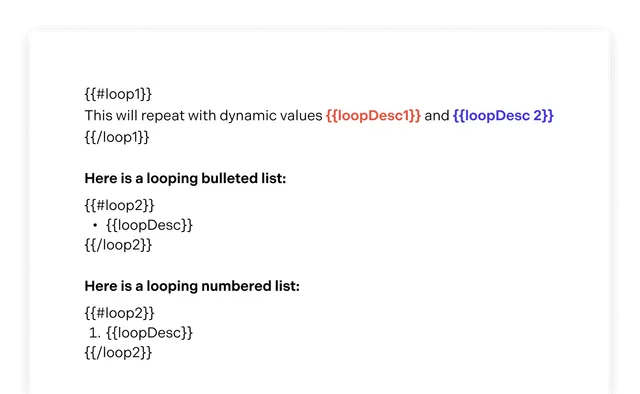
For bulleted or numbered lists, place the opening placeholder immediately before the list and the closing placeholder immediately after it.
Step three — Generate the populated document
When you combine the data and template, the loops generate the repeated content.
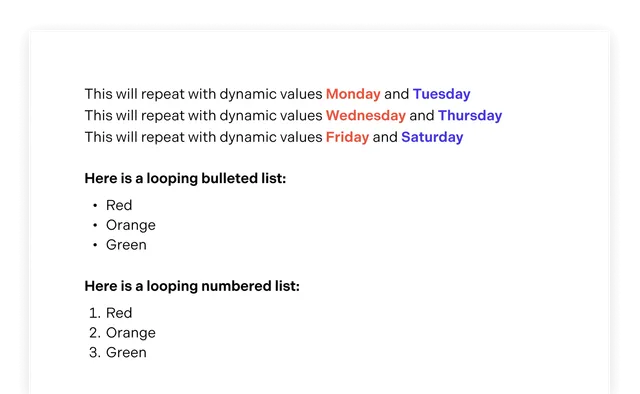
For an example that combines loops with tables, refer to the dynamic table loop example section below.
Control what a loop repeats
Use a loop binding prefix to control which DOCX element is repeated:
| Opening tag | Repeated element |
|---|---|
{{r#items}} | Text run |
{{p#items}} | Paragraph |
{{tr#items}} | Table row |
Close each loop with the standard closing tag, such as {{/items}}. A bare {{#name}} tag opens a section: Over an array it repeats the content (defaulting to table-row repetition when opened inside a table cell), and over an object it simply sets the scope for the tags inside — as with {{#currentAddress}} in the multiline-address example below. The r#, p#, and tr# prefixes override which element an array loop repeats. Use p# when each array item should appear as a separate paragraph in the same cell without duplicating the outer row.
For example, use this model:
const data = { config: { delimiter: { start: "{{", end: "}}", }, }, model: { otherNames: [ { firstName: "Bryan", middleName: "", lastName: "Mann" }, { firstName: "Brian", middleName: "William", lastName: "Manlier Mann" }, ], },};Place the following tags in one paragraph in the table cell:
{{p#otherNames}}{{firstName}} {{middleName}} {{lastName}}{{/otherNames}}The generated cell contains one paragraph per name, while the surrounding table retains a single row. Because middleName is empty for the first entry, that name renders with a double space between the first and last name. Wrap optional fields in a conditional — for example, {{#middleName}}{{middleName}} {{/middleName}} — when you need to suppress the extra space.
For a multiline address, represent the street as an array of objects and use another paragraph-bound loop:
{ "currentAddress": { "addressStreetLines": [ { "line": "100 The High Street" }, { "line": "Two Mile Ash" } ], "addressCity": "Milton Keynes", "addressPostalCode": "MK8 8HL", "addressCountry": "United Kingdom" }}Create each line below as a separate paragraph in the table cell:
{{#currentAddress}}{{p#addressStreetLines}}{{line}}{{/addressStreetLines}}{{addressCity}}{{addressPostalCode}}{{addressCountry}}{{/currentAddress}}Avoid inserting a nested table to display repeated values in one cell. Nested tables can make it difficult for screen readers to track rows and columns. Use a paragraph-bound loop instead. For more information, refer to Microsoft’s guidance for accessible Word documents(opens in a new tab).
Nested loops example
Nested loops iterate through multilevel data structures, such as categories that contain items. This is useful for documents such as catalogs, menus, and hierarchical reports.
Real-world scenario — Restaurant menu
This example uses multiple sections (starters, entrees, sides), each with multiple items and descriptions.
Step one — Prepare nested data structure
const data = { config: { delimiter: { start: "{{", end: "}}", }, }, model: { title: "New Year’s", subtitle: "celebration", sections: [ { title: "STARTERS", items: [ { title: "SALSA TRIO & FRESH CHIPS", description: "Black Bean Salsa, Green Chili, Pico de Gallo", hasDescription: true, }, { title: "SHRIMP & AVOCADO CEVICHE", description: "Gulf Shrimp Marinated in Lime with Cilantro", hasDescription: true, }, ], }, { title: "ENTREES", items: [ { title: "GRILLED ACHIOTE CHICKEN", description: "Red Chili & Avocado Puree", hasDescription: true, }, { title: "SHREDDED BEEF ENCHILADAS", description: "Green Chili & Cheddar", hasDescription: true, }, ], }, { title: "SIDES", items: [ { title: "CALABACITAS", description: "Zucchini, Poblano Corn, Black Beans", hasDescription: true, }, { title: "CILANTRO LIME RICE", description: null, hasDescription: false, }, ], }, ], },};Step two — Create your DOCX template with nested loop placeholders
Structure placeholders like this:
{{title}} {{subtitle}}
{{#sections}}{{title}}{{#items}}• {{title}}{{#hasDescription}}{{description}}{{/hasDescription}}{{/items}}
{{/sections}}
Loop structure
- Outer loop —
{{#sections}}...{{/sections}}iterates through sections. - Inner loop —
{{#items}}...{{/items}}iterates through items in each section. - Conditional —
{{#hasDescription}}...{{/hasDescription}}renders only when the Boolean flag istrue.
Step three — Generated output
This structure generates the following output:
New Year’s celebration
STARTERS• SALSA TRIO & FRESH CHIPSBlack Bean Salsa, Green Chili, Pico de Gallo• SHRIMP & AVOCADO CEVICHEGulf Shrimp Marinated in Lime with Cilantro
ENTREES• GRILLED ACHIOTE CHICKENRed Chili & Avocado Puree• SHREDDED BEEF ENCHILADASGreen Chili & Cheddar
SIDES• CALABACITASZucchini, Poblano Corn, Black Beans• CILANTRO LIME RICE
Adding conditional logic
Conditionals insert and format content based on conditions in the template. You can combine conditionals with loops.
Use this syntax:
#condition— Starts a block rendered when the condition istrue.^condition— Starts a block rendered when the condition isfalse./condition— Ends the conditional block.
Example using isBlue:
{{#isBlue}}Blue{{/isBlue}}{{^isBlue}}Red{{/isBlue}}{ config: { delimiter: { start: "{{", end: "}}" } }, model: { isBlue: true }}The following is a more complex conditional example.
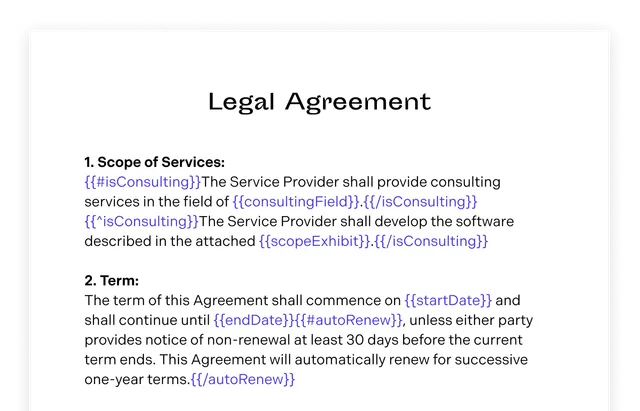
Combine the template above with this data:
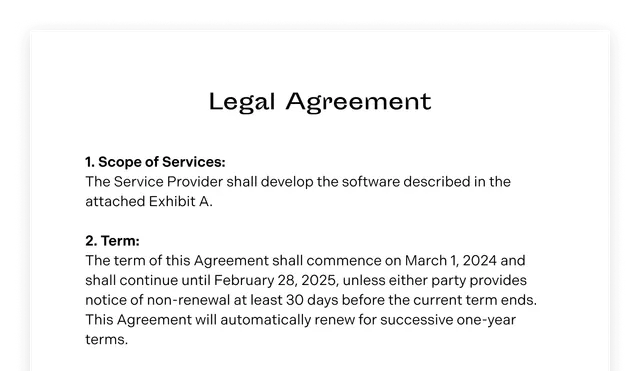
{ config: { delimiter: { start: "{{", end: "}}" } }, model: { isConsulting: false, consultingField: "N/A", scopeExhibit: "Exhibit A", startDate: "March 1, 2024", endDate: "February 28, 2025", autoRenew: true }}This produces the following DOCX, which you can then convert to PDF.
Dynamic table loop example
This example uses loops to insert rows into a table dynamically. Download the DOCX template used in this example.

Using a model loaded from a JSON file
Populate the DOCX template with data from a JSON file. You can download the JSON file used in this example:
const data = await fetch("table.json").then((response) => response.json());const docx = await NutrientViewer.populateDocumentTemplate(  {    // Other configuration options.    document: "table.docx",  },  data,);
const pdfBuffer = await NutrientViewer.convertToPDF(  {    // Other configuration options.    document: docx,  },  NutrientViewer.Conformance.PDFA_1A,);
Automatic reflow example
Text reflow automatically adjusts text to fit available layout space. The engine moves text to new lines, pages, or columns as content size changes.
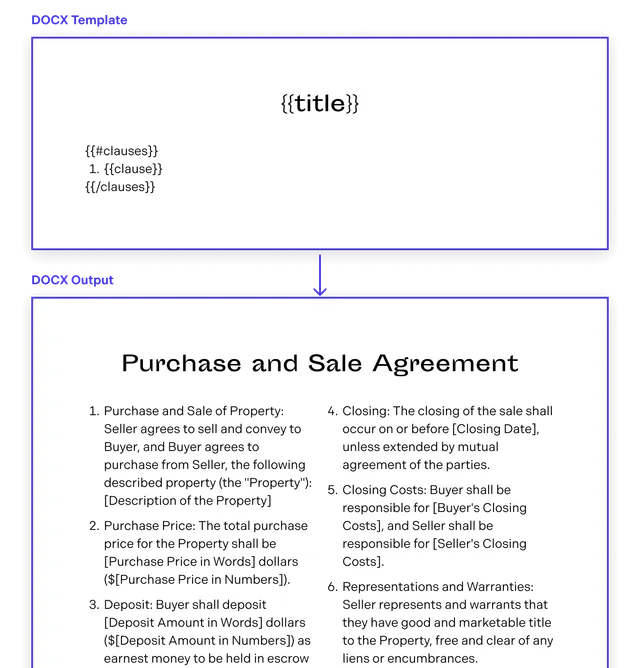
Use the following JSON:
{ "config": { "delimiter": { "start": "{{", "end": "}}" } }, "model": { "clauses": [ { "clause": "Lorem ipsum dolor sit amet, consectetur adipiscing elit..." }, { "clause": "Lorem ipsum dolor sit amet, consectetur adipiscing elit..." }, { "clause": "Lorem ipsum dolor sit amet, consectetur adipiscing elit..." }, { "clause": "Lorem ipsum dolor sit amet, consectetur adipiscing elit..." }, { "clause": "Lorem ipsum dolor sit amet, consectetur adipiscing elit..." } ], "title": "Purchase and Sale Agreement" }}The example below generates a PDF from a DOCX template where content reflows into another column using a model loaded from JSON. For a programmatic model example, refer to the dynamic table loop example section above.
data = await fetch("data.json").then((response) => response.json());const docx = await NutrientViewer.populateDocumentTemplate(  {    // Other configuration options.    document: "reflow.docx",  },  data,);
const pdfBuffer = await NutrientViewer.convertToPDF(  {    // Other configuration options.    document: docx,  },  NutrientViewer.Conformance.PDFA_1A,);
Canceling template population
To cancel an in-progress populateDocumentTemplate call, pass an AbortSignal(opens in a new tab) through the signal configuration option. This also works with convertToPDF in the same pipeline:
When the signal is aborted, the operation promise rejects with a DOMException whose name is AbortError. HTTP-based steps (such as document fetch) are canceled at the network level. For WebAssembly/worker-based processing, the promise still rejects immediately, but underlying processing may continue in the background briefly.
const controller = new AbortController();
async function generatePdf() {  const docx = await NutrientViewer.populateDocumentTemplate(    {      document: "template.docx",      signal: controller.signal,    },    data,  );
  const pdfBuffer = await NutrientViewer.convertToPDF(    {      document: docx,      signal: controller.signal,    },    NutrientViewer.Conformance.PDFA_1A,  );
  return pdfBuffer;}
generatePdf().catch((error) => {  if (error.name === "AbortError") {    console.log("Generation cancelled");  }});
// Cancel at any point during the pipeline.controller.abort();