Open password-protected PDFs in JavaScript
Nutrient Web SDK supports opening and editing password-protected PDFs.
You can provide the password in one of these ways:
- Set it when you load the PDF.
- Let the user enter it when they open the document.
- Include it in the JSON Web Token (JWT).
Setting the default document password
To provide the password when you load a PDF, set the initial Configuration#password option. You can also try it in the Playground.
NutrientViewer.load({ container: "#pspdfkit", document: "/path/to/protected.pdf", password: "secr3t"}) .then((instance) => { console.log("Password-protected document loaded"); }) .catch((error) => { if (error.message.includes("password")) { console.error("Invalid password provided"); } else { console.error("Failed to load document:", error.message); } });If you set this property for a PDF that isn’t password protected, loading will fail. Only set it for password-protected documents.
Including the password in the JWT (Document Engine only)
If you use Document Engine to authenticate clients, add the password claim to the JWT:
jwt.sign( { document_id: document_id, password: "secr3t" // ... }, fs.readFileSync("./jwt.pem"), { algorithm: "RS256", expiresIn: 10 * 365 * 24 * 60 * 60 // 10 yrs });Resolving the password programmatically
To resolve the password in your own code instead of using the built-in UI prompt, set the Configuration#onPasswordRequired callback. The SDK calls it every time a password attempt fails:
NutrientViewer.load({ container: "#pspdfkit", document: "/path/to/protected.pdf", onPasswordRequired: async ({ filter, metadata }) => { return await lookupPassword(/* ... */); }});Use the returned promise in one of these ways:
- Resolve it with a password string to try that password next.
- Resolve it with
nullorundefinedto fall back to the built-in password prompt. - Reject it to stop opening the document.
The callback runs before the UI prompt after every failed password attempt, so you can centralize password resolution. Set maxPasswordRetries to 0 to suppress the UI prompt and run headless, with the callback handling every attempt.
As a safeguard, the SDK aborts loading if onPasswordRequired returns the same password that just failed. This prevents a stale cached value from trapping the loader in a retry loop.
Handling custom encryption filters (Dedicon)
Some PDFs use a custom value for the /Filter entry in the encryption dictionary. The SDK recognizes the Dedicon filter. This filter contains an XML blob that you can use to look up the standard PDF password from your backend.
When the SDK encounters this type of document, it calls onPasswordRequired with filter: 'Dedicon' and metadata set to the embedded XML:
NutrientViewer.load({  container: "#pspdfkit",  document: "/path/to/dedicon.pdf",  onPasswordRequired: async ({ filter, metadata }) => {    if (filter === "Dedicon") {      // `metadata` is the XML blob embedded in the PDF;      // send it to your password-resolution backend.      return await resolveDediconPassword(metadata);    }
    // Standard PDFs have `filter: 'Standard'` and `metadata: null`.    return null; // Fall back to the default password prompt UI.  }});
Prompting the user to enter the password
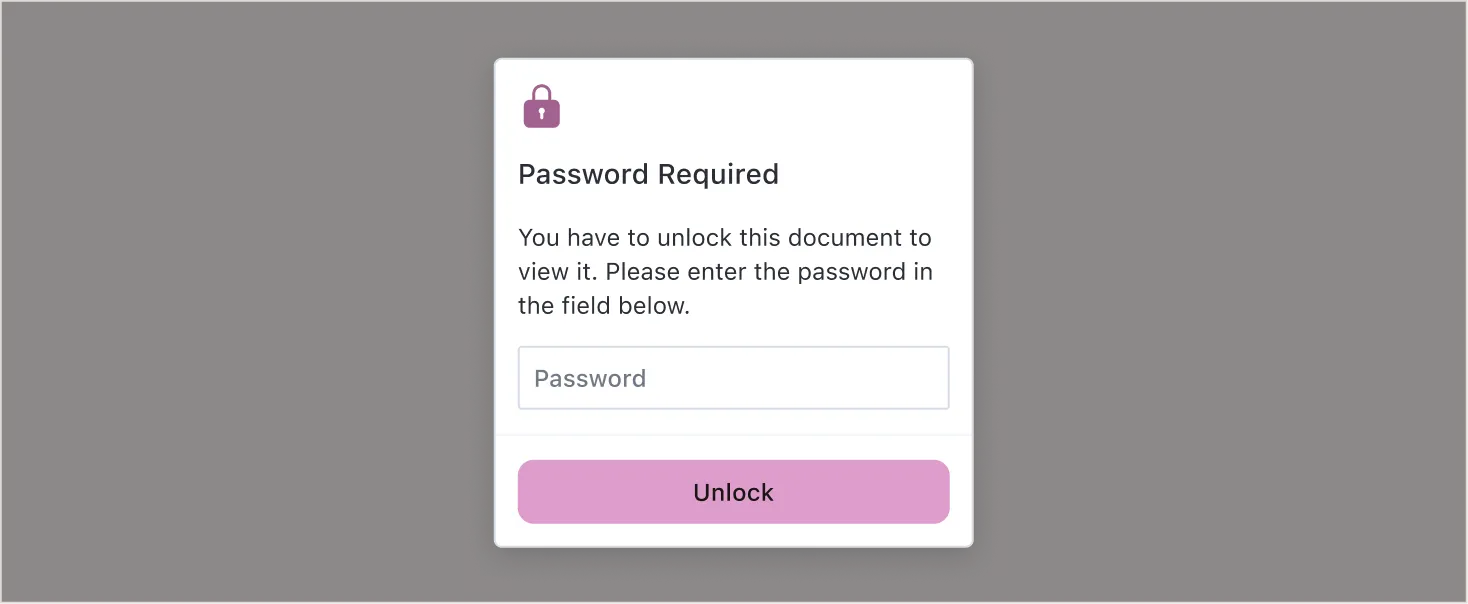
If you don’t include the password in the JWT and don’t set the Configuration#password option, the SDK prompts the user for the password.
Complete example with password handling
This example resolves passwords in code, falls back to the built-in password prompt, and handles password-related errors:
async function loadPasswordProtectedPDF(documentUrl) {  try {    const instance = await NutrientViewer.load({      container: "#pspdfkit",      document: documentUrl,      maxPasswordRetries: 3,      onPasswordRequired: async ({ filter, metadata }) => {        if (filter === "Dedicon") {          return await resolveDediconPassword(metadata);        }
        const password = await lookupPasswordForDocument(documentUrl);        return password ?? null;      }    });
    console.log("Password-protected document loaded successfully");    return instance;  } catch (error) {    if (error.message === "user cancelled") {      console.error("Document loading was cancelled");    } else if (error.message.includes("password")) {      console.error("Password error:", error.message);    } else {      console.error("Failed to load document:", error.message);    }
    throw error;  }}
// Usage.loadPasswordProtectedPDF("/documents/protected.pdf")  .then((instance) => {    // Work with the loaded document.  })  .catch((error) => {    // Handle the error (show message to user, retry, etc.).  });