Thumbnail preview in our JavaScript PDF viewer
Nutrient Web SDK includes a sidebar with multiple views.
The thumbnail preview sidebar shows a scrollable list of page thumbnails. Users can select a thumbnail to navigate to a page and review document structure.
Thumbnails show the orientation stored in the document. Setting pagesRotation rotates pages in the main view, but it doesn’t rotate thumbnails.
The following section shows the thumbnail sidebar and explains how to open, place, and hide it.
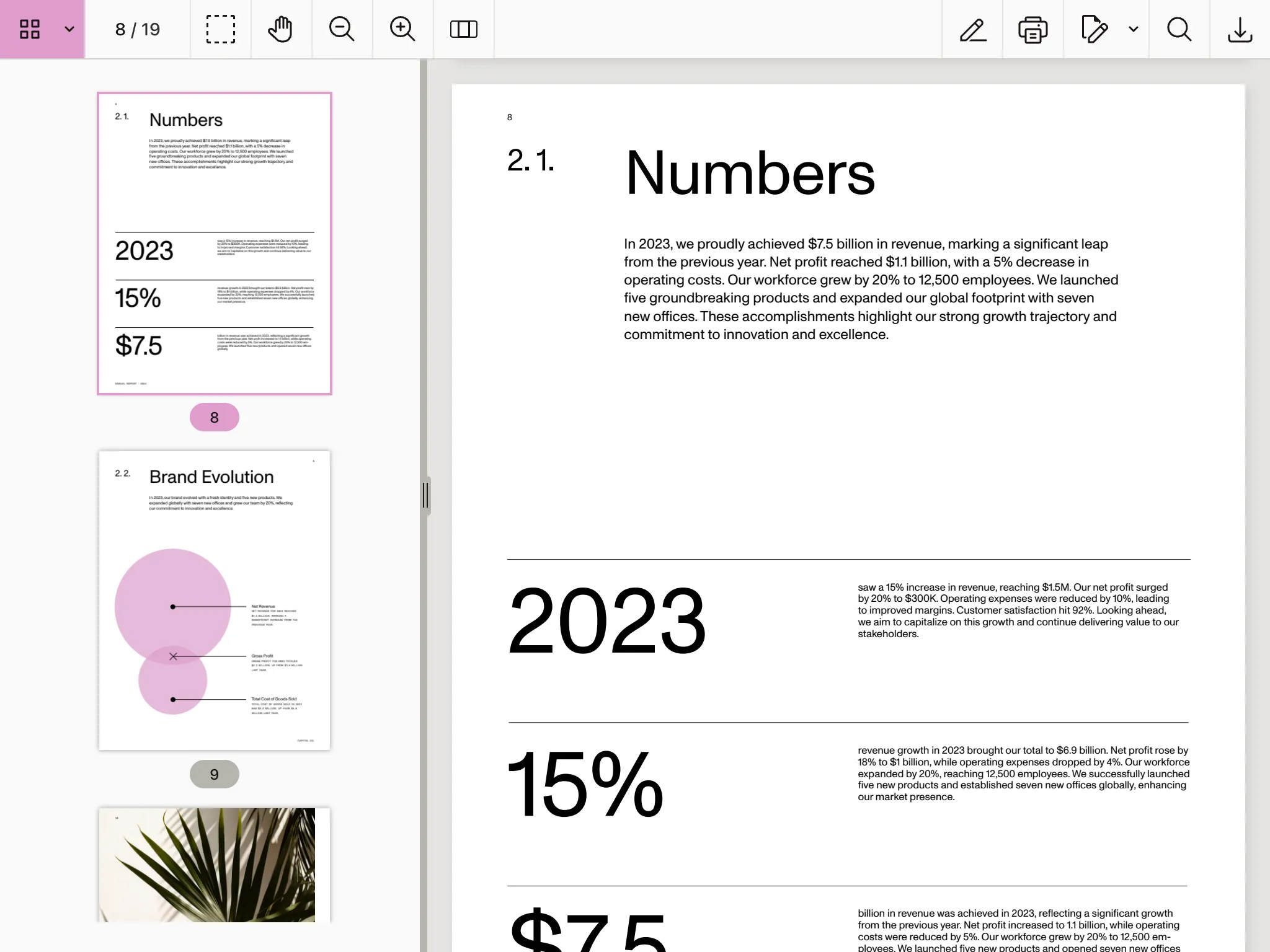
The thumbnails sidebar can be shown by the user by selecting the thumbnails sidebar icon from the sidebar dropdown in the toolbar.
It can also be shown programmatically with the API:
instance.setViewState(viewState => viewState.set("sidebarMode", NutrientViewer.SidebarMode.THUMBNAILS);Additionally, it’s possible to make it appear when the document is loaded by setting NutrientViewer.Configuration#initialViewState:
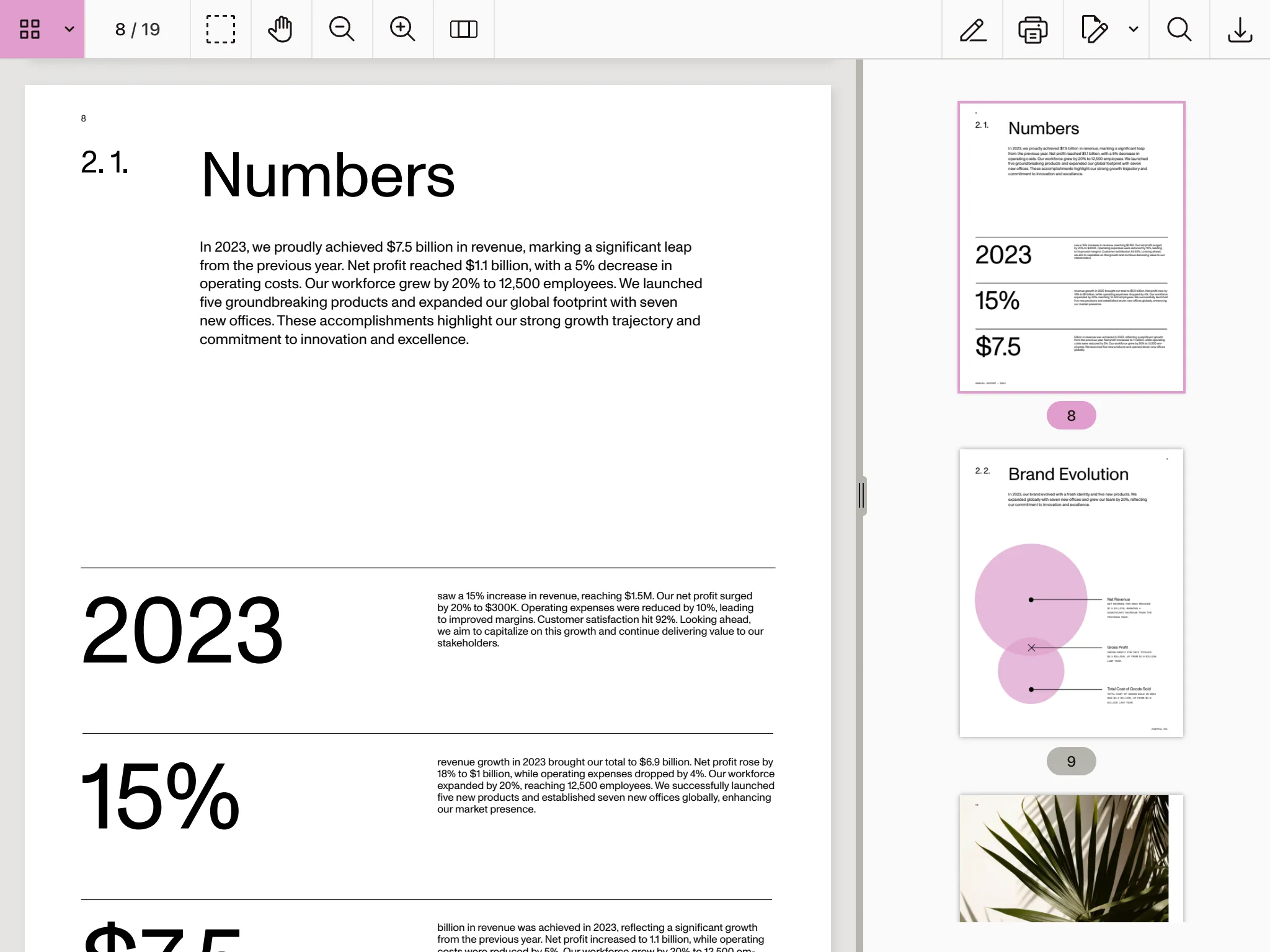
NutrientViewer.load({ initialViewState: new NutrientViewer.ViewState({ sidebarMode: NutrientViewer.SidebarMode.THUMBNAILS })});The sidebar, which appears to the left of the viewport by default, can also be configured to appear to the right. To do this, you only need to set NutrientViewer.ViewState#sidebarPlacement:
instance.setViewState(viewState => ( viewState.set("sidebarPlacement", NutrientViewer.SidebarPlacement.END)));The image below shows how sidebar looks once placed using the previous snippet.
If you don’t want users to be able to open the thumbnails sidebar, you can hide the corresponding toolbar button by filtering it out from the default toolbar items:
NutrientViewer.setToolbarItems(items => items.filter(item => item.type !== "sidebar-thumbnails"));Style the thumbnail view toolbar button with the public CSS class .PSPDFKit-Toolbar-Button-Sidebar-Thumbnails.
Refer to the CSS styling guide for CSS setup and stylesheet loading.
You can also style the thumbnail sidebar with these public CSS classes.
- Use
.PSPDFKit-Sidebar-Thumbnails-Pageto style each thumbnail page item. - Use
.PSPDFKit-Sidebar-Thumbnails-Page-Selectedto style the selected thumbnail page item. - Use
.PSPDFKit-Sidebar-Thumbnails-Page-Imageto style the thumbnail image. - Use
.PSPDFKit-Sidebar-Thumbnails-Page-Labelto style the thumbnail label.