Building a custom document editor sidebar with the customization API
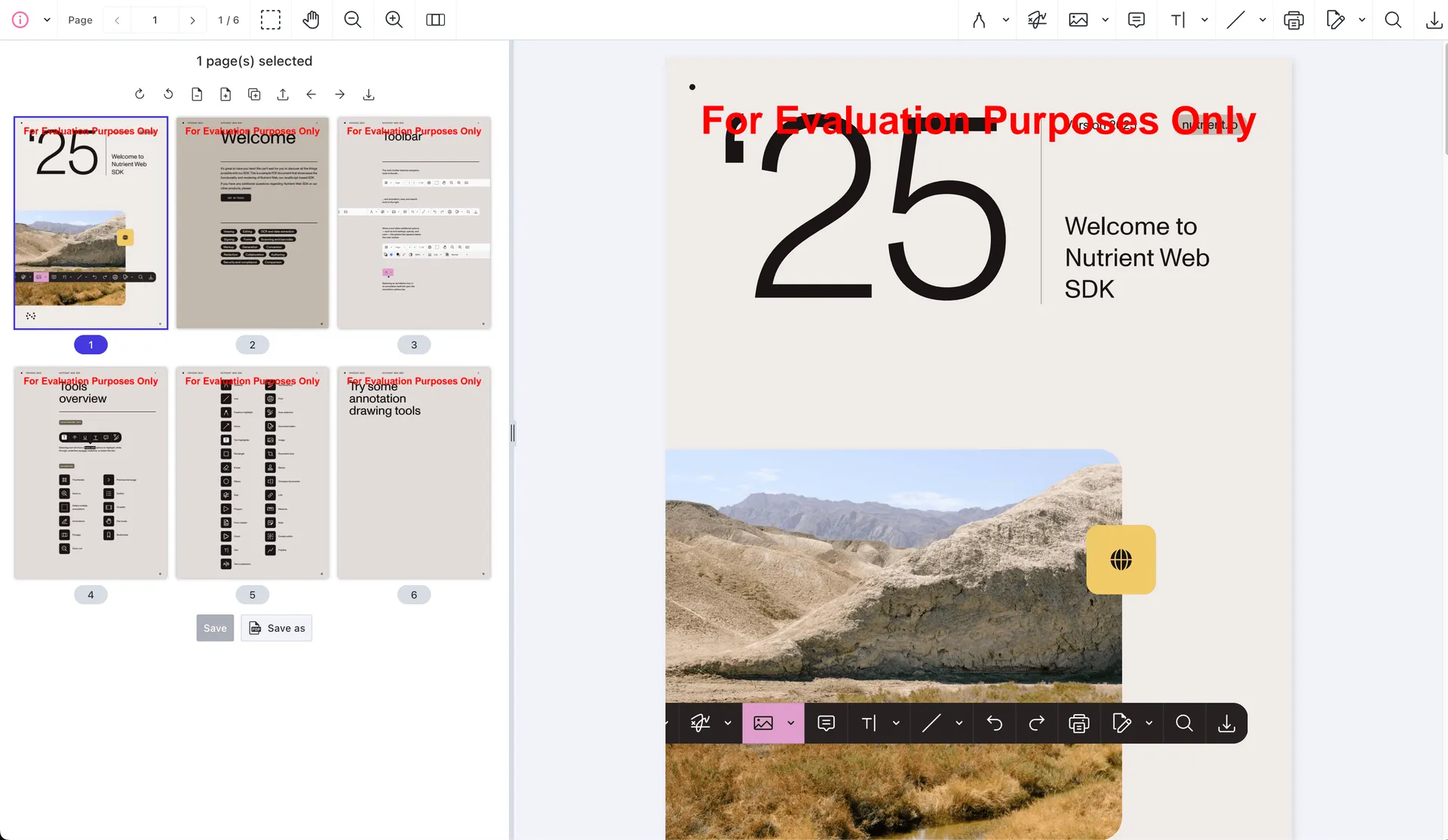
This guide demonstrates building a custom document editor in a sidebar with capabilities for rotation, page removal, page addition, page reordering, page duplication, document import, and export.
It uses React to simplify the custom UI code and Nutrient’s design system — Baseline UI — for out-of-the-box React components that match the look and feel of Nutrient’s default UI.
This guide builds a custom sidebar that uses document operation APIs. It doesn’t customize the built-in Document Editor UI. To customize slots inside the built-in Document Editor, use the top-level ui.documentEditor configuration instead.
Setup
This guide uses React, but you can use any frontend framework that works with document object model (DOM) nodes.
Follow the getting started guide to set up a React + Vite project with Nutrient Web SDK.
Concepts
This section covers the UI customization API in brief. For in-depth information about customization API, refer to the introduction and the custom sidebars guides.
UI customization API and slots
The UI customization API lets you place custom UI into predefined placeholders called slots. These are passed to the SDK as part of load configuration using the ui property:
NutrientViewer.load({ // ... Your configuration. ui: { // Configuration for UI customization. },});Custom sidebars are configured inside the sidebar object in the ui configuration. The object keys are custom sidebar identifiers. In this guide, the custom sidebar identifier is customDocumentEditorSidebar:
NutrientViewer.load({ // ... Your configuration. ui: { sidebar: { // Add a custom sidebar slot named `customDocumentEditorSidebar`. }, },});To customize a slot, provide a callback that returns a render method. The render method returns a DOM node containing your custom UI. In addition to render, you can also provide lifecycle methods — onMount and onUnmount — which are useful for setup and cleanup, especially when using frameworks like React.
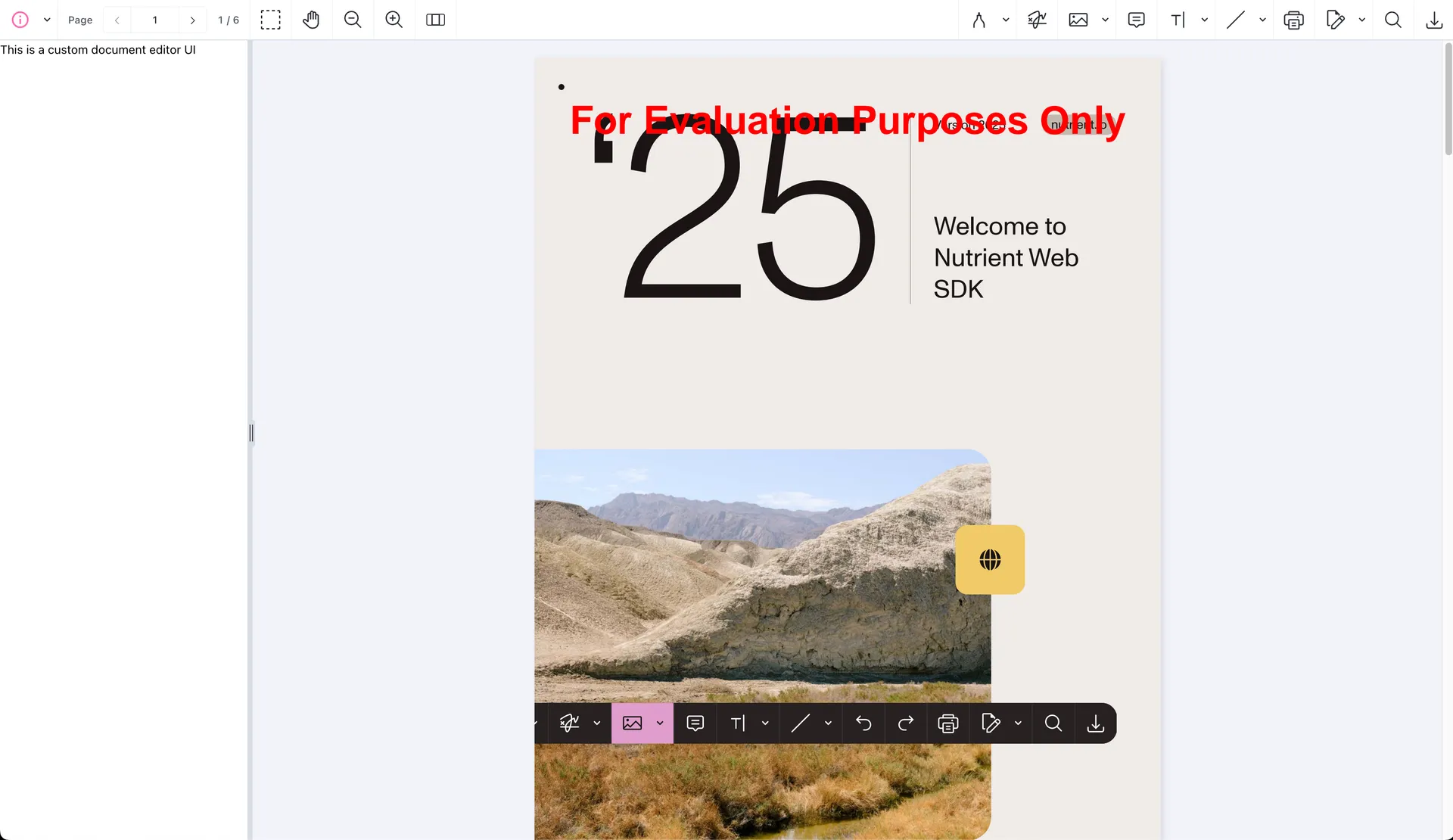
NutrientViewer.load({ // ... Your configuration. ui: { sidebar: { customDocumentEditorSidebar: (getInstance, id) => { return { render: () => { const container = document.createElement("div"); container.innerText = "This is a custom document editor UI"; return container; }, onMount: () => { // Setup code when the slot is mounted. }, onUnmount: () => { // Cleanup code when the slot is unmounted. }, }; }, }, },});The slot callback receives a getInstance function — not the instance itself. Call getInstance() when you need the mounted document instance. This matters because some slots can initialize before NutrientViewer.load() has resolved.
The onMount and onUnmount methods will be used to interface with createRoot(opens in a new tab) to render a React component into the slot and unmount it when the slot is removed.
Displaying a custom sidebar
To display a custom sidebar, set the sidebarMode view state to the custom sidebar identifier, customDocumentEditorSidebar. This lets you programmatically open and close the custom sidebar:
instance.setViewState((viewState) => viewState.set("sidebarMode", "customDocumentEditorSidebar"),);To enable users to toggle the custom document editor sidebar, you can add a custom toolbar item that sets the sidebarMode when pressed. The following uses the toolbar items API to add a custom toolbar item in the viewer sidebar dropdown menu:
const SIDEBAR_ID = "customDocumentEditorSidebar";
NutrientViewer.load({  // ... Your configuration.  ui: {    sidebar: {      customDocumentEditorSidebar: () => ({        render: () => {          // Return a DOM node for your custom sidebar.        },      }),    },  },}).then((instance) => {  const documentEditorToolbarItem = {    type: "custom" as const,    id: "documentEditorToolbarItem",    title: "Document Editor Sidebar",    dropdownGroup: "sidebar",    selected: instance.viewState.sidebarMode === SIDEBAR_ID,    icon: '<svg xmlns="http://www.w3.org/2000/svg" viewBox="0 0 24 24" fill="hotpink"><path d="M4 3h10a2 2 0 0 1 2 2v2h4v14H8v-4H4V3Zm2 2v10h8V5H6Zm4 4h8v10h-8v-2h6V9h-6Z"/></svg>',    onPress: () => {      instance.setViewState((viewState) =>        viewState.set(          "sidebarMode",          viewState.sidebarMode === SIDEBAR_ID ? null : SIDEBAR_ID,        ),      );    },  };
  instance.setToolbarItems([    ...NutrientViewer.defaultToolbarItems,    documentEditorToolbarItem,  ]);
  instance.addEventListener("viewState.change", (viewState, prevViewState) => {    if (viewState.sidebarMode === prevViewState.sidebarMode) {      return;    }
    instance.setToolbarItems((items) =>      items.map((item) =>        item.id === "documentEditorToolbarItem"          ? { ...item, selected: viewState.sidebarMode === SIDEBAR_ID }          : item,      ),    );  });});
Installing Baseline UI
Baseline UI is Nutrient’s design system that makes it easier to build custom UIs in React that match the look and feel of Nutrient’s default UI. It’ll be used to build various parts of the document editor sidebar UI.
Install Baseline UI packages:
Include Baseline UI stylesheets in your app. Add the following to a CSS file being used in your project (e.g.
App.cssor<your component>.css):App.css @import "@baseline-ui/tokens/dist/index.css";@import "@baseline-ui/core/dist/index.css";@layer bui-reset {* {box-sizing: border-box;margin: 0;padding: 0;-moz-osx-font-smoothing: grayscale;-webkit-font-smoothing: antialiased;}}You’re now ready to use Baseline UI components in your React app.
Rendering a React component into a custom sidebar slot
Start by rendering a simple React component into a custom sidebar slot using the customization API. Refer to the custom sidebars guide for more information about custom sidebars.
Create a new React component at
src/DocumentEditor.tsx:DocumentEditor.tsx import type { Instance } from "@nutrient-sdk/viewer";interface Props {instance: Instance;}const DocumentEditor = ({ instance }: Props) => {return (<div>This is a custom document editor UI for a document with{" "}{instance.totalPageCount} pages.</div>);};export default DocumentEditor;Render the
DocumentEditorcomponent into thecustomDocumentEditorSidebarslot using the customization API. The code insrc/App.tsxbuilds upon the code from the getting started guide, with important changes highlighted:App.tsx import { useEffect, useRef } from "react";import { createRoot } from "react-dom/client";import "./App.css";import DocumentEditor from "./DocumentEditor";const SIDEBAR_ID = "customDocumentEditorSidebar";const TOOLBAR_ITEM_ID = "documentEditorToolbarItem";function App() {const containerRef = useRef<HTMLDivElement | null>(null);useEffect(() => {const container = containerRef.current;let cleanup = () => {};(async () => {const NutrientViewer = (await import("@nutrient-sdk/viewer")).default;NutrientViewer.unload(container);if (container && NutrientViewer) {NutrientViewer.load({container,document:"https://www.nutrient.io/downloads/nutrient-web-demo.pdf",useCDN: true,ui: {sidebar: {customDocumentEditorSidebar: (getInstance) => {const sidebarContainer = document.createElement("div");const root = createRoot(sidebarContainer);sidebarContainer.style.height = "100vh";return {render: () => sidebarContainer,onMount: () => {const instance = getInstance();if (instance) {root.render(<DocumentEditor instance={instance} />);}},onUnmount: () => {root.unmount();},};},},},}).then((instance) => {const documentEditorToolbarItem = {type: "custom" as const,id: TOOLBAR_ITEM_ID,title: "Document Editor Sidebar",dropdownGroup: "sidebar",selected: instance.viewState.sidebarMode === SIDEBAR_ID,icon: '<svg xmlns="http://www.w3.org/2000/svg" viewBox="0 0 24 24" fill="hotpink"><path d="M4 3h10a2 2 0 0 1 2 2v2h4v14H8v-4H4V3Zm2 2v10h8V5H6Zm4 4h8v10h-8v-2h6V9h-6Z"/></svg>',onPress: () => {instance.setViewState((viewState) =>viewState.set("sidebarMode",viewState.sidebarMode === SIDEBAR_ID ? null : SIDEBAR_ID,),);},};instance.setToolbarItems([...NutrientViewer.defaultToolbarItems,documentEditorToolbarItem,]);instance.addEventListener("viewState.change",(viewState, prevViewState) => {if (viewState.sidebarMode === prevViewState.sidebarMode) {return;}instance.setToolbarItems((items) =>items.map((item) =>item.id === TOOLBAR_ITEM_ID? { ...item, selected: viewState.sidebarMode === SIDEBAR_ID }: item,),);},);});}cleanup = () => {NutrientViewer.unload(container);};})();return cleanup;}, []);return (<div ref={containerRef} style={{ height: "100vh", width: "100vw" }} />);}export default App;You can now toggle the custom document editor sidebar from the sidebar dropdown.
Building the document editor UI
The following sections cover the APIs used to build the editor, how to populate page data and thumbnails, how to queue and apply document operations, and a full working example you can drop into your component.
APIs used
To build the document editor UI, you’ll use APIs available on instance — which is the mounted document instance returned by NutrientViewer.load — along with components from Baseline UI.
You’ll use the following:
instance.totalPageCountto get the total number of pages in the document.instance.pageInfoForIndexto get information about a specific page, such as labels, dimensions, and rotation.instance.renderPageAsImageURLto render image previews for pages. This is an async operation, and returned blob URLs should be revoked when no longer needed to avoid memory leaks.instance.applyOperationsto apply document editing operations like rotate, add, remove, duplicate, import, and reorder pages.instance.exportPDFWithOperationsto export a PDF with queued document editing operations without saving those changes to the original document.- Baseline UI components —
ActionButton,ActionGroup,Box,ImageGallery, andTextto build the UI.
Populating pages data
A populatePageData function can fetch page information and thumbnails from the document instance. Use a stable ID that isn’t just the page label, because page labels aren’t guaranteed to be unique:
interface DraftPageData {  id: string;  label: string;  alt: string;  pageIndex: number;  src: string;  rotation: number;  width: number;  height: number;  draftRotation?: number;  isNew?: boolean;}
const blobUrlsRef = useRef<Set<string>>(new Set());
const cleanupBlobUrls = useCallback(() => {  blobUrlsRef.current.forEach((url) => URL.revokeObjectURL(url));  blobUrlsRef.current.clear();}, []);
const populatePageData = useCallback(async () => {  const pagesData: DraftPageData[] = [];  const nextBlobUrls = new Set<string>();
  for (let pageIndex = 0; pageIndex < instance.totalPageCount; pageIndex += 1) {    const pageInfo = instance.pageInfoForIndex(pageIndex);
    if (!pageInfo) {      continue;    }
    const src = await instance.renderPageAsImageURL({ width: 320 }, pageIndex);
    if (src.startsWith("blob:")) {      nextBlobUrls.add(src);    }
    pagesData.push({      id: `page-${pageInfo.index}-${pageInfo.label}`,      label: `Page ${pageInfo.label}`,      alt: `Page ${pageInfo.label}`,      pageIndex: pageInfo.index,      src,      rotation: pageInfo.rotation || 0,      width: pageInfo.width,      height: pageInfo.height,    });  }
  cleanupBlobUrls();  blobUrlsRef.current = nextBlobUrls;  setDraftPages(pagesData);}, [instance, cleanupBlobUrls]);
Handling document operations
Create a queueDocumentOperation function to queue operations and update the draft preview. Selected pages should be converted from UI item IDs back to current page indexes:
const getSelectedPageIndexes = useCallback(() => {  return draftPages    .filter((page) => selectedKeys.has(page.id))    .map((page) => page.pageIndex)    .sort((a, b) => a - b);}, [draftPages, selectedKeys]);
const queueDocumentOperation = async (operation: string | number) => {  const selectedPageIndexes = getSelectedPageIndexes();
  if (operation === "rotate-clockwise") {    setOperationQueue((current) => [      ...current,      {        type: "rotatePages",        pageIndexes: selectedPageIndexes,        rotateBy: 90,      },    ]);
    setDraftPages((current) =>      current.map((page) =>        selectedKeys.has(page.id)          ? { ...page, draftRotation: ((page.draftRotation || 0) + 90) % 360 }          : page,      ),    );  }};
Later, when the user saves changes, apply the queued operations to the document using instance.applyOperations:
const handleSave = async () => {  if (operationQueue.length === 0) {    return;  }
  await instance.applyOperations(operationQueue);  setOperationQueue([]);  await populatePageData();  setSelectedKeys(new Set());};
You can also export the edited document with applied operations using instance.exportPDFWithOperations:
const handleExportPDF = async () => {  const arrayBuffer = await instance.exportPDFWithOperations(operationQueue);  const blob = new Blob([arrayBuffer], { type: "application/pdf" });  const url = URL.createObjectURL(blob);  const link = document.createElement("a");
  link.href = url;  link.download = "edited-document.pdf";  document.body.appendChild(link);  link.click();  document.body.removeChild(link);  URL.revokeObjectURL(url);};
Full example
Update the DocumentEditor component to display the document preview. The code below includes guards for common edge cases: It uses stable page IDs, prevents removing all pages, keeps Add and Import available even when no page is selected, copies imported files before queueing them, and keeps the toolbar selected state in sync with the sidebar state.
import {  ActionButton,  ActionGroup,  Box,  FrameProvider,  I18nProvider,  ImageGallery,  Text,  ThemeProvider,} from "@baseline-ui/core";import {  ArrowLeftIcon,  ArrowRightIcon,  DocumentPdfIcon,  DownloadIcon,  DuplicateIcon,  PageAddIcon,  PageRemoveIcon,  RotateClockwiseIcon,  RotateCounterClockwiseIcon,  UploadIcon,} from "@baseline-ui/icons/24";import { themes } from "@baseline-ui/tokens";import NutrientViewer, {  type DocumentOperations,  type Instance,} from "@nutrient-sdk/viewer";import React, {  useCallback,  useEffect,  useMemo,  useRef,  useState,} from "react";
interface Props {  instance: Instance;}
interface DraftPageData {  id: string;  label: string;  alt: string;  pageIndex: number;  src: string;  rotation: number;  width: number;  height: number;  draftRotation?: number;  isNew?: boolean;}
type DocumentOperation =  | DocumentOperations.RotatePagesOperation  | DocumentOperations.RemovePagesOperation  | DocumentOperations.AddPageAfterOperation  | DocumentOperations.DuplicatePagesOperation  | DocumentOperations.MovePagesAfterOperation  | DocumentOperations.MovePagesBeforeOperation  | DocumentOperations.ImportDocumentAfterOperation  | DocumentOperations.KeepPagesOperation;
function downloadBuffer(buffer: ArrayBuffer, fileName: string) {  const blob = new Blob([buffer], { type: "application/pdf" });  const url = URL.createObjectURL(blob);  const link = document.createElement("a");
  link.href = url;  link.download = fileName;  document.body.appendChild(link);  link.click();  document.body.removeChild(link);  URL.revokeObjectURL(url);}
function updatePageIndexes(pages: DraftPageData[]) {  return pages.map((page, pageIndex) => ({ ...page, pageIndex }));}
const DocumentEditor = ({ instance }: Props) => {  const [draftPages, setDraftPages] = useState<DraftPageData[]>([]);  const [selectedKeys, setSelectedKeys] = useState<Set<React.Key>>(new Set());  const [operationQueue, setOperationQueue] = useState<DocumentOperation[]>([]);  const blobUrlsRef = useRef<Set<string>>(new Set());  const temporaryPageCounterRef = useRef(0);
  const cleanupBlobUrls = useCallback(() => {    blobUrlsRef.current.forEach((url) => URL.revokeObjectURL(url));    blobUrlsRef.current.clear();  }, []);
  const populatePageData = useCallback(async () => {    const pagesData: DraftPageData[] = [];    const nextBlobUrls = new Set<string>();
    for (let pageIndex = 0; pageIndex < instance.totalPageCount; pageIndex += 1) {      const pageInfo = instance.pageInfoForIndex(pageIndex);
      if (!pageInfo) {        continue;      }
      const src = await instance.renderPageAsImageURL({ width: 320 }, pageIndex);
      if (src.startsWith("blob:")) {        nextBlobUrls.add(src);      }
      pagesData.push({        id: `page-${pageInfo.index}-${pageInfo.label}`,        label: `Page ${pageInfo.label}`,        alt: `Page ${pageInfo.label}`,        pageIndex: pageInfo.index,        src,        rotation: pageInfo.rotation || 0,        width: pageInfo.width,        height: pageInfo.height,      });    }
    cleanupBlobUrls();    blobUrlsRef.current = nextBlobUrls;    setDraftPages(pagesData);    setSelectedKeys(new Set());  }, [cleanupBlobUrls, instance]);
  useEffect(() => {    populatePageData();  }, [populatePageData]);
  useEffect(() => cleanupBlobUrls, [cleanupBlobUrls]);
  const getSelectedPageIndexes = useCallback(() => {    return draftPages      .filter((page) => selectedKeys.has(page.id))      .map((page) => page.pageIndex)      .sort((a, b) => a - b);  }, [draftPages, selectedKeys]);
  const queueOperations = useCallback((operations: DocumentOperation[]) => {    setOperationQueue((current) => [...current, ...operations]);  }, []);
  const addTemporaryPage = useCallback((afterPageIndex: number, fileName?: string) => {    temporaryPageCounterRef.current += 1;
    return {      id: `temporary-page-${Date.now()}-${temporaryPageCounterRef.current}`,      label: fileName ?? `New Page ${temporaryPageCounterRef.current}`,      alt: fileName ? `Imported document: ${fileName}` : "New blank page",      pageIndex: afterPageIndex + 1,      src: "",      rotation: 0,      width: 595,      height: 842,      isNew: true,    } satisfies DraftPageData;  }, []);
  const queueDocumentOperation = useCallback(    async (operation: React.Key) => {      const selectedPageIndexes = getSelectedPageIndexes();
      if (operation === "rotate-clockwise" || operation === "rotate-counterclockwise") {        const rotateBy = operation === "rotate-clockwise" ? 90 : 270;
        queueOperations([          { type: "rotatePages", pageIndexes: selectedPageIndexes, rotateBy },        ]);
        setDraftPages((current) =>          current.map((page) =>            selectedKeys.has(page.id)              ? { ...page, draftRotation: ((page.draftRotation || 0) + rotateBy) % 360 }              : page,          ),        );      } else if (operation === "remove-pages") {        queueOperations([{ type: "removePages", pageIndexes: selectedPageIndexes }]);        setDraftPages((current) =>          updatePageIndexes(current.filter((page) => !selectedKeys.has(page.id))),        );        setSelectedKeys(new Set());      } else if (operation === "add-page") {        const afterPageIndex =          selectedPageIndexes.length === 1            ? selectedPageIndexes[0]            : Math.max(draftPages.length - 1, 0);        const referencePage = draftPages[afterPageIndex] ?? draftPages[0];
        queueOperations([          {            type: "addPage",            afterPageIndex,            backgroundColor: new NutrientViewer.Color({ r: 255, g: 255, b: 255 }),            pageHeight: referencePage?.height ?? 842,            pageWidth: referencePage?.width ?? 595,            rotateBy: 0,          },        ]);
        setDraftPages((current) =>          updatePageIndexes([            ...current.slice(0, afterPageIndex + 1),            addTemporaryPage(afterPageIndex),            ...current.slice(afterPageIndex + 1),          ]),        );        setSelectedKeys(new Set());      } else if (operation === "duplicate-page") {        const descendingIndexes = [...selectedPageIndexes].sort((a, b) => b - a);
        queueOperations([{ type: "duplicatePages", pageIndexes: selectedPageIndexes }]);        setDraftPages((current) => {          const result = [...current];
          for (const pageIndex of descendingIndexes) {            const originalPage = result[pageIndex];
            if (originalPage) {              temporaryPageCounterRef.current += 1;              result.splice(pageIndex + 1, 0, {                ...originalPage,                id: `temporary-duplicate-${Date.now()}-${temporaryPageCounterRef.current}`,                label: `${originalPage.label} copy`,                alt: `${originalPage.alt} copy`,              });            }          }
          return updatePageIndexes(result);        });        setSelectedKeys(new Set());      } else if (operation === "move-left") {        const sortedIndexes = [...selectedPageIndexes].sort((a, b) => a - b);        const operations = sortedIndexes.map<DocumentOperation>((pageIndex) => ({          type: "movePages",          pageIndexes: [pageIndex],          beforePageIndex: pageIndex - 1,        }));
        queueOperations(operations);        setDraftPages((current) => {          const result = [...current];
          for (const pageIndex of sortedIndexes) {            const page = result[pageIndex];
            if (page) {              result.splice(pageIndex, 1);              result.splice(pageIndex - 1, 0, page);            }          }
          return updatePageIndexes(result);        });        setSelectedKeys(new Set());      } else if (operation === "move-right") {        const descendingIndexes = [...selectedPageIndexes].sort((a, b) => b - a);        const afterPageIndex = descendingIndexes[0] + 1;
        queueOperations([          { type: "movePages", pageIndexes: descendingIndexes, afterPageIndex },        ]);
        setDraftPages((current) => {          const selectedIndexSet = new Set(descendingIndexes);          const pagesToMove = descendingIndexes            .map((pageIndex) => current[pageIndex])            .filter((page): page is DraftPageData => Boolean(page))            .reverse();          const remaining = current.filter((_, pageIndex) => !selectedIndexSet.has(pageIndex));          const insertPosition = afterPageIndex + 1 - descendingIndexes.length;
          return updatePageIndexes([            ...remaining.slice(0, insertPosition),            ...pagesToMove,            ...remaining.slice(insertPosition),          ]);        });        setSelectedKeys(new Set());      } else if (operation === "import-document") {        const input = document.createElement("input");        input.type = "file";        input.accept = "application/pdf";
        input.onchange = async (event) => {          const file = (event.target as HTMLInputElement).files?.[0];
          if (!file) {            return;          }
          if (file.type !== "application/pdf" && !file.name.toLowerCase().endsWith(".pdf")) {            return;          }
          const afterPageIndex =            selectedPageIndexes.length > 0              ? Math.max(...selectedPageIndexes)              : Math.max(draftPages.length - 1, 0);          const arrayBuffer = await file.arrayBuffer();          const copiedFile = new File([arrayBuffer], file.name, {            type: file.type,            lastModified: file.lastModified,          });
          queueOperations([            {              type: "importDocument",              afterPageIndex,              document: copiedFile,              treatImportedDocumentAsOnePage: true,            },          ]);
          setDraftPages((current) =>            updatePageIndexes([              ...current.slice(0, afterPageIndex + 1),              addTemporaryPage(afterPageIndex, file.name),              ...current.slice(afterPageIndex + 1),            ]),          );          setSelectedKeys(new Set());        };
        input.click();      } else if (operation === "export-selected-pages") {        const arrayBuffer = await instance.exportPDFWithOperations([          ...operationQueue,          { type: "keepPages", pageIndexes: selectedPageIndexes },        ]);
        downloadBuffer(arrayBuffer, `selected-pages-${selectedPageIndexes.length}.pdf`);        setSelectedKeys(new Set());      }    },    [      addTemporaryPage,      draftPages,      getSelectedPageIndexes,      instance,      operationQueue,      queueOperations,      selectedKeys,    ],  );
  const handleSave = useCallback(async () => {    if (operationQueue.length === 0) {      return;    }
    await instance.applyOperations(operationQueue);    setOperationQueue([]);    await populatePageData();  }, [instance, operationQueue, populatePageData]);
  const handleExportPDF = useCallback(async () => {    const arrayBuffer = await instance.exportPDFWithOperations(operationQueue);    downloadBuffer(arrayBuffer, "edited-document.pdf");  }, [instance, operationQueue]);
  const disabledOperationKeys = useMemo(() => {    const selectedPageIndexes = getSelectedPageIndexes();    const disabledKeys: React.Key[] = [];
    if (selectedPageIndexes.length === 0) {      disabledKeys.push(        "rotate-clockwise",        "rotate-counterclockwise",        "remove-pages",        "duplicate-page",        "move-left",        "move-right",        "export-selected-pages",      );    }
    if (selectedPageIndexes.length === draftPages.length) {      disabledKeys.push("remove-pages");    }
    if (selectedPageIndexes.includes(0)) {      disabledKeys.push("move-left");    }
    if (selectedPageIndexes.includes(draftPages.length - 1)) {      disabledKeys.push("move-right");    }
    return disabledKeys;  }, [draftPages.length, getSelectedPageIndexes]);
  const renderImage = useCallback(    (item: { id: string }) => {      const draftPage = draftPages.find((page) => page.id === item.id);
      if (!draftPage) {        return <Text>Page not found</Text>;      }
      if (draftPage.isNew || !draftPage.src) {        return (          <div style={{ background: "white", border: "1px solid #d0d5dd", padding: 12 }}>            <Text>{draftPage.label}</Text>          </div>        );      }
      return (        <img          src={draftPage.src}          alt={draftPage.alt}          style={{            maxHeight: "100%",            maxWidth: "100%",            transform: draftPage.draftRotation              ? `rotate(${draftPage.draftRotation}deg)`              : undefined,          }}        />      );    },    [draftPages],  );
  return (    <ThemeProvider theme={themes.base.light}>      <FrameProvider>        <I18nProvider shouldLogMissingMessages={false} locale="en-US">          <Box display="flex" flexDirection="column" gap="lg" padding="lg">            <Text>              {draftPages.length} page(s), {selectedKeys.size} selected,{" "}              {operationQueue.length} pending operation(s)            </Text>            <ActionGroup              aria-label="Document operations"              disabledKeys={disabledOperationKeys}              items={[                { id: "rotate-clockwise", label: "Rotate Clockwise", icon: RotateClockwiseIcon },                { id: "rotate-counterclockwise", label: "Rotate Counterclockwise", icon: RotateCounterClockwiseIcon },                { id: "remove-pages", label: "Remove Pages", icon: PageRemoveIcon },                { id: "add-page", label: "Add Page", icon: PageAddIcon },                { id: "duplicate-page", label: "Duplicate Page", icon: DuplicateIcon },                { id: "import-document", label: "Import PDF", icon: UploadIcon },                { id: "move-left", label: "Move Left", icon: ArrowLeftIcon },                { id: "move-right", label: "Move Right", icon: ArrowRightIcon },                { id: "export-selected-pages", label: "Export Selected Pages", icon: DownloadIcon },              ]}              onAction={queueDocumentOperation}            />            <ImageGallery              aria-label="Custom document editor pages"              fit="contain"              imageWidth="md"              items={draftPages}              onSelectionChange={(keys) =>                setSelectedKeys(                  keys === "all"                    ? new Set(draftPages.map((page) => page.id))                    : new Set(keys),                )              }              renderImage={renderImage}              selectedKeys={selectedKeys}              selectionMode="multiple"              style={{ overflowY: "auto", maxHeight: "calc(100vh - 200px)" }}            />            <Box display="flex" gap="md">              <ActionButton                isDisabled={operationQueue.length === 0}                label="Save"                onPress={handleSave}              />              <ActionButton                iconStart={DocumentPdfIcon}                label="Save as"                onPress={handleExportPDF}                variant="secondary"              />            </Box>          </Box>        </I18nProvider>      </FrameProvider>    </ThemeProvider>  );};
export default DocumentEditor;
You should now have a functional custom document editor sidebar with capabilities to rotate, remove, add, duplicate, and reorder pages; import documents; and export the edited document or selected pages.