Adding comments and replies in our JavaScript PDF viewer
Nutrient Web SDK provides a user interface (UI) for viewing, adding, and deleting comments in PDF documents. Comments enable collaborative workflows where multiple users can discuss specific sections of a PDF document without leaving the viewer.
If you’re using Nutrient Web SDK with Document Engine and have Nutrient Instant enabled, comments are available starting from version 2020.1. For more information, refer to the Nutrient Instant guide.
If you’re not using Document Engine, comments are available starting from version 2023.3.
The main difference between the two setups is how collaboration works. With Document Engine, users see each other’s changes in real time. Without it, collaboration is asynchronous — changes appear only after a document is reloaded.
For a cross-product overview of Web SDK, Document Engine, and DWS Viewer API review workflows, refer to the choose the right comments and review workflow setup guide.
Licensing
Comments require a separate component in your Nutrient license. Without this included in your license, you won’t be able to add the functionality of viewing, searching, or adding comments in your application. Contact our Sales team to add comments to your license.
If you’re a new customer, you can try comments without a license key. If you’re an existing customer, ask our Sales team for a trial license if you’re interested.
Terminology
Before starting, here are a few key terms related to comments:
- Root annotation — The annotation to which all the comments in a single thread are linked.
- Comment thread — A group of comments associated with the same root annotation.
- Comment — A single comment added by a user.
Root annotation types
All comments are linked to their respective root annotations. The comments with the same root annotation are part of a single comment thread. There can be two types of root annotations:
MarkupAnnotation— You can start a new comment thread by selecting some text and clicking in the markup annotation inline toolbar. In this case, the markup annotation acts as the root annotation.CommentMarkerAnnotation— A comment marker annotation is a new annotation that can be added anywhere in a PDF document and used to start comment threads.
Getting started
By default, we don’t show the comment tool in the main toolbar. This is because we want you to think about the workflow you want for your users and then decide whether or not you want to add it in the main toolbar. For example, if you want to enable the creation of comments from the main toolbar and disable sticky notes, use the following code snippet:
const toolbarItems = NutrientViewer.defaultToolbarItems  .concat({ type: "comment" }) // Add comment tool.  .filter((item) => item.type !== "note"); // Remove note tool.
NutrientViewer.load({  // ...  toolbarItems,});
You’ll have to add the comment tool in the main toolbar if you want to add comments using the comment marker annotation.
Adding a comment
You can add comments in two ways, depending on the type of root annotation.
From the main toolbar
This method involves the creation of CommentMarkerAnnotation before the creation of comments. To add a comment marker annotation, click the comment tool in the main toolbar and choose a location on the page where you want to add the comment. A comment editor will appear where you can write your first comment and start a new thread.

Using markup annotations
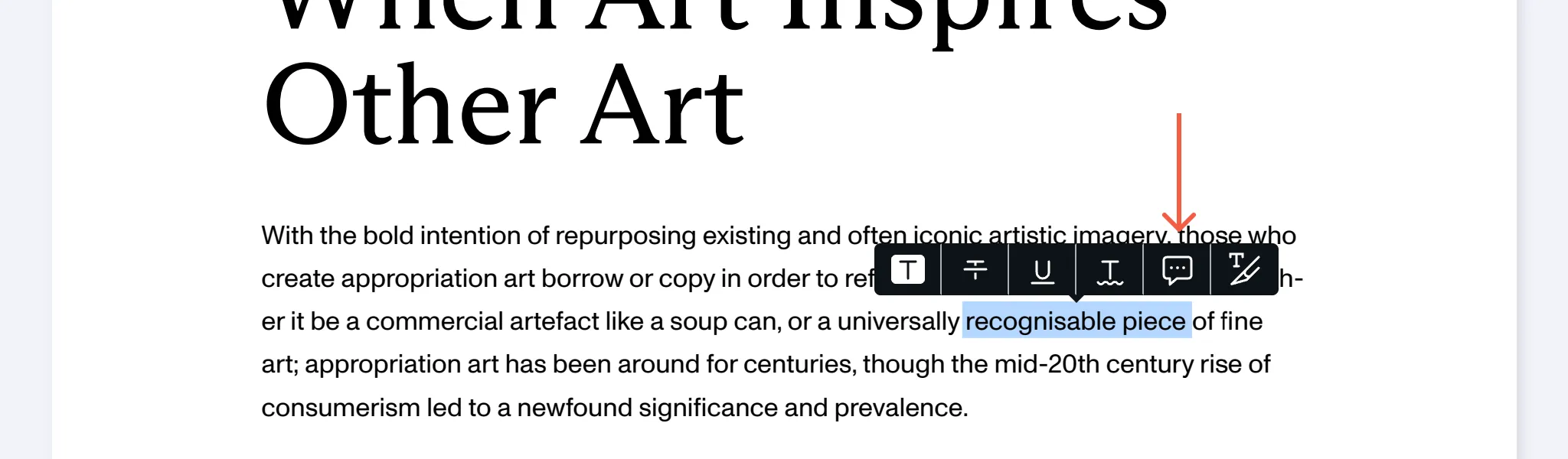
To add a comment linked to a text annotation, create a new markup annotation and click the comment tool in the inline toolbar. This opens a comment editor where you can write your first comment and begin a new thread.
Mentioning users in a comment
To mention a user in a comment, type @, followed by the user’s name, and select the user from the list.
Mentions are only supported in Nutrient Web SDK, and not on iOS or Android.
Setting the list of mentionable users
To specify the users who can be mentioned in comments, follow the steps below.
- Create a
MentionableUserobject for each mentionable user with the following string type properties:- Required:
name,id,displayName - Recommended:
description - Optional:
avatar
- Required:
- Create a list of the
MentionableUserobjects. - Pass the list to the
mentionableUsersconfiguration property when you load the Nutrient Web SDK viewer, or to thesetMentionableUsersmethod after loading the viewer.
The example below sets two mentionable users when loading the Nutrient Web SDK viewer:
NutrientViewer.load({ // ... Other configuration options. mentionableUsers: [ { name: "Jane Doe", displayName: "Jane Doe", id: "jane_doe", description: "jane@doe.com", }, { name: "John Doe", displayName: "John Doe", id: "john_doe", description: "john@doe.com", }, ],});The example below changes the list of mentionable users after the Nutrient Web SDK viewer has loaded:
instance.setMentionableUsers([ { name: "Jane Doe", displayName: "Jane Doe", id: "jane_doe", description: "jane@doe.com", }, { name: "John Doe", displayName: "John Doe", id: "john_doe", description: "john@doe.com", },]);Getting the list of users mentioned in a comment
To get the list of all users mentioned in a comment, call the getMentionedUserIds method on the comment object:
comment.getMentionedUserIds();Notifying mentioned users
To notify users who are mentioned in a comment, add event listeners to the loaded instance.
One approach is to listen to the changes made by a specific user. To do this, listen to the comments.mention event and send notifications when the event is triggered. In the example below, the listener is triggered when the user john_doe adds or removes the someCommentObject comment. The listener won’t trigger if the changes are made by another user, even if those changes are visible to you:
instance.addEventListener("comments.mention", args: { comment: someCommentObject, modifications: [{ userId: "john_doe", action: "ADDED" | "REMOVED" }] } => void)Another approach is to listen to all changes to comments regardless of who made them. Listen to the comments.create, comments.update, and comments.delete events to send notifications when comments are created, updated, or deleted. The example below adds separate event listeners for each of these three cases and determines the users mentioned in the affected comments. If you implement a way to keep track of users mentioned in different comments, you can determine if new user mentions have been added or deleted and send notifications to the affected users.
This approach gives you control over the different ways comments can change (creation, update, deletion). The limitation is that changes by any user trigger notifications; you can’t specify which users’ changes trigger them. You also can’t determine who made the last change to a comment, but you can use the comment.creatorName property to identify who created it:
instance.addEventListener("comments.create", (createdComments) => {  const users = createdComments    .get(0)    .forEach((comment) => comment.getMentionedUserIds());});
instance.addEventListener("comments.update", (updatedComments) => {  const users = updatedComments    .get(0)    .forEach((comment) => comment.getMentionedUserIds());});
instance.addEventListener("comments.delete", (deletedComments) => {  const users = deletedComments    .get(0)    .forEach((comment) => comment.getMentionedUserIds());});
Deleting a comment
You can delete an individual comment by clicking the delete button. If all the comments of a thread are deleted, the corresponding root annotation is automatically deleted.
Document Engine’s REST API currently doesn’t expose an endpoint for deleting a comment. In Nutrient Web SDK, you can delete comments programmatically using instance.delete().
Working with comments programmatically
While the UI provides tools for users to add and manage comments interactively, you can also create, read, update, and delete (CRUD) comments programmatically using the Nutrient Web SDK API. Use the programmatic API when you need to:
- Automate comment workflows
- Import comments from external systems
- Build custom commenting interfaces
- Prepopulate documents with review comments
Basic workflow
Programmatic comment CRUD uses the same change APIs as annotations and bookmarks: instance.create(), instance.update(), and instance.delete().
A comment thread has two parts:
- A root annotation — The annotation that anchors the thread. This can be a
CommentMarkerAnnotationplaced anywhere on the page, or an existing markup annotation such as a highlight. - A
Comment— The text content in the thread.
The rootId property of each Comment must match the id of the root annotation. The comment’s own id is separate; if you don’t provide one, Nutrient Web SDK assigns it when the comment is created.
Comments are immutable data structures. To modify a comment, use .set() to create a new instance with updated properties, similar to how ViewState works.
Complete CRUD example
The following example creates a comment marker thread, reads the created comment, updates its text, and shows how to delete it. You can also try the complete flow in Playground:
NutrientViewer.load({  ...baseOptions,  theme: NutrientViewer.Theme.DARK,}).then(async (instance) => {  const id = NutrientViewer.generateInstantId();
  // 1. CREATE: Start a comment thread.  const markerAnnotation =    new NutrientViewer.Annotations.CommentMarkerAnnotation({      id,      pageIndex: 0,      boundingBox: new NutrientViewer.Geometry.Rect({        top: 50,        left: 50,        width: 20,        height: 20,      }),    });
  const firstComment = new NutrientViewer.Comment({    pageIndex: 0,    text: {      format: "plain",      value: "Hello world comment",    },    rootId: id,  });
  await instance.create([markerAnnotation, firstComment]);
  // 2. READ: Retrieve all comments.  const comments = await instance.getComments();  const commentToEdit = comments.find((item) => item.rootId === id);
  if (!commentToEdit) {    return;  }
  // 3. UPDATE: Modify the comment.  const updatedComment = commentToEdit.set("text", {    format: commentToEdit.text.format,    value: "Hi there",  });  await instance.update(updatedComment);
  // 4. DELETE: Remove the comment (optional).  // await instance.delete(updatedComment);});
Creating comments
To create a comment thread with a marker annotation, create both the marker and the first comment in the same instance.create() call:
const rootId = NutrientViewer.generateInstantId();
// Create the marker that anchors the thread on the page.const marker = new NutrientViewer.Annotations.CommentMarkerAnnotation({  id: rootId,  pageIndex: 0,  boundingBox: new NutrientViewer.Geometry.Rect({    top: 50,    left: 50,    width: 20,    height: 20,  }),});
// Create the first comment in the thread.const comment = new NutrientViewer.Comment({  pageIndex: 0,  text: { format: "plain", value: "Your comment text" },  rootId, // Links the comment to the marker annotation.});
// Add both to the document.const createdChanges = await instance.create([marker, comment]);
The returned createdChanges value can be passed to instance.ensureChangesSaved() if your integration needs to wait until the new thread has been persisted.
Key points:
- Use
NutrientViewer.generateInstantId()to create a unique ID. - The marker annotation’s
idand the comment’srootIdmust use the same value. - The comment’s own
idis independent fromrootId; Nutrient Web SDK can generate it for you. - Use
instance.create()with an array containing both objects.
To start a comment thread on an existing annotation, mark that annotation as a comment thread root and create a comment whose rootId matches the annotation’s id:
const highlightId = "01J..."; // ID of an existing highlight annotation.const pageIndex = 0; // Page containing the highlight annotation.const annotations = await instance.getAnnotations(pageIndex);const highlight = annotations.find((annotation) => annotation.id === highlightId);
if (highlight) {  const rootAnnotation = highlight.set("isCommentThreadRoot", true);  const comment = new NutrientViewer.Comment({    pageIndex: highlight.pageIndex,    rootId: highlight.id,    text: { format: "plain", value: "Please review this highlight." },  });
  await instance.update(rootAnnotation);  await instance.create(comment);}
Reading comments
Retrieve comments using instance.getComments():
const allComments = await instance.getComments();console.log(`Total comments: ${allComments.size}`);
// Find all comments in a thread.const rootId = "01J..."; // ID of the root annotation for the thread.const threadComments = allComments.filter((comment) => comment.rootId === rootId);
// Find comments by text content.const searchResults = allComments.filter((c) =>  (c.text.value ?? "").includes("search term"),);
// Include draft comments created by the SDK while a new thread is being edited.const commentsIncludingDrafts = await instance.getComments({  includeDrafts: true,});
By default, getComments() filters out draft comments. Use includeDrafts: true when building a custom UI that needs access to SDK-created draft comments. The text currently being typed in an open editor is managed by the editor until it’s saved.
Updating comments
Modify existing comments using instance.update():
const comments = await instance.getComments();const target = comments.find((c) =>  (c.text.value ?? "").includes("Hello world"),);
if (target) {  // Update single or multiple properties using `.set()`.  const updated = target    .set("text", { format: target.text.format, value: "Updated text" })    .set("creatorName", "Updated Author");
  await instance.update(updated);}
Keep the comment’s rootId pointing to the same root annotation. If you need to move the visible marker for a marker-based thread, update the associated CommentMarkerAnnotation instead.
Deleting comments
Remove comments programmatically using instance.delete():
const rootId = "01J..."; // ID of the root annotation for the thread.const allComments = await instance.getComments();const threadComments = allComments.filter((comment) => comment.rootId === rootId);const firstThreadComment = threadComments.first();
// Delete one comment from the thread.if (firstThreadComment) {  await instance.delete(firstThreadComment);}
// Or delete the root annotation, which removes the whole thread.// await instance.delete(rootId);
// Or delete multiple comments at once.// await instance.delete(threadComments);
Comments are automatically removed when their root annotation is deleted. If you use instance.history.undo() to restore a deleted root annotation, its associated comments will also be restored.
Saving comment changes
New comments, updates, and deletions are visible in the UI immediately. Whether they’re persisted automatically depends on your Configuration#autoSaveMode setting and the selected AutoSaveMode.
If you use manual saving, check instance.hasUnsavedChanges() and call instance.save() to persist all pending changes:
if (instance.hasUnsavedChanges()) { await instance.save();}If you need to wait until specific comments or marker annotations are persisted, use instance.ensureChangesSaved() with the changes returned by create, update, or delete:
const createdChanges = await instance.create([marker, comment]);await instance.ensureChangesSaved(createdChanges);Listening for comment changes
Use comments.change when your UI needs to refresh whenever comments change. Use the more specific comments.create, comments.update, and comments.delete events when you need to react to a specific operation:
instance.addEventListener("comments.change", async () => {  const latestComments = await instance.getComments();  // Update your own comments UI.});
instance.addEventListener("comments.create", (createdComments) => {  createdComments.forEach((comment) => {    console.log(`Created comment: ${comment.id}`);  });});
instance.addEventListener("comments.update", (updatedComments) => {  // React to updated comments.});
instance.addEventListener("comments.delete", (deletedComments) => {  // React to deleted comments.});
For manual save workflows, comments.willSave fires before comment changes are saved, and comments.didSave fires after saving finishes.
Limitations
The programmatic API works with comment records. It doesn’t directly modify text currently being typed in the built-in comment editor because the editor manages that local state until the user saves the comment.
If you need to set initial comment text programmatically, use setOnCommentCreationStart():
instance.setOnCommentCreationStart((comment) => { return comment.set("text", { format: "plain", value: "Pre-populated text", });});For use cases requiring live draft editing — such as accessibility tools like dictation or text prediction — contact our Support team(opens in a new tab) to discuss your requirements.
API reference
For detailed API documentation, see:
Commentclass — Comment object properties and methodsinstance.create()— Create comments programmaticallyinstance.getComments()— Retrieve all commentsinstance.update()— Update saved commentsinstance.delete()— Delete commentsinstance.save()— Persist pending changes manuallyinstance.ensureChangesSaved()— Wait for specific changes to be persistedcomments.change— Listen for comment changesCommentMarkerAnnotation— Visual marker for comment threads
Disabling the comments UI
If your license includes comments but you want to disable letting the user view and add comments, you can set showComments to false in ViewState:
const initialViewState = new NutrientViewer.ViewState({  showComments: false,});
const instance = NutrientViewer.load({  // ... other options  initialViewState: initialViewState,});
Comment permissions
There might be situations where you want to disable the creation or deletion of individual comments based on some condition. To do this, you can define the isEditableComment function as a configuration option when initializing the viewer. When the return value of the isEditableComment method is false for a comment, the comment can no longer be deleted by the user. Similarly, isEditableComment can be used to determine whether or not a user can reply to existing threads.
In the example below, all the comments that have a root annotation with an id other than the rootAnnotationId will be editable:
NutrientViewer.load({ // ... isEditableComment: (comment) => { return comment.rootId !== rootAnnotationId; },});For every comment thread, isEditableComment receives a temporary draft comment with pageIndex=null. The rootId of this draft comment points to the root annotation of the comment thread. If isEditableComment returns false, the user won’t be able to add comments in that comment thread.
In the example below, a user can’t add a comment in any comment thread:
NutrientViewer.load({ // ... isEditableComment: (comment) => { return comment.pageIndex !== null; },});To set the permissions after a viewer instance has been created, you can use instance.setIsEditableComment:
NutrientViewer.load(options).then((instance) => { instance.setIsEditableComment((comment) => { return comment.rootId !== rootAnnotationId; });});Customizing a comment block
Customize the look of a comment block using CSS. Make sure you’re using the public class names starting with PSPDFKit-, as other class names might change in the future and break your application.
For example, if you want to customize the border-radius of avatars, you can do that by writing the following CSS:
.PSPDFKit-Comment-Avatar { border-radius: 6px;}You can also show avatars in comment blocks by setting a custom renderer:
NutrientViewer.load({ customRenderers: { CommentAvatar: (comment: Comment) => ({ node: element, append: false, // This should always be `false` in this case. }), },});If you want to change the avatar after the viewer instance has been created, you can use setCustomRenderers.
Responsive UI
The comments UI adapts to the screen size of your browser. When there’s enough space in the viewport outside of the current page, comment threads are displayed in a sidebar alongside the page and are always visible. When the remaining viewport space is too small for floating comment threads to be visible, they’re concealed until the user clicks or taps a root annotation.
This default behavior can be customized by modifying the value of ViewState#commentDisplay, which accepts the following values:
NutrientViewer.CommentDisplay.FITTING— The default value; shows comments in a floating sidebar by the page when there’s enough space, and in a popover otherwise, when the marker annotation is selected.NutrientViewer.CommentDisplay.FLOATING— Will always show comments in a floating sidebar by the page side, except whenViewState#zoomis set toNutrientViewer.ZoomMode.FIT_TO_WIDTH, in which case, they’re displayed in a popover dialog instead.NutrientViewer.CommentDisplay.POPOVER— Will always show comments in a popover when the marker annotation is selected.
These values only affect desktop and tablet screens; on mobile devices, comments are always displayed in a drawer at the bottom of the viewport.
Here’s an example of how to change it:
NutrientViewer.load({ ...config, initialViewState: new NutrientViewer.ViewState({ commentDisplay: NutrientViewer.CommentDisplay.FLOATING, }),});Rich text comments
Rich text editing is supported in comments. Using the UI, you can select parts of a comment and do the following:
- Make parts of the comment bold, italic, or underlined.
- Change the color and the background color of the parts of the comment.
- Add hyperlinks to the comment.