Import and sync users
Use user sync to import large numbers of users from an Excel file. Unlike adding users one at a time, user sync enables you to define reusable sync configurations with per-field conflict rules, preview changes before applying them, and optionally send new users a welcome email with a link to set their password. To add or manage users individually, refer to the add and manage user accounts guide.
Accessing user sync
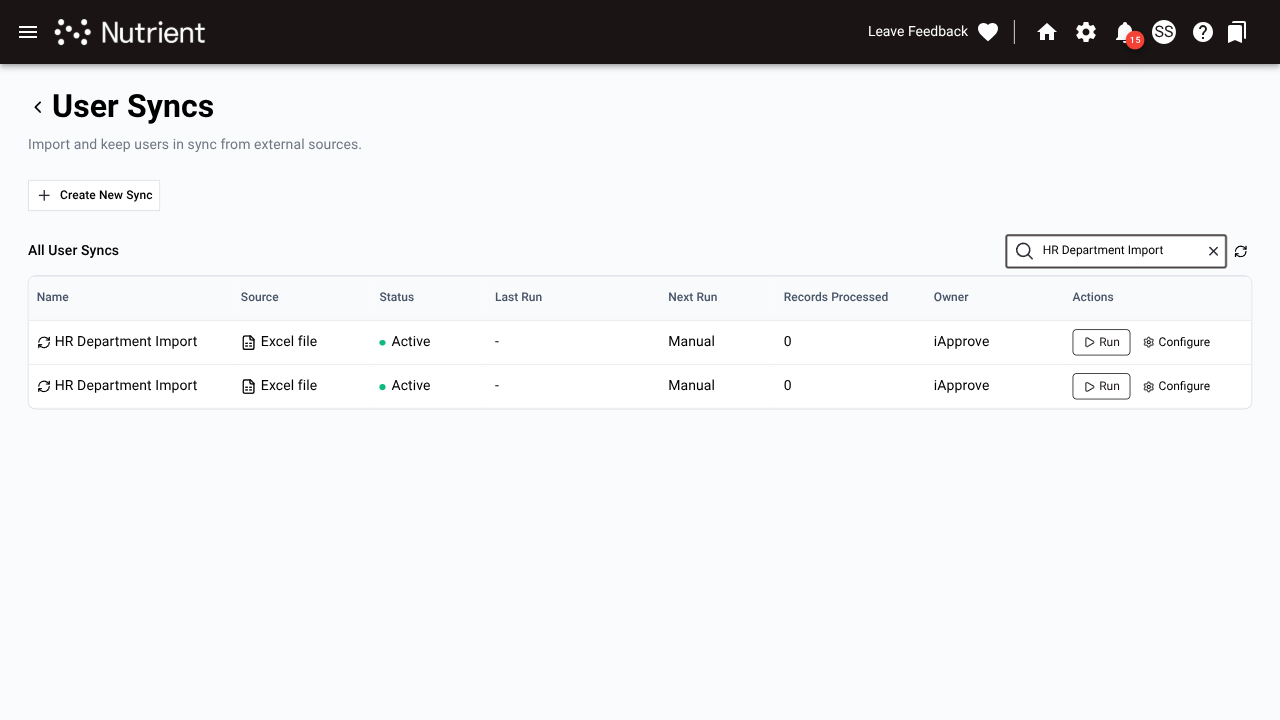
To access user sync within Nutrient Workflow Automation:
- Select Administration > Users from the left navigation panel.
- Select the Import & Sync tab.
The following screen appears.
Creating a sync configuration
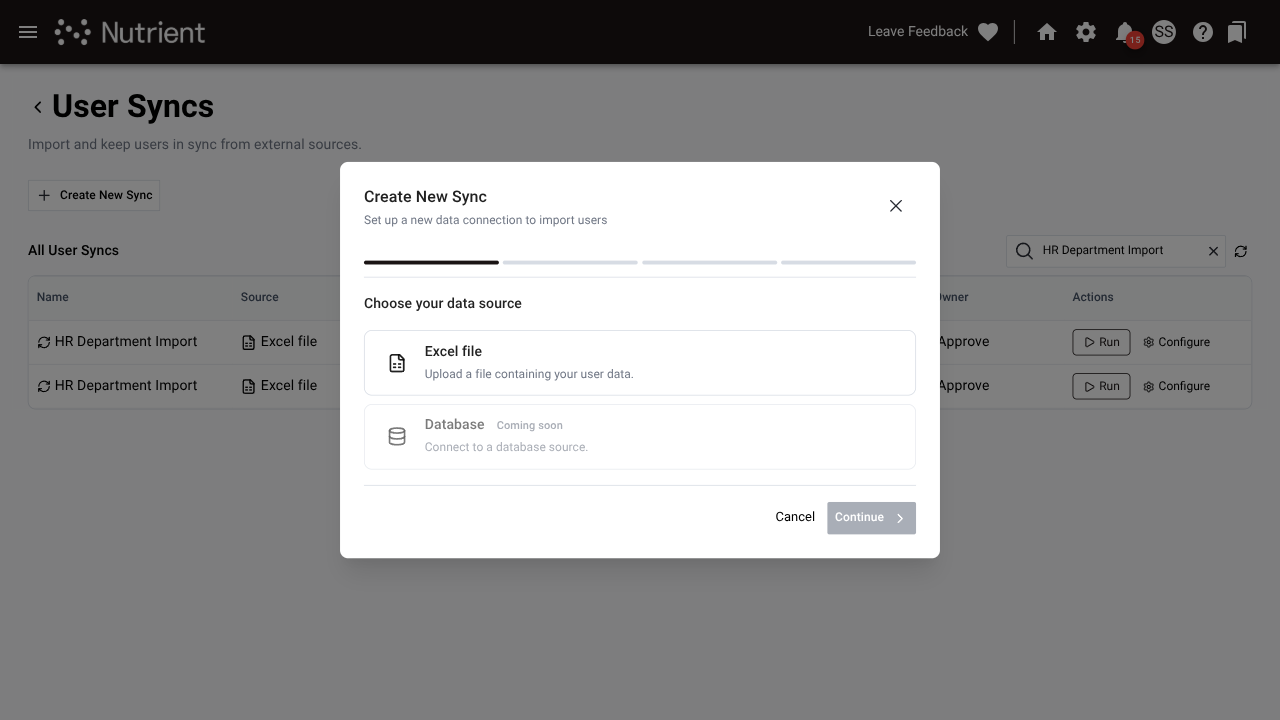
A sync configuration defines how imported data maps to user fields and the actions to take when a conflict occurs. You create this configuration once and reuse it every time you run that sync.
Select Create New Sync to open the creation wizard.
Step 1 — Name your sync
Enter a descriptive name for the sync configuration. A clear name helps when you manage multiple syncs for different sources or departments.
Step 2 — Upload the template
Download the Excel template and populate it with your user data. Select Download Template to get the file.
Open the file in a spreadsheet application and fill in the rows. Each row represents one user. When your file is ready, upload it.
The template includes a sample row in italics that shows the expected format. Delete this row before you upload the file.
Step 3 — Define behavior
Choose how the sync handles each type of user record:
| Setting | Options | Description |
|---|---|---|
| New users | Create / Skip | Determines whether to create user accounts that don’t exist. |
| Inactive users | Activate / Skip / Update only | Determines the action when a user in your file is currently deactivated. |
| Users removed from file | Deactivate / Ignore / No action | Determines the action when a user from your last sync is missing from the current file. |
Users removed from file compares the current file against the most recent successful run of this sync configuration, not against all users in the system. On the first run, this rule has no effect because no prior baseline exists.
Step 4 — Conflict rules
Conflict rules determine the system response when an imported value differs from the existing value for a user already in the system.
Set a default strategy. Then, optionally override it on a per-field basis:
| Strategy | Behavior |
|---|---|
| Use source | Always use the value from the import file. |
| Keep destination | Always keep the existing value in Nutrient Workflow Automation. |
| Ask at runtime | Prompts you to choose for each affected user when you run the sync. |
| Update if empty | Only updates the field if the existing value is blank. |
| Force value | Always sets the field to a specific fixed value you define. |
Fields without a per-field override use the default strategy.
Step 5 — Defaults
Set fallback values for locale, timezone, and language. The system applies these values to any user in your file with an empty corresponding column. They don’t overwrite existing values for users already in the system.
Step 6 — Post-sync actions
Optional: Enable the option to send new users a welcome email after the sync runs. The email contains a link for the user to set their password; the system doesn’t include a temporary password. Leave this unchecked if you prefer to manage password setup separately.
This setting serves as the default for the configuration. You can toggle it on or off on the preview screen each time you run the sync.
The system only sends welcome emails to users whose accounts it newly created during the sync run. Users who already existed, were reactivated, or authenticate via SSO don’t receive this email.
Select Save to save the sync configuration.
Running a sync
From the Import & Sync tab, find your saved sync configuration and select Run.
Upload your file
Upload the Excel file containing the users you want to import. The file must use the same column structure as the template.
Preview
Before the system applies any changes, it classifies every row in your file to help you audit the impact:
| Classification | Meaning |
|---|---|
| New | User doesn’t exist; the system will create a new account. |
| Updated | User exists, and the sync will modify at least one field. |
| Deactivated | User was in the last run but is missing from this file (active if Users removed from file is set to Deactivate). |
| Skipped | User matches an existing record with no changes, or a behavior rule excluded them. |
| Error | Row has validation errors and the system will not import it. |
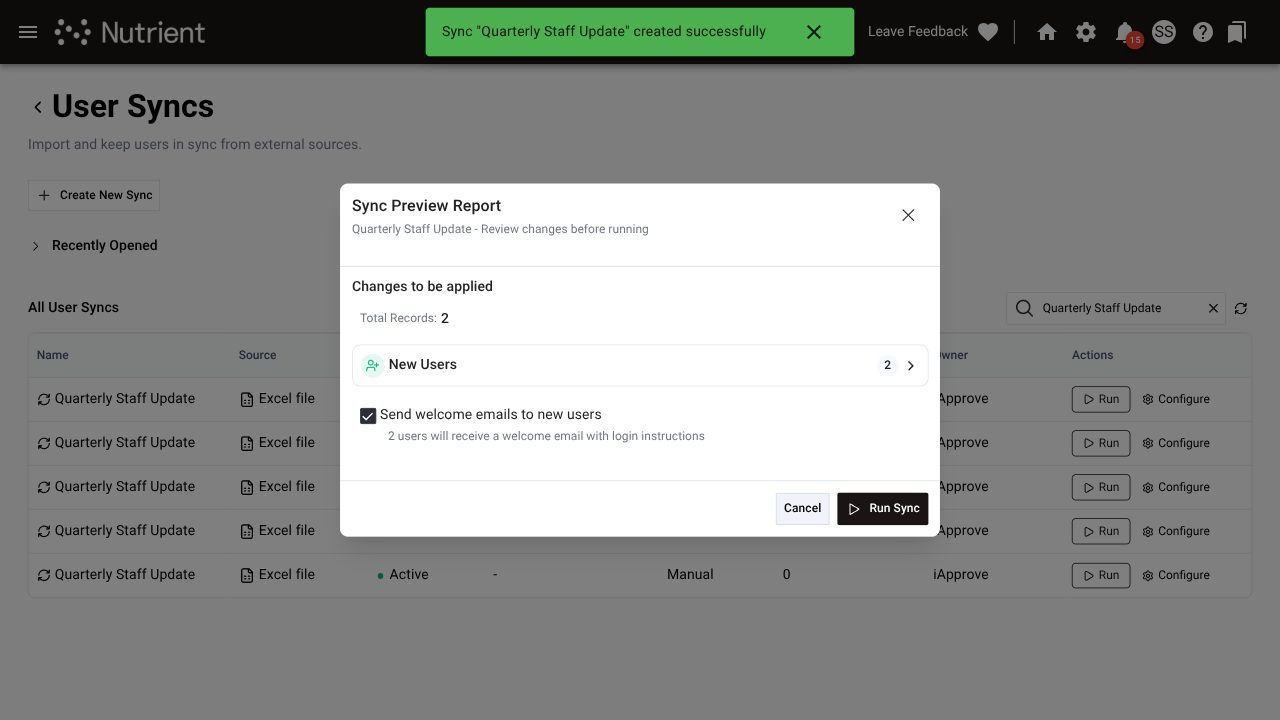
Review the counts and select Continue to proceed.
If your organization uses named licensing and the import would exceed your available seat limit, the preview displays a warning and the Run button is disabled.
Resolve conflicts
If any fields use the Ask at runtime conflict strategy and the system detects a difference, a conflict resolution step appears. For each conflict, the screen displays the current value and the incoming value side by side.
- Review the differences for each affected user.
- Choose which value to keep.
- Optional: Select the option to save your choice back to the sync configuration to resolve the same conflict automatically in future runs.
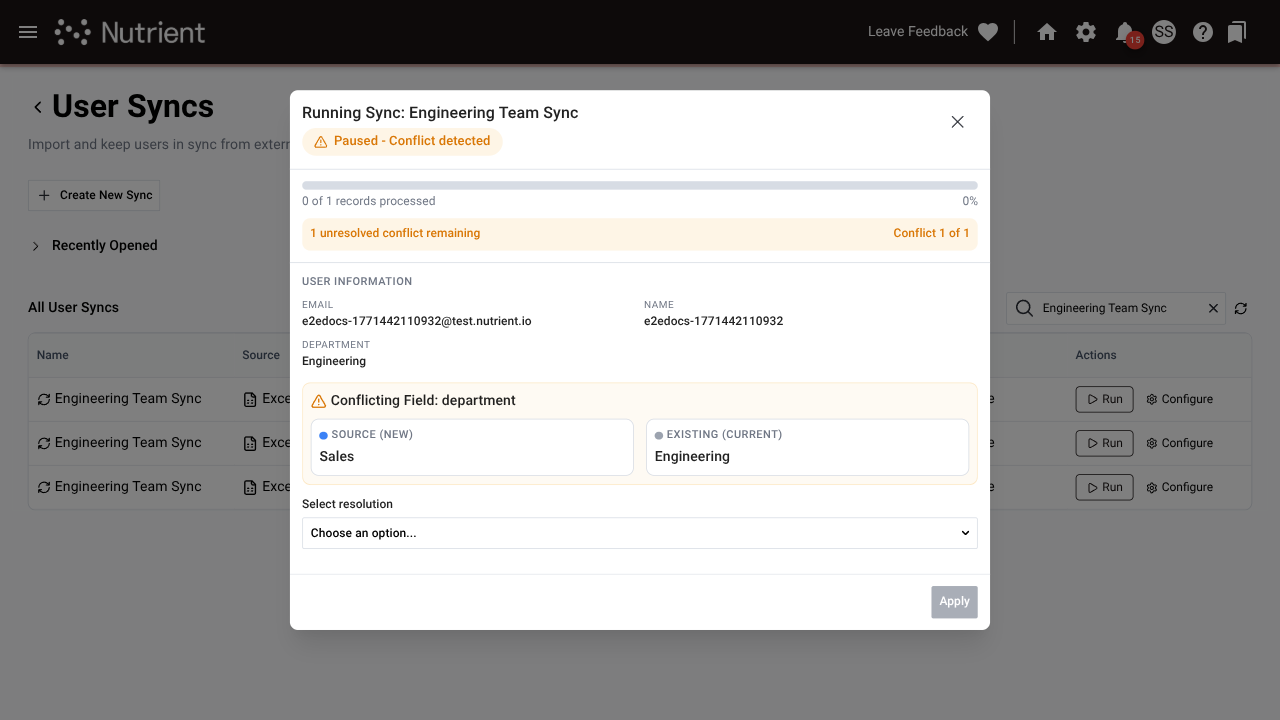
After resolving all conflicts, select Run to execute the import.
Results
When the import completes, the system displays a summary of the changes:
- Users added
- Users updated
- Users deactivated
- Users skipped
- Errors
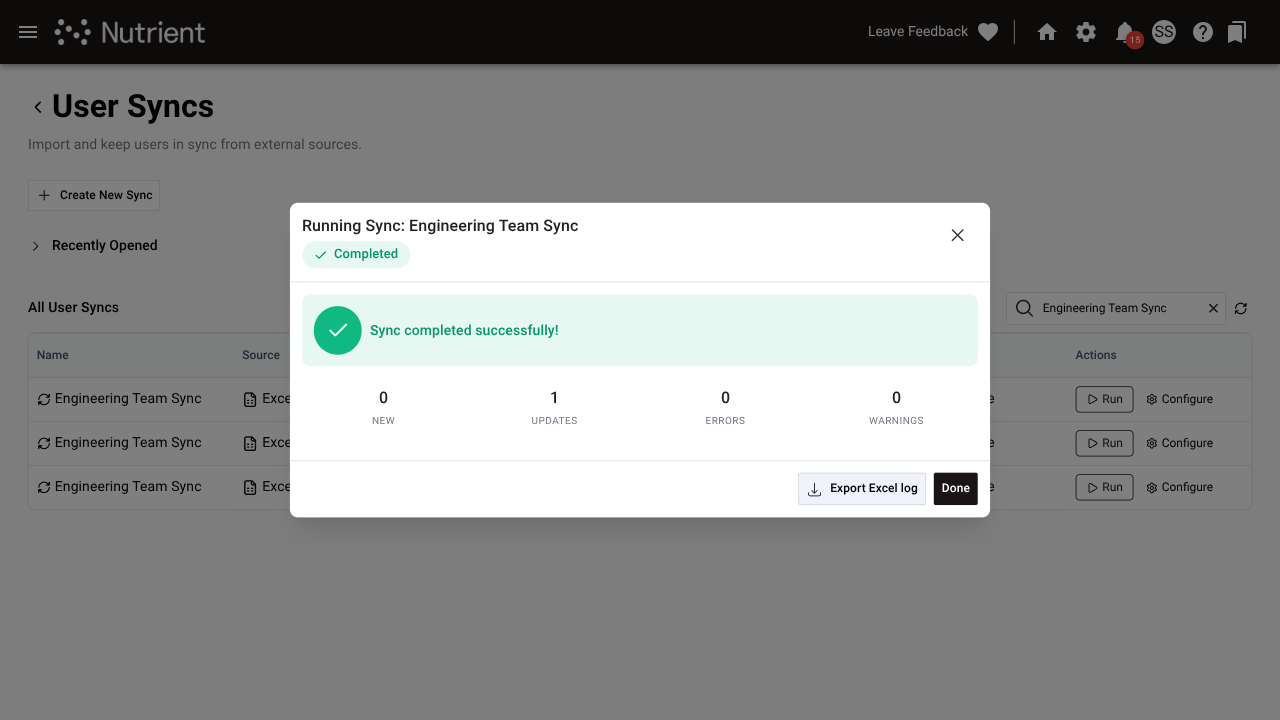
Select any category to view the list of affected users. If errors occurred, the details explain the specific issue for each row. Common causes include:
- Missing required fields — Specifically
userName,email,firstName, orlastName. - Invalid format — Such as an incorrectly formatted email address.
- Duplicates — Multiple instances of the same
userNamewithin the import file.
You can also download a detailed export of the run results as an Excel file for auditing or further troubleshooting.
Sync history
Each sync configuration maintains a history of past runs. To view this data:
- Select a configuration from the Import & Sync tab.
- Open the History tab.
The screen displays a list of past runs, including the date, the status, and a summary of results.
Managing sync configurations
From the Import & Sync tab, you can perform the following actions:
- Edit — Update the name, behavior rules, conflict rules, defaults, or post-sync actions.
- Pause — Prevent the sync from being run without deleting the configuration.
- Resume — Reenable a paused sync.
- Delete — Permanently remove the sync configuration and its entire run history.
A paused sync cannot be run until it is resumed. Users deactivated by a sync run remain in the system as inactive users and can be reactivated individually. Refer to the active and inactive users guide for instructions on manual reactivation.
Excel template fields
Download the template from any sync configuration’s Upload step. The file includes all supported fields, with required fields highlighted in yellow in the header row.
| Column | Required | Description |
|---|---|---|
userName | Yes | Unique login username |
email | Yes | User’s email address |
firstName | Yes | First name |
lastName | Yes | Last name |
middleName | No | Middle name or initial |
title | No | Job title |
department | No | Department |
division | No | Division |
costCenter | No | Cost center |
phone | No | Phone number |
location | No | Office location |
address1 | No | Street address line 1 |
address2 | No | Street address line 2 |
city | No | City |
state | No | State or province |
zip | No | Postal code |
country | No | Country |
locale | No | Locale code (e.g. en-US). Falls back to the sync default if empty. |
timezone | No | Timezone name (e.g. America/Chicago). Falls back to the sync default if empty. |
languageName | No | Display language (e.g. US English). Falls back to the sync default if empty. |
manager | No | Username of this user’s manager. The system looks up the manager by username. |
active | No | true or false. Sets the account status on import. Defaults to true if omitted. |
cField1 | No | Custom field 1 |
cField2 | No | Custom field 2 |
Column headers are case-insensitive. The system ignores any columns it doesn’t recognize.