Effective strategies for targeted reporting
The most successful and most useful reports for your end users are those that are targeted and retrieve concise data attributes for a given process. When creating a report it is best to thoroughly understand the structure of your process first and identify those task(s) which you would like to retrieve data, who are the assigned recipients, etc.
Perhaps you have an Access Request process similar to the following:
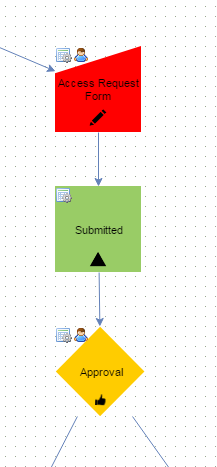
In a process like above, the report may target just those individual(s) who are assigned the Approval task. The goal will be to provide the necessary information for the manager to make his/her decision, prioritize their workload, or simply see what requests have been approved or denied. All of these decisions will be based on the data submitted in the form called Access Request Form so this will be the primary focus of the report with respect to data to retrieve.
Define the audience and the decision the report supports before adding columns from downstream tasks. For the approval example, decide whether the manager needs open approvals, past decisions, or both. Use the Access Request Form fields and the Approval task status as the starting columns. Then add filters for the request or task states the audience needs.
Before release, run the report with a request that should appear and one that shouldn’t. Confirm the report limits, the intended users’ Run permission, and whether the report should include canceled requests. If you need request attachments, plan for an attachment column and a request identifier before attempting an attachment export.