Add and manage user accounts
Use the Users area to create user accounts, edit profiles, set permissions, and delegate user management tasks.
The Users area uses the modern Baseline interface. Older screenshots may look different, but user workflows remain available based on your permissions.
To open the user list, select Administration > Users from the left navigation menu. From there, you can add, edit, replace, deactivate, and manage users.
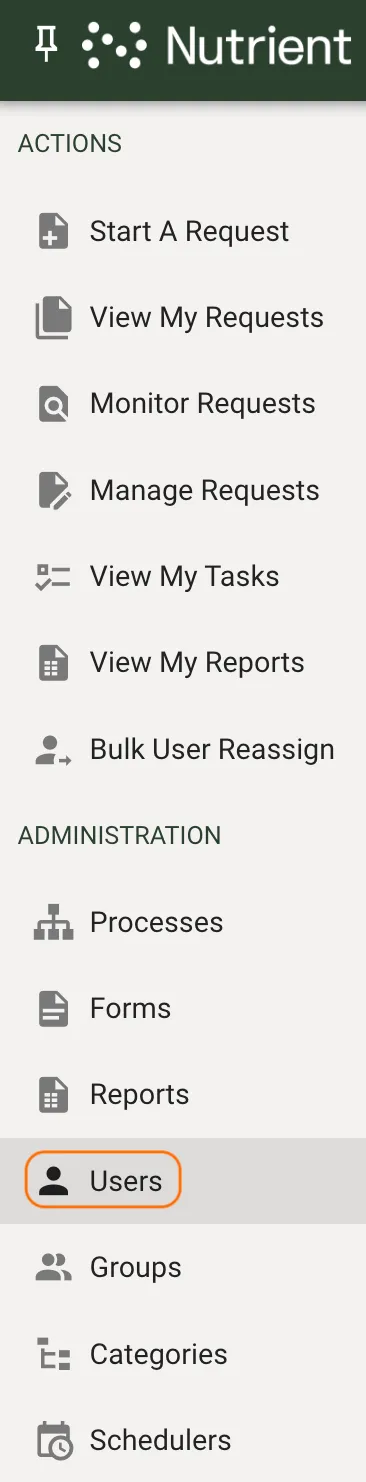
Add a user
Use the Add User form to create a user account.
- Select Add User.

Enter the user’s information in the Add User form.
- Enter the user’s first name, middle initial, and last name.
- Enter a username.
- Enter the user’s email address.
- Select a locale.
- Select the user’s default timezone.
- Select the user’s default language, if your system supports multiple languages.
- Enter a password.
- Retype the password to confirm it.
- Click Save.
First name, last name, username, email address, timezone, language, and password are required fields. Supported languages include English, Spanish, German, French, Italian, Portuguese, Japanese, Korean, and Chinese.
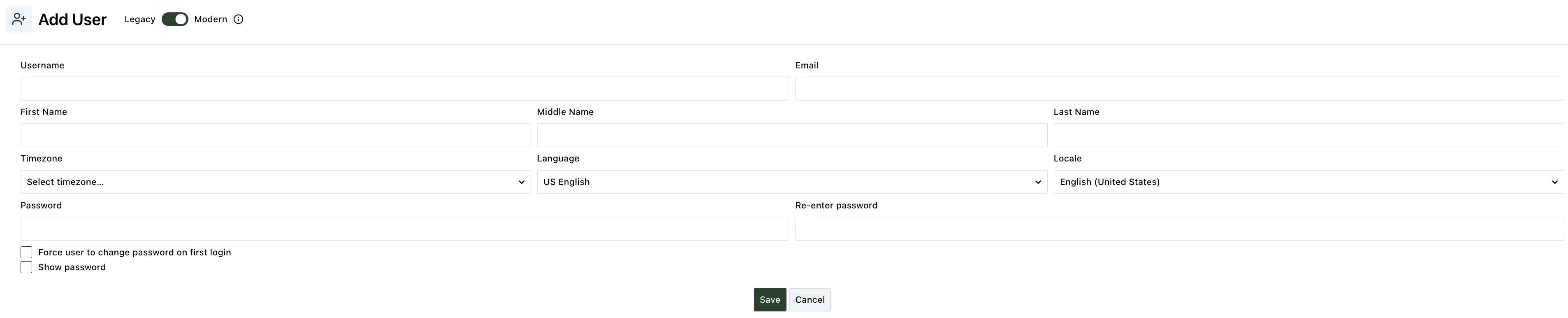
Profile field limits follow the tenant’s configured contact-field sizes. The user creation and profile-editing forms display the applicable character limit as you enter profile information. If field-size metadata is unavailable, default limits apply. Username constraints are separate from contact-field limits.
After you save, Nutrient Workflow Automation opens the user profile.
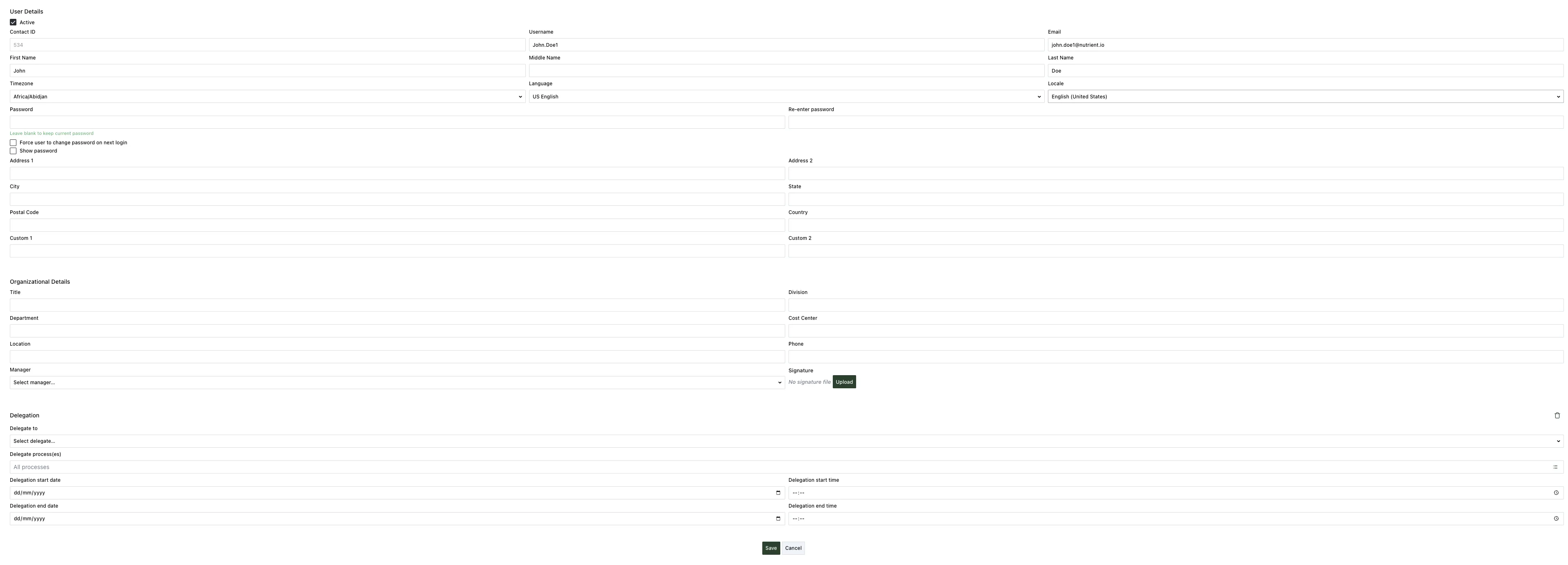
The new user appears as active in the user list.

The User Profile page shows a profile summary. To activate or deactivate the user, use the Active checkbox on the User Profile page. Alternatively, click the Active column in the user list for that user.
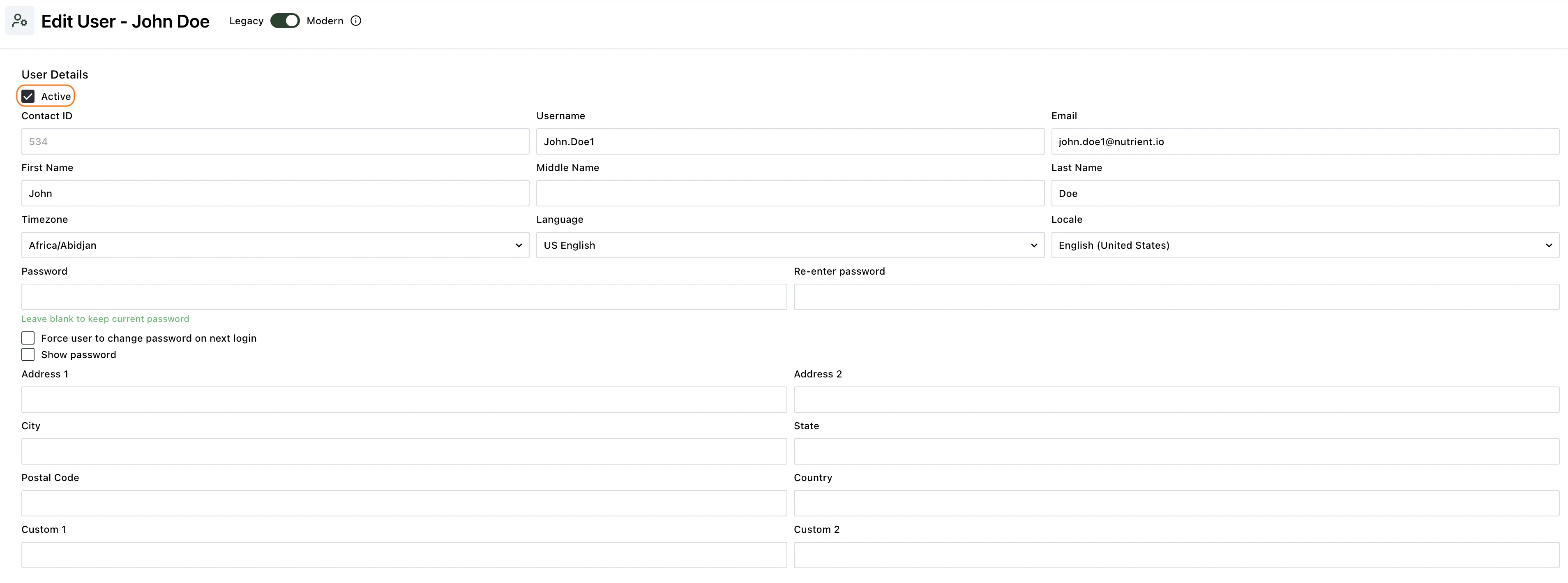
You can add more profile information in these tabs:
- Organizational Details
- Address information
- Delegation
- Other
- Password
All information in these tabs is optional.
Organizational Details
Use Organizational Details to add job and reporting information for the user. Fields include Title, Division, Department, Cost Center, Location, Phone, Signature, and Manager.
You can use these fields in task or recipient rules. For example, use Location or Department to limit task recipients.

You can select a manager for each user. Processes with a Dynamic Recipient, such as requester’s manager or task completer’s manager, route the task to the manager defined here.
To select a manager:
- Click inside the Manager field to open the search box.
- Enter the first two letters of the manager’s first or last name.
- Click the manager’s name in the search results.
- To remove a manager, click
Xnext to the manager name.
Click Save to save your settings.
Address information
Use Address information to add the user’s address details. Fields include Address 1, Address 2, City, State, Postal Code, and Country.

Click Save to save your settings.
Delegation
Use Delegation to assign a delegate for a user’s tasks during a specified time frame.
Nutrient Workflow Automation sends open tasks to the user in the Delegate field during the Delegation Start and Delegation End dates.

To configure delegation:
- Enter the first two letters of the delegate’s first or last name.
- Click the delegate’s name in the search results.
- To remove a delegate, click
-next to the delegate name. - Click the calendar icon in Delegation Start.
- Select a start date.
- Click the calendar icon in Delegation End.
- Select an end date.
You can limit delegation to specific processes by selecting the Process(es) to Delegate search box.
If you select processes, Nutrient Workflow Automation assigns only tasks from those processes to the delegate. If you don’t select processes, it assigns all open tasks during the specified time frame.
Click Save to save your settings.
Other
Use the Other tab to add information your organization needs.
Click Save to save your settings.
Password
Use the Password tab to change a user’s password.
- Enter a new password.
- Retype the password to confirm it.
- Click Save.
Delegate user management permissions
By default, only system administrators can create, edit, and deactivate user accounts in Nutrient Workflow Automation. You can delegate these responsibilities without granting full administrator privileges.
User Administrator role
The User Administrator role enables designated users to:
- Create new user accounts.
- Edit existing user information.
- Deactivate users.
- Manage group memberships, except the Administrators group.
In the User Administrator permissions context, process publish status permission options — such as Any — don’t apply.
Assign the User Administrator role
To delegate user management, complete these steps:
- Select Administration > Users.
- Click the shield icon, Manage User Roles, at the top of the Users list.
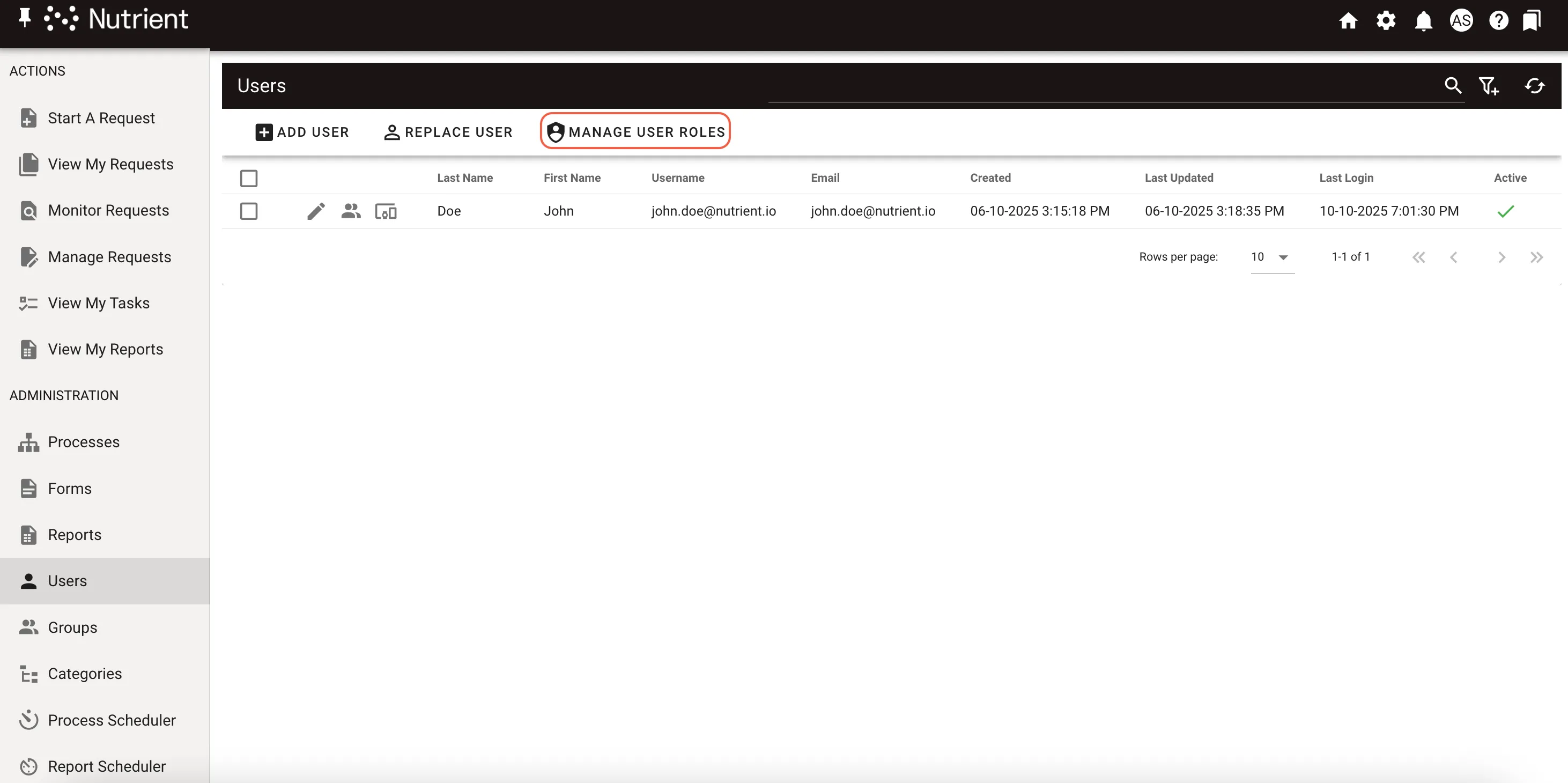
- Select the User Administrator role.
- Add the users or groups that should manage users.
- Click Save.
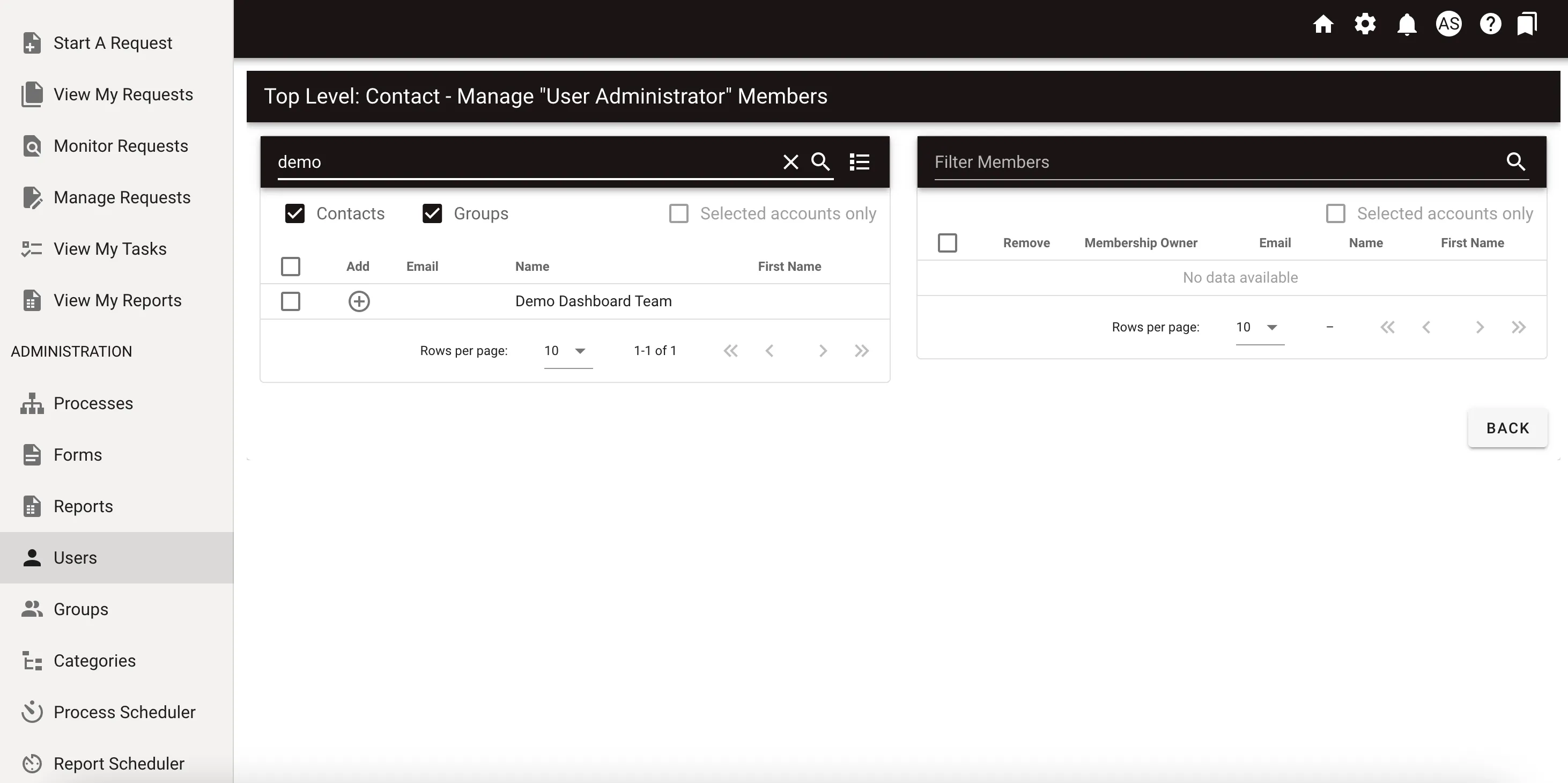
Users assigned to this role see the Users menu in their navigation, and they can perform user management tasks within their permitted scope.