Streamline your processes with PDF Generator task
The PDF Generator task populates a PDF form with values from Nutrient Workflow Automation or data entered into a Nutrient Workflow Automation form.
You can also use generated PDFs in downstream request flows, including links or attachments delivered through notifications. PDF generation depends on the system preserving the request and task context when the task runs, so those outputs stay available.
PDF Generator task configuration
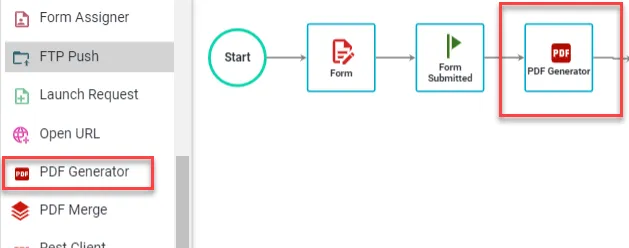
To configure the PDF Generator task, select it from the Tasks options and drag it onto your process canvas.
Select Configuration > Configure Task.
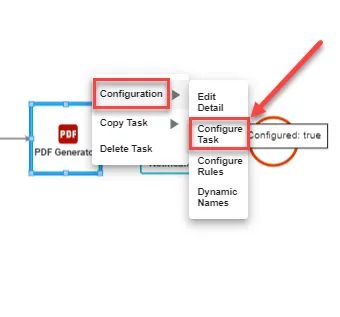
This opens the window below.
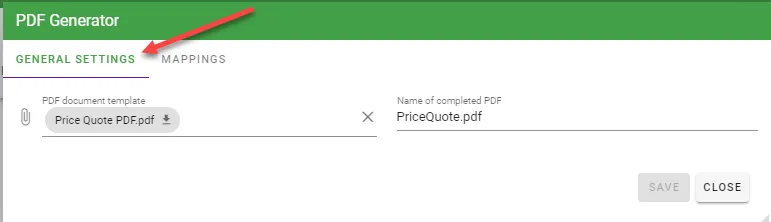
The General Settings tab requires the following to configure the PDF Generator task:
- PDF document template: The PDF form that the system will populate.
- Source of PDF to complete: Template or Task
- “Template” is the standard option that populates a PDF form in a single task.
- “Task” enables you to use a PDF that was filled in earlier in the process. Use this option most often when a document must be reviewed/printed as it proceeds through the request and details are added. If you select Task, the next field, “PDF task to begin document creation,” is required. That field points to the task that contains the PDF to complete.
- Name of completed PDF: The title of the document that the process will create. Spaces aren’t allowed in the name, and the system removes them. To create a dynamic name, use one of the following variables:
{FILE_NAME}— Adds a dynamic value (such as the requester’s last name or other details) to the name of the generated file. Example:Document-{FILE_NAME}.pdf. You need to create a specific mapping for this field to operate, or the file’s name containsfile_nameby default.{UNIQUE}— Places a unique numeric ID anywhere in the file name. Example:Document-{UNIQUE}.pdf. The system assigns the numeric ID, and it doesn’t require a specific mapping.{REQUEST_ID}— Maps the “Request ID” to the generated PDF file’s name.
The file name should end in the .pdf extension, or your system may not recognize the file as a PDF.
Click Save.
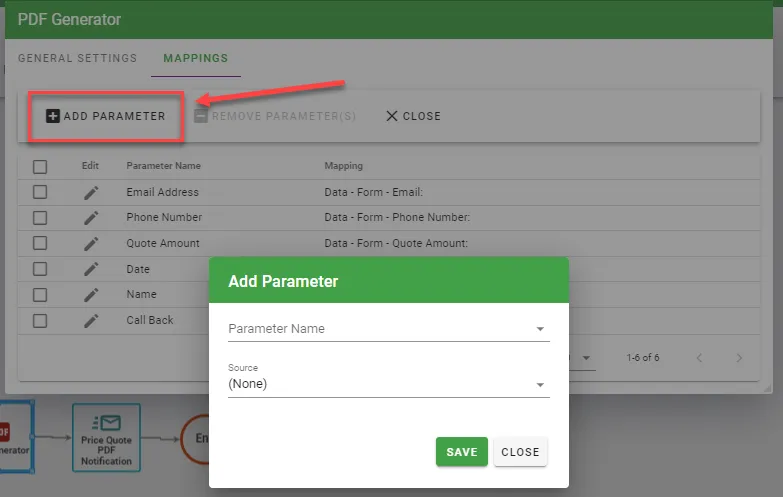
Select the Mappings tab to complete mapping your PDF Generator task.
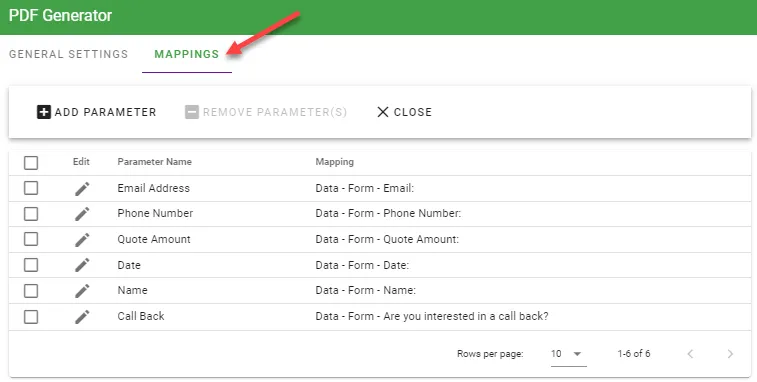
If you used {File_Name} in your file name, you must add a parameter that maps to the source of that data. This tab is also where you map the values you want to insert into the PDF form. Typically, the values come from data that forms collected earlier in the process. You can also use standard system data, such as the requester’s name or other demographic data.
To add a new mapping, click Add Parameter and select the parameter or field name from the dropdown.
The PDF Generator task doesn’t support rich text fields. Adobe doesn’t support them.
Many PDF designing applications add prefix data to the field name you enter, such as “form1[0].#subform[0].Body[0].” In most cases, the settings page automatically removes that prefix, but each PDF creation tool may yield slight variations in that removal.
You can then map the Source or form and field that the system should pull the data from.
You can also enter a Fixed Value if you want a specific value rather than dynamic data.
Click Save.