Workflow Assistant
Workflow Assistant in Nutrient Workflow Automation is a conversational assistant in the portal. It answers questions about a user’s forms, processes, requests, tasks, files, and users with live workflow data. It doesn’t use generic product documentation. It can also perform workflow actions after the user confirms each action in the chat. Examples include starting a request or moving a task due date.
When you enable Workflow Assistant for a tenant, it replaces the existing Ask AI chatbot button in the portal. Tenants that don’t use Workflow Assistant continue to show the existing Ask AI widget.
Workflow Assistant is in beta. It can search and explain your workflow data. It can also start requests and create or manage user syncs and scheduled jobs. Actions that can’t be undone require confirmation in the chat.
The following image shows the chat sidebar’s empty state.
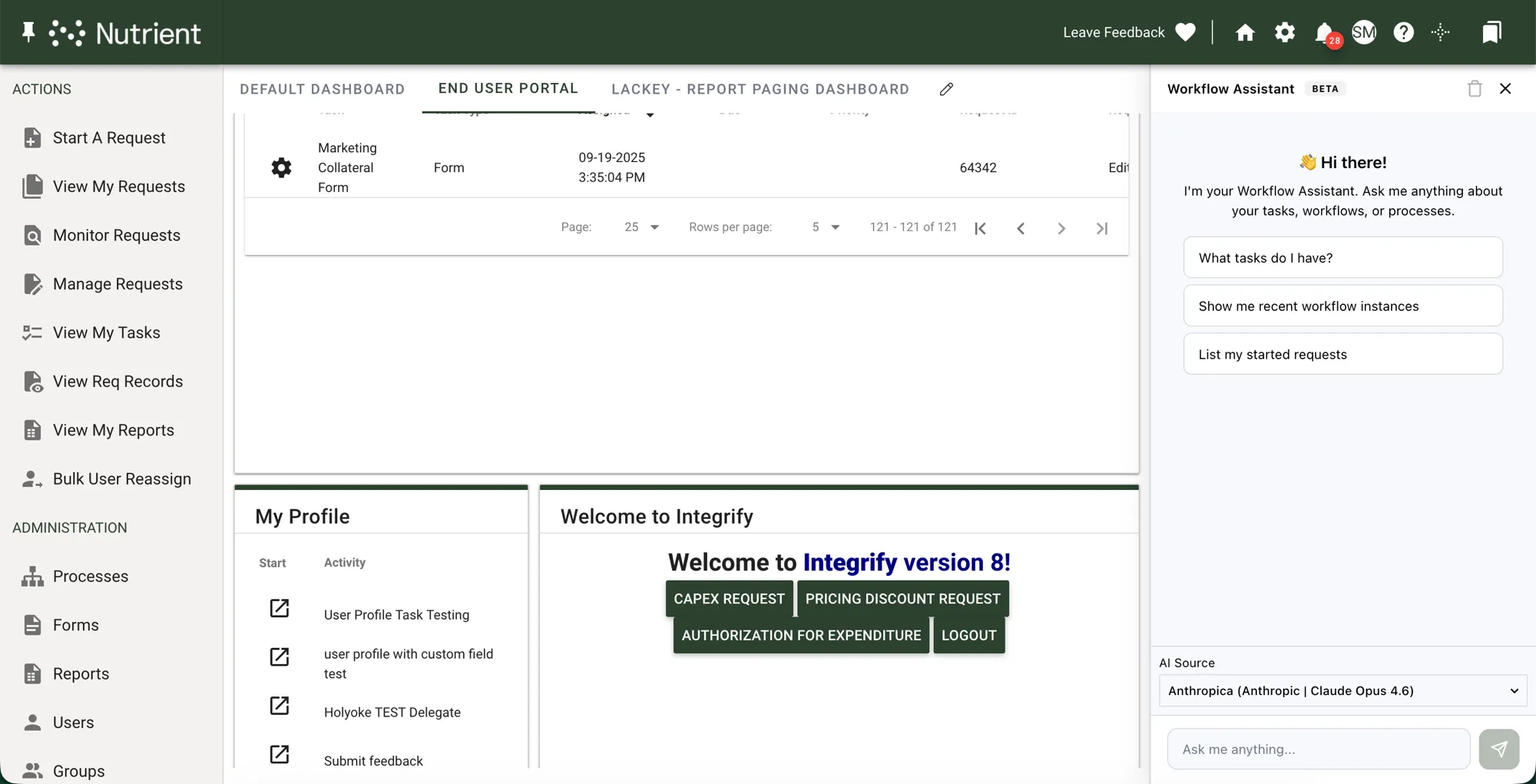
What Workflow Assistant can do today
Workflow Assistant can answer questions across several workflow areas and perform workflow actions. Actions run with the calling user’s permissions, and Workflow Automation checks them against the specific task, request, recipient, process, and file context involved.
The following table shows example prompts.
| Category | Example prompts |
|---|---|
| Tasks | “What tasks do I have?”, “Show my overdue tasks” |
| Requests | “Show request 762,” “List my in-progress requests” |
| Search | “Find processes about onboarding,” “Search forms about leave” |
| Reports | “Run the monthly summary report” |
| File analysis | “Read the term sheet attachment on request 762” |
| User syncs | “Create a CSV user sync for the new-hires file,” “Pause the nightly Active Directory sync” |
| Scheduled jobs | “Schedule the onboarding process to run every Monday,” “Run the weekly summary report job now” |
File analysis for PDFs and images varies by model. If the selected model doesn’t support a file type, the assistant tells the user to ask their administrator to switch models.
The following image shows a task response.
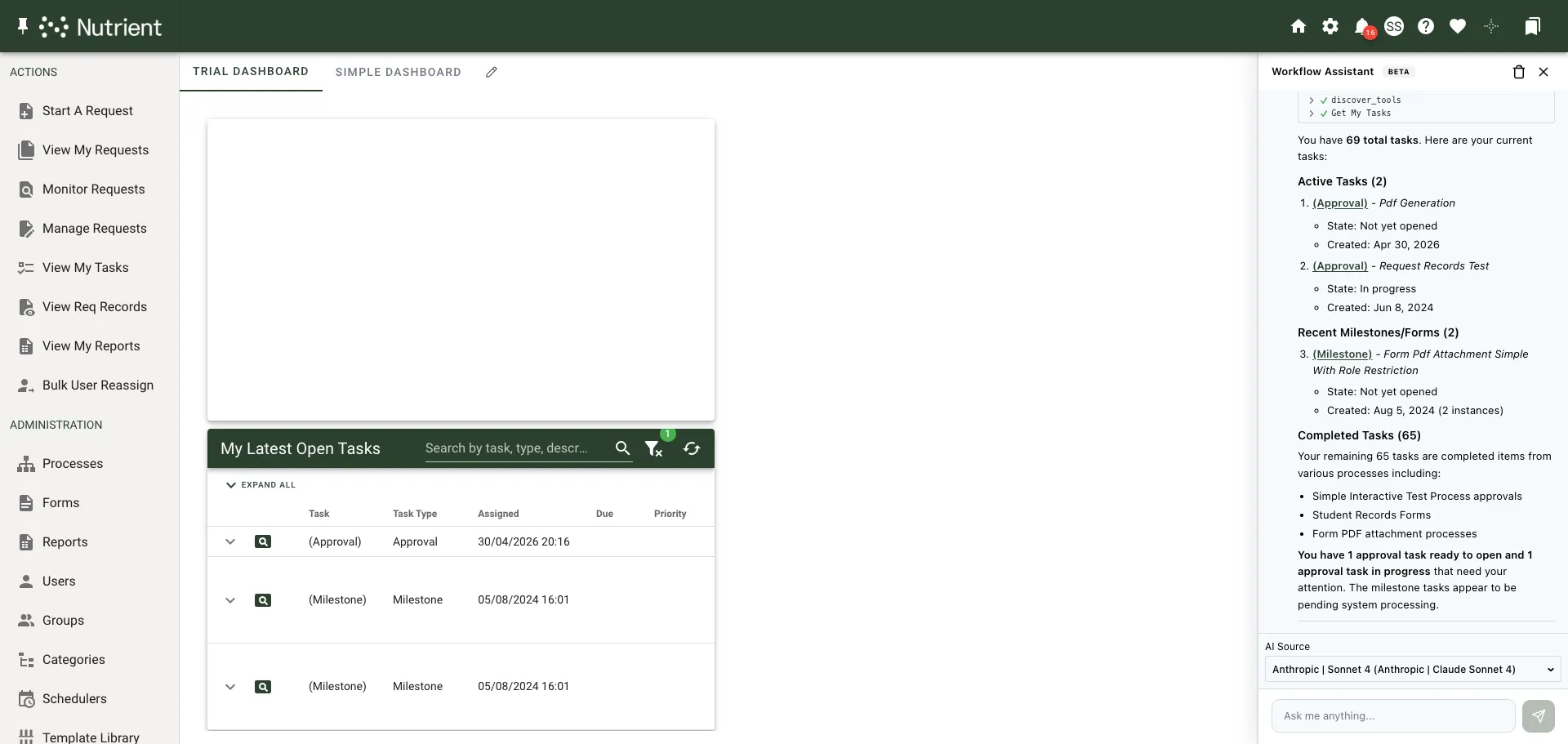
Use chat controls and tool-call details
Use the chat controls to stop a response, clear the chat, and inspect tool calls.
While Workflow Assistant generates a response, use the stop control to end the response. Use it when the assistant answers the wrong question, uses an approach you don’t need, or produces a response you no longer want.

Use Clear to reset the chat view and abort any in-flight request. This stops the active response instead of only clearing what appears on screen.

When the assistant uses tools to answer a question, Tool calls appear in the chat. Expand a tool call to review the parameters sent and the payload returned. Repeated calls to the same tool are grouped together so multistep responses stay readable.
Some actions, such as deleting a record or triggering a run, show a confirmation card first. Select Confirm or Cancel in the chat before anything happens. Selecting Cancel leaves everything unchanged, and the assistant acknowledges the cancellation. Actions that don’t need confirmation, along with all reads, run immediately.
When an action needs a file, the assistant asks for it and shows an upload button in the chat. It may request a CSV or Excel file when creating a user sync, and uploads support CSV, XLSX, and XLS files up to 10 MB.
What Workflow Assistant can’t do yet
The current release has these limits:
- It can’t create, edit, or delete process, form, or report definitions.
- It can’t approve or reject tasks on the user’s behalf.
- It can’t return data that the calling user isn’t permitted to see in the UI. Workflow Automation authorizes assistant requests as the calling user.
If an action fails even though the user can see a related request or task, check the identifiers. The action must use the correct task, instance, recipient, process, and file identifiers. Workflow Assistant can’t use a supplied identifier to widen access beyond the authorized workflow item.
Enable Workflow Assistant for your tenant
Workflow Assistant is in beta and requires a license that includes the Workflow Assistant module. To add the module to your license, contact Nutrient Support(opens in a new tab).
After your license includes the Workflow Assistant module, configure the AI source and grant access to users or teams. Until you configure an AI source, the assistant tells users to contact their administrator.
Who can use Workflow Assistant
Permissions control access to Workflow Assistant, just as they control access to other items in Nutrient Workflow Automation. Your tenant’s license must include the Workflow Assistant module. Without this module, no one has access, regardless of permissions.
Workflow Assistant has three permission types:
- Run — Open and use the Workflow Assistant chat.
- Grant — Manage Workflow Assistant role memberships. This includes assigning the Assistant User and Assistant Admin roles.
- Choose AI Source — Pick which AI source answers your own chat instead of using the tenant default.
Nutrient Workflow Automation ships two built-in roles that combine these permissions:
| Role | Run | Grant | Choose AI Source | Typical assignment |
|---|---|---|---|---|
| Assistant User | Yes | — | — | Business users who use the chat. |
| Assistant Admin | Yes | Yes | Yes | Administrators who manage who can use the assistant and which AI sources it uses. |
By default, Nutrient Workflow Automation doesn’t assign either role to users or groups. Only system administrators can use Workflow Assistant until you grant access to others.
Workflow Automation always authorizes Workflow Assistant requests as the calling user. The Run permission enables a user to open the chat. It doesn’t let them see data they couldn’t already see in the portal.
Grant access to other users
To enable non-administrator users to use Workflow Assistant, assign them the Assistant User or Assistant Admin role.
- Open Settings > Workflow Assistant.
- Review the Assistant User and Assistant Admin roles.
- Select the Show Members icon for the role you want to assign.
- Add the users or groups that should have the role.
For the full process for adding members to a role, refer to the managing roles and permissions guide.
Select the Workflow Assistant AI source
Workflow Assistant uses an AI connection that you control, like other AI features in Nutrient Workflow Automation. Use the dedicated setting to choose the connection.
Before you start, set up at least one AI connection. If you haven’t set one up, refer to the common AI configurations guide.
You can select an AI source at two levels: a tenant-wide default and an optional per-user choice.
Set the tenant default
The tenant default applies to every user who hasn’t chosen an AI source.
- Open Settings > System Config.
- Locate the AssistantAISource row.
- Select the AI connection that Workflow Assistant should use.
- Save your changes.
The following image shows the AssistantAISource setting.

Let users choose their own AI source
Users with the Choose AI Source permission can access an AI Source picker at the bottom of the chat sidebar. The Assistant Admin role includes this permission. These users can select any AI source they’re permitted to run. Nutrient Workflow Automation remembers their choice across sessions and devices.
Users without this permission don’t have access to the picker, and their messages use the tenant default. If no one configures an AI source, the picker links to System Settings > AI Sources instead of showing options.
Use the same tools from an MCP client
An AI app such as Claude or Cursor can use the same functions as Workflow Assistant over the Model Context Protocol (MCP). Users can answer questions and perform actions without opening the portal chat. The app connects by signing in with a Workflow account or by using a personal API key.
The app flags actions that change workflow data, so it can ask for your approval before running them. The app approval prompt replaces the chat’s Confirmation Required card.
The same rules apply. Your license needs the Workflow Assistant module, and the connecting account needs the Run permission. Everything the app does runs as that account, with that account’s permissions.
For the address, connection methods, and app setup, refer to the Workflow Automation MCP connector guide.
Troubleshooting
If Workflow Assistant doesn’t behave as expected, use the following table to identify the cause and next step.
| Symptom | Likely cause | What to do |
|---|---|---|
| The Workflow Assistant icon doesn’t appear in the portal | Your license doesn’t include the Workflow Assistant module, or you don’t hold the Run permission on Workflow Assistant. | Contact Nutrient Support(opens in a new tab) to confirm your license includes the module. If the license is in place, ask your administrator to assign you the Assistant User or Assistant Admin role. |
| The AI Source picker doesn’t appear in the chat | You don’t hold the Choose AI Source permission. | Your messages use the tenant default AI source. To choose your own source, ask your administrator for the Assistant Admin role. |
| AssistantAISource row is missing from System Config | Your license doesn’t include the Workflow Assistant module. | The row appears only when your license includes the Workflow Assistant module. Contact Nutrient Support(opens in a new tab) if you expect it to be available. |
| Assistant replies “no AI source configured” | The assistant is enabled, but no one has selected an AI connection as the source. | In Settings > System Config, select an AI connection as AssistantAISource. |
| Assistant says it can’t read an attached file | The selected AI model doesn’t support that file type. | Select a model that supports the file type as the assistant source. |