This HTML page is not optimized for LLM or AI agent consumption. Fetch the Markdown version instead: /guides/workflow-automation/admin-guide/processes/process-menu/kpis.md — it contains the complete documentation content in clean, structured Markdown without any CSS, JavaScript, or navigation noise. KPI management for workflow automation

With KPIs (Key Performance Indicators), you can define and generate metrics that display real-time data that can show times between tasks.

You can display targeted processing times between tasks. These will display charts that indicate your targets for task completion against actual times that tasks are taking to be completed.

Select KPIS from the process menu:

Trial Process tabs with a red arrow pointing to the KPIs tab

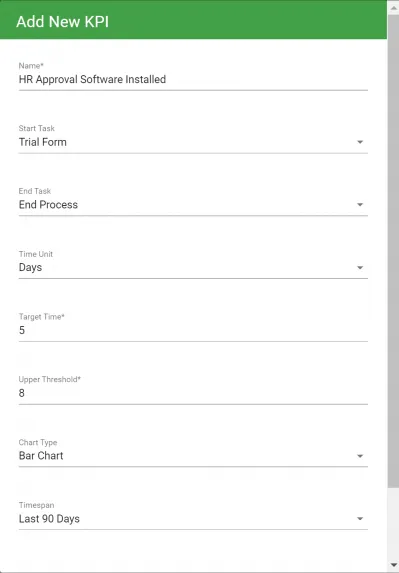
Once selected, you can one or many KPIs for the process. Select Add New KPI:
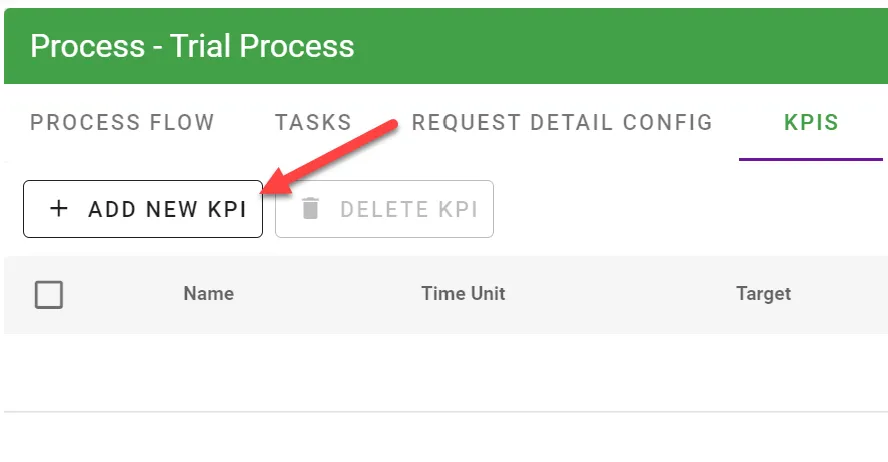
KPIs tab with an empty KPI list and a red arrow pointing to the Add New KPI button

Add New KPI form with name, start and end task, time unit, target time, upper threshold, chart type and timespan filled in

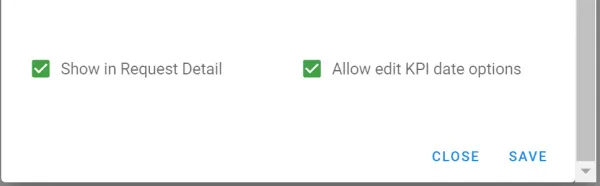
Bottom of the Add New KPI form with Show in Request Detail and Allow edit KPI date options checked, plus Close and Save buttons

Make sure at the bottom you select if you would like the KPI to Show in the Request Detail and if you would like to Allow edit KPI date options. Then click save.

Once you have added KPIs, this is what it would look like in the request detail
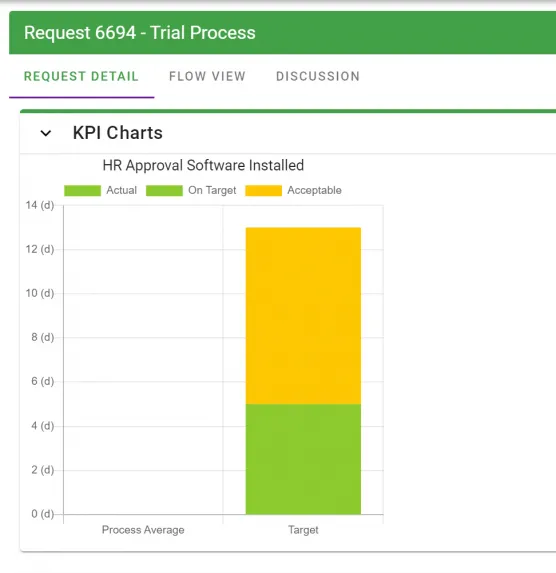
Request Detail tab with a KPI Charts section showing a stacked bar chart for the HR Approval Software Installed KPI

You can also insert them into any Dashboard that you have created.