Manage notifications with the Notification Center
The Notification Center stores your notifications from Nutrient Workflow Automation, including task assignments, reminders, discussion comments, and system notices. You also receive most notifications by email. Scheduled reports go only by email to the addresses on the report’s schedule.
Every user has a Notification Center. The messages you see depend on the notification type and your permissions.
Open the Notification Center
Select the bell icon in the top-right menu to open the Notification Center and view your messages. The number on the icon shows your unread message count, and counts above 999 show as 999+. The counts next to folders and labels work the same way.
The Notification Center works like an email client. It has a folder and label list on the left, a message list, and a details pane that shows the message you select.
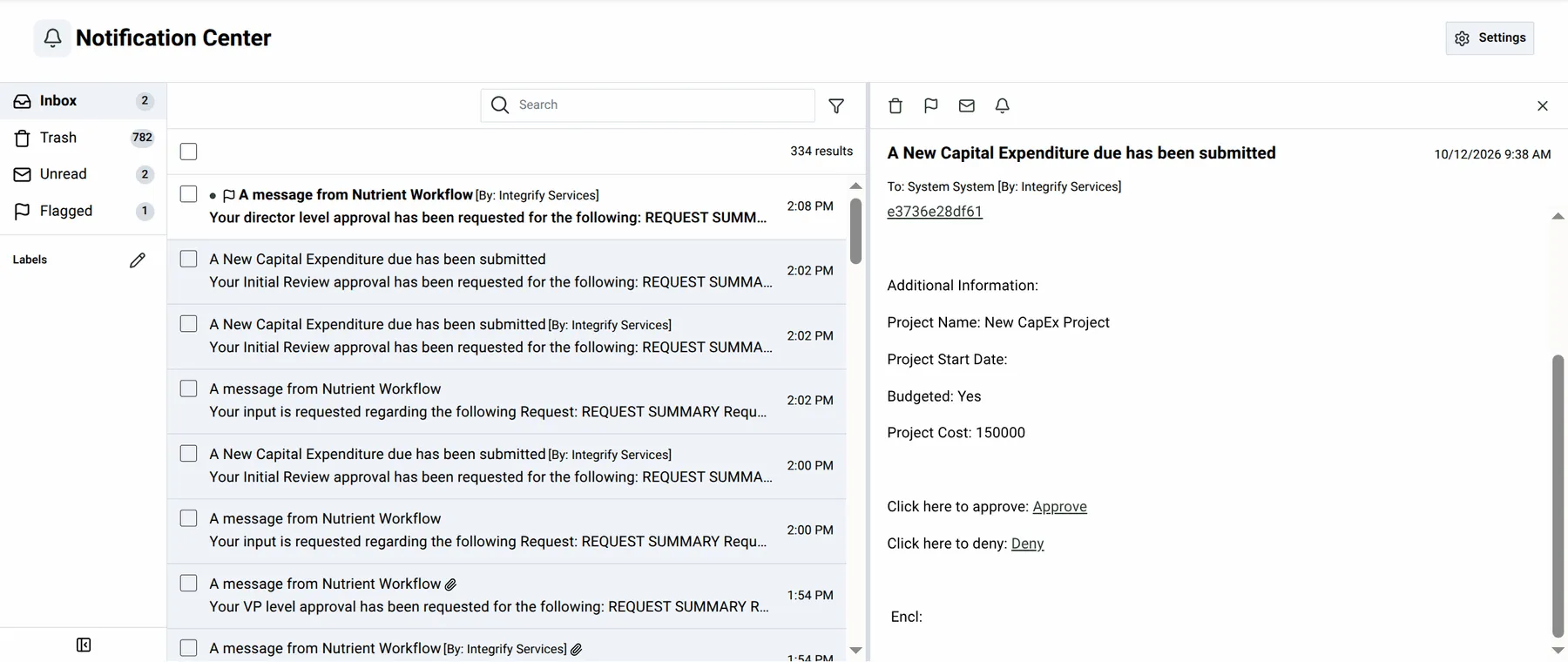
What arrives in the Notification Center
Your Notification Center includes task notifications, discussion comments, user sync summaries, and system notices.
Task notifications
Workflow tasks send notifications — including task assignments, reminders, and reassignments — to your Notification Center and by email. The email content, sender, and links remain unchanged.
Task notifications carry extra details:
- Reminders with Remind Manager on — The manager receives a copy in their Notification Center and by email. The manager’s copy identifies the task’s recipient. Your copy lists the manager on a Cc line.
- Reassigned or delegated tasks — The By line identifies the original task recipient.
- Attachments — A paperclip in the message list identifies notifications with attachments. Open the message to download the files. Only notification recipients can open the attachments.
- Approve and Deny links — Select Approve or Deny to open the approval view in the portal. These links use your signed-in session and work like the email links.
Discussion comments
When posting a comment in a request’s discussion, the author selects recipients under Notify these users. Those recipients receive the comment in their Notification Center and by email.
User sync summaries
When notifications are on for a user sync schedule, selected recipients receive its summary in their Notification Center and by email. The summary uses the Scheduled Events type. User sync schedules always email these summaries, regardless of the Scheduled Events email switch on the System tab.
Notification types
Every message has a notification type that you can use to filter messages and create labels.
System notices, such as license and maintenance script notices, reach the people responsible for them. By default, these notices appear only in the Notification Center. To enable email for a category, refer to notification settings.
| Type | What it covers | Who receives it |
|---|---|---|
| License | License status, overages, and other license updates. | Administrator group |
| Tasks | Workflow task notifications, and task failures. | Task recipients, or the administrator group for failures |
| Scheduled Events | Scheduled jobs that fail, including scheduled reports, email monitors turned off after repeated failures, and user sync summaries. | Administrator group, or the people chosen on a user sync |
| Maintenance Scripts | Maintenance script activity and failures. | Administrator group |
| Data Retention and Cleanup | Data retention and cleanup activity. | Administrator group |
| Reports | Report activity, including attachment exports. An export message carries a download link for each ZIP archive, a link to the report file, and the date the links expire. For more information, refer to the exporting report data guide. | The person who started the export |
| Delivery Failures | Notifications the system couldn’t deliver after repeated attempts. | Administrator group |
| Discussion Posts | Comments posted on a request’s discussion. | The people the poster selected |
Messages keep their email formatting, but the Notification Center removes unsafe content, such as scripts and external style links.
Read and organize notifications
Use filters, folders, and labels to find and organize messages.
Filter and search
Filters narrow the message list by source, type, status, or date. Select the Filters icon next to Search to display the filter row.
Use these filters to find notifications:
- Source — System or Workflow.
- Type — One or more notification types. The list shows only the types that match the sources you selected.
- Status — Unread or Read.
- Date — Any time, Last 7 days, Last 30 days, or Last 90 days.
Select Clear filters to reset them. Use Search to find messages by words in their subject or message text. The message list loads more messages as you scroll.
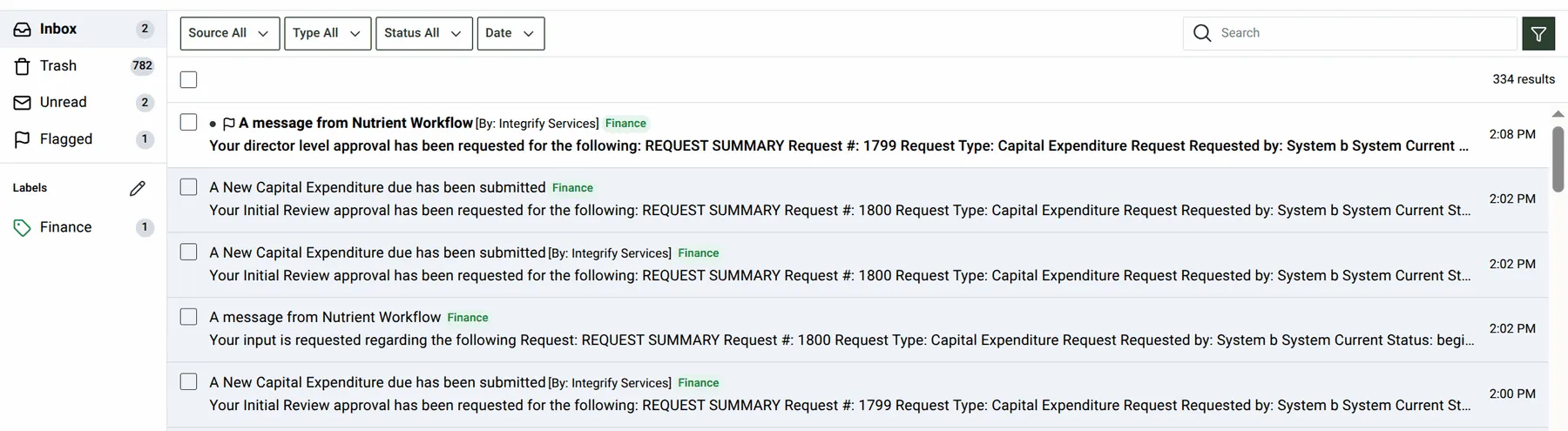
Folders
Folders organize messages by location and status.
| Folder | What it shows |
|---|---|
| Inbox | Every message you haven’t moved to Trash. |
| Trash | Messages you moved to Trash. Select Remove to delete them permanently, or Recover to restore them to the Inbox. |
| Unread | Your unread messages. |
| Flagged | Your flagged messages. Flagged messages also stay in the Inbox. |
Select one or more messages to manage them. Available actions include moving messages to Trash, flagging or unflagging them, and marking them as read or unread. The same actions appear above an open message.
Labels
Labels group notification types under a name and color you choose. Each label appears under Labels in the left list, with a badge showing its unread message count. Your account stores your labels so you can use them on any device.
To create a label, complete these steps:
- Select Manage labels.
- Select New label.
- Enter a Label name.
- Select a Color.
- Under Tag these notification types, select the notification types to group.
- Select Save label.
To change or delete a label, open Manage labels again.
Notification settings
The Notification Settings page controls email delivery. Select Settings in the Notification Center page header to open it, and select the back arrow next to the page title to return.
Notification Settings has two tabs: System and Task and approval notifications.
In-app delivery is always on, so you can’t turn off the Notification Center copy of any notification. The settings below only control email.
System tab
The System tab lists system notice categories with In-app, Email, and Chat columns. Turn on Email for a category to receive its notices by email. The page saves each change immediately.
License, Task Failures, Scheduled Events, and Maintenance Scripts appear only for administrators, so other users see fewer categories.
Email is off for these categories until you turn it on. The Tasks type appears as Task Failures because this switch controls only task failure notices. The system never emails Delivery Failures notices, so this category shows Not available. In-app is always on, but chat delivery isn’t available yet.
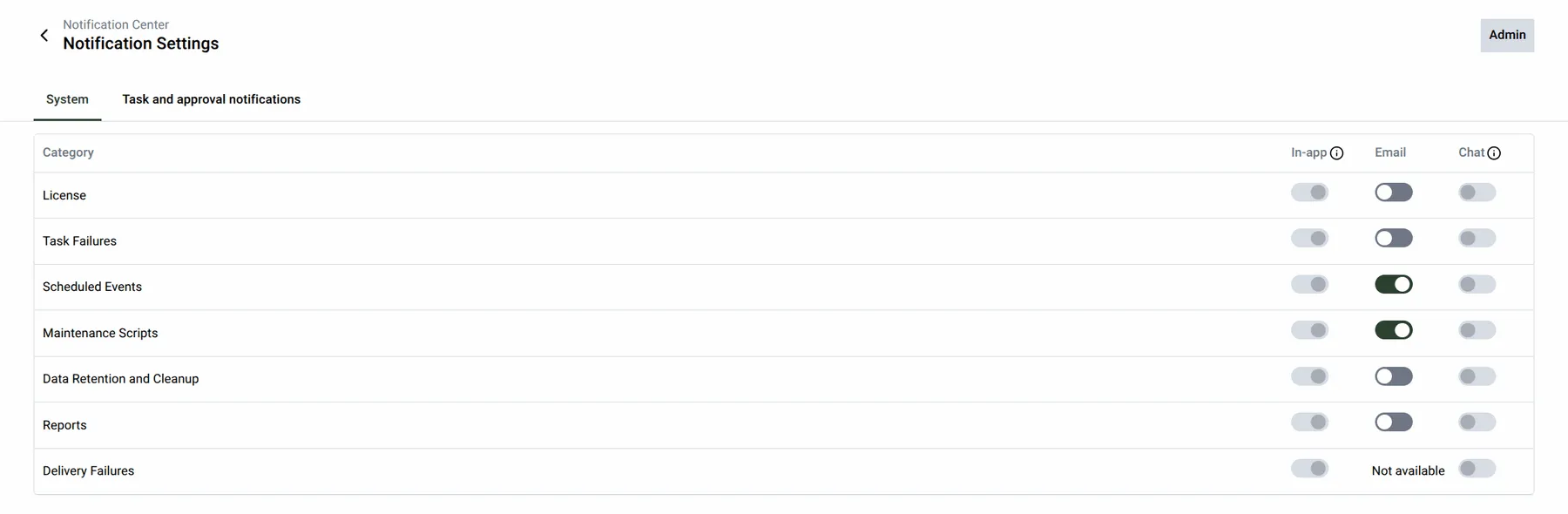
Task and approval notifications tab
Tasks send email notifications by default, and a rule enables you to control email delivery for one task in one process. The rule covers all notifications that task sends you, including assignments, reminders, and reassignments. Rules apply only to notifications the task sends after you save the rule.
You can create a rule from a notification or from Notification Settings.
Create a rule from a notification
Use a task notification to change email delivery for that task.
- Hover over a task notification in the message list.
- Select the bell icon (Send to email/chat).
- In Send this task’s notifications to, turn Email on or off.
You can also right-click a notification to open these options. For an open task notification, select the bell icon above the message. In-app is always on, but Chat isn’t available yet.
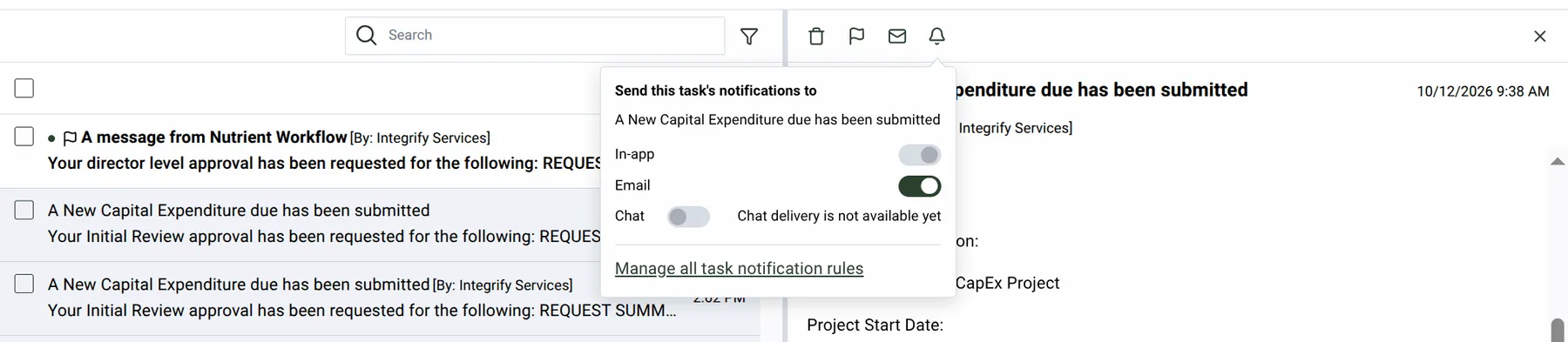
Select Manage all task notification rules to open the rules tab.
Create a rule from notification settings
The Task and approval notifications tab provides controls for adding rules.
- Open Notification Settings.
- Select Task and approval notifications.
- Select Add Rule.
- Under Process, select the process.
- Under Task, select a task in that process.
- Under Send to, turn Email on or off.
- Select Add Rule.
The process selector offers two views:
- Folders — Shows processes in their category tree.
- List — Shows every process in one list, with its category next to the name.
Type in Filter processes to narrow either view, or search the task list. Each task shows its task ID under its name.
Email is on for new rules. Selecting a task marked Rule exists loads its existing Email setting, which may be off, and saving updates that rule. Chat appears in the dialog but isn’t available yet.
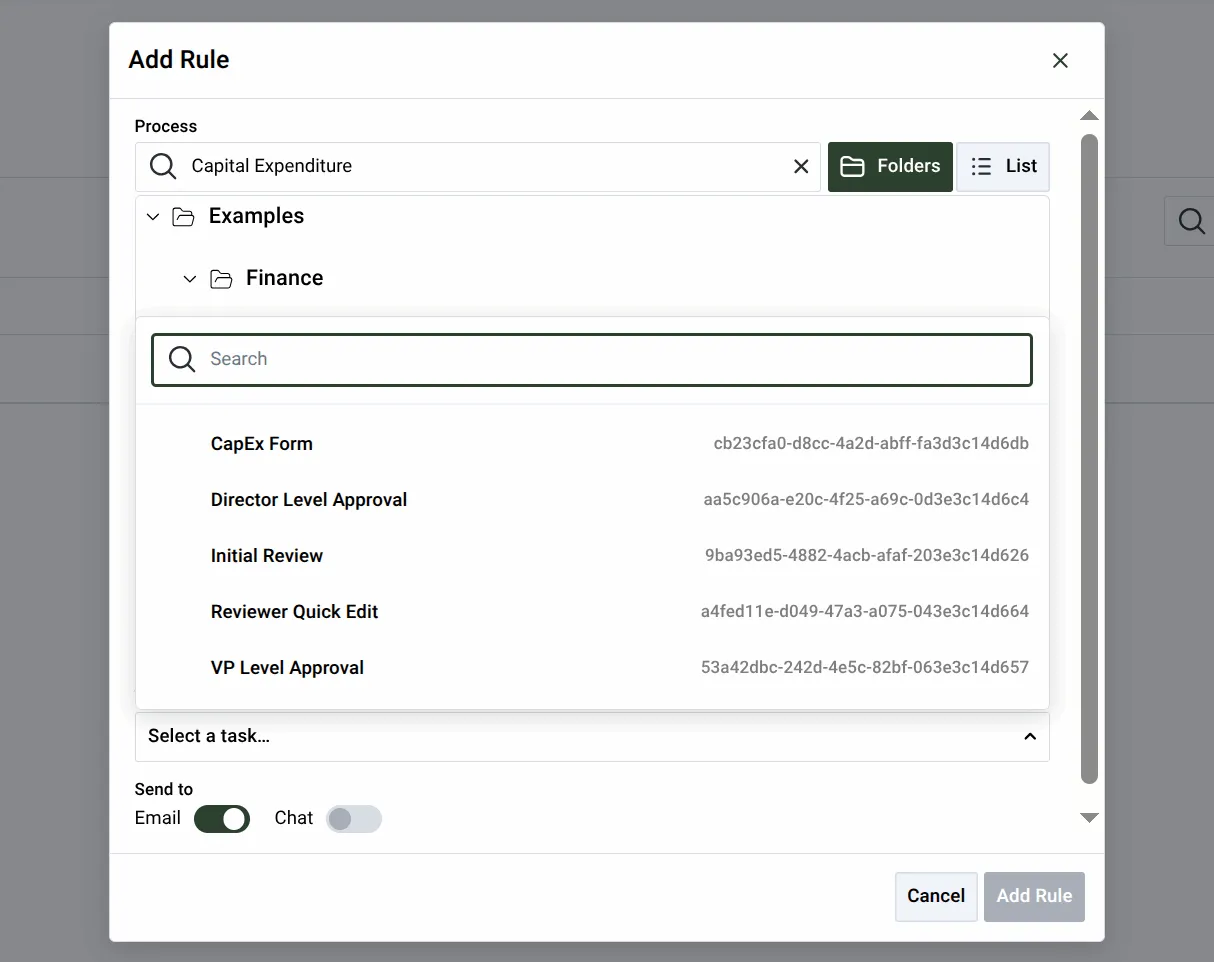
The lists offer only processes and tasks that have already sent you a notification. If no task has notified you yet, you can’t add a rule.
Manage task notification rules
The tab lists your rules in a table with Process, Task, Email, and Chat columns. The category path appears under each process name.
Use these controls to manage rules:
- Search — Use the search box to find rules by task, process, or task ID.
- Email — Turn Email on or off for a rule in the table.
- Remove one rule — Select the remove icon on its row.
- Remove multiple rules — Select the rules, and select Delete Rule.
If someone deletes a task, its rule remains in the list as Deleted task, and you can still remove the rule.
Deleting a rule restores the task’s default email delivery. To stop email for a task, retain its rule with Email off.

Rules apply only to you, and delegates follow their own rules. A rule can’t turn on email for a task that doesn’t send email notifications.
Administration
System administrators manage email servers through the Admin Settings dialog. Select Admin in the Notification Settings page header to open the dialog. Use Email delivery to manage servers that send notification email.
Nutrient Workflow Automation sends notification email through the default email server. During an upgrade, it uses your existing email settings to configure the default server. It also stores the simple mail transfer protocol (SMTP) login as a Username/Password credential in the Credential Center. Email continues working without additional setup. For details about credentials, refer to the credential center guide.
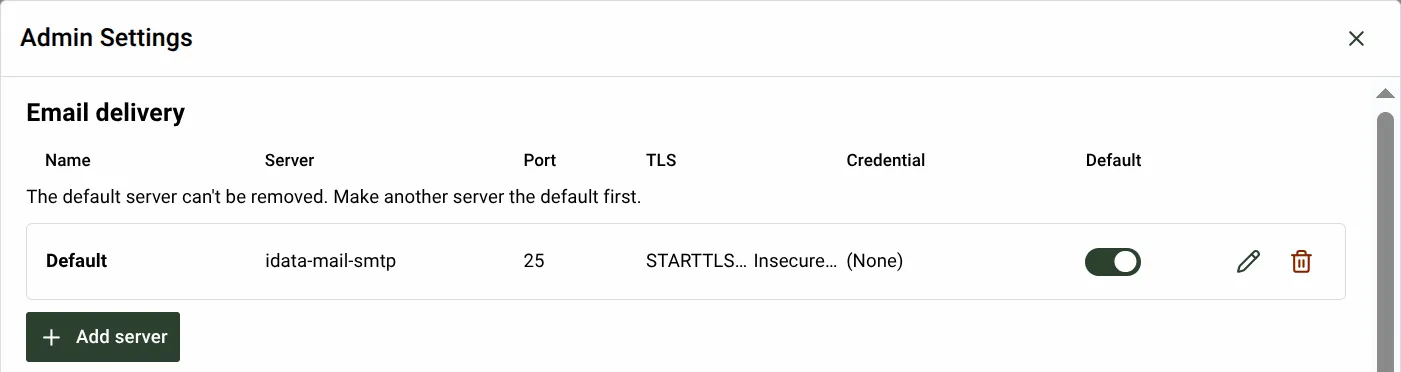
Add an email server
To add an email server, complete these steps:
- Select Add server.
- Enter a Name.
- Enter the host name in Server.
- Enter a Port, if needed.
- Select a Credential if the server requires authentication.
- Select Require STARTTLS to require an encrypted connection.
- Select Allow insecure certificates only if you can’t verify the server’s certificate.
- Select Make this the default server to send notification email through this server.
- Select Save server.
The server uses port 25 if you leave Port blank. The Credential list shows Username/Password credentials from the Credential Center. Select (None) to send email without authentication.
The first server you add becomes the default.
Manage email servers
Use the server controls to edit settings, change the default server, or remove a server:
- Edit — Select the server’s edit icon, change its settings, and select Save.
- Make default — Turn on another server’s Default switch. Only one server can be the default.
- Remove — Select the server’s remove icon, and select Remove to confirm.
You can’t remove the default server, so make another server the default before removing it.
Use the Workflow Assistant for your settings
The Workflow Assistant enables you to read or change your notification settings using plain language. For details, refer to the workflow assistant guide.
You can ask the Workflow Assistant to perform these actions:
- Show your current notification settings.
- Change task notification rules, such as turning off email for a task.
- Change System tab settings, such as turning on email for license notices.
- Restore a task’s default email delivery.
The Workflow Assistant works only with tasks that have already sent you a notification, and it changes settings only for the signed-in user.
If this guide doesn’t cover the issue, contact your Customer Success team.