Every data table includes a built-in changelog that records modifications. It provides an audit trail that shows who made each change, when the change occurred, and what it affected.
Opening the changelog
You can open the changelog in two ways:
- Go to Settings > Data Tables, and then click the History icon next to a table.
- Open a table’s details page, and then click History in the upper-right corner.
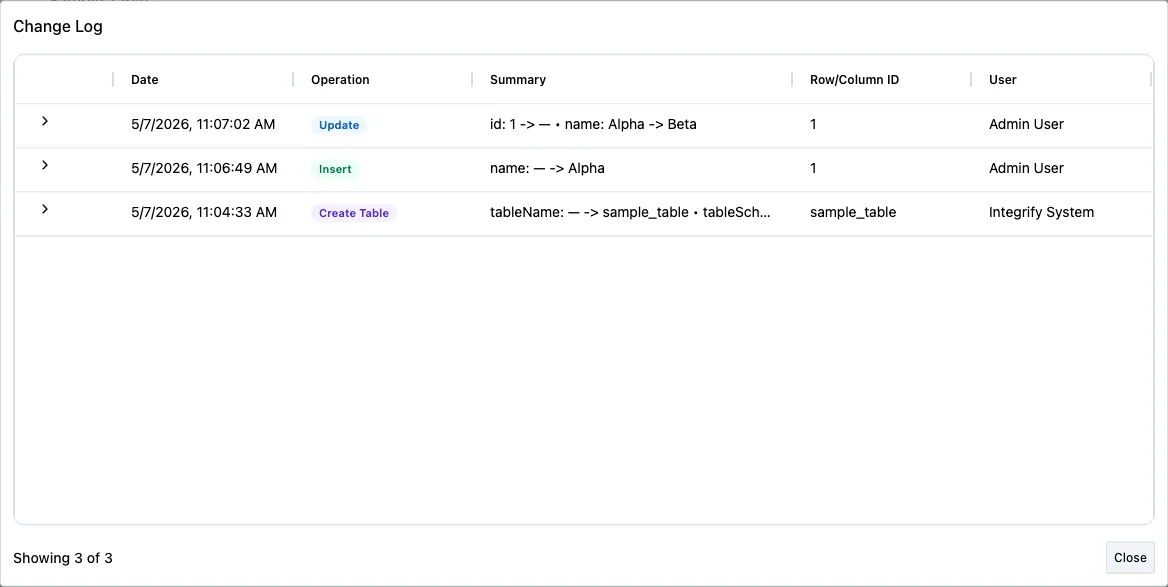
The Change Log dialog lists entries in pages. The most recent changes appear first.
What the changelog tracks
The changelog records the following information for each entry:
| Field | Description |
|---|---|
| Date | When the change occurred |
| Operation | The type of change (refer to the operation types) section below |
| Summary | A one-line description of the change (diff for updates, row count for imports) |
| Row/Column ID | The primary key value of the affected row, or the column name for schema changes |
| User | Who made the change |
Operation types
| Operation | Description |
|---|---|
| Insert | A single row was added |
| Update | A row was modified |
| Delete | A row was removed |
| Import | Rows were added via CSV import |
| Add Column | A column was added to the table schema |
| Drop Column | A column was removed from the table schema |
| Rename Column | A column was renamed |
| Alter Column | A column’s data type or properties were changed |
| Create Table | The table was created through the create table wizard |
| Rename Table | The underlying table was renamed |
| Drop Table | The underlying table was dropped |
| Register Table | A table registration was created |
| Update Registration | The registration’s display name, description, etc. was updated |
| Unregister Table | A table registration was removed |
The UI color-codes operation types:
- Green — Insert operations and Register Table
- Blue — Update operations
- Red — Delete operations and Unregister Table
- Teal — Import operations
- Purple — Schema operations (add/drop/rename/alter columns, create/drop/rename table)
- Orange — Update Registration (display name, description, or repointing to a different connection/table)
Viewing change details
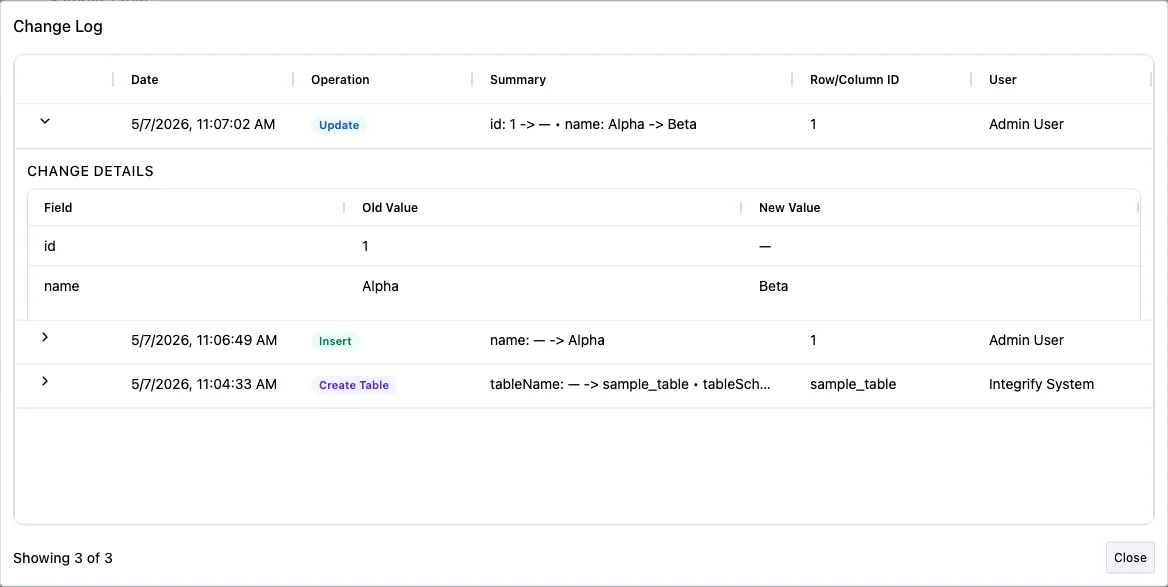
To view the full details of a change, click the arrow at the start of a changelog entry. The entry expands inline and shows old and new values in a Field, Old Value, and New Value table.
- For insert operations, old values are empty and new values show the inserted data.
- For update operations, both old and new values are displayed so you can view exactly what changed.
- For delete operations, old values show the data that was removed, and new values are empty.
- For import operations, a single changelog entry summarizes the entire import. Expanding the entry shows the imported rows in a subgrid.
Bulk import logging
Each CSV import creates one Import entry in the changelog. The summary shows the total number of inserted and failed rows. Expand the entry to review all imported rows.
Permissions
Users need the View (viewconfig) permission on the table to view the changelog. Any user who can view the table data can also view its changelog.
Limitations
- The changelog is append-only. Entries can’t be edited or deleted.
- The platform doesn’t include a built-in rollback function. To undo a change, manually reverse it. For example, reinsert a deleted row or restore an updated value.
- Changelog entries have a configurable retention period. Entries older than the retention period are automatically purged.